Agency Bill overview
Last updated: May 26, 2026
Overview
Agency Bill is a billing process where your agency invoices the client, collects the premium, and remits the carrier's portion to the insurance company. This article explains how to enter the required policy fields, generate billing, and create an invoice for Agency Bill policies.
Enter policy details
Accurate policy information ensures billing generates correctly. Optional fields will still populate into the billing if entered.
Note: Enter all required fields carefully. Incorrect or missing values can cause billing errors.
Navigate to the Details tab on a Policy record.
Ensure the following fields are entered and correct as these fields will map to the Billing:
Policy Number: Enter the exact value provided by the carrier. If using Downloads, this field auto-populates from the Policy Download Detail.
Billing Company: Search and select the Account that will pay the premium.
Billing Type: Select Agency.
Billing Frequency: Select Annual, Installment, or Premium Financed. For more information, see 📄 Understanding Agency Bill frequencies.
Agency: Ensure this matches GL Variable 1 in Accounting Seed.
Branch: Ensure this matches GL Variable 2 in Accounting Seed.
Department: Ensure this matches GL Variable 3 in Accounting Seed.
Primary Producer: Select the primary producer. amplo uses this to determine the correct commission rule.
House: Select this checkbox if there is no primary producer.

Enter commission details
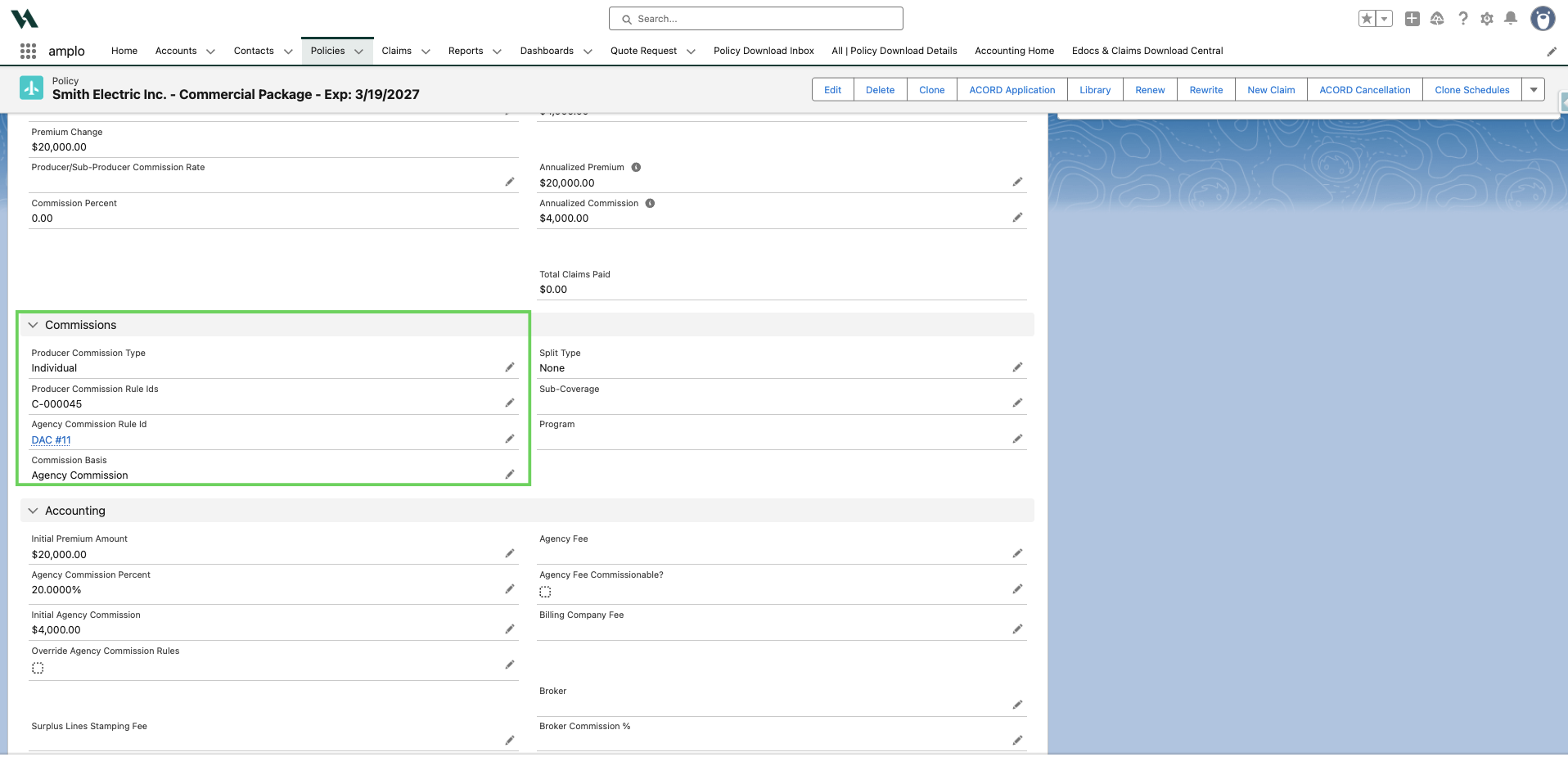
Scroll to the Commission section.
Enter or confirm the following fields:
Producer Commission Type: Auto-populates based on the Producer Commission Id. If left blank, Producer Payables will not generate.
Producer Commission Rule Ids: Auto-populates based on system rules. For more information, see 📄 Configuring Producer commission rules. If blank, Producer Payables will not generate.
Agency Commission Rule Id: Auto-populates based on Billing Company or Issuing Company. amplo may also consider policy coverage, department or agency. If this field is left blank:
Select Override Agency Commission Rules in the Accounting section.
You can insert billing, but updated policy changes may produce an error unless a rule is added or override is enabled.
Commissions Basis: Defaults to Agency Commission. If blank, Producer Payables will not generate.
Enter accounting details
Scroll to the Accounting section.
Enter or confirm the following fields:
Initial Premium Amount: Auto-populates when using Downloads. Otherwise, enter the premium manually.
Agency Commission Percent: Auto-populates from the Agency Commission Rule Id. If no rule is selected:
Enter the percentage manually
Select Override Agency Commission Rules.
Initial Premium Amount: Auto-calculates after you save, based on the Initial Premium Amount and Agency Commission Percent.
Override Agency Commission Rules: Select only if Agency Commission Rule Id is blank.

Generate the billing
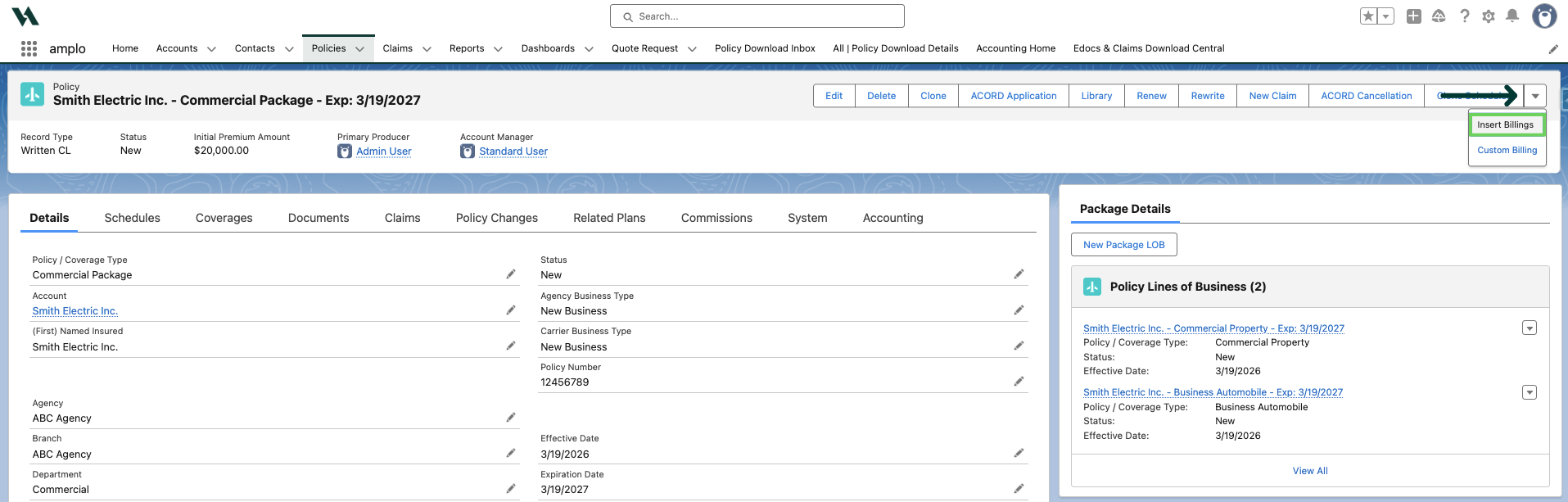
On the Policy record, use the caret to click Insert Billings.
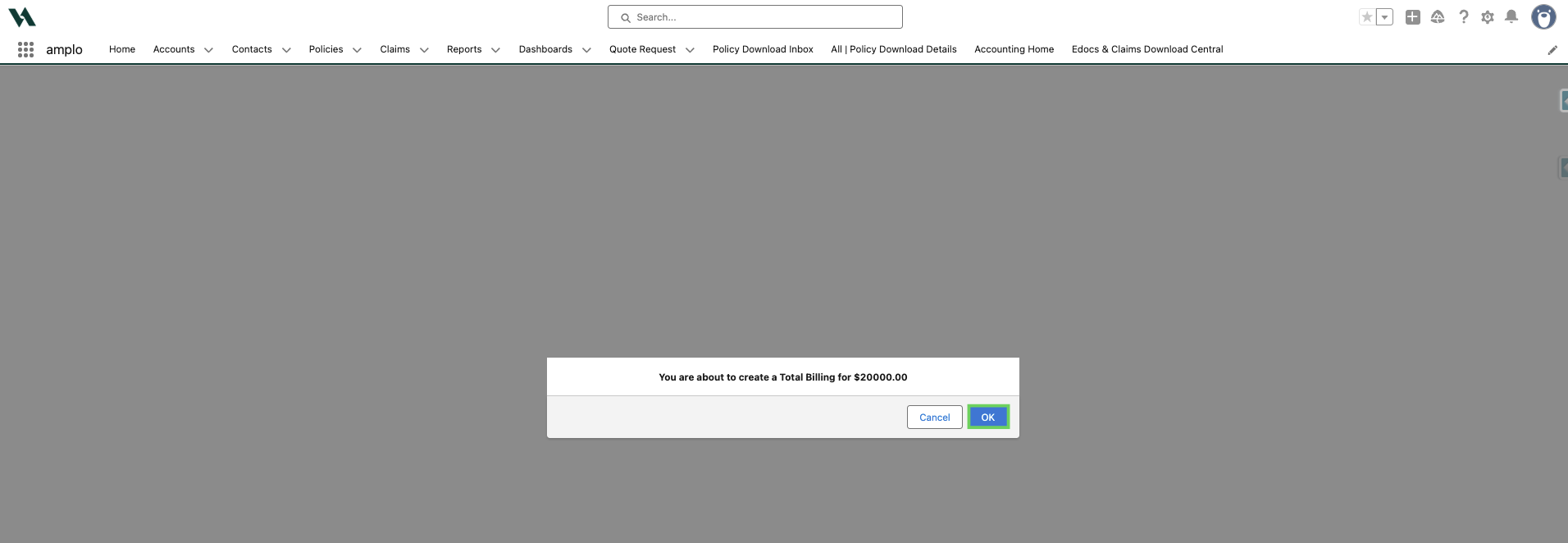
In the confirmation modal, click OK.
Once redirected back to the Policy record, click on the Accounting tab.
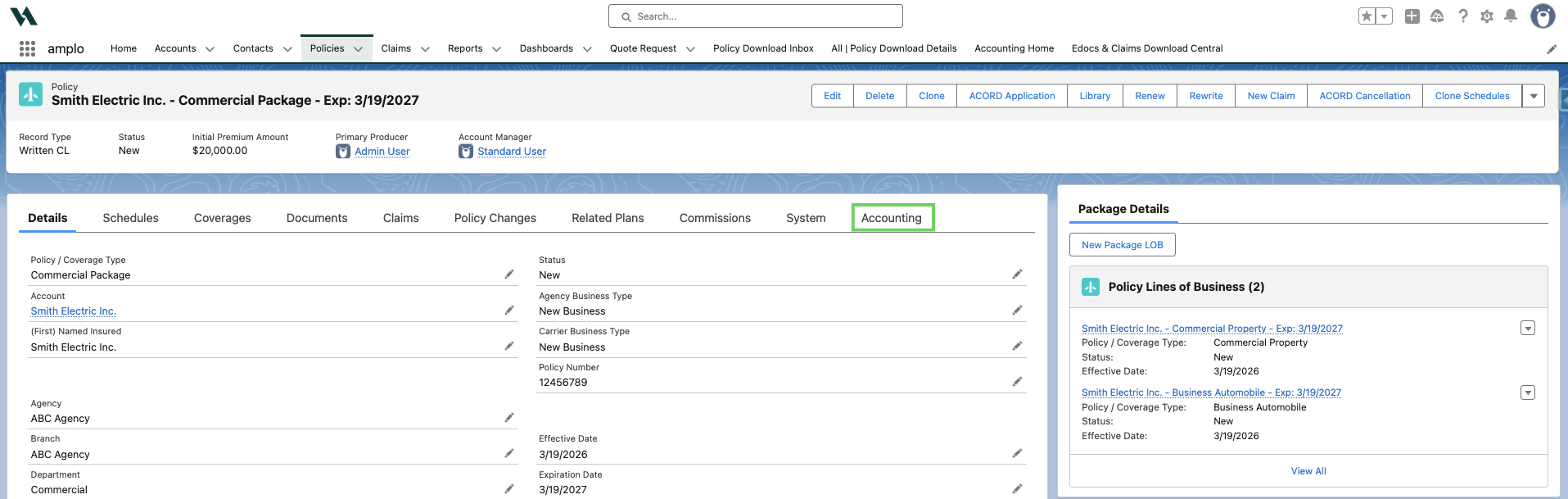
The Billing appears under the Billings section.
Select the Billing Number to open the Billing record.

Note: To learn more about the difference Billing Types and impacts to billings & payables, see 📄 Understanding Agency Bill frequencies.
Confirm all details are accurate and all required fields (Billed to, Posting Status, and Billing Date) are present on the Details tab.
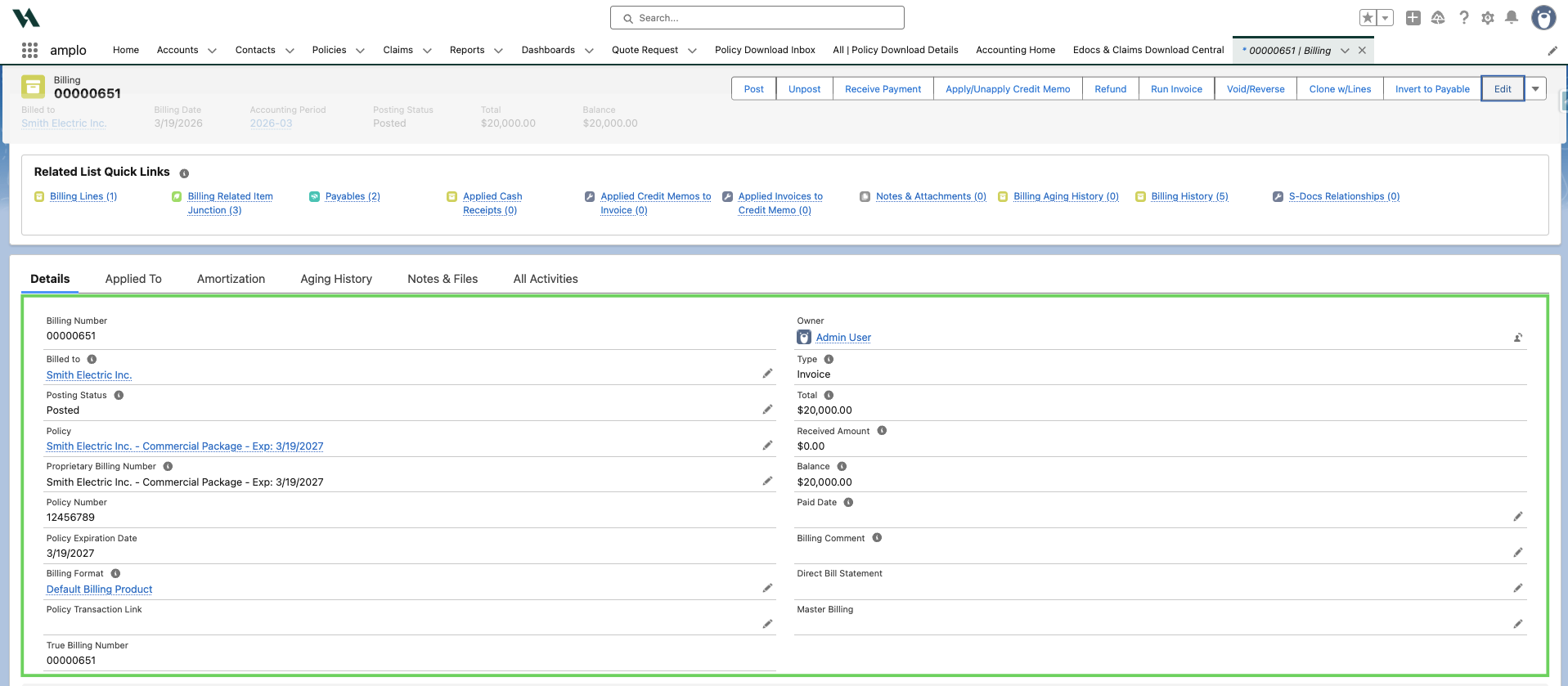
Generate an invoice
On the Policy record, navigate to the Accounting tab.
Select the Billing Number to open the billing record.
Click Run Invoice.
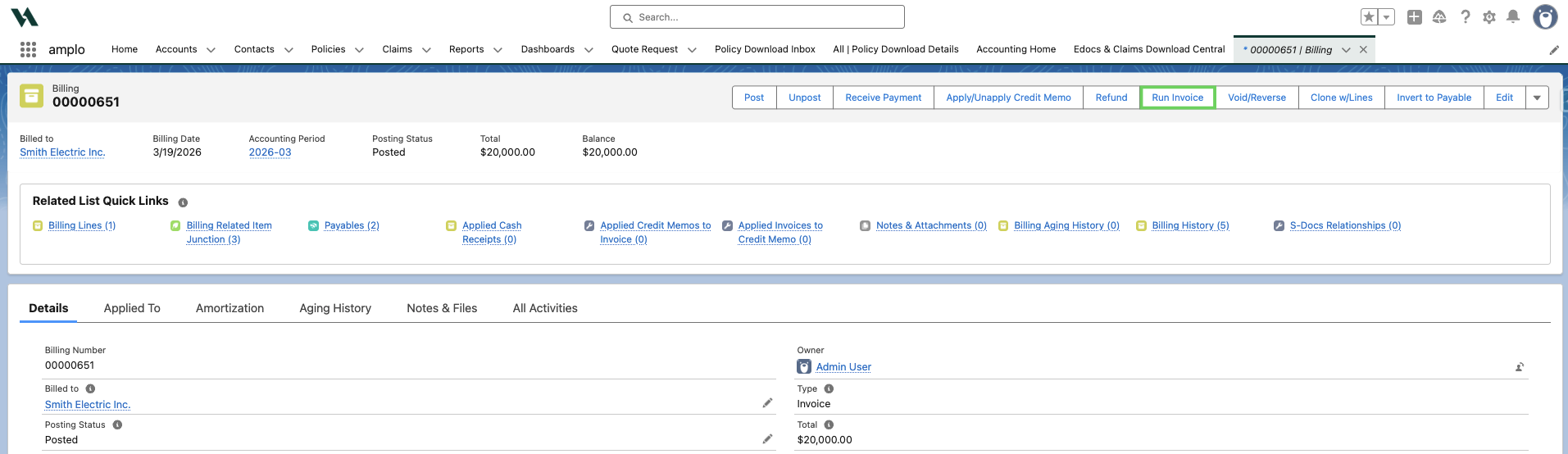
Click the hyperlink S-Doc to review the invoice.
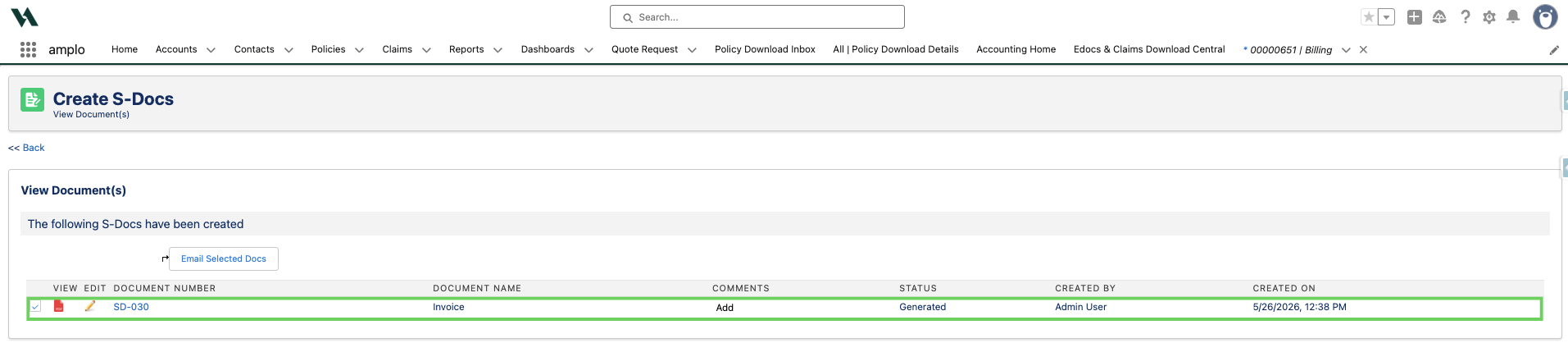
Note: To customize the invoice template, see 📄 Creating invoice templates.
Correcting an Agency Bill
You may need to delete and re-bill when the original billing no longer reflects the correct financial or policy details. Deleting and re-billing ensures:
Financial records remain accurate
Client communication reflects current policy terms
Reporting aligns with your accounting system
For more information on correcting billings, such as reversing or deleting, see 📄 Editing billing records.