Configuring Producer commission rules
Last updated: July 28, 2026
Overview
Commission rules automate how agency commission is allocated to producers, ensuring payables calculate automatically, the correct rule applies based on the policy details, and the compensation stays consistent. Use this article to set up commission rules and manage producer commission splits.
Set Named Producer commission rules
Use Named Producer commission rules when specific producers need unique commission percentages or flat-dollar amounts that differ from standard agency defaults. These rules let agencies tailor compensation for individual producers or producer groups while ensuring commissions calculate automatically when policies are billed.
Add new commission rule
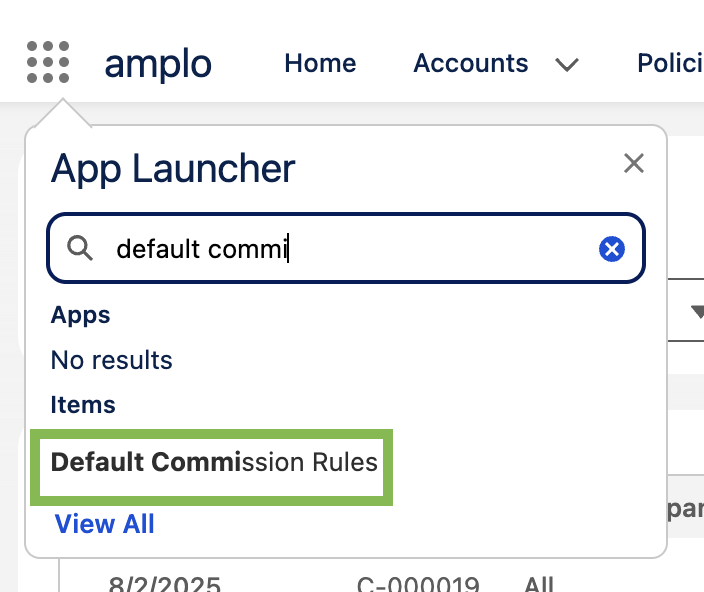
In the App Launcher, search and select Default Commission Rules.
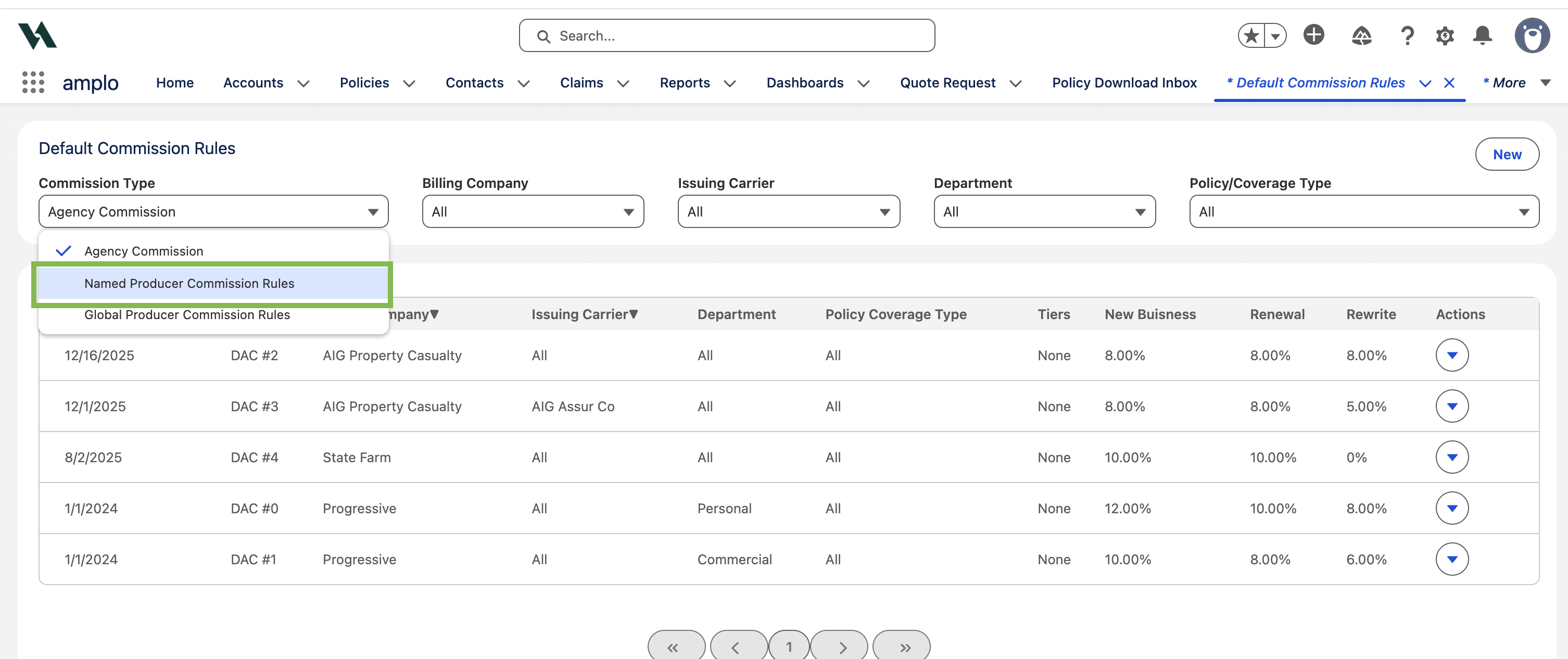
In the Commission Type dropdown, select Named Producer Commission Rules.
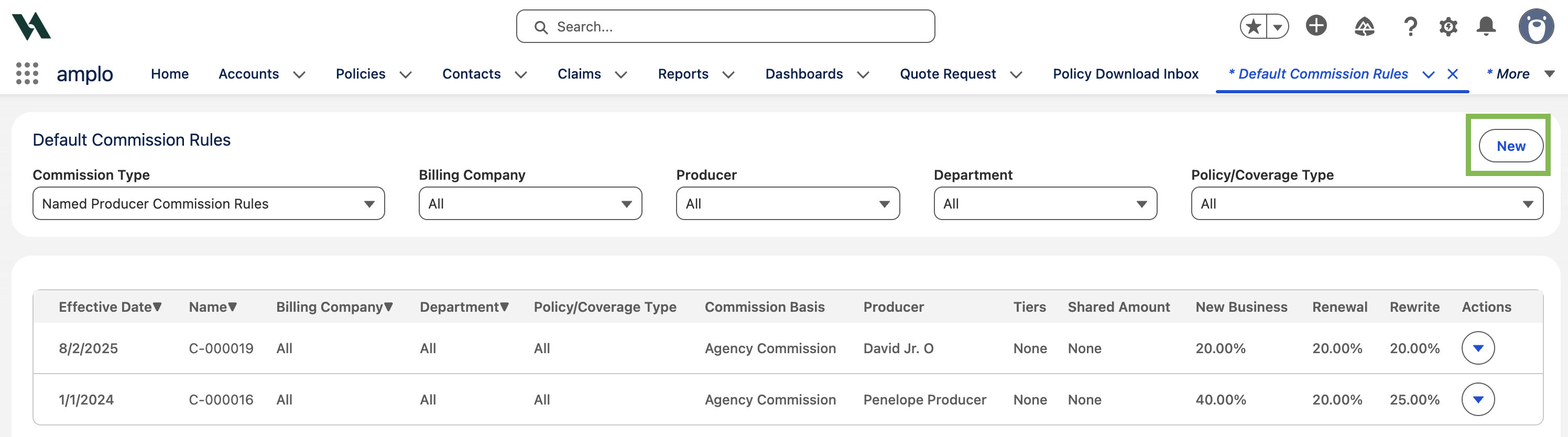
Click New.
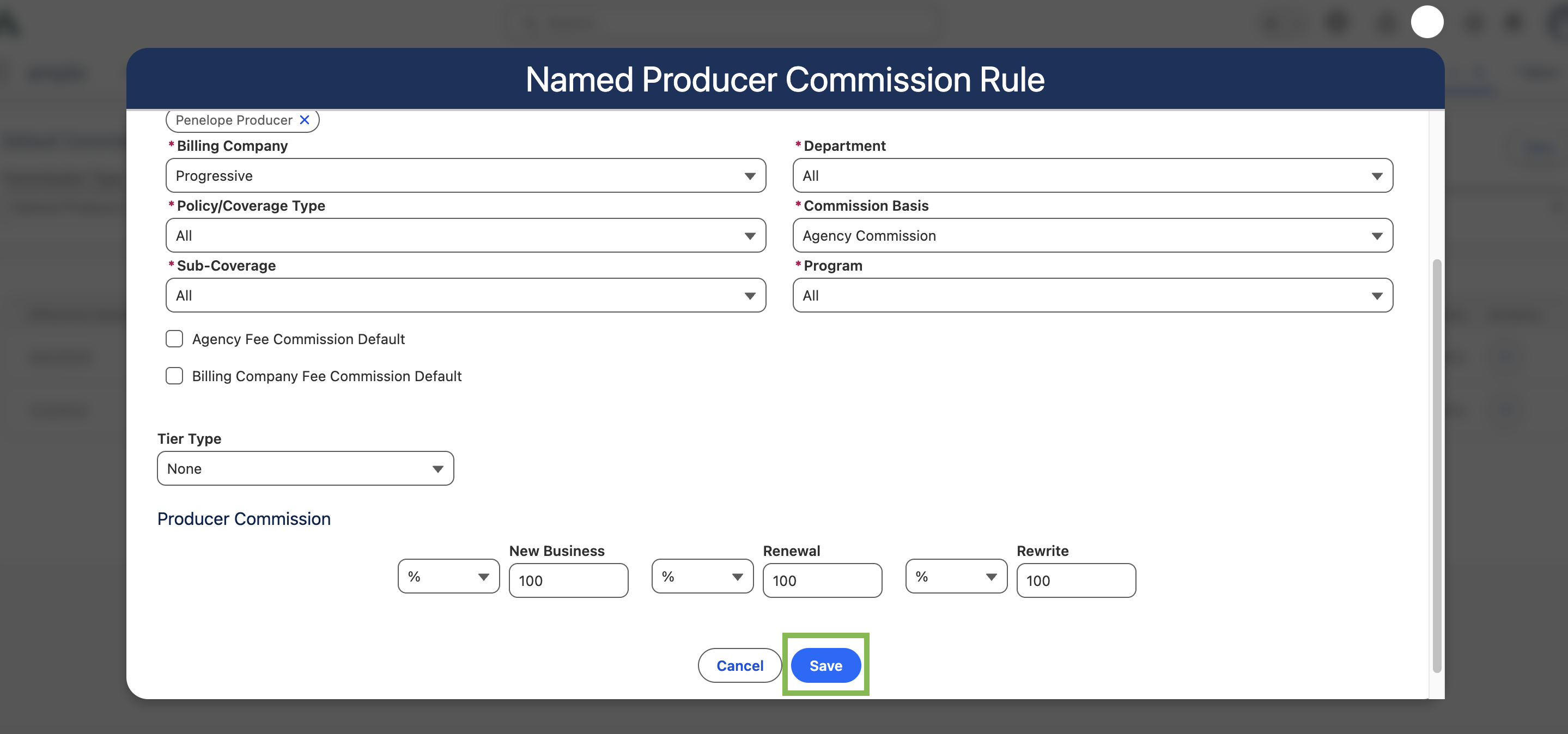
In the Named Producer Commission Defaults modal, enter the following:
Effective Date
Producer(s)
Billing Company
Policy/Coverage Type
Sub-Coverage
Department
Commission Basis
Program
If the commission rule is promotional or has an end date, select the Promotional checkbox and add an Expiration Date.
Click Save.
Multi-producer allocation
When a policy involves multiples producers, the system checks for commission rules that apply to each producer individually. If no shared rule exists, the system applies each producer's individual rule separately, provided each meets the eligibility criteria.
Create Producer commission splits
Split commission rules determine how agency commission is divided among multiple producers. There are two types:
Split-individual
Each producer receives an independent percentage or flat amount of the agency commission. Yp to three producers or sub-producers can be included, and percentages don't need to add up to 100%, allowing for flexible compensation arrangements.
Split-share
A defined proportion of the agency commission is carved out first, then split among producers. Percentages must add up to 100%, and allocations can be percentage-based or flat-dollar.
How rules are applied
Primary rule match: When multiple producers are listed on a policy, the system first looks for a rule that matches that specific producer group, along with other criteria such as effective date, billing company, and commission basis.
Fallback to individual rules: If no group rule exists, each producer’s individual commission rule is applied.
Global defaults: If neither group nor individual rules apply, global defaults (if defined) are used.
To learn more, see 📄 Multi-producer rule matching logic.
In the App Launcher, search and select Default Commission Rules.
On the Commission Type dropdown, select Named Producer Commission Rules.
Click New.
On the Named Producer Commission Defaults modal, fill in all required fields. When multiple producers are selected, the Split Type field appears.
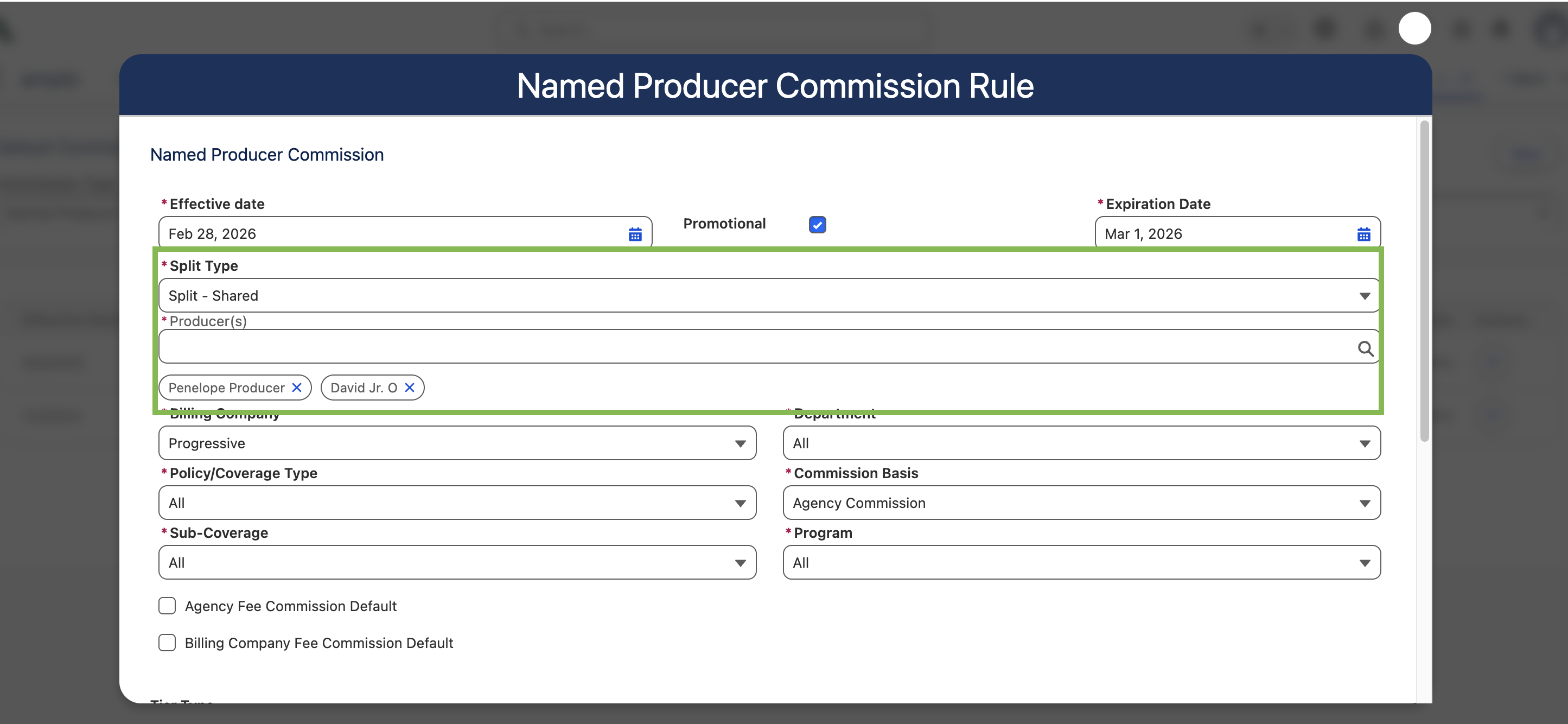
Select the Split Type and enter the commission split for each producer.
Split - Shared: percentages must add up to 100%.
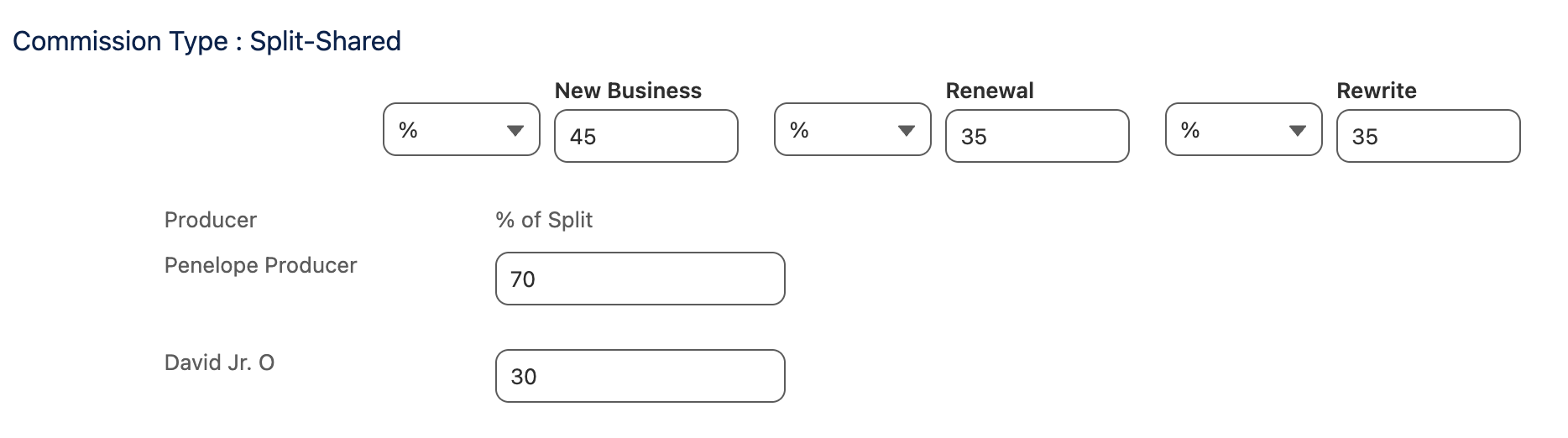
Split - Individual: Percentages may add up to less than or more than 100% for Split-Individual commission type.

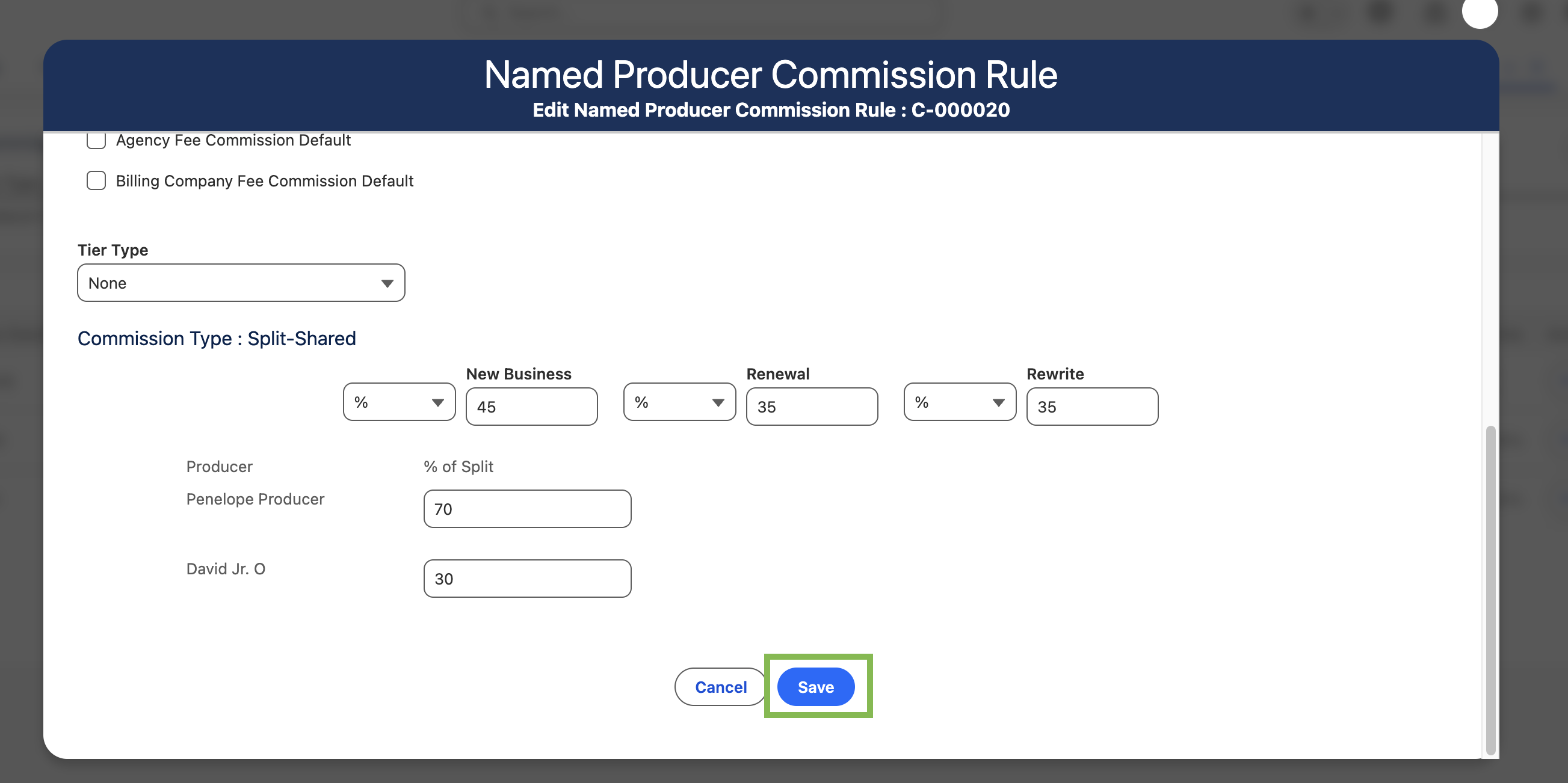
Click Save.
Set Global Producer commission rules
Global Producer commission rules apply based on the producer's role on the policy (e.g. Primary Producer, Sub-Producer or Sub-Producer 2) rather than a specific individual assigned. Use this approach when the commission structures are standardized across the agency, eliminating the need to maintain separate rules for each producer.
In the App Launcher, search and select Default Commission Rules.
On the Commission Type dropdown, select Global Producer Commission Rules.
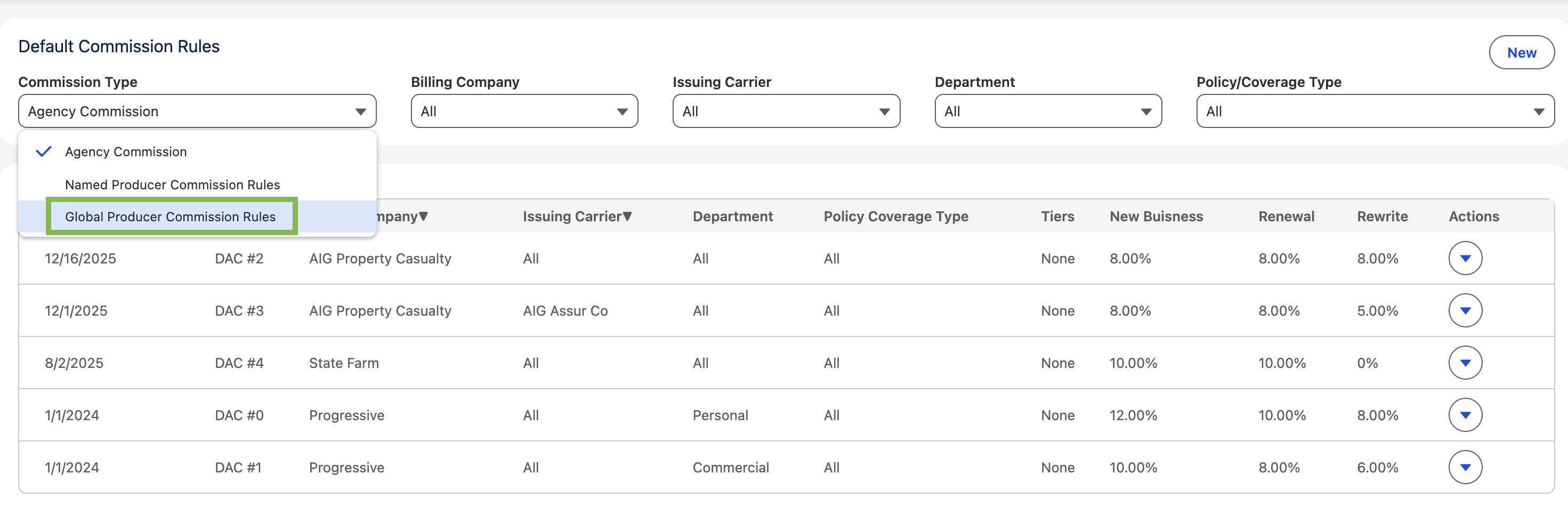
Click New.
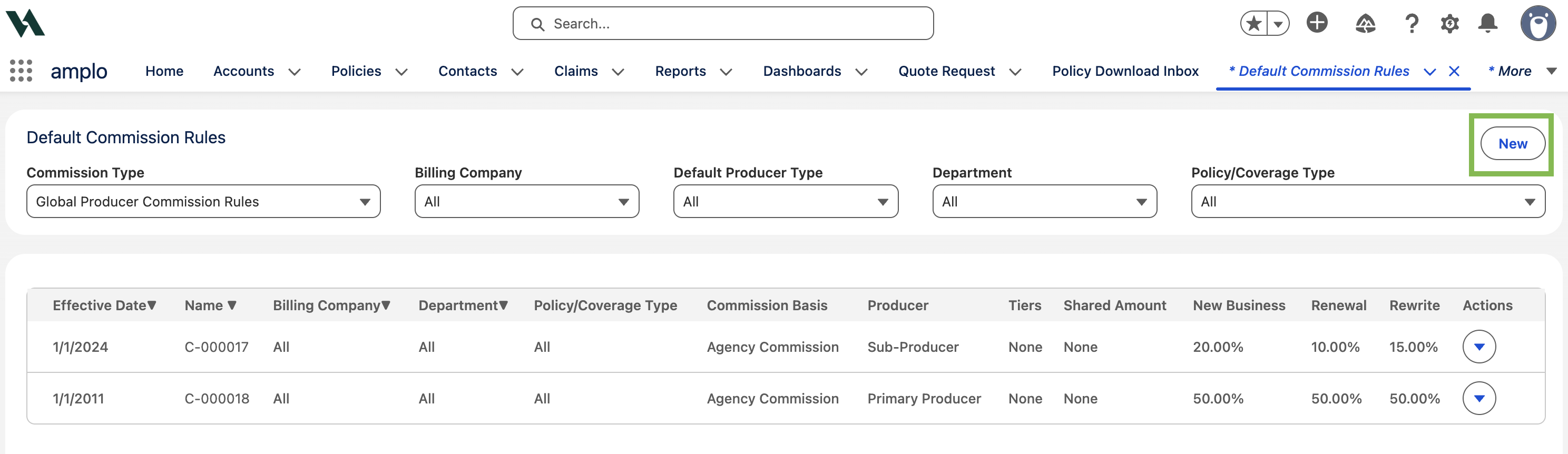
On the Global Producer Commission Defaults modal, enter the following:
Effective Date
Producer Role
primary Producer is selected by default. Select the checkbox(es) next to Sub-Producer or Sub-Producer 2 if needed.
Billing Company
Policy/Coverage Type
Sub-Coverage
Department
Commission Basis
Program
If the commission rule is promotional or has an end date, select the Promotional checkbox and add an Expiration Date.
To add Agency Fee or Billing Company Fee commission defaults, select the applicable checkboxes and enter the rules.
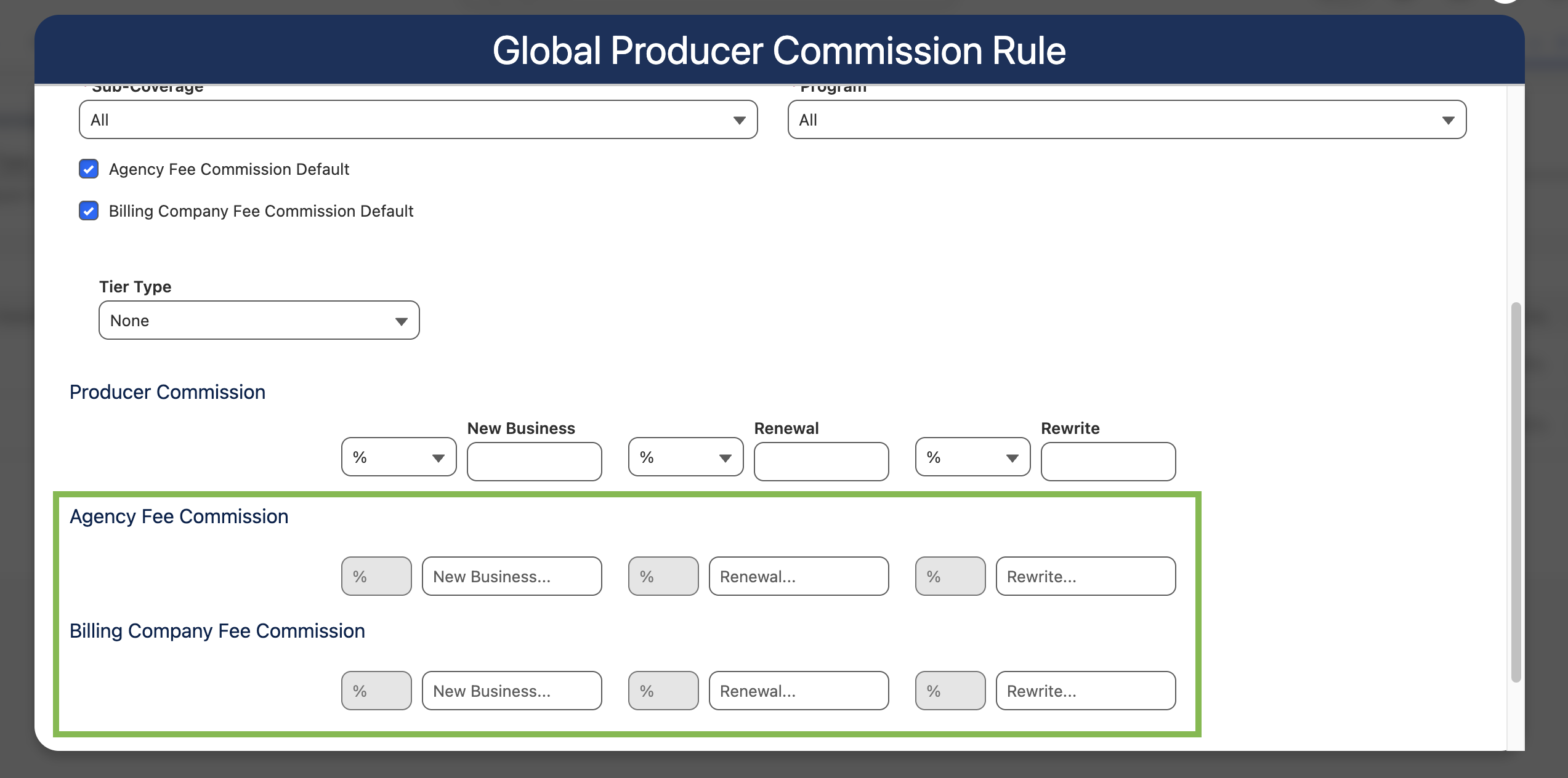
Click Save.
Understanding how commission rules apply on policy renewals
Commission-related fields on a renewed policy appear blank until the policy is written. This is expected and doesn't mean the commission rule is missing or broken. When a policy is written, the system automatically creates a Producer/Sub-Producer Commission Rate record which:
Populates the Commission Rule ID
Populates the Producer Commission Type field
Calculates the commission amounts displayed on the Commissions tab
These values remain blank on a Remarket Policy record until the policy reaches written status. The commission rule is still associated and functioning in the background, as long as the required producer fields have been entered.
Note: Renewal premiums may differ from the expiring policy's premium, so commission calculations may vary between policy terms.
To avoid confusion around commission rules at renewal, consider the following guidance for your team:
Do not check the Override box unless a manual commission adjustment is needed. Checking it unnecessarily prevents default commission rules from applying.
Do not manually add producer commission splits on a renewal if the commission fields appear blank. This is expected until the policy is written.
Review the Default Commission Rules configuration to ensure all relevant producers are included and rules are set up correctly.
Understanding the commission override checkbox
The Override checkbox on the commission section of a policy allows users to manually adjust commission amounts.
Check the Override box before making any manual changes to commission. If you save changes without checking it first, the previous values will be restored. This applies to both agency and producer commission.
If the Override box is checked on a policy term, it carries over to the renewal term, preventing the commission rules from applying automatically on the renewed policy. If you find that commission rules are not automatically applying on renewals, check whether the Override box was checked on the prior policy term.