Configuring Agency commission rules
Last updated: February 28, 2026
Agency commission default rules define how commissions are calculated and applied based on factors such as carrier, policy type, line of business, or producer. Instead of entering commission rates on each policy, the system applies the correct default rule automatically. This saves time and ensures consistent commission processing. This article explains how to:
Create a new default commission rule
Add commission rates
Override a rule when needed
To troubleshoot common Agency commission rule issues, see 📄 Troubleshooting agency commission rules.
Create a new commission rule
For an explanation of all inputs that determine commission rules, see
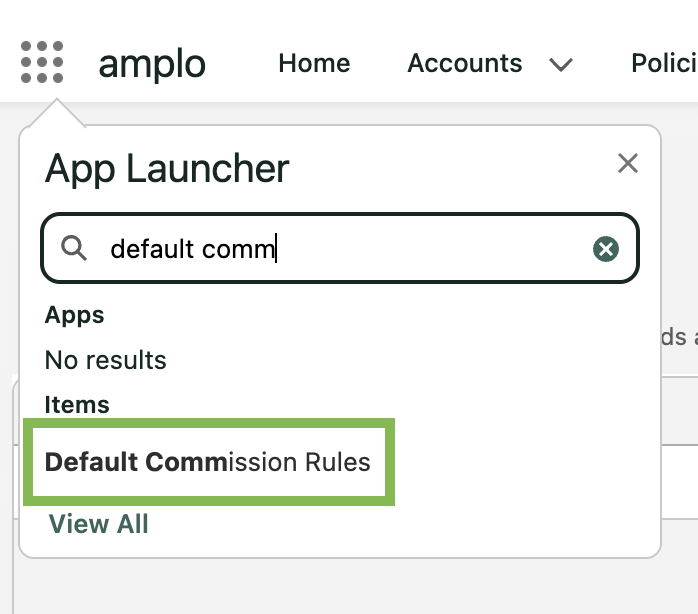
In the App Launcher, search for and select Default Commission Rules.
For Commission Type, select Agency Commission:

Click New.

In the Agency Commission Rule modal, complete the required fields:
Effective date
Agency
Branch
Billing Company
Issuing Carrier
Department
Policy/Coverage Type
Note: Policies with an effective date on or after the rule’s Effective Date will follow the new rule. To apply a rule retroactively, backdate the Effective Date.
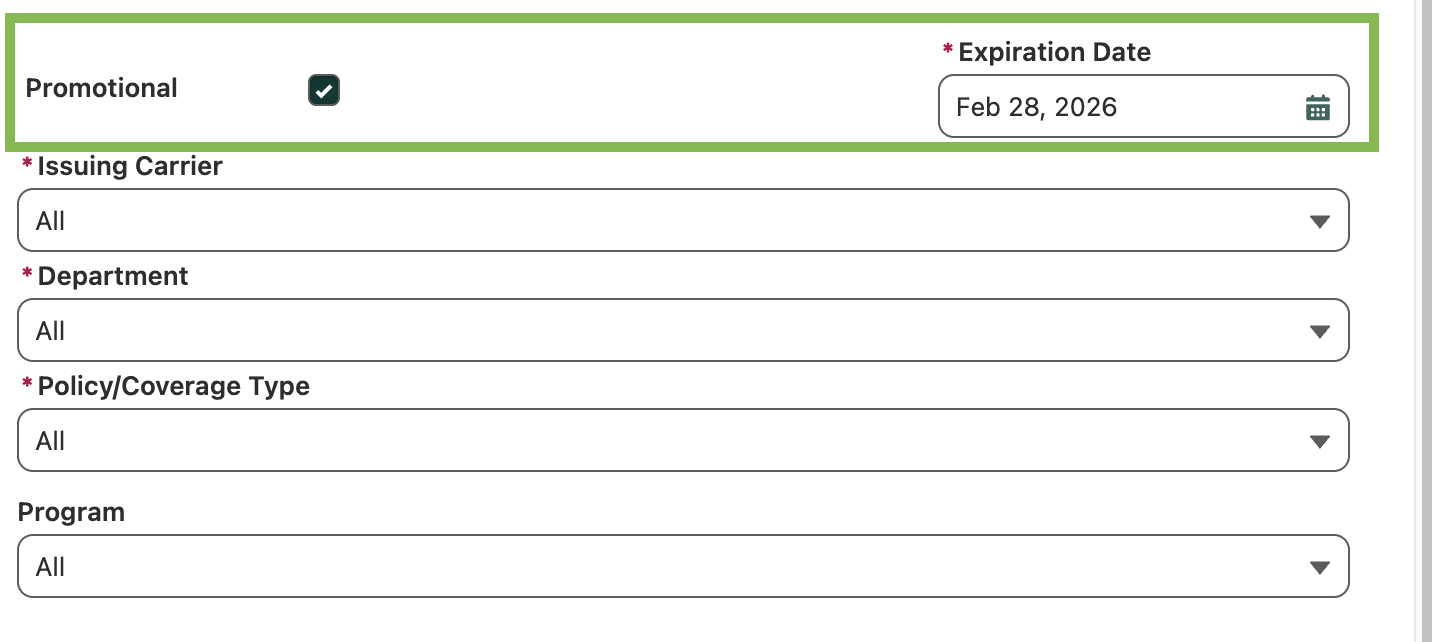
If the rule should apply only for a limited time, select the Promotional checkbox.
Enter a date in the Promotional End Date field.
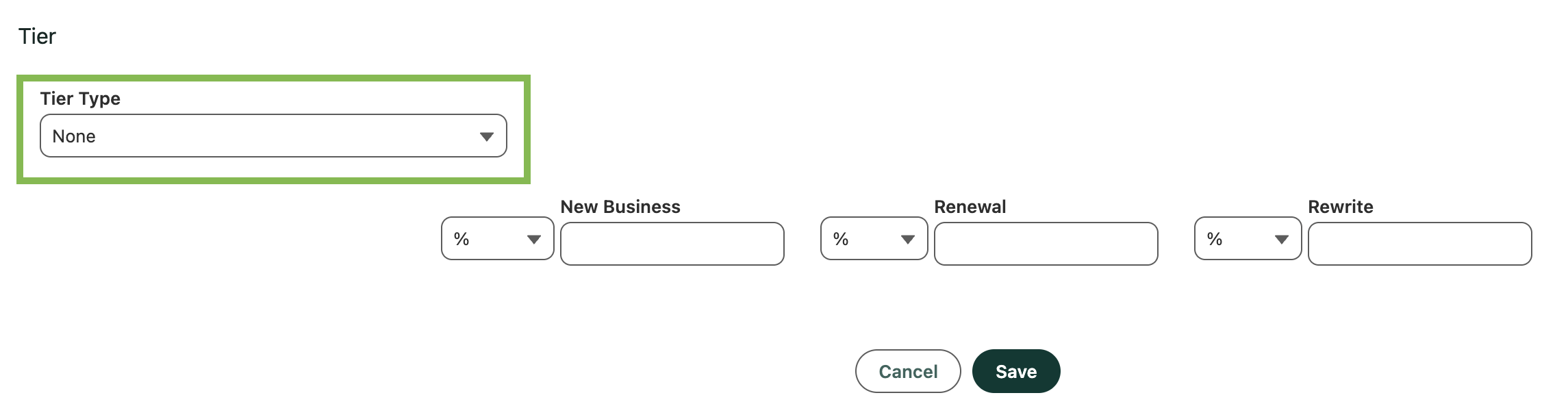
Set the commission tier
In the Tier field, choose how the commission should be calculated:
Premium: based on the premium of the policy
Number of Covered Lives: Actively covered in the policy
Number of Eligible Lives: Covered plus eligible but not actively covered
Number of Total Lines: All lives, regardless of coverage status
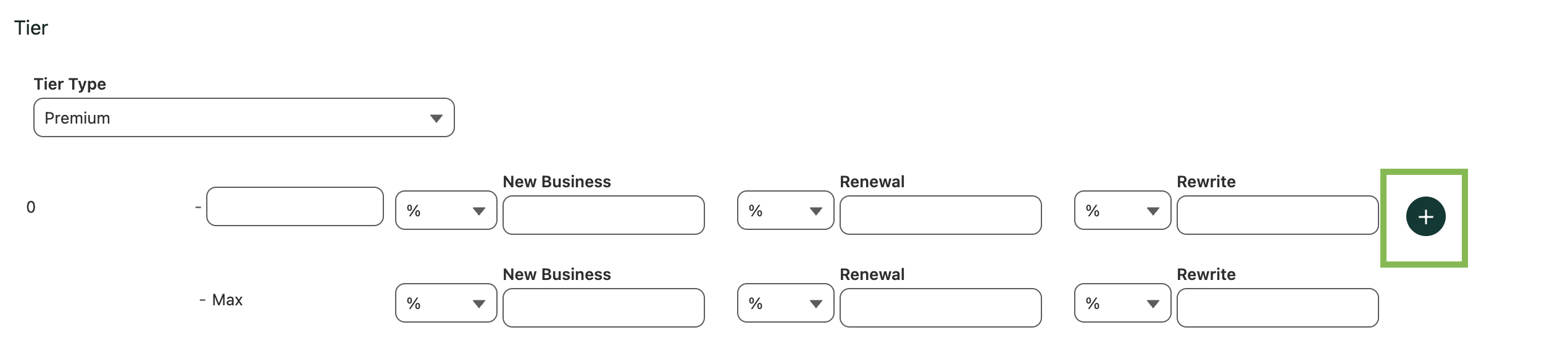
Click the plus button to add additional commission tiers if needed.
Add commission rates
Each commission default can define rates for New Business, Renewals, or Rewrites. You can set rates as:
Percentages (%)
Flat dollar amounts (%)
A combination of both
Use the dropdown to select the calculation method.
Note: Flat dollar commissions must be at least $1.

Enter the appropriate rate values and click Save.

Override an agency commission rule
In some cases, you may need to override a default commission rule. This is common when a policy has unique terms, such as:
A special carrier agreement
A custom program rate
An exception not covered by existing rules
Overriding allows you to adjust commissions without changing system-wide defaults.
Open the Policy record, then navigate to the Commissions tab.
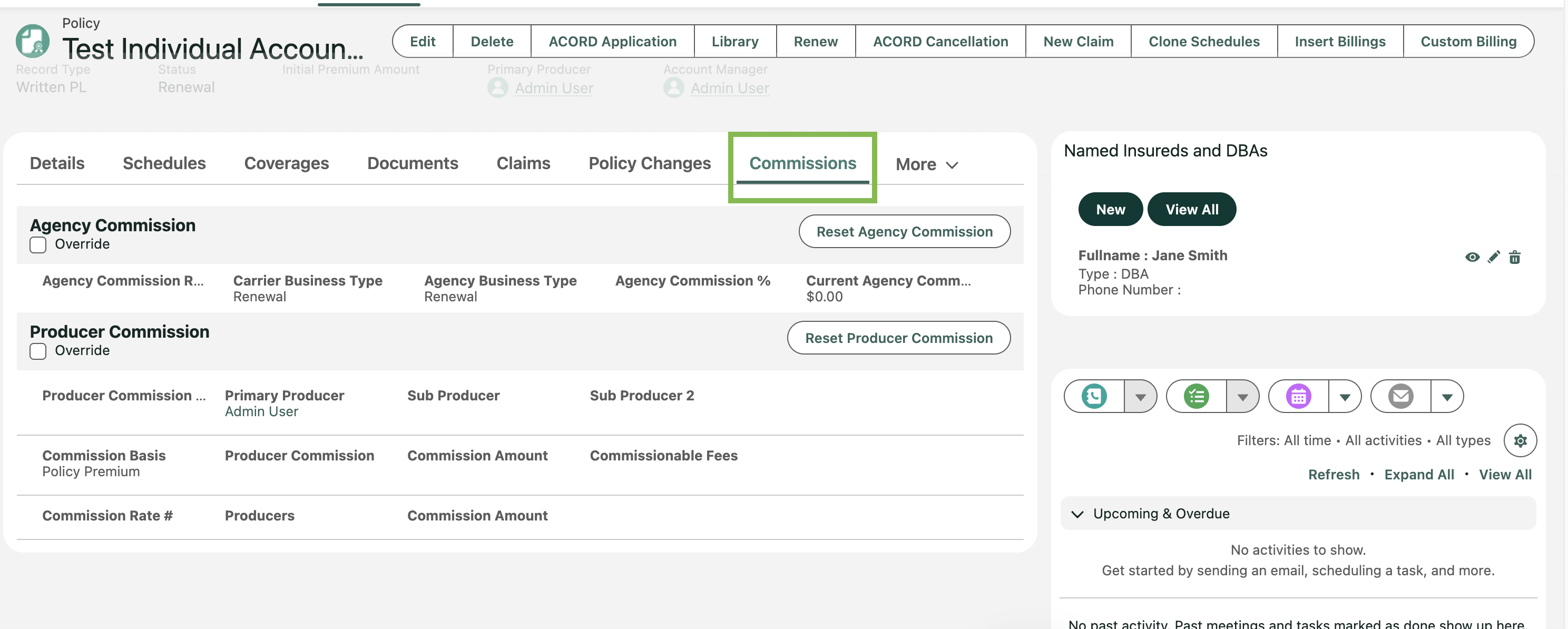
Select the Override checkbox, then click Edit.
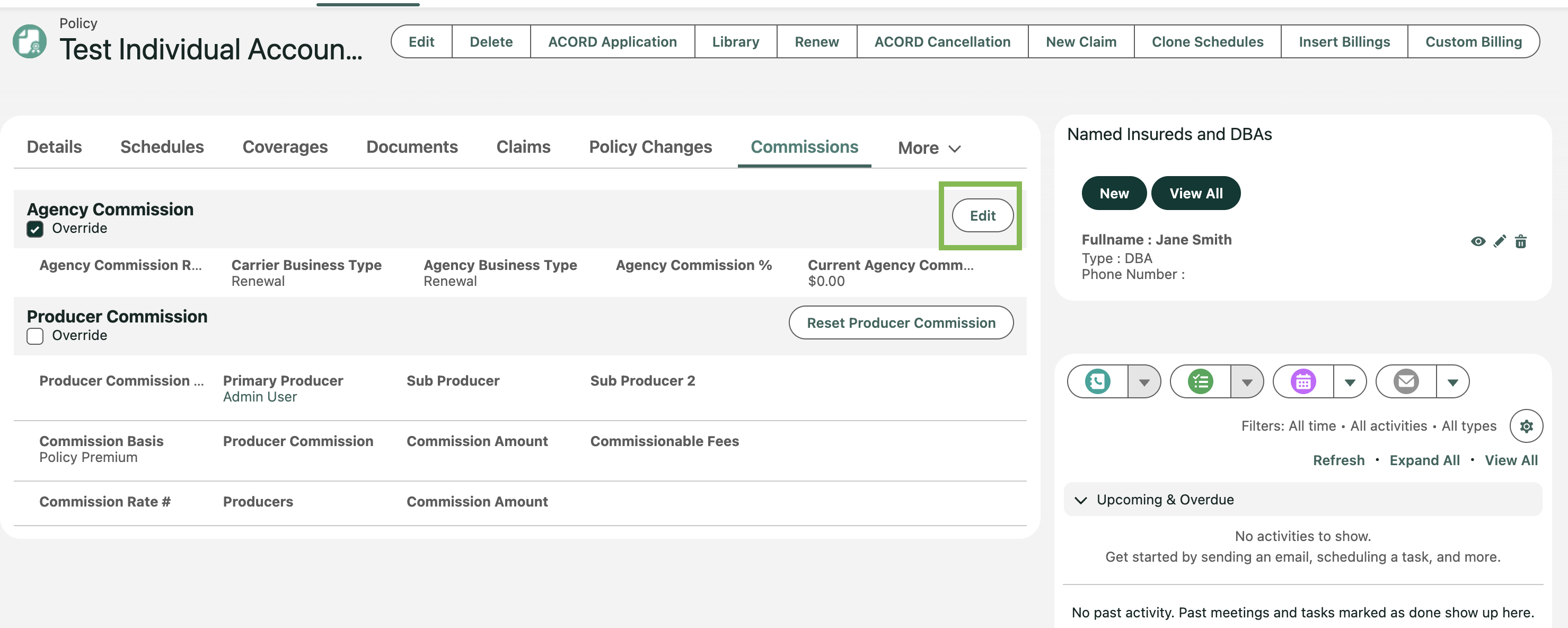
Enter the custom commission, then click Save.

Note: If you uncheck the Override checkbox, the system removes any manually entered commission rates and reapplies the default rule.