Managing invoice templates
Last updated: May 6, 2026
Overview
Invoices formally request payment and create accurate financial records. amplo includes a standard invoice template you can use out of the box. The default template automatically:
Assigns an invoice number based on the Billing record.
Retrieves billing line items, customer Account details, and policy information.
If you use multiple invoice formats or want to use a custom template, contact support@amplo.com to disable default invoice auto-generation.
Download the invoice template
Use S-Docs to download the standard invoice template.
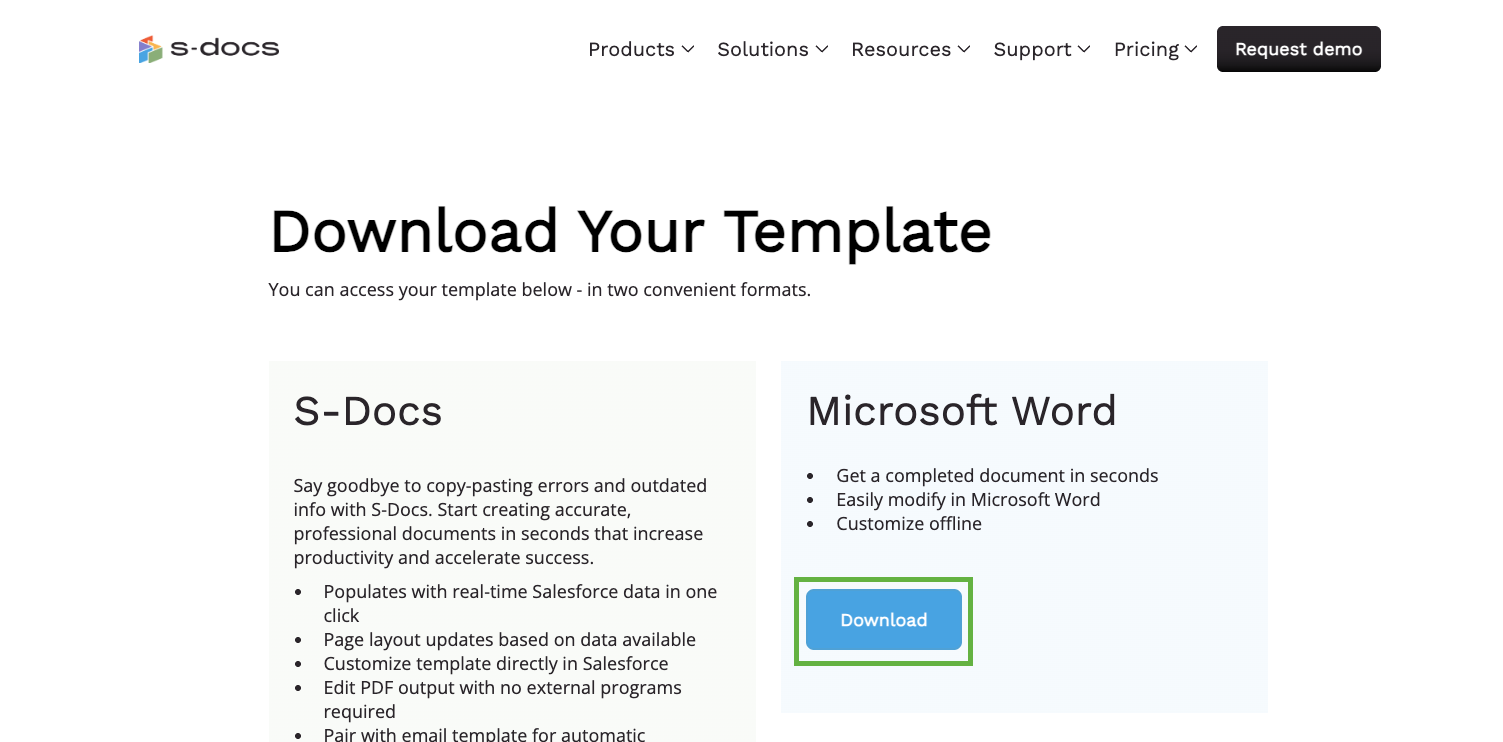
Download your template from S-Docs.
Click Download on the Microsoft Word option.
Open the file on your computer.
Add the following customizations to your template:
Your agency logo
Agency address and contact information
Any custom language or additional details you’d like to include
Save the file to your computer as a DOCX.
Add a new invoice template
In the App Launcher, search and select the second S-Docs option.
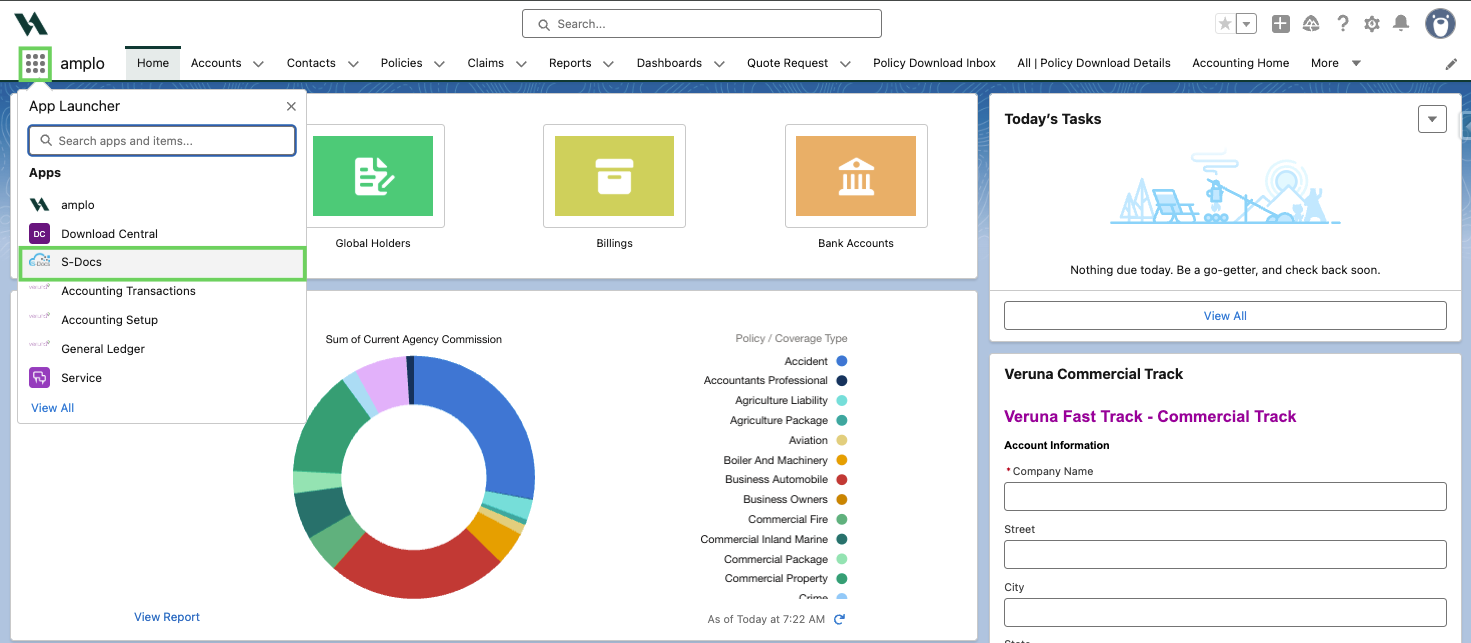
In the dropdown, select S-Docs Templates.

Click New to open the New SDOC Template: Master modal.
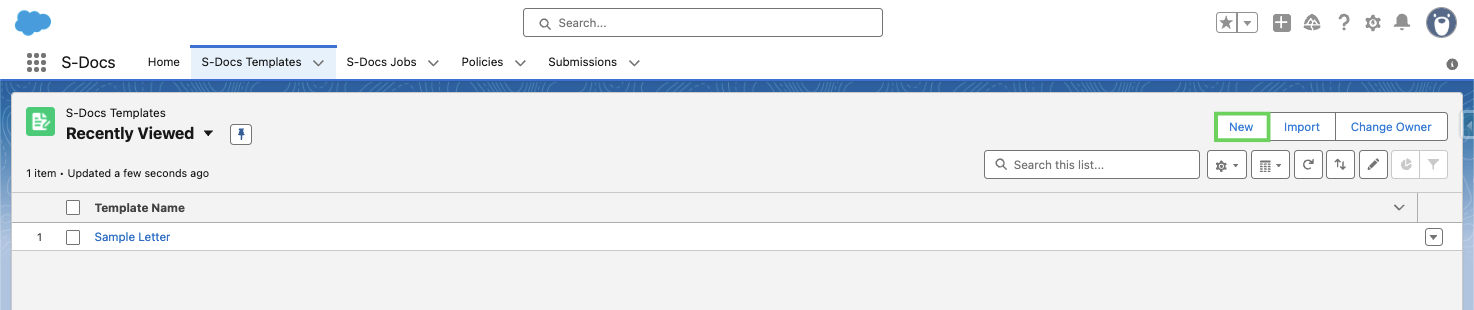
Note: To see the full list of S-Doc Templates, select the caret next to Recently Viewed and select All Active Templates.
Then, fill in the following details:
Template Name: A unique name to identify the template in your SDoc list.
Description: A short summary of the template's purpose or the document it generates.
Document Category: The category used to organize and classify the template within SDocs.
Related to Type: The Salesforce object the template is associated with, such as Account, Policy, or Claim.
Template Format: The file type the template will generate, such as DOCX, PDF, or XLS.
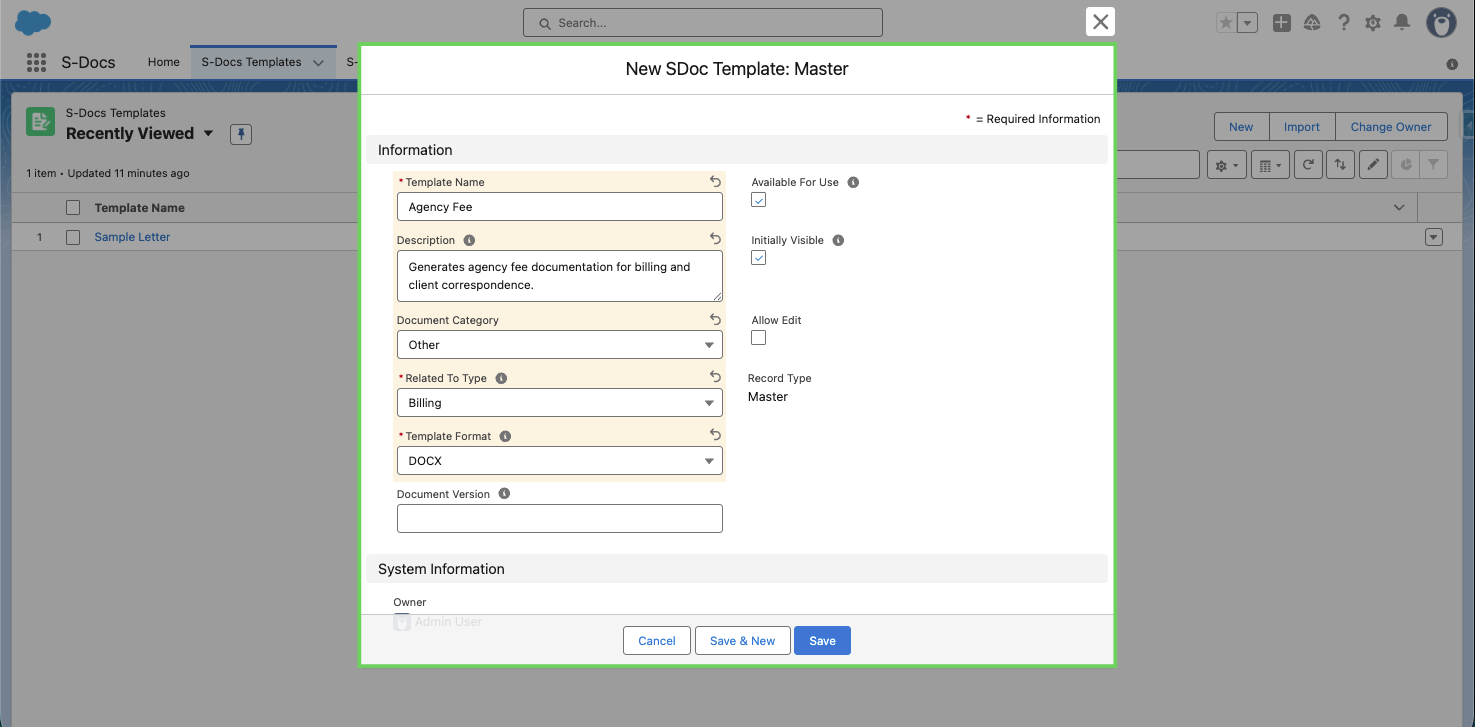
Select Save.
In your new template, click the dropdown arrow and select Template Editor.

Select Choose File and select the template you saved to your computer.

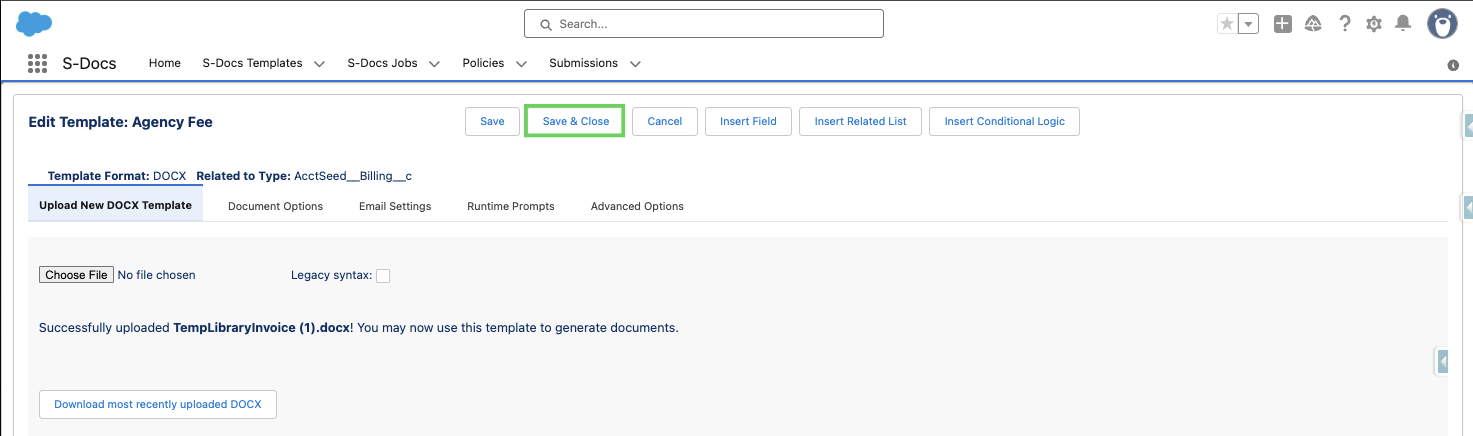
When the file finishes uploading, click Save & Close.
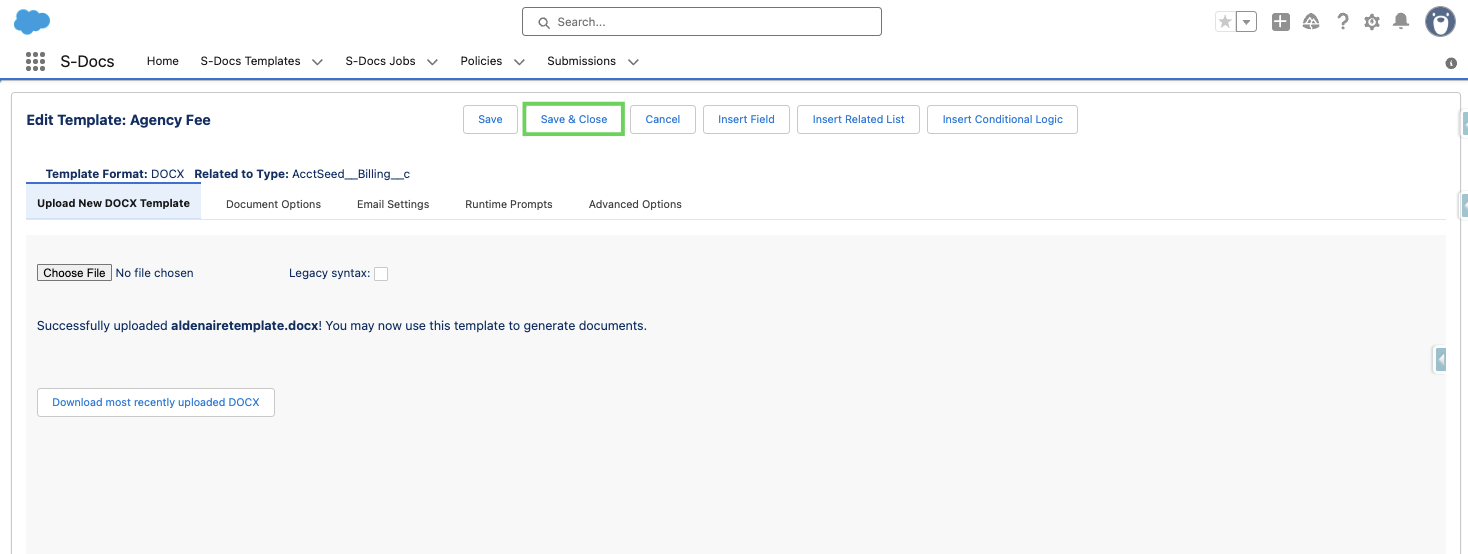
Edit an existing template's details
When editing template details, you can change options like Available For Use, Allow Edit, Initially Visible, and Template Format.
Note: Once a template is activated, do not disable Available For Use. Active templates are needed to display previously created documents correctly. To make changes, clone the template, update the clone, and mark the original as inactive.
Select S-Docs Templates.

Use the caret to change from Recently Viewed to All Active Templates.

In the list of templates, select the name of the invoice you want to edit.

Click Edit.
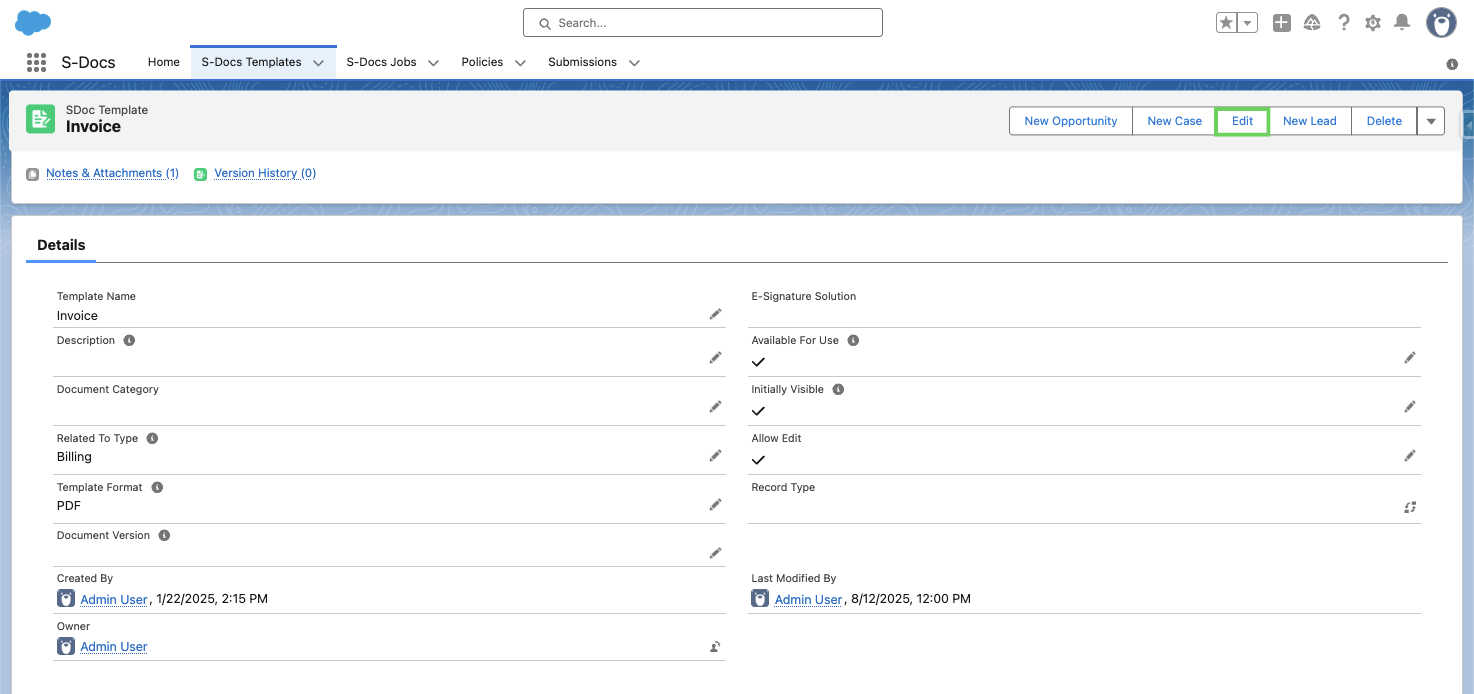
Adjust the template details on the Edit modal, then click Save.

Edit an existing template
Select S-Docs Templates. Then, click the name of the template you want to edit.
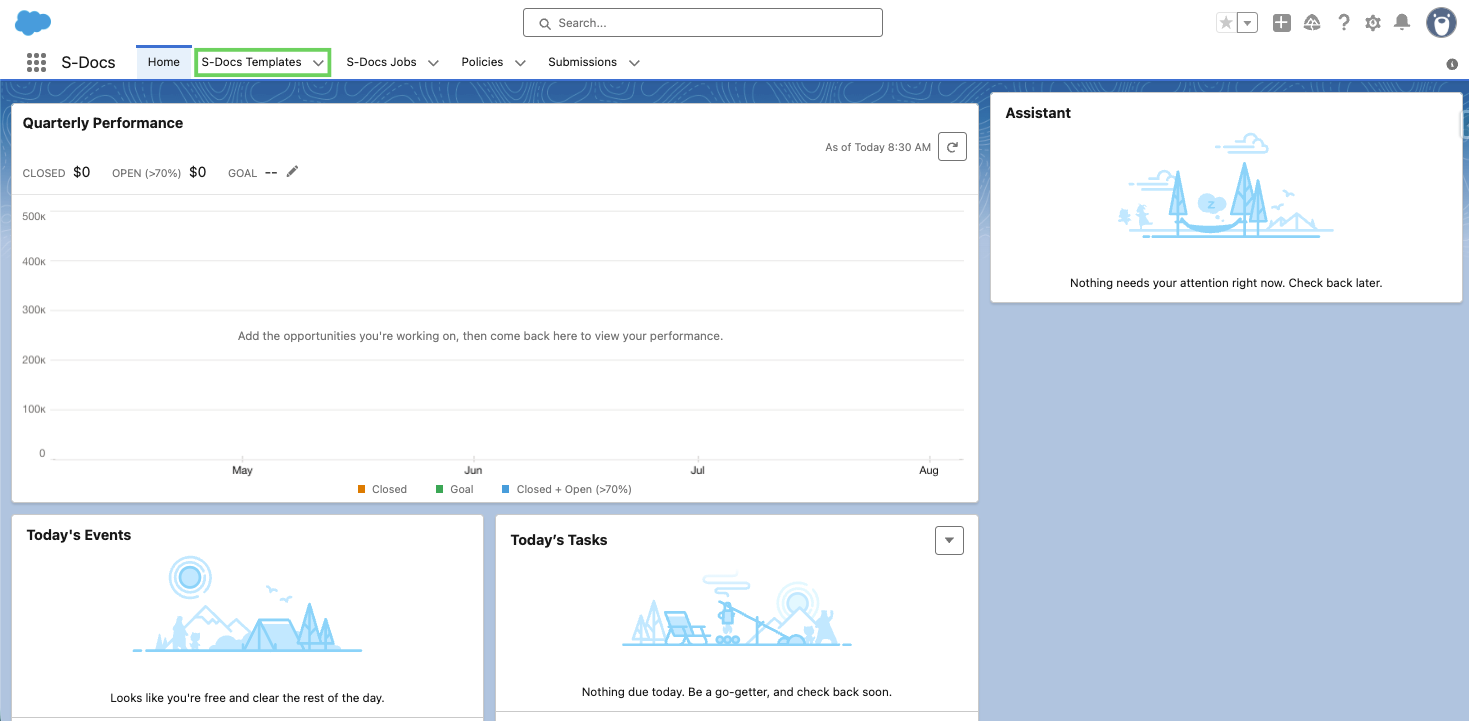
Click the dropdown arrow to expand the menu and select Template Editor.

On the new screen that opens, click Download most recently uploaded DOCX.
Note: Template Editor may vary depending on the format used (DOCX, PDF, XLS, etc.). For more information, see Creating and managing templates.

The template will download to your computer. Open the downloaded template file in the appropriate program (Word, Excel) and make your changes. Save the updated template to your machine.
On the Template Editor screen, click the Choose File button to upload your updated template.
A new window will appear for you to select your updated template file. Select it and click Open.
Once the file is uploaded, click Save & Close. After saving, any new S-Doc created using this template will reflect the changes you made.