Broker Bill overview
Last updated: March 19, 2026
Overview
Use Broker Bill when an intermediary controls billing and collections between your agency and the carrier. In this setup:
The broker invoices the insured.
The broker collects the premium.
The broker remits the net premium to your agency after retaining their commission.
Your agency does not bill the insured directly. The broker pays your agency instead of the carrier paying commission directly.
Note: If a broker pays your agency the gross premium on agency bill policies and then collects commission from your agency, set the broker up as a Sub-Producer. This setup keeps billing gross and creates commission payables for the broker. For more information, see Add a new Sub-Producer.
Update the Billing Type
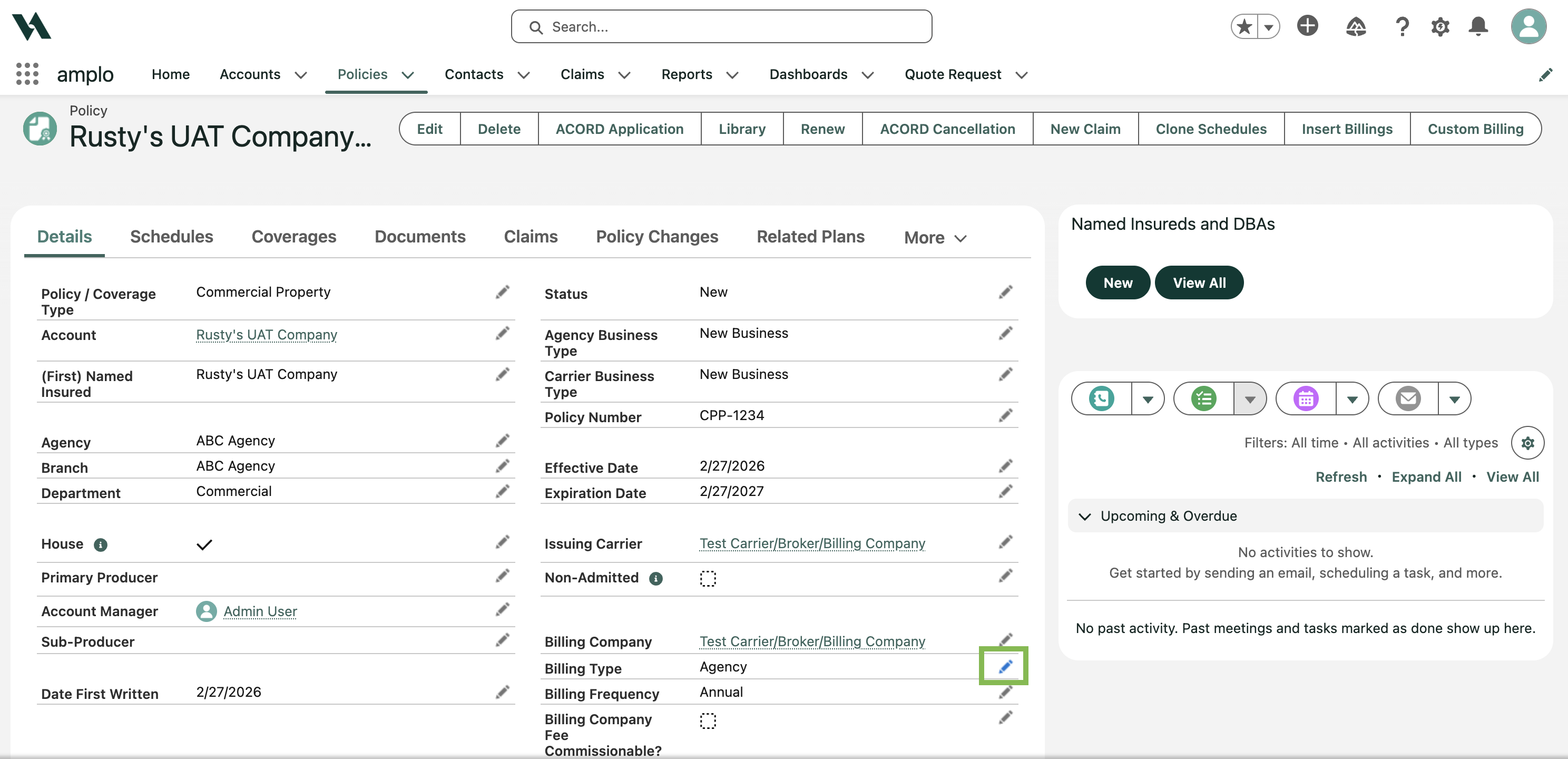
The Billing Type on the policy record needs to be updated to reflect Broker billing.
Navigate to the Policy record.
Click the pencil icon on the Billing Type field.
Select Broker, then click Save.
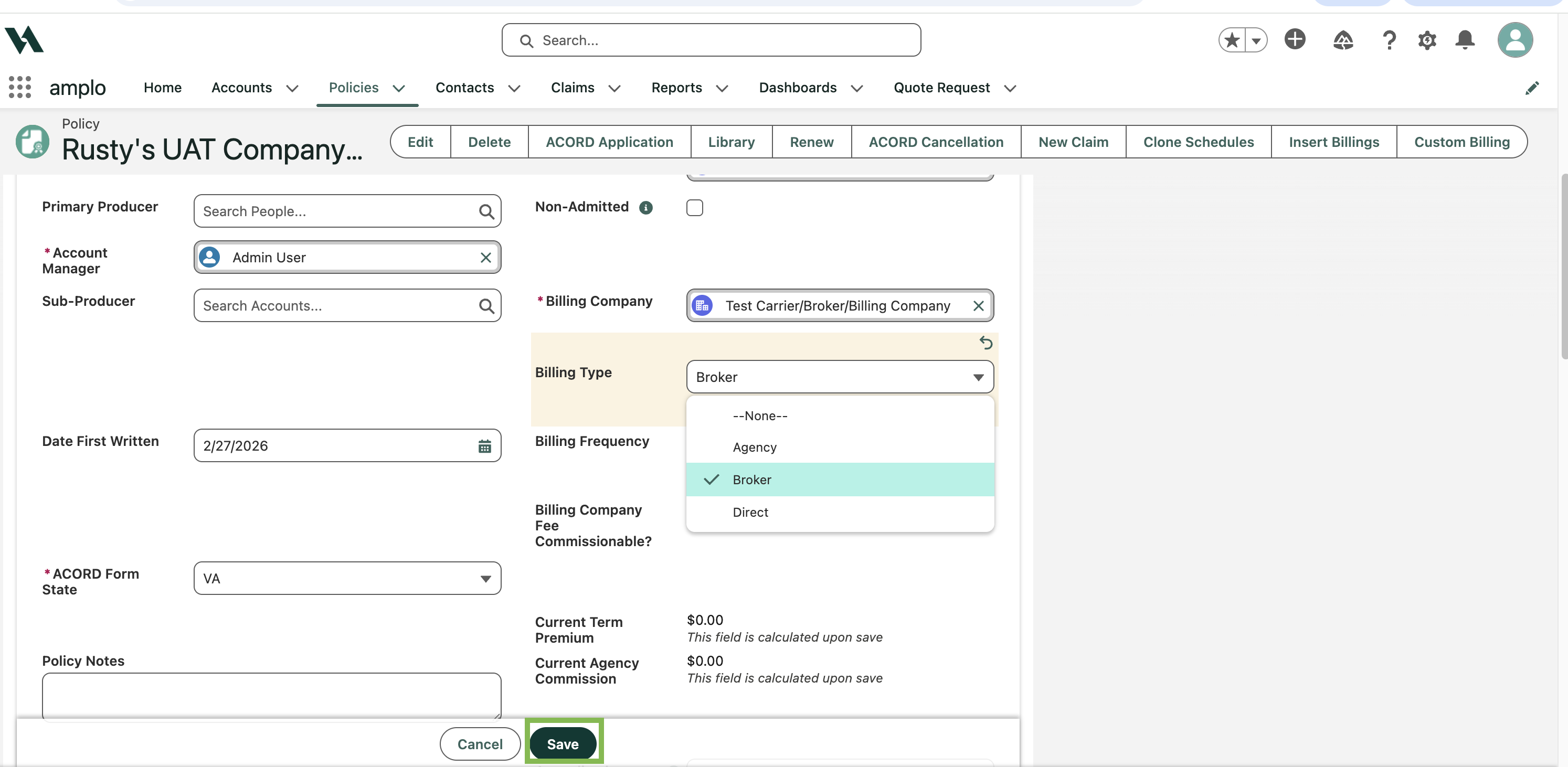
Note: The Broker account must use the Carrier/Broker/Billing Company Account Record Type.
Enter Broker details
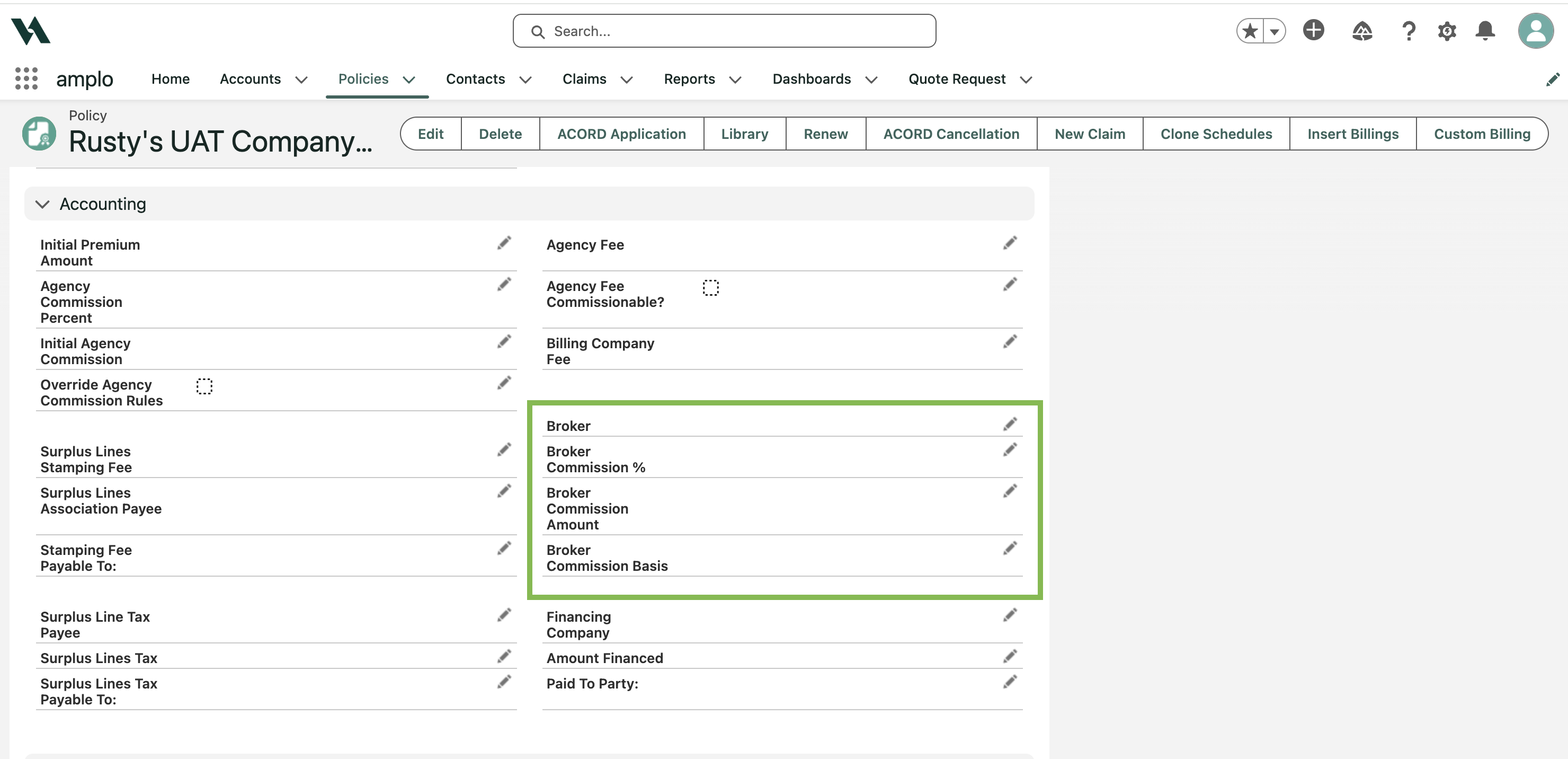
In the Accounting section of the Details page, fill out the Broker details, including:
Broker Name
Broker Commission % or Broker Commission Amount (you must pick one)
Broker Commission Basis
Insert billing
Click Insert Billings.
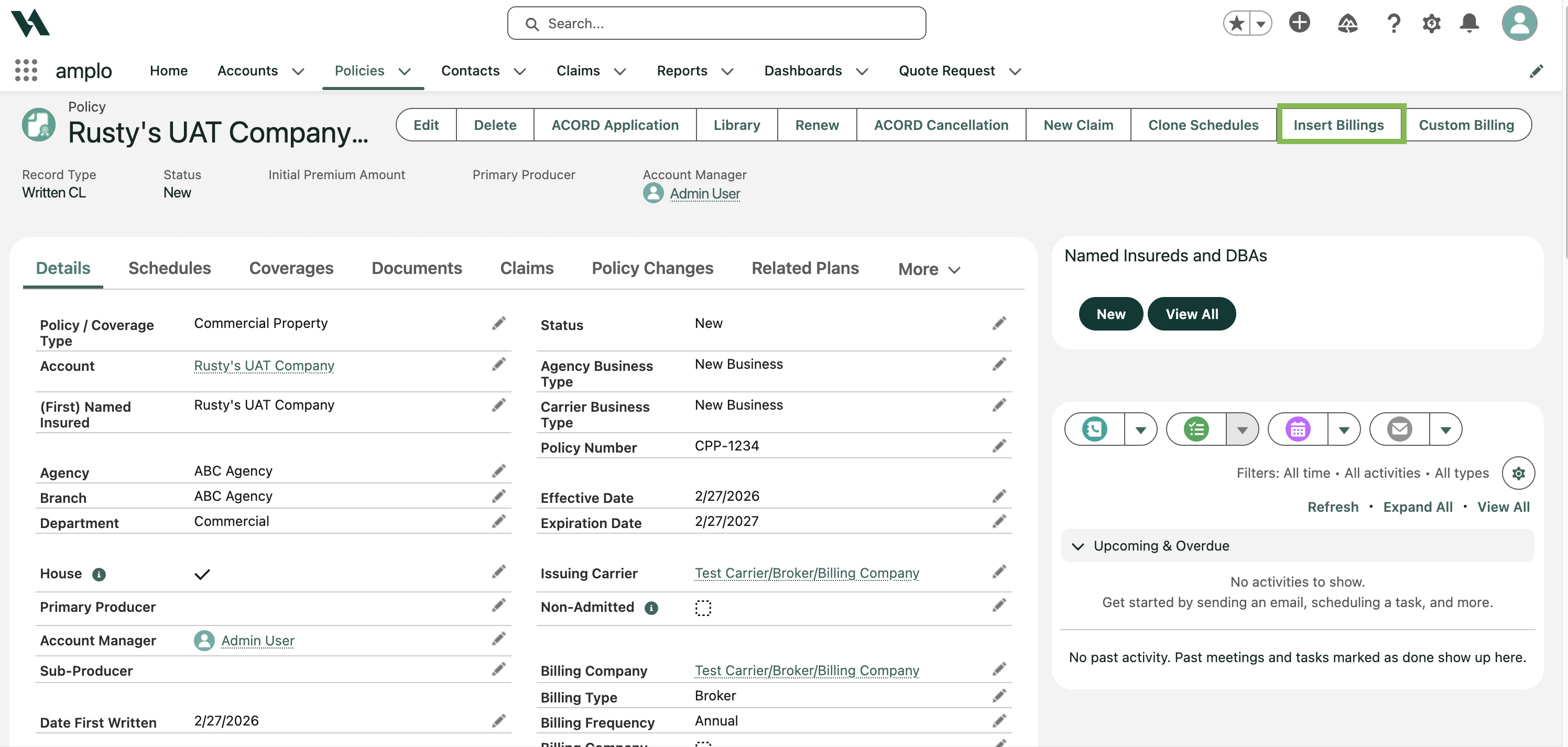
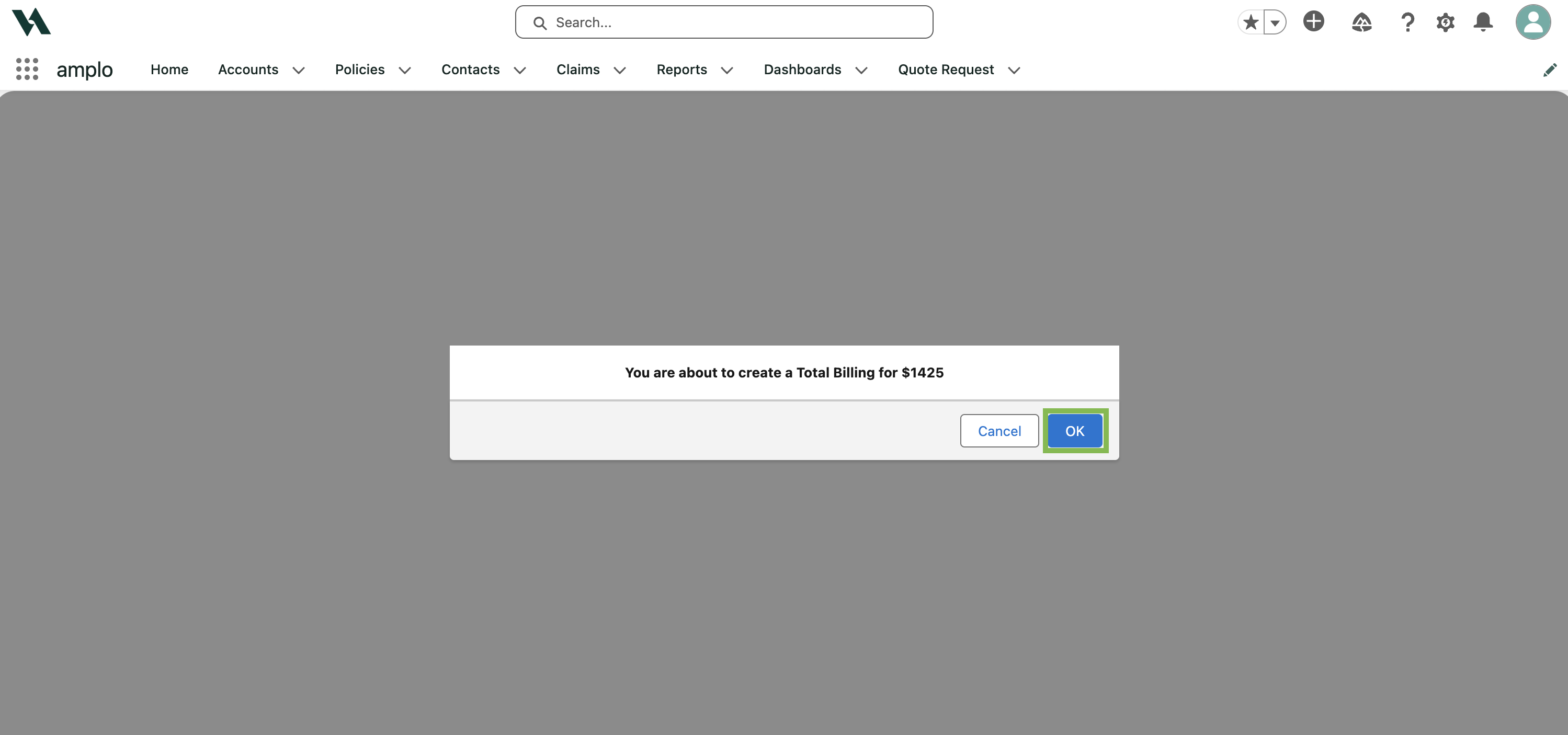
On the confirmation modal, click OK.
On the Accounting tab, confirm the billing record shows the premium net of commission billed to the broker.
Resolving errors when creating Billings
Include in Down Payment error
You may see an error when selecting Include in Down Payment while creating new Billings. This typically occurs when the Broker Commission Amount field is blank. The field should auto-populate when you enter a value in Broker Commission %. However, users can manually edit this field, and the value may be deleted or fail to populate.
How to resolve
Navigate to the policy record.
Change Broker Commission % field to 0.
Click Save.
Update the Broker Commission % field back to the correct percentage.
Click Save.
Confirm that the Broker Commission Amount field now has a value.
Once the field populates correctly, you can create Billings with Include in Down Payment selected without errors.
Note: To improve tracking of these critical fields, enable History Tracking for both the Broker Commission % and Broker Commission Amount fields. This will ensure that any changes are captured and visible in the Policy History related list.