Managing producers
Last updated: March 2, 2026
Overview
Managing producers in amplo ensures clear ownership, accurate commission tracking, and reliable production reporting. When producers are set up correctly, your team can attribute revenue accurately, maintain accountability, and gain clear visibility into performance across the book of business. There are two types of producers in amplo:
Primary Producers
Primary producers are the agents or brokers directly responsible for a client, account, or policy. They typically serve as the main point of contact for the insured and receive production credit for compensation and performance measurement.
Sub-Producers
Sub-producers are agents, brokers, or external partners who place business through your agency. Unlike primary producers, sub-producers are created as Account records and are not linked to user records.
Understanding the difference helps you maintain clean financial records and structured reporting.
Assign a Primary Producer
Before assigning a producer, an Employee Account must exist and be linked to the corresponding user record. For setup instructions, see:
Link the user record to the Employee Account
First, confirm that the user record is configured correctly.
On the top navigation bar, click on the gear icon.

Select Setup.

The Admin setup page will open in a new tab. In the Quick Find box, search for Users.

Select Users from the list.
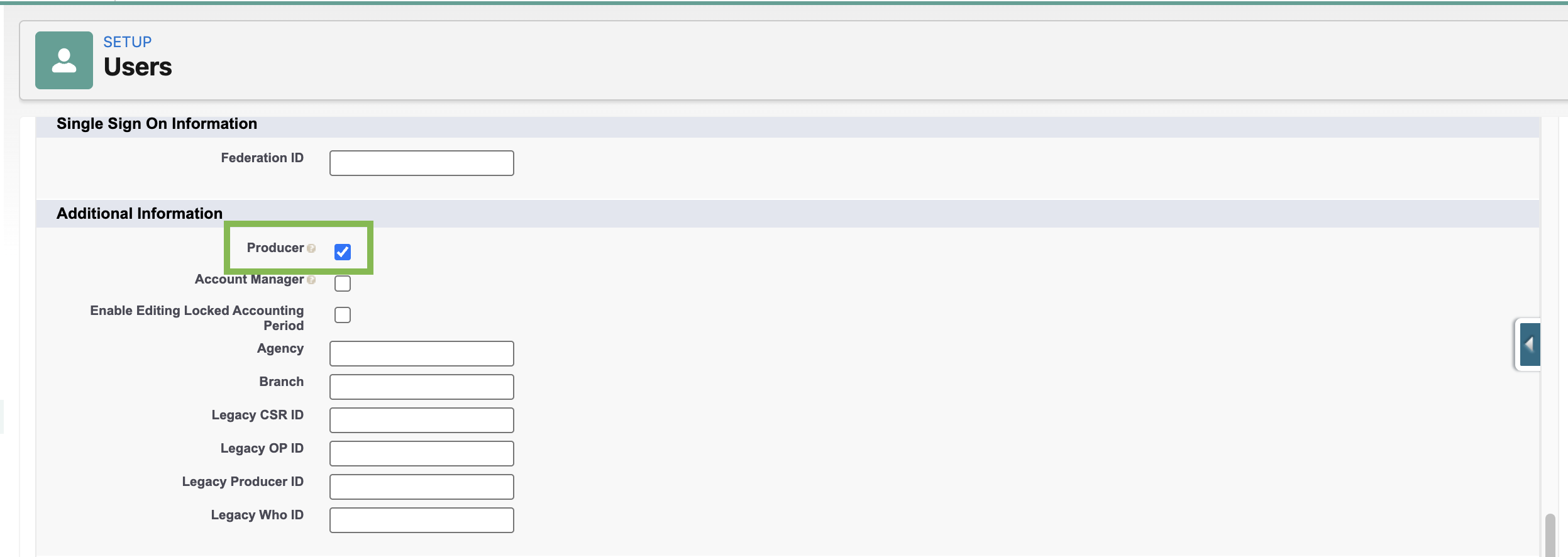
In the Action column, click Edit next to the user you want to link to the Employee Account.
Ensure the Producer checkbox is checked.
Next, link the user to the Employee Account.
Navigate back to the Employee Account record.
Click the pencil icon next to Employee's User Record.

Select the corresponding user from the dropdown and click Save.
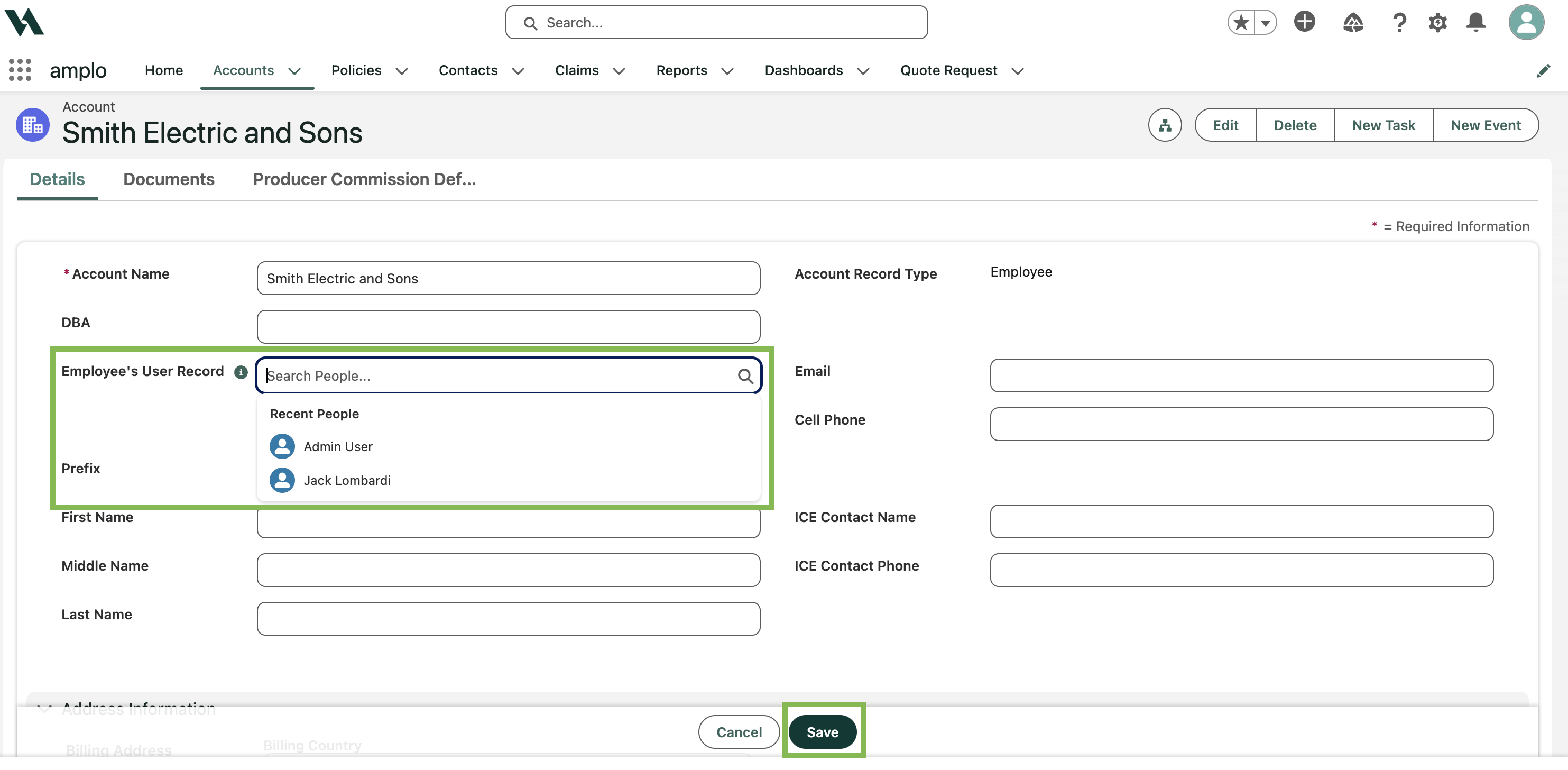
Note: To assign an Account Manager, follow the same steps and select the Account Manager checkbox instead of Producer.
Assign a Sub-Producer
Before assigning a sub-producer, a Vendor / Sub-Producer / Finance Company account record must exist. Sub-producers are assigned directly to records and do not require user record linking.
Add a new Sub-Producer
Go to the Accounts tab and click New.

In the New Account modal, select Vendor / Sub-Producer / Finance Company, then click Next.

In the New Account modal, enter the relevant information
Ensure Sub-Producer is selected from the Vendor Type dropdown.
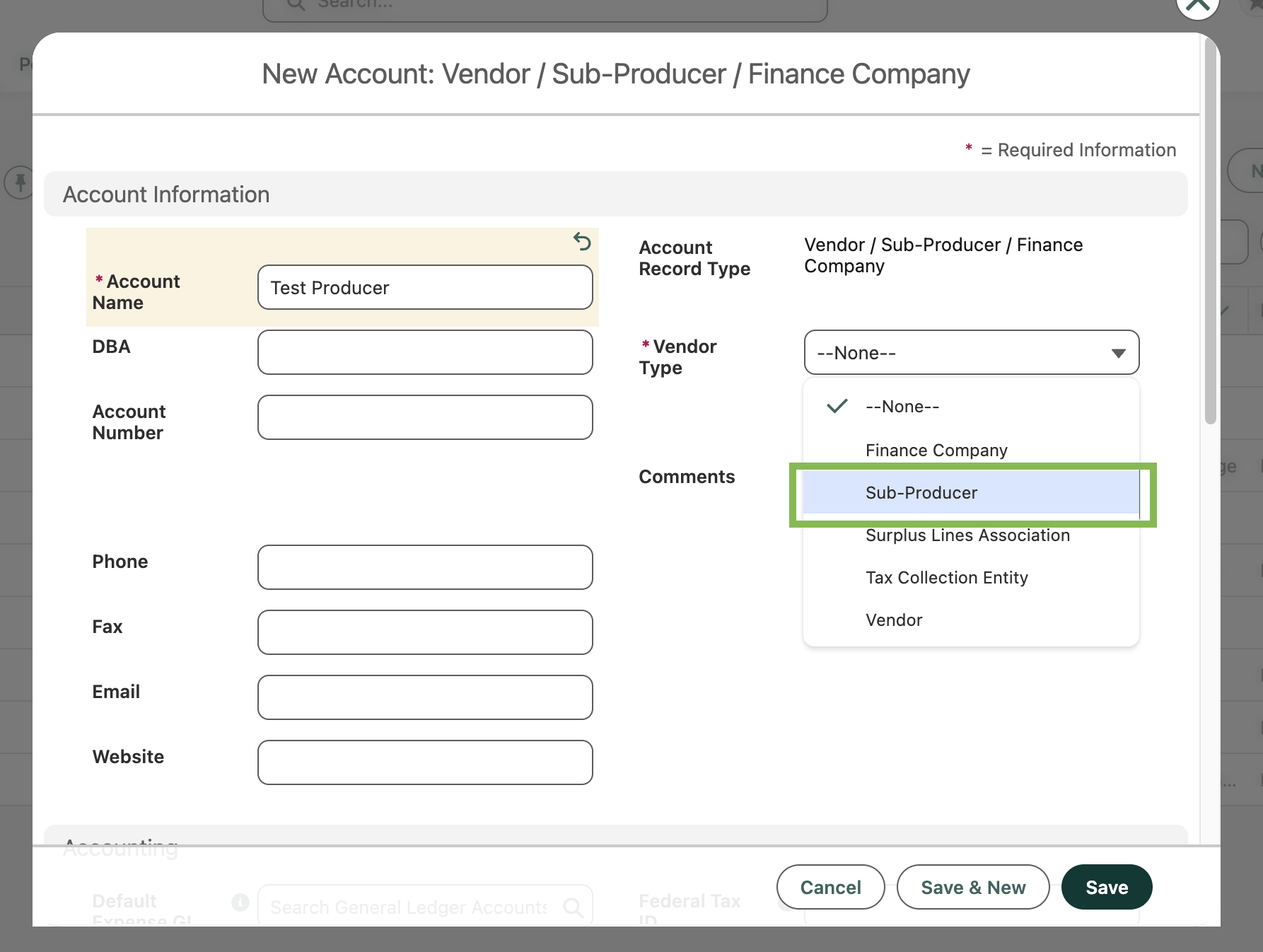
Click Save (or Save & New if adding more than one Sub-Producer).
Assign Sub-Producers
Once created, you can associate a sub-producer with an Account, Opportunity, or Policy.
Navigate to any Account, Opportunity, or Policy record to assign the Sub-Producer(s).
Click the pencil icon next to Sub-Producer (and Sub-Producer 2 if more than one)
Search for and select the appropriate Sub-Producer.

When finished, click Save.