Managing cash disbursements
Last updated: March 19, 2026
Overview
Cash disbursements are payments going out of the agency. They represent money the agency pays to others, such as:
Carriers (premium owed from agency bill policies)
Producers (commission payments)
Vendors or brokers
Clients (refunds, overpayments)
This article explains how to create cash disbursements, upload cash disbursements in bulk, and void cash disbursements.
Create a cash disbursement
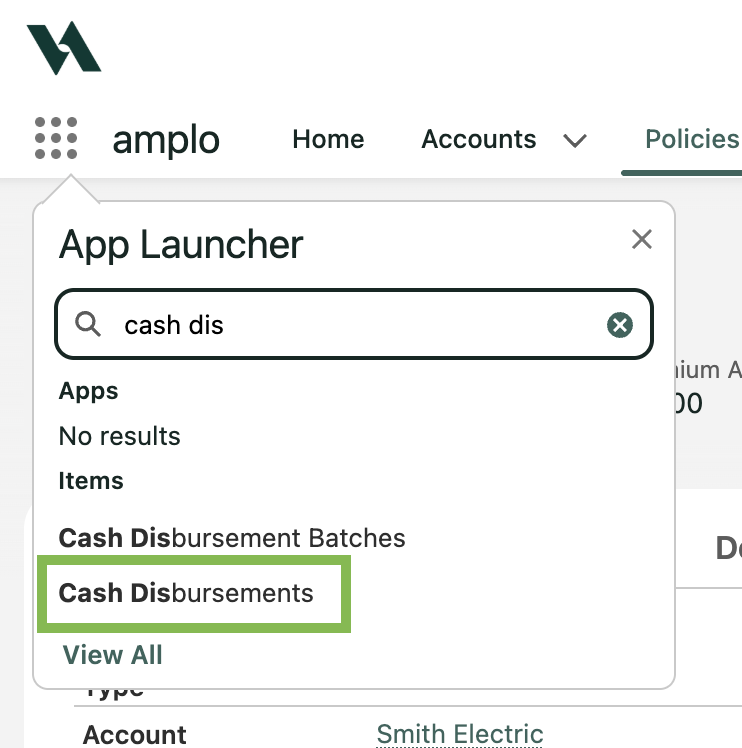
In the App Launcher, search and select Cash Disbursement.
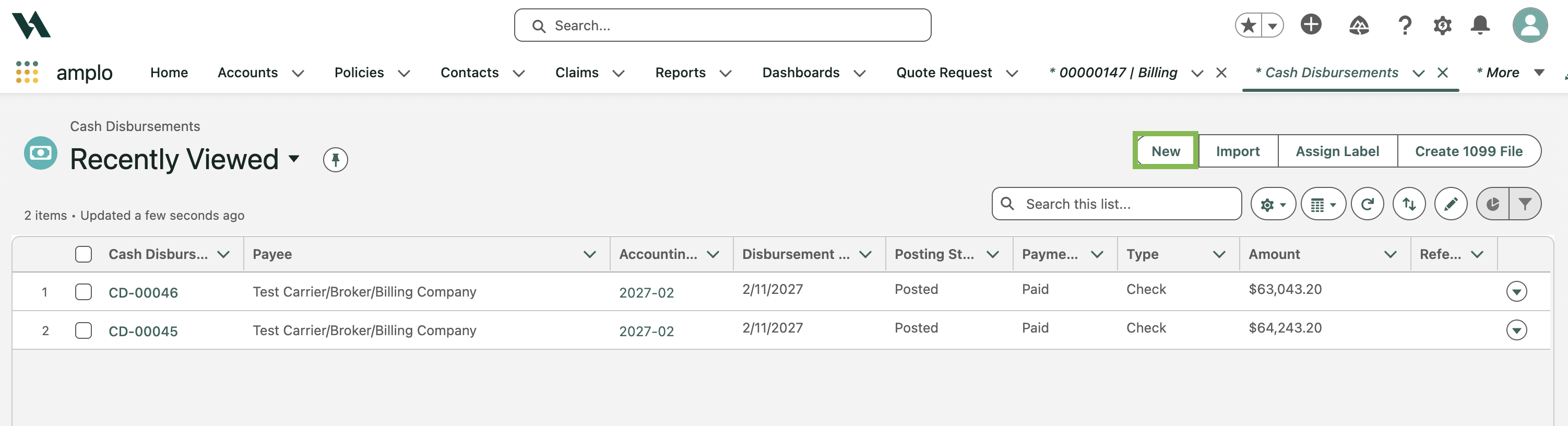
Click New.
In the New Cash Disbursement modal:
Click in the Cash Disbursement Batch field, then click New Cash Disbursement Batch.

b. Enter a Batch Name, and click Save.

c. Update the remaining fields on the cash disbursement modal.
Click Save.
Upload a disbursement
This process allows you to efficiently apply a single cash disbursement to multiple payables by using a CSV file and DataLoader.io. It’s particularly useful for batch payments to a single vendor or payee.
Create a payables report
For more information on how to create a payables report, see 📄 Payables report.
Create a payables report that includes all payables to be paid through the upload.
When running the report, apply the following filters:
All Payables
All Time
Issue Date equals MMM, DD, YYYY
Payee equals Name of Payee.
Note: Ensure that the total amount equals the expected amount due to the payee.
Export and save the report as a CSV according to your preferences.
Import using DataLoader
Navigate to DataLoader and select New Task, then click Import.

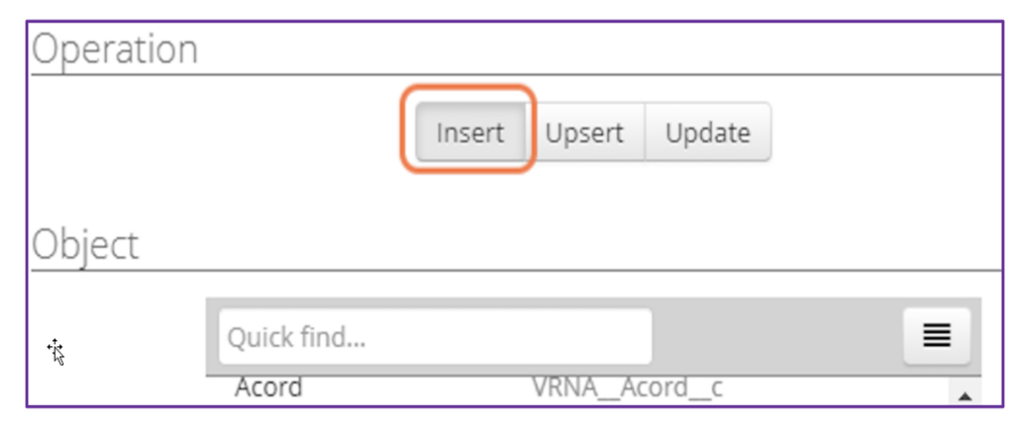
Click Insert.
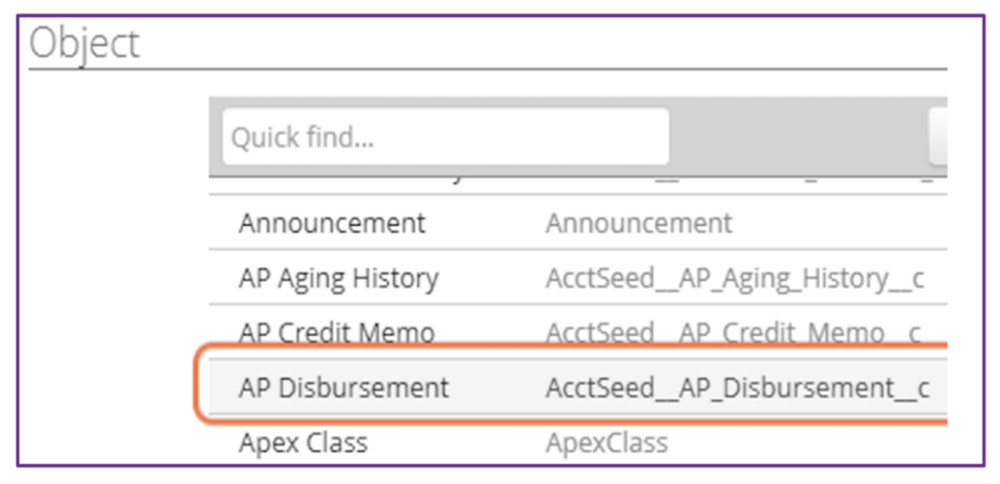
Click AP Disbursement as the object:
Upload the updated CSV file.
Click Next.
Map the following fields:
Payable ID → Payable
Accounting Period ID → Applied Accounting Period Balance
Applied Amount Cash Disbursement → Cash Disbursement

Note: If the Posting Status is mapped, un-map it. The system will assign the correct status automatically.
Set the Update Batch API Limit to 10.

Click Save & Run, then click Run.
Verify the upload
On the Cash Disbursement record, click the Applied To tab.
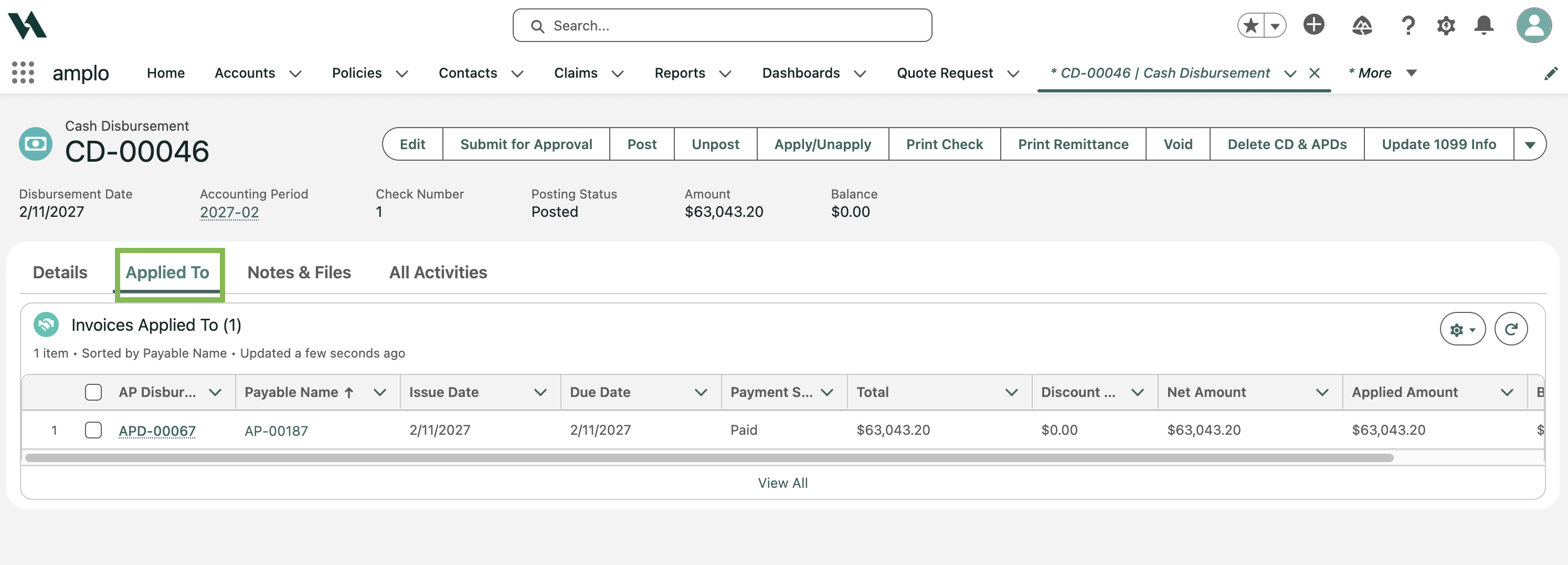
Ensure:
All new AP Disbursement records are linked to the cash disbursement.
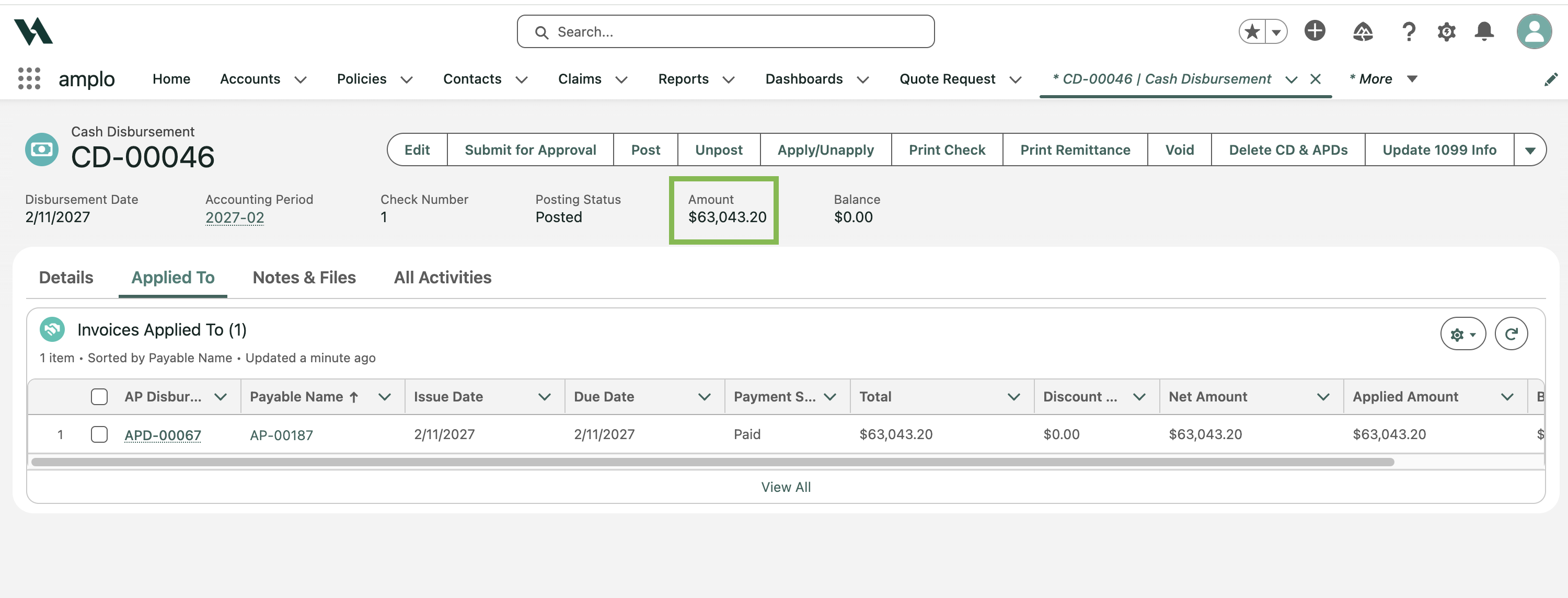
The Cash Disbursement Amount now reflects the total sum of all associated Payables.
Void a cash disbursement
Voiding a cash disbursement is necessary when a payment was issued in error or needs to be corrected. This process reverts the associated payable to an unpaid status, allowing it to be repaid correctly.
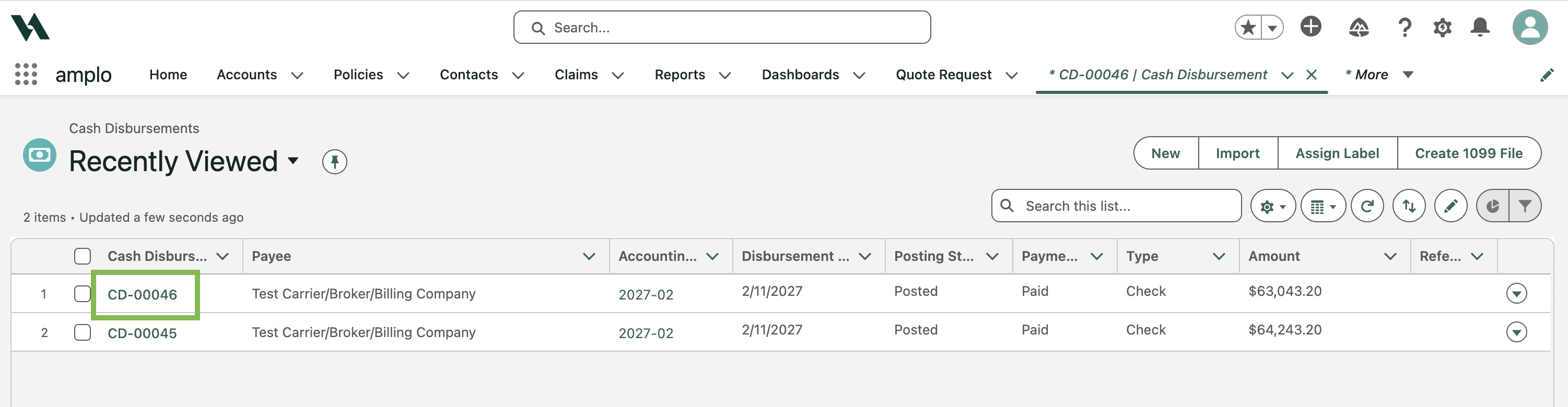
In the App Launcher, search and select Cash Disbursement.
Select a Cash Disbursement record to void.
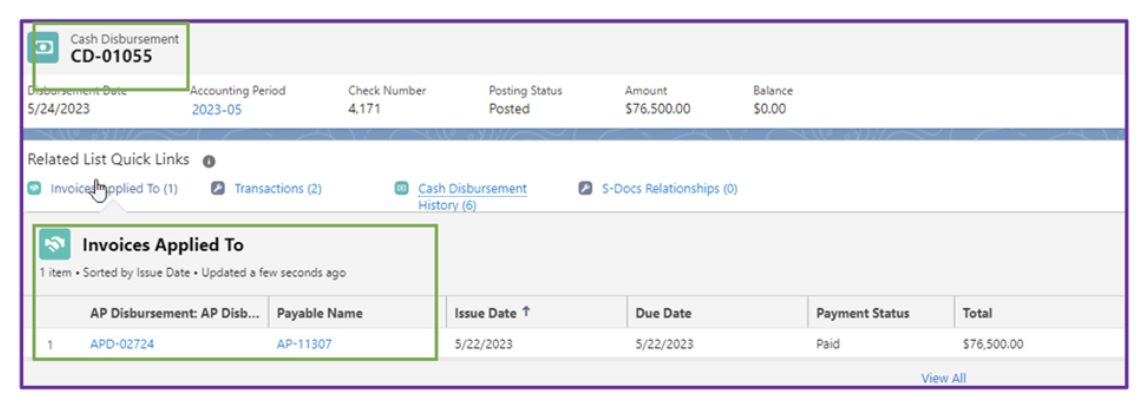
In the Related List Quick Links, click the Invoice Applied To to open the associated Payable record.
Click Void on the Payable record.

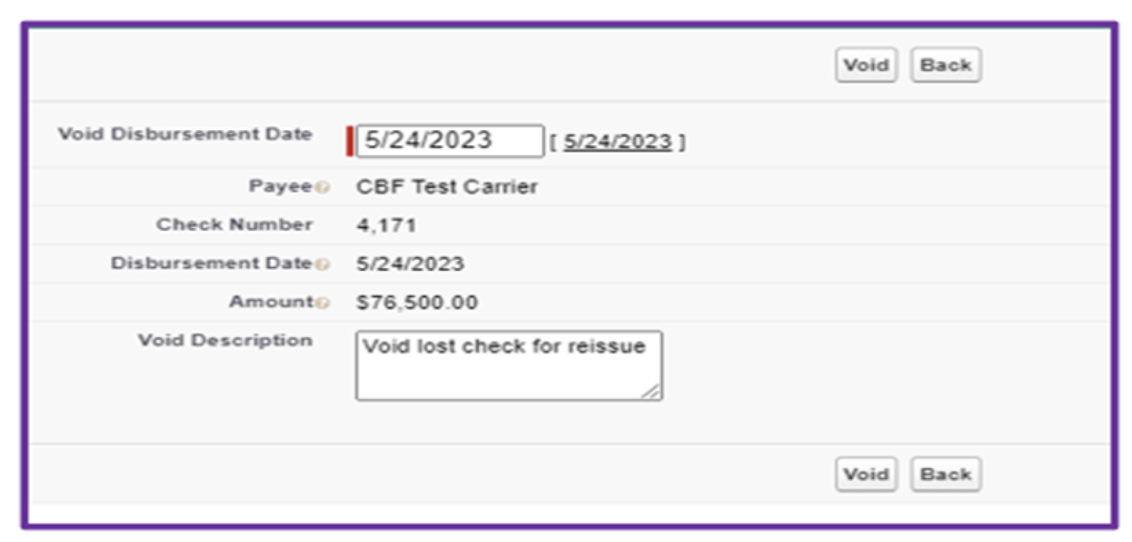
In the Void Disbursement window:
Enter the Void Disbursement Date.
Add a brief Void Description for audit purposes.
Click Void to confirm the action.
The Cash Disbursement record will now show a Payment Status of Void and the related Payable will be updated to a Payment Status of Unpaid, indicating that it is eligible for repayment.
Delete a voided Cash Disbursement (CD) and Associated Account Payable Disbursements (APDs)
When you need to delete a voided cash disbursement and its associated account payable disbursements, you'll need to use a specific button rather than trying to delete the records directly.
Navigate to the voided Cash Disbursement to delete.
Look for the Delete CD & APDs button on the record page
Select the Delete CD & APDs button to remove both the cash disbursement and its associated account payable disbursements
If you don't see the Delete CD & APDs button on your page layout, contact your system administrator to have it added to your layout.