Managing company payables
Last updated: March 2, 2026
Overview
A Company Payable represents money the agency owes to a carrier or premium finance company for premiums collected on their behalf. When you invoice agency-billed items at the policy level, the system creates an Accounts Payable entry. The payable reflects the premium owed to the carrier, net of the agency’s commission. Company payables help you:
Track amounts owed to carriers and finance companies
Remit funds accurately and on time
Maintain clean accounting records
This article outlines the steps to process a payable, enter cash disbursement details, and remit a cash disbursement.
Process a payable
In the App Launcher, search and select Company Payables.
Select the carrier from the dropdown menu.

Select the agency from the dropdown menu that appears.

Use the checkboxes to filter by receivable status:
Paid: Funds received from the Insured Accoun
Partially Paid: Partial funds received from the Insured Account
Unpaid: No funds received from the Insured Account
Returns: Negative payables from cancellations, endorsements, or return premiums

Select the checkbox next to each Payable Name you want to include in the payment. To select all items, click the checkbox in the header row.
Note: The total of all selected payables will be displayed in the lower-right corner of the payable section.

Complete cash disbursement details
In the Cash Disbursement Detail section at the bottom of the page, complete the following fields:
Bank Account: Select the account from which the payment will be made.
Type: Select Check or Electronic
Check Layout: Select the format for printed checks, if applicable.
Check Number: Defaults to the next check number in sequence.
Agency
Branch
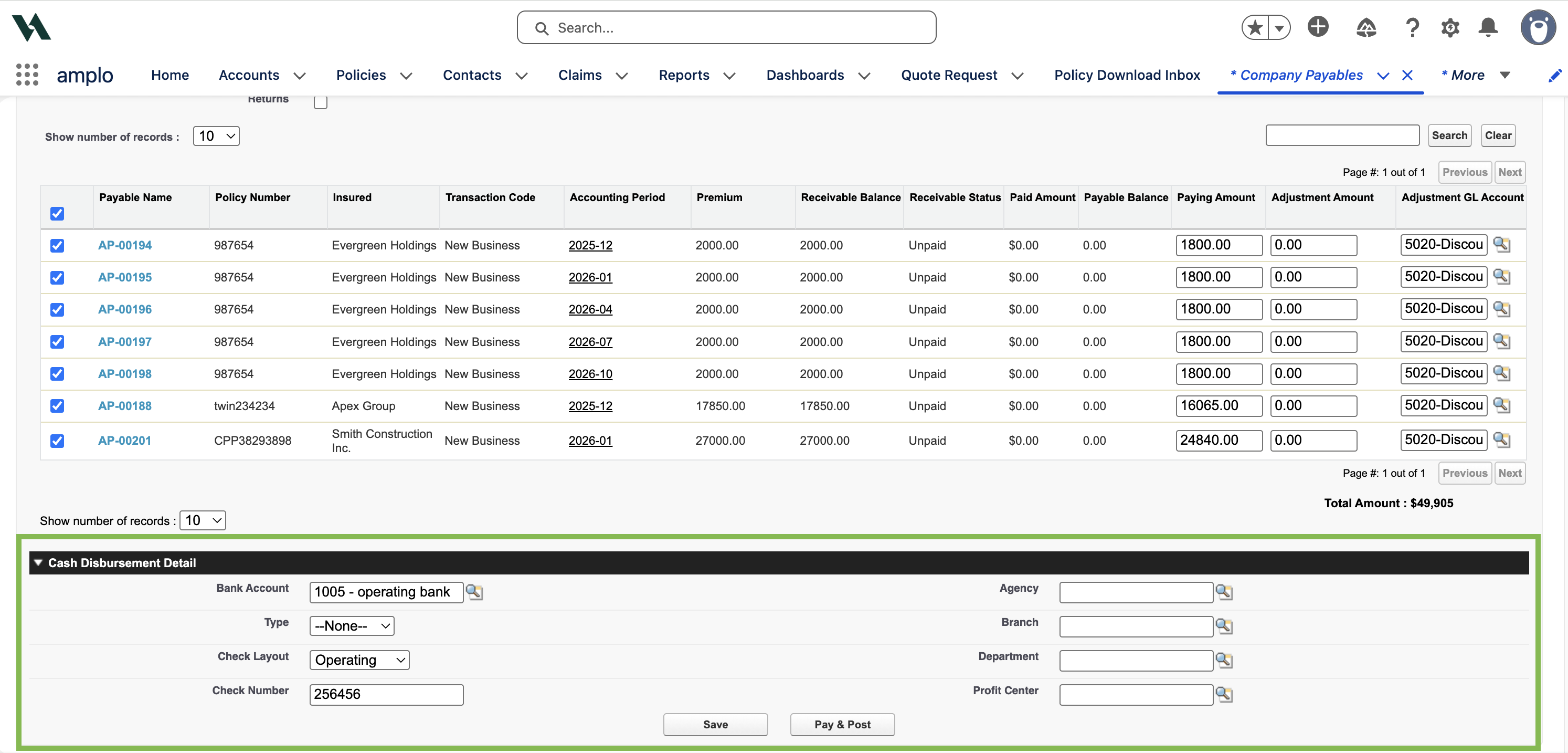
When finished, select Pay & Post to make the payment.

Print remittance
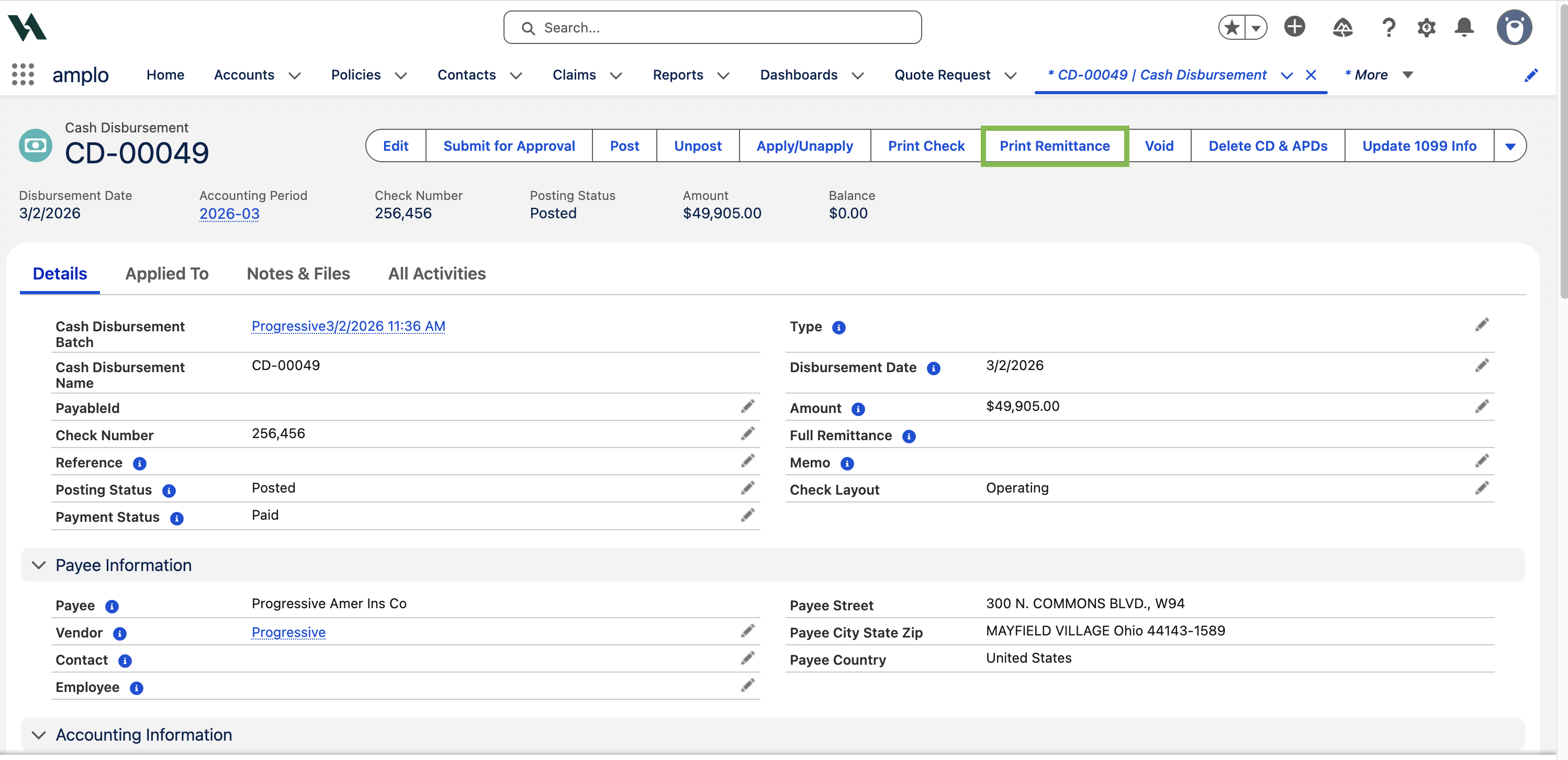
A Cash Disbursement record will be automatically created.
From the Cash Disbursement screen, select Print Remittance.
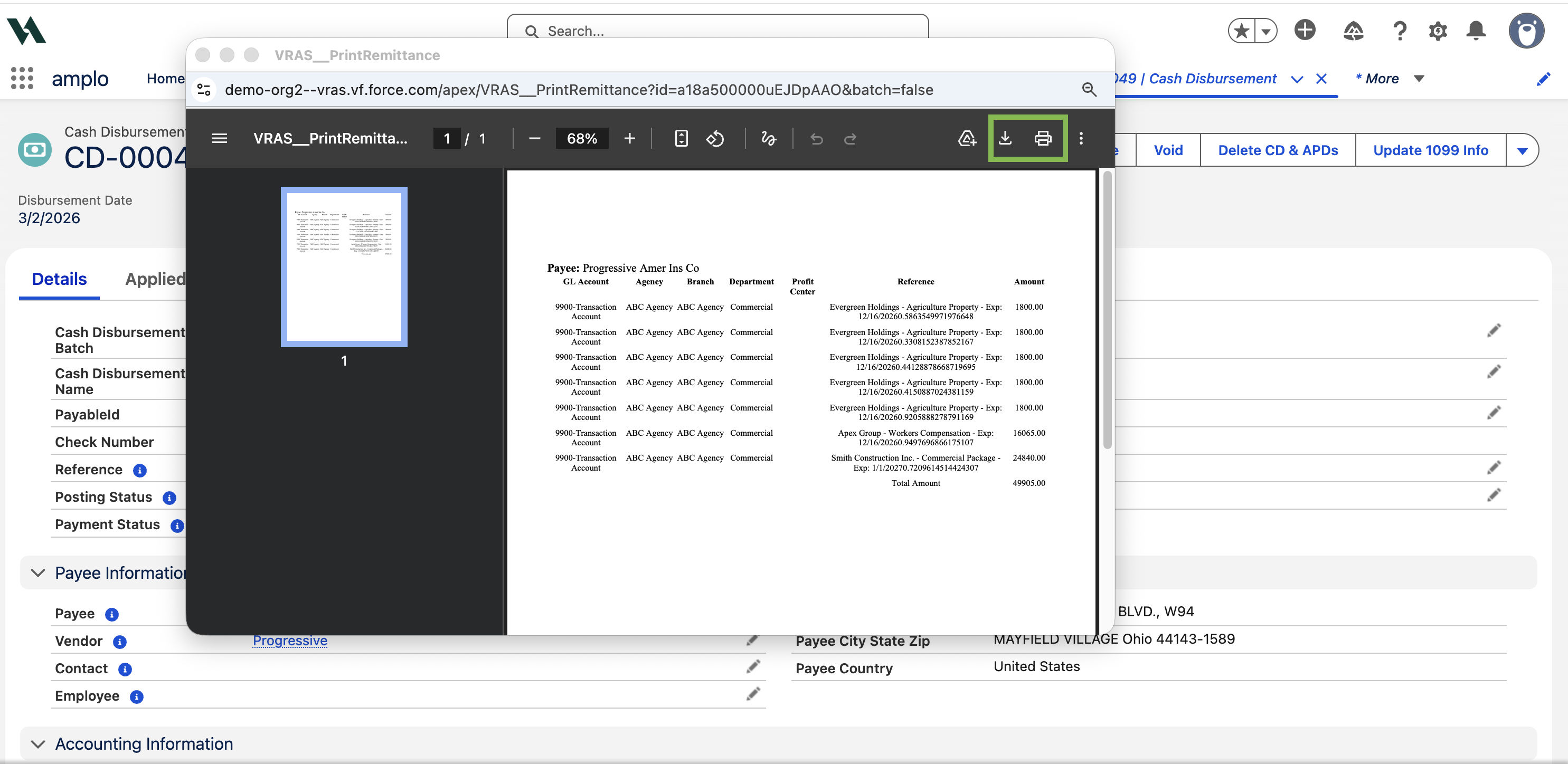
A PDF will generate of the remittance details for your records or for carrier submission.
Note: If you have pop-up blockers enabled, you will see an error message. Turn off pop-up blockers and click Print Remittance again to view the PDF.

Print or download the remittance, depending on your workflow.