Managing bank deposits
Last updated: February 28, 2026
Bank deposits group one or more Cash Receipts into a single deposit transaction in your accounting system. This process ensures the total recorded in amplo matches the actual amount deposited into your bank account. Accurate deposits support:
Proper handling of premium funds
Trust account reconciliation
Regulatory and fiduciary compliance
Accurate bank reconciliation
This article explains how to create and manage Bank Deposits.
Create a new bank deposit
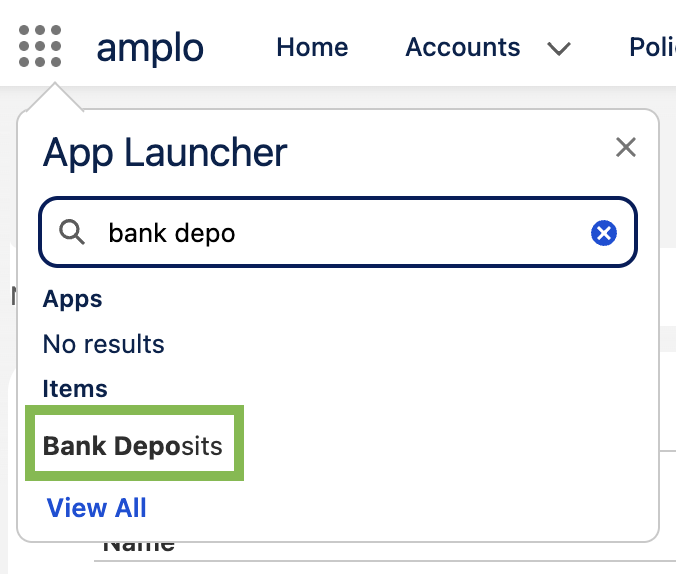
In the App Launcher, search and select Bank Deposits.
Click New.

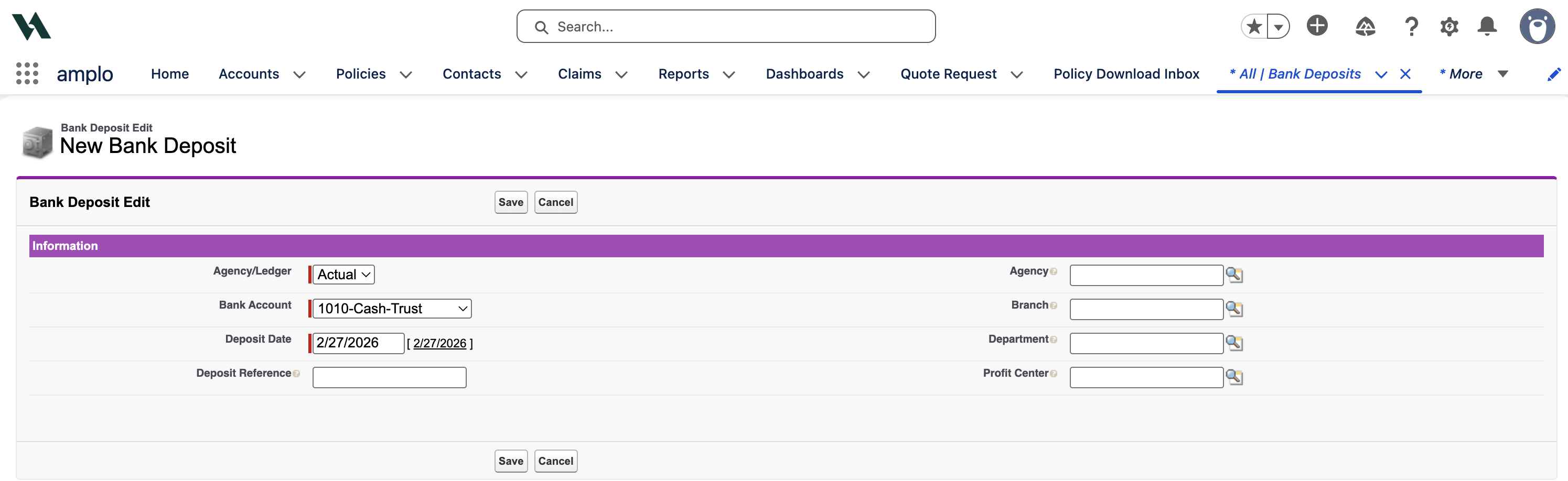
In the New Bank Deposit screen, complete the following:
Agency/Ledger
Bank Account
Deposit Date
Deposit Reference
Agency
Branch
Department (if applicable)
Profit Center (if applicable)
Click Save.
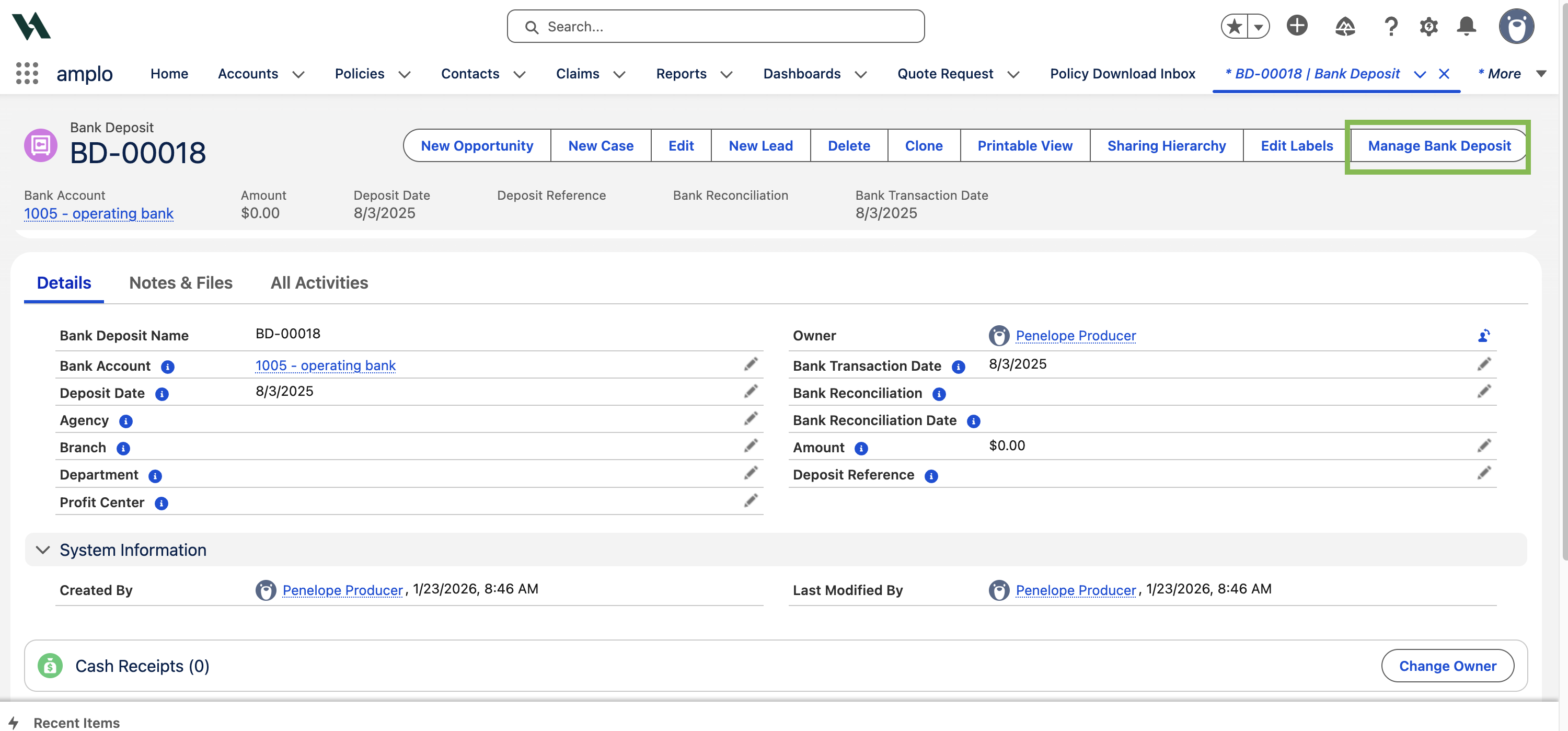
Select Manage Bank Deposit.
Associate cash receipts
On the Manage Bank Deposit page:
Unassociate Cash Receipts to remove any linked receipts.
Associate Records to link additional cash receipts to the deposit.
Confirm that your Date Range is broad enough to capture all relevant receipts.
Once associated, the selected cash receipts will move to the Associated Records section on the left side of the screen.
Note: Any changes you make will be automatically saved when you exit the Manage Bank Deposit screen.
Edit a bank deposit
In the App Launcher, search and select Bank Deposits.
Select the Bank Deposit name to open it.
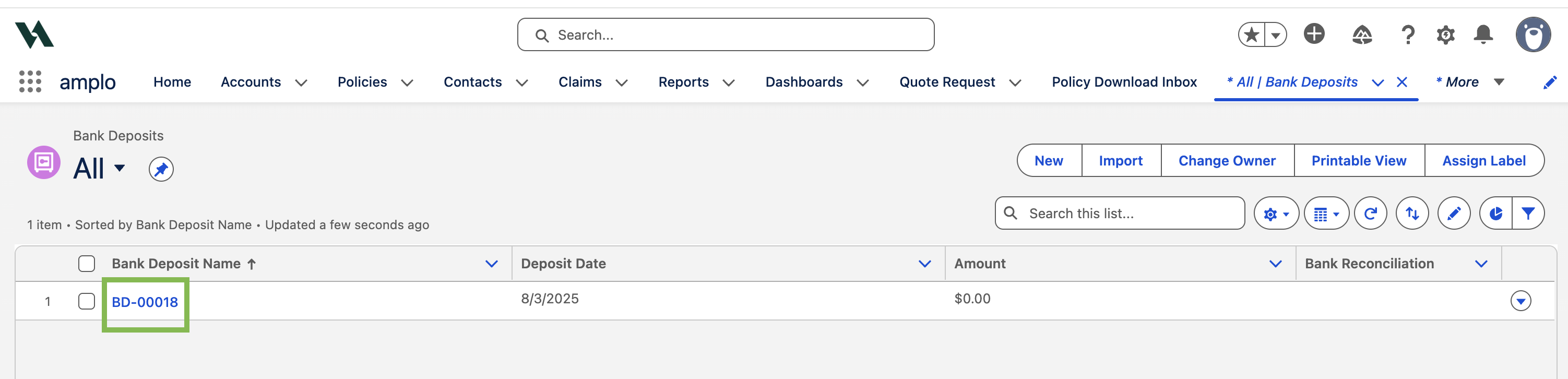
Select Manage Bank Deposit.
On the Manage Bank Deposit page:
Unassociate Cash Receipts to remove any linked receipts.
Associate Records to link additional cash receipts to the deposit..
Associated receipts appear in the Associated Records section.