Resolving VerunaDocs errors
Last updated: June 2, 2026
Overview
VerunaDocs errors occur for various reasons, with simple steps to resolve each scenario. This article explains the most common causes and how to address them.
If you’re encountering errors while trying to attach documents or emails to accounts, follow the steps below to troubleshoot and resolve the issue.
Initial troubleshooting steps
Start with these basic steps:
Clear your browser cache. This often resolves temporary upload or UI-related issues.
Restart your browser. Fully close all browser windows and reopen.
Log out and log back in. Refreshing your session can help resolve authentication-related problems.
Try the attachment again. The issue may be temporary and could resolve on its own after the above steps.
Reset the VerunaDocs API token
If you see an embedded page error when accessing attaching a document in VerunaDocs, your API token may need to be reset. An administrator can follow the steps below to force a reset of the user record.

In the App Launcher, search and select VerunaDocs Setup.

Select the affected user's name and click Edit.
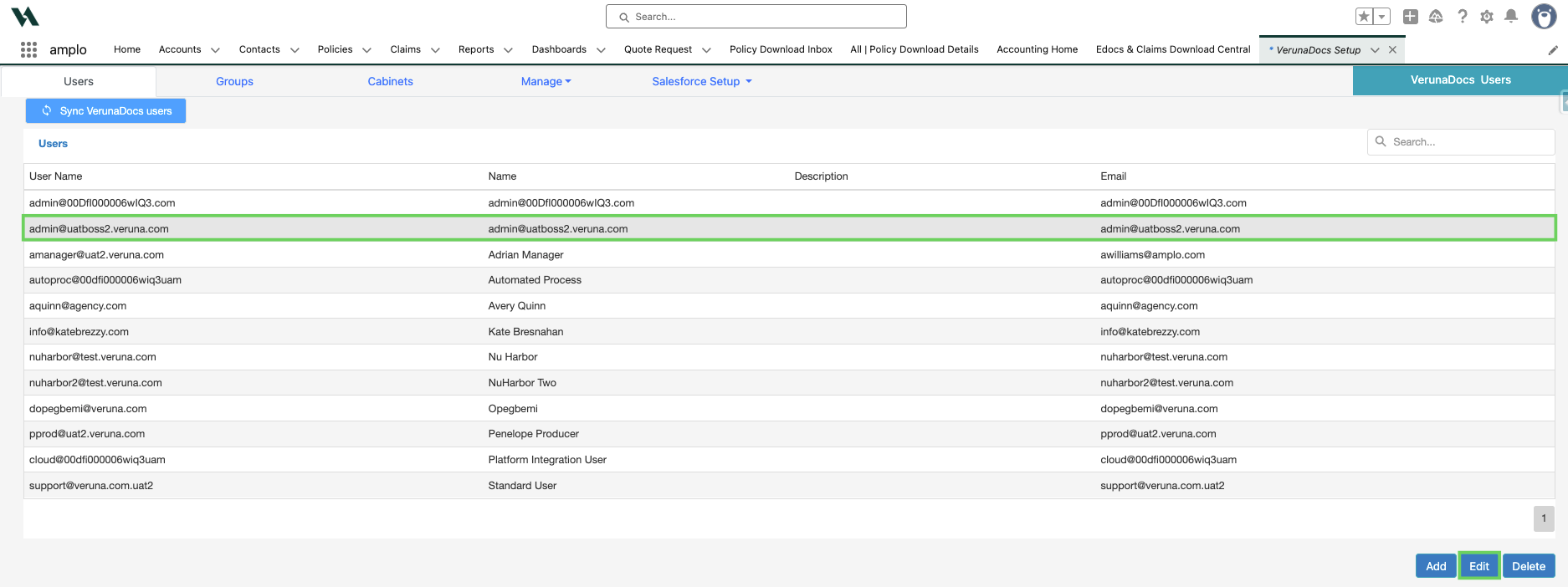
Click Save on the bottom right of the screen.

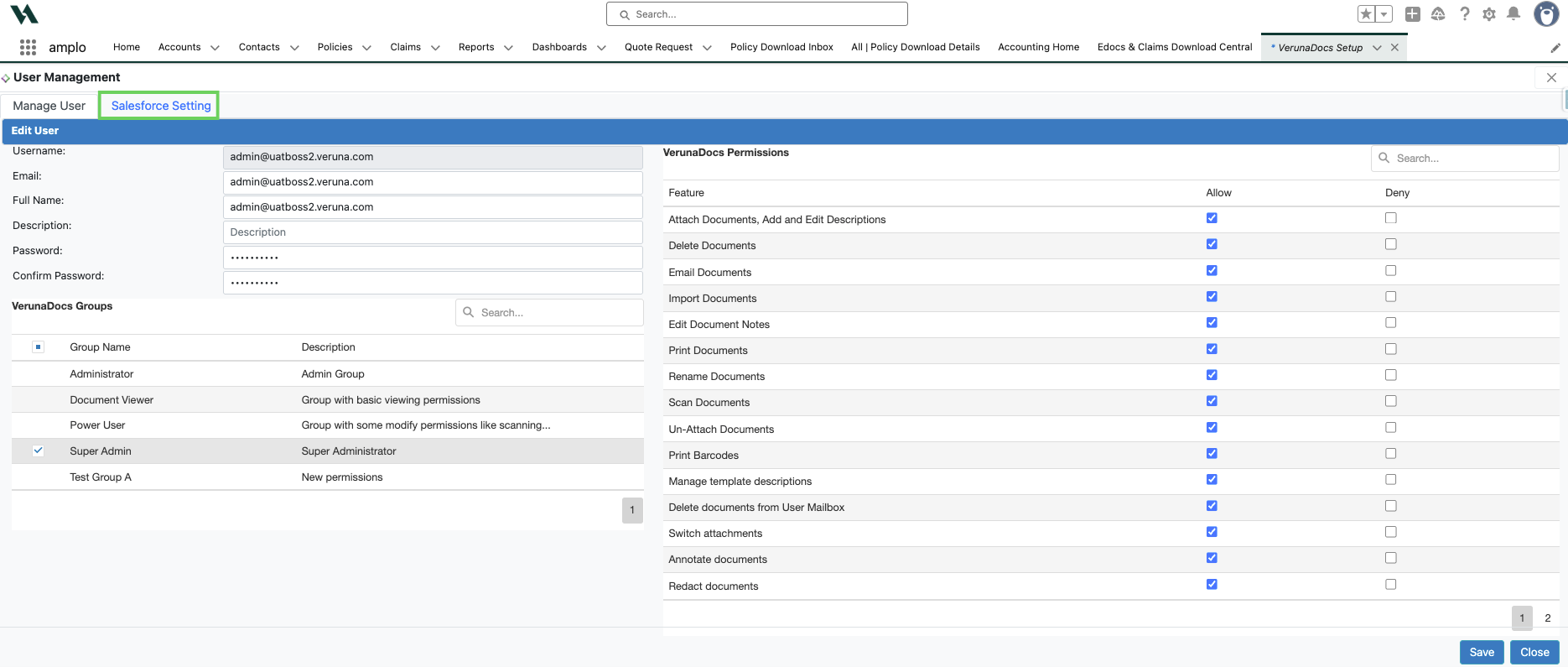
Click the Salesforce Setting tab.
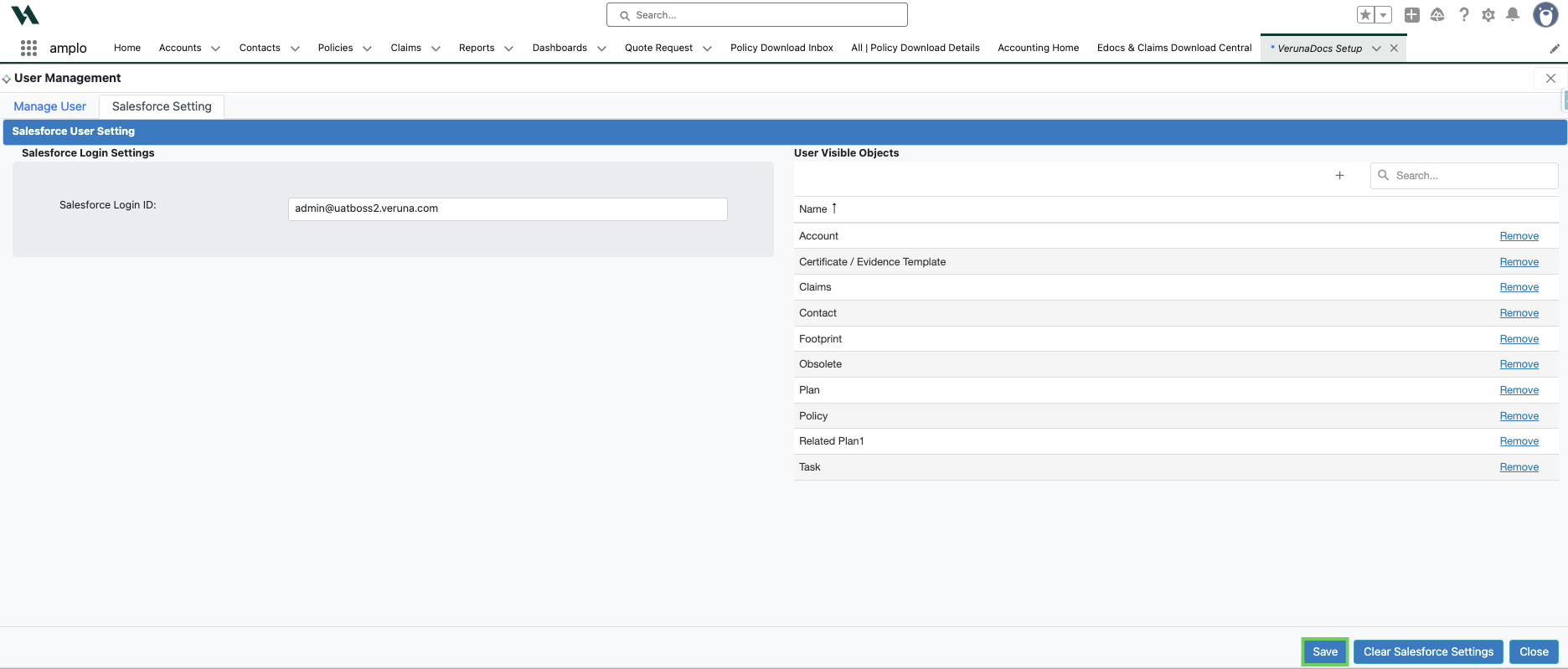
Select Save.
Additional Troubleshooting Steps
If the issue persists:
Identify the affected accounts. Make note of which specific accounts are experiencing the issue.
Remove special characters from subject lines. Avoid prefixes like RE: or FWD: as they may interfere with attachment processing.
Test different file types. Try attaching various document formats to check if the issue is file-specific.
Check with other users. Determine whether others in your organization are experiencing similar problems.
Note: There is a known issue involving special characters in subject lines, which is currently being escalated with OfficeScope, our document management partner.
Errors
Click an error message to view the cause and recommended fix.
"Authentication failure"
When accessing the VerunaDocs tab on an account, users may encounter an error indicating that their VerunaDocs API token has expired. This error can occur in any browser and requires a simple reset process to resolve.
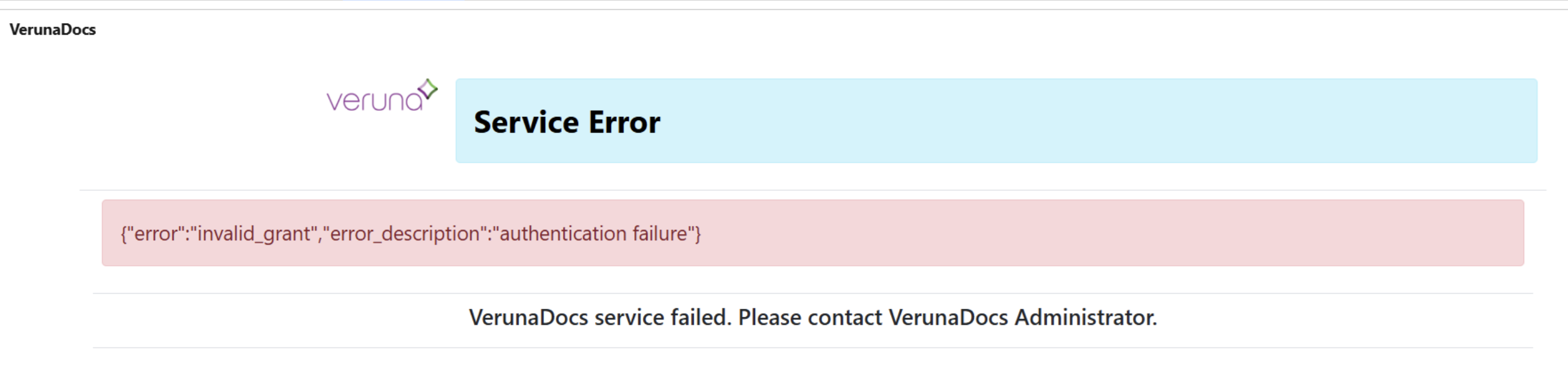
To resolve the VerunaDocs API token expiration error, an administrator can follow these steps to force a reset of the user record.
Open the App Launcher (nine dot menu).
Search for and click into VerunaDocs Setup.
In the Users tab, find the affected user's name, click into it, and click Edit.
Click Save on the bottom right of the screen.
Click the Salesforce Setting tab and click Save.
Instruct the affected user to:
Clear their browser's history and cache for all time.
For Chrome: Go to Settings > Privacy and Security > Clear browsing data.
For Edge: Go to Settings > Privacy, search, and services > Clear browsing data.
Log back in to their Salesforce account.
Navigate to the desired account record.
Click into the Documents section.
Click the blue "Documents" hyperlink.
In the popup window, click Allow to permit access to the API.
"This user doesn't exist"
When accessing the VerunaDocs tab on an object, users may encounter an error indicating that their user doesn't exist in VerunaDocs.

To resolve this error, an administrator can follow these steps to force a reset of the user record.
Open the App Launcher (nine dot menu).
Search for and click into VerunaDocs Setup.
In the Users tab, find the affected user's name, click into it, and click Edit.
Click Save on the bottom right of the screen.
Click the Salesforce Setting tab and click Save.
Instruct the affected user to:
Clear their browser's history and cache for all time.
For Chrome: Go to Settings > Privacy and Security > Clear browsing data.
For Edge: Go to Settings > Privacy, search, and services > Clear browsing data.
Log back in to their Salesforce account.
Navigate to the desired account record.
If the user is still receiving this error after completing the steps above, contact amplo Support for further assistance.
"File not found"
A common cause of these errors when downloading or viewing documents in VerunaDocs is the use of an ampersand (&) in the file name, which is incompatible with the system.

To resolve the issue:
Rename the file by replacing the ampersand with the word and or removing it entirely.
"VRNA: DML currently not allowed"
When clicking the "Create Certificates" button on a certificate, this error can appear. It indicates the user's VerunaDocs API token needs to be reset.

An administrator can follow these steps to force a reset of the user record.
Open the App Launcher (nine dot menu).
Search for and click into VerunaDocs Setup.
In the Users tab, find the affected user's name, click into it, and click Edit.
Click Save on the bottom right of the screen.
Click the Salesforce Setting tab and click Save.
Instruct the affected user to:
Clear their browser's history and cache for all time.
For Chrome: Go to Settings > Privacy and Security > Clear browsing data.
For Edge: Go to Settings > Privacy, search, and services > Clear browsing data.
Log back in to their Salesforce account.
Navigate to the certificate.
Click into the Holders tab.
Check the box to the left of a Holder.
Click Download Certificates.
In the popup window, click Allow to permit access to the API.
"Error: 200, SyntaxError: Unexpected token '<',"
This error can occur when clicking into the Documents tab on an object. One potential cause is network or VPN restrictions that do not allow access to the URLs necessary for the VerunaDocs functionality. If you are using a shared network or VPN, confirm with your IT team if these URLs are allowed:
Callback URL
Use App Launcher to access VerunaDocs Setup.
Click on the Salesforce Setup tab.
Note the value in the Callback Url field.
VerunaDocs URL
Using the gear icon, navigate to Setup.
In the Quick Find box, search for and select Custom Settings.
Click Manage next to VerunaDocs Settings.
Click VerunaDocsURL.
Note the value in the VerunaDocsUrl field.
When to contact support
Reach out to support if:
The basic troubleshooting steps do not resolve the issue.
Multiple users are affected.
The problem occurs across different accounts or document types.
Please include the following information in your support request:
Names of affected users.
Direct links to the impacted accounts.
Screenshots of any error messages.
A list of troubleshooting steps you’ve already tried.
Note: To maintain consistent access to VerunaDocs:
Ensure you're using a supported browser (Chrome or Edge).
Keep your browser updated to the latest version.
Log out and log back in to Salesforce if you haven't done so in several days.