VerunaDocs "The login name does not match the token user name." error
Last updated: September 2, 2026
Overview
When you try to access VerunaDocs from an account record in Salesforce, you'll see the following error message: The login name does not match the token user name
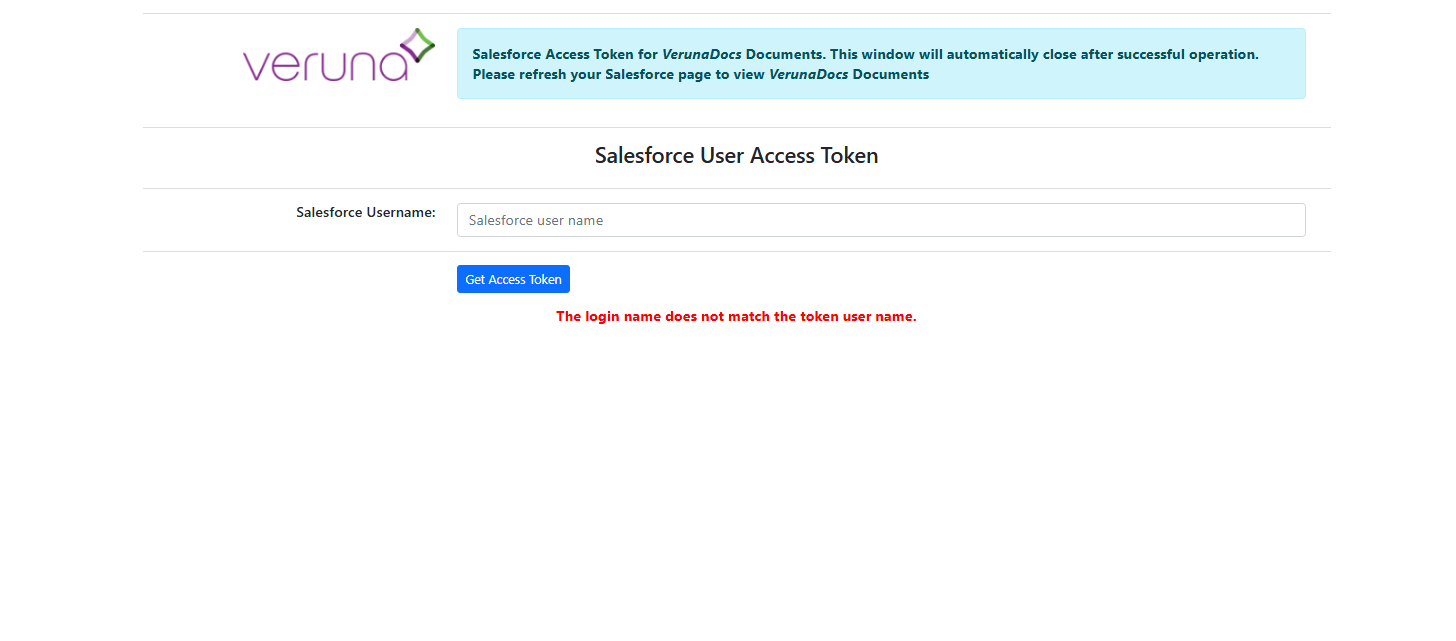
This error typically appears as soon as the VerunaDocs window loads, before you upload or interact with any documents. It's most commonly caused by a missing API Enabled permission on the user's Salesforce profile, and can be resolved by enabling that permission and resetting the user's VerunaDocs token.
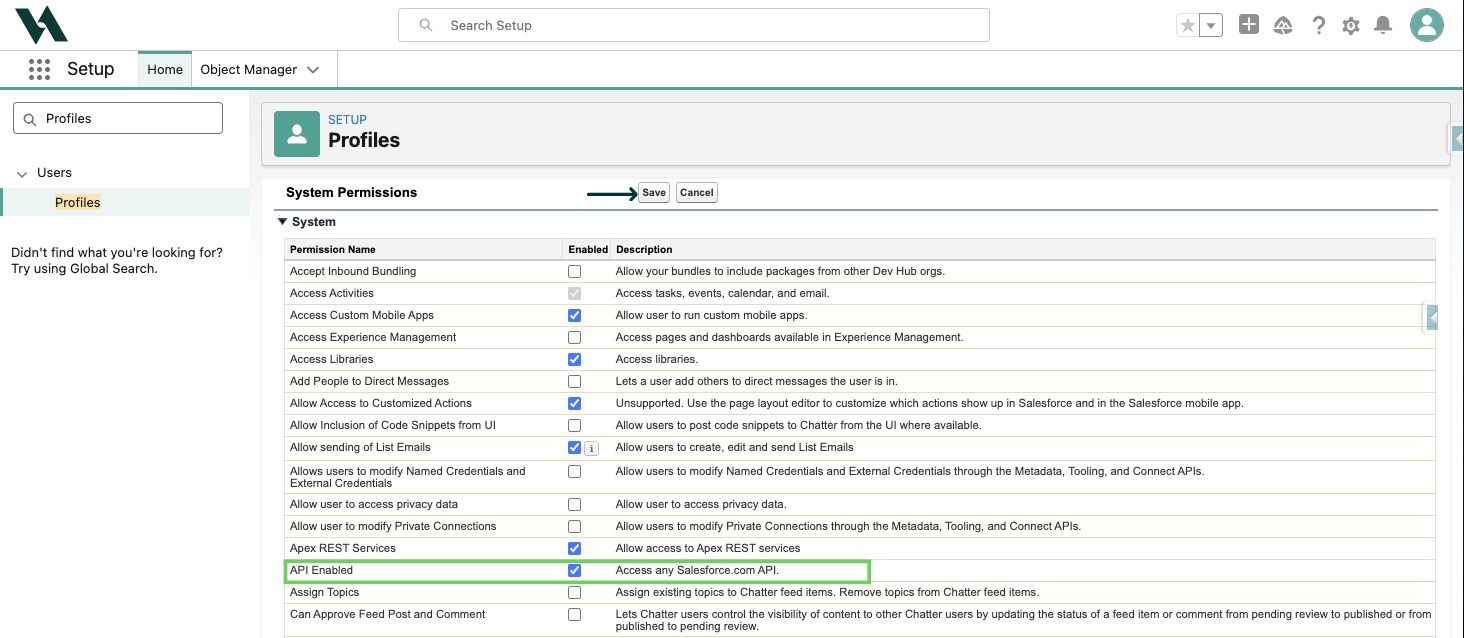
Enable the API Enabled permission on the user's profile
VerunaDocs requires the API Enabled system permission to be active on the user's Salesforce profile. Without it, the user will get errors when trying to access VerunaDocs, even if they're configured correctly in VerunaDocs Setup.
In Setup, use Quick Find to search and select Profiles.

Click the affected user's profile.
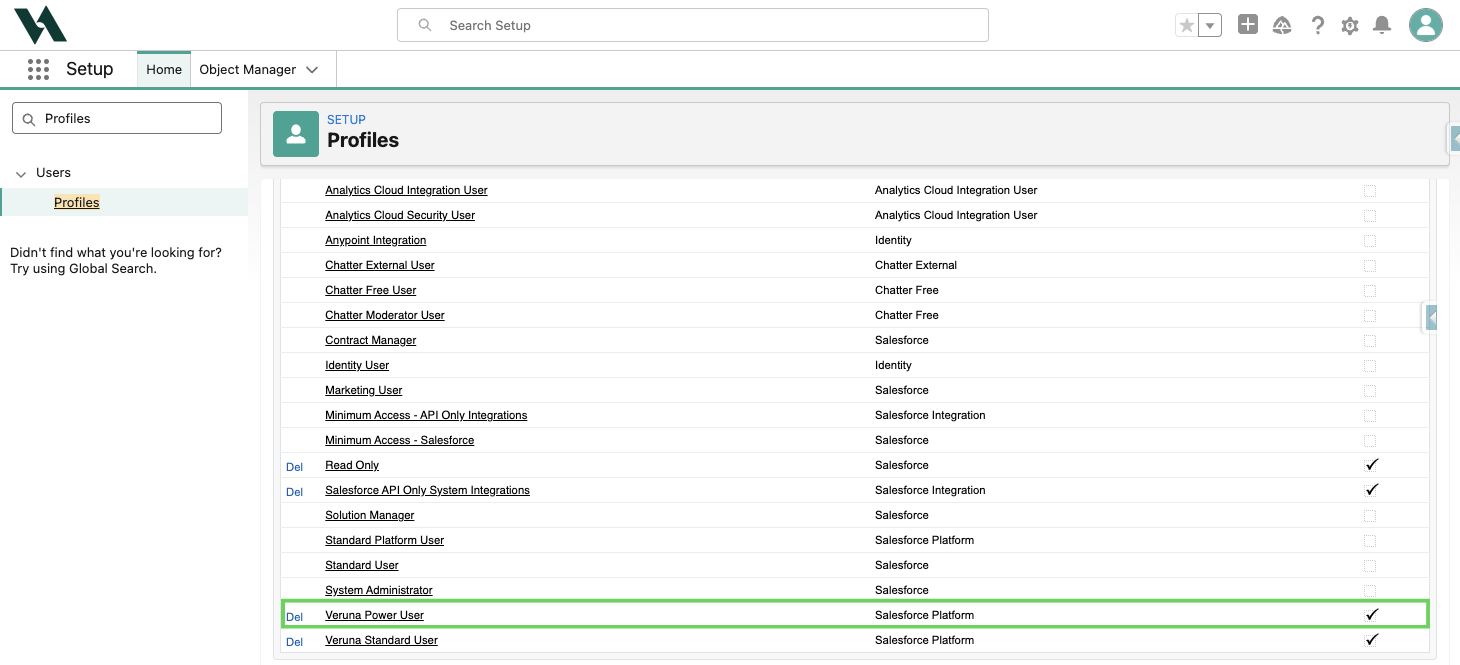
Go to System Permissions.
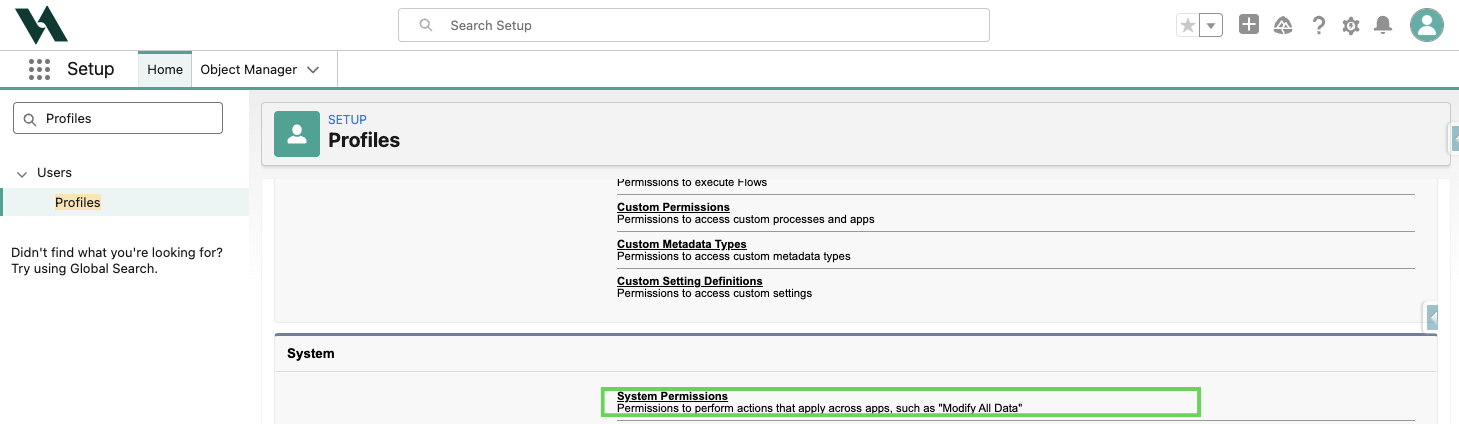
Select Edit.
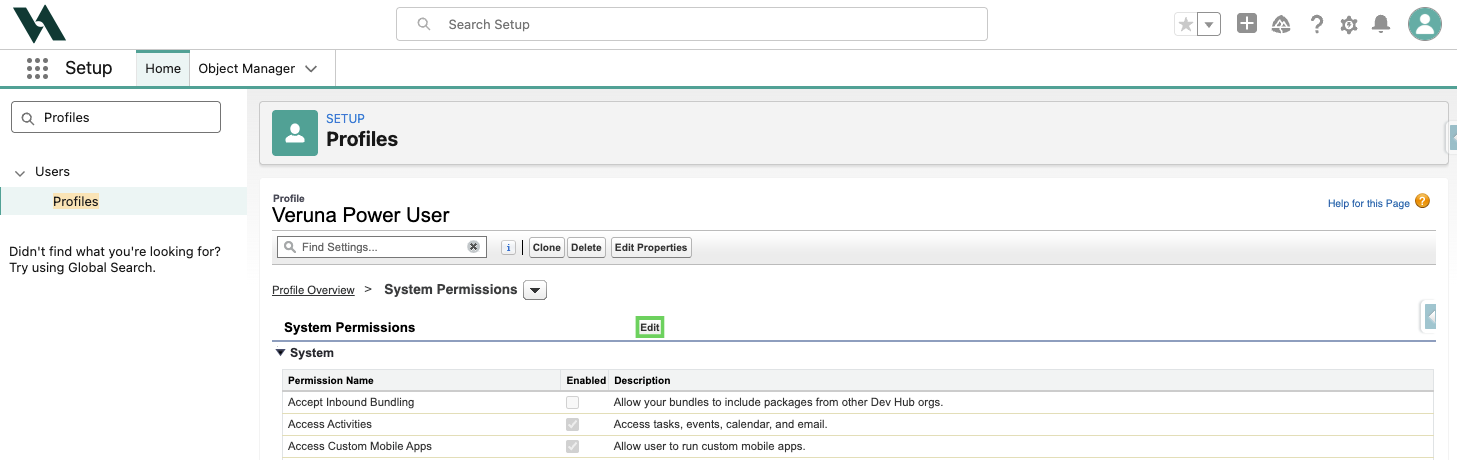
Check the API Enabled checkbox and click Save.
Reset the user's VerunaDocs token
After you enable the API Enabled permission, reset the user's VerunaDocs access token to apply the change. For instructions, see 📄 Resetting the VerunaDocs API token.
Clear the browser cache and retry
Once you reset the token, have the user clear their browser cache for all time before trying to access VerunaDocs again. This makes sure no outdated session data interferes with the new token. For more information, see 📄 How to clear your cache.
Note: If the user continues to have errors after completing the steps above, contact Amplo Support for further help. Backend log access may be required to diagnose the issue.