Can't preview a document in VerunaDocs
Last updated: October 20, 2026
Overview
If a document in VerunaDocs can't be previewed in the viewer window and instead prompts you to download the file, the issue may be caused by incorrect file naming convention. This article provides information about identifying the issue and renaming the file to resolve it.
Identifying the file name
File extensions are typically found at the end of a file name. If a document in VerunaDocs has a file name where the file extension (for example, .pdf) appears in the middle rather than at the end, the preview window can't render the document correctly.
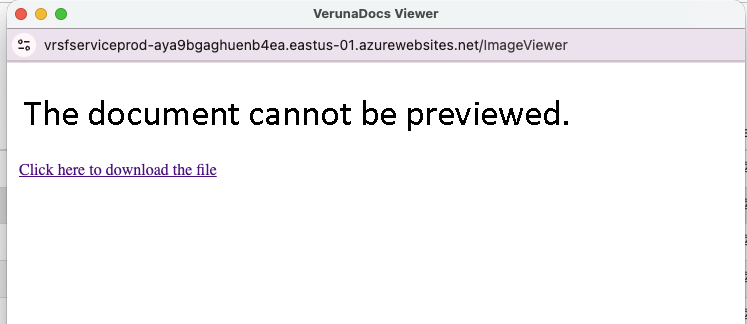
Incorrect file name:
ExampleDocument.pdf RENEWAL
Correct file name:
ExampleDocument RENEWAL.pdf
Renaming the file
To restore preview functionality in VerunaDocs, rename the file so the extension appears at the very end of the file name using the steps below:
From the account record, click the Documents tab, then click the blue hyperlink.
Select the checkbox next to document that you are unable to preview correctly.
Select the edit pencil to rename the document.
Rename the file so the extension (for example,
.pdf) moves to the very end, after all descriptive text.
Save your changes, then try previewing the document again.
Note: When uploading new documents, always ensure the file extension is placed at the end of the file name to avoid preview issues in the future.
If renaming the file does not resolve the issue, or if you are experiencing preview problems across multiple accounts or documents, please contact Amplo Support for further assistance.