Cancelling a CL policy
Last updated: March 5, 2026
Overview
Commercial lines policy cancellations must be processed accurately and in accordance with carrier requirements. Cancellations typically occur for one of two reasons:
The carrier issues an intent to cancel due to non-payment.
The insured requests cancellation for personal reasons such as rewriting coverage, selling insured property, or switching carriers.
This article walks you through how to manually cancel a commercial lines policy. For more information about when and why to update a policy manually, see 📄 Manual policy changes.
Intent to cancel
Use the steps below for carrier-initiated cancellations.
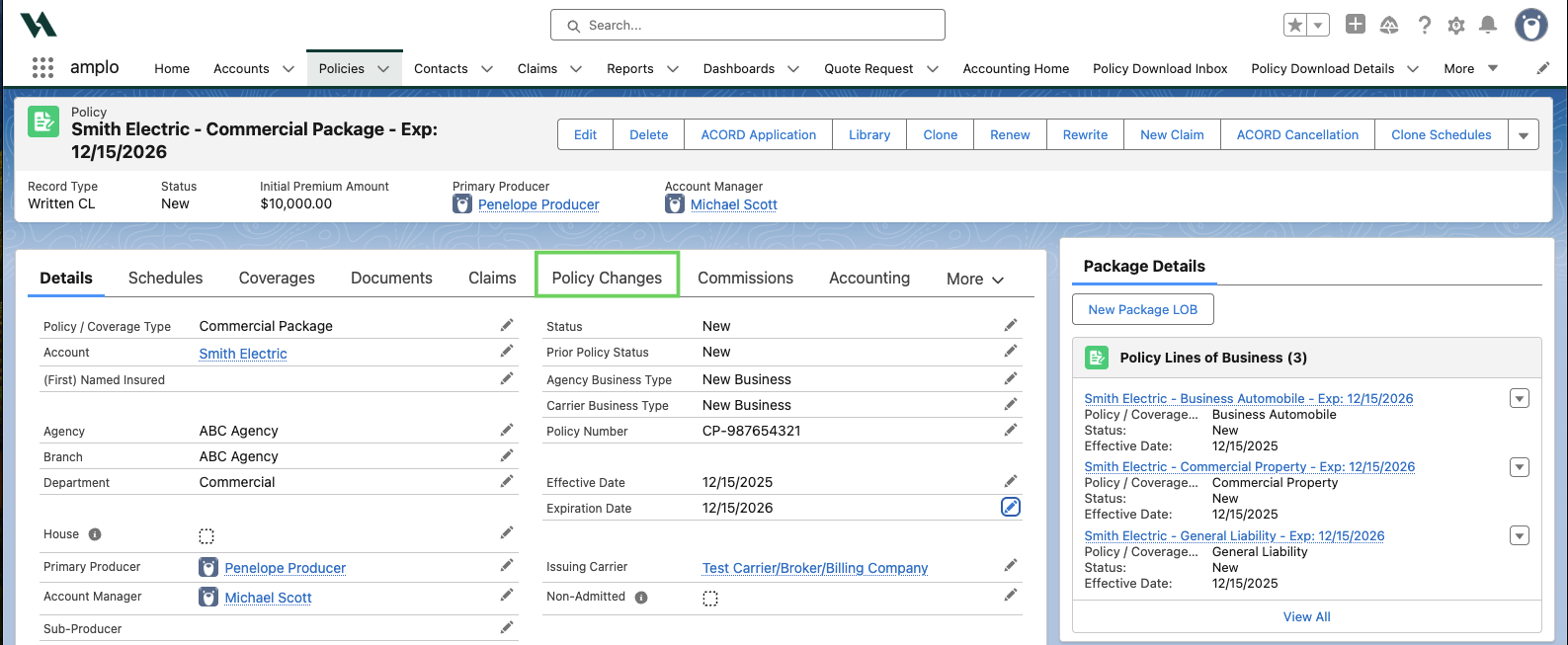
On the policy record, select Policy Changes.
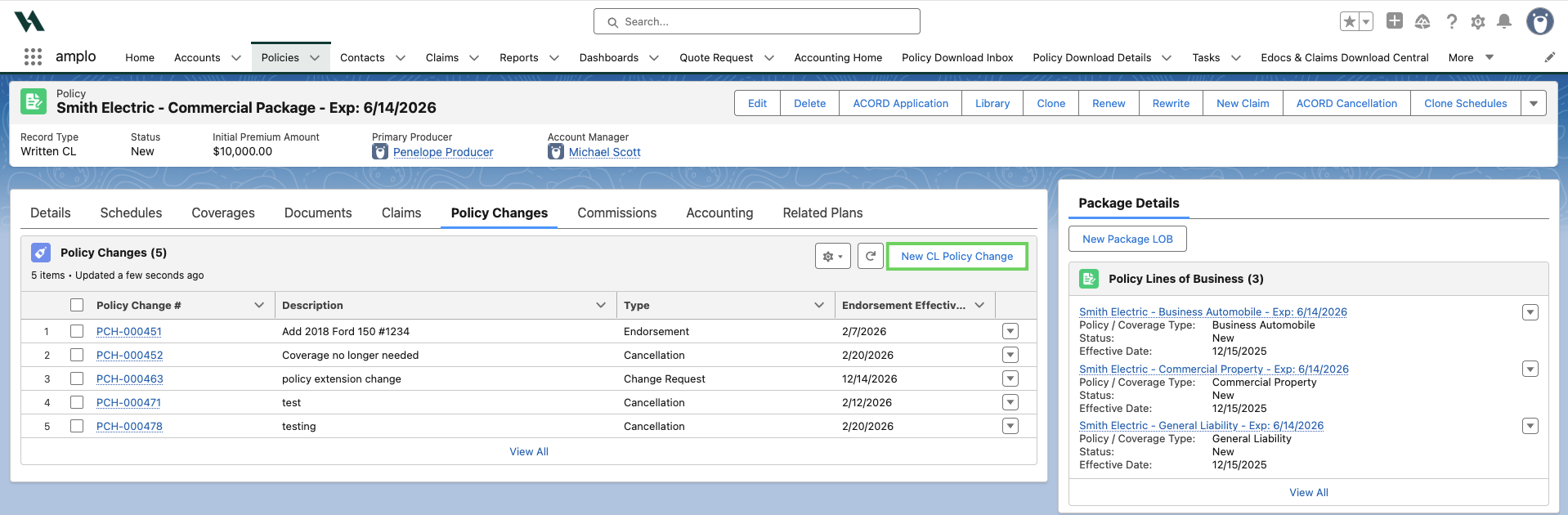
Select New CL Policy Change.
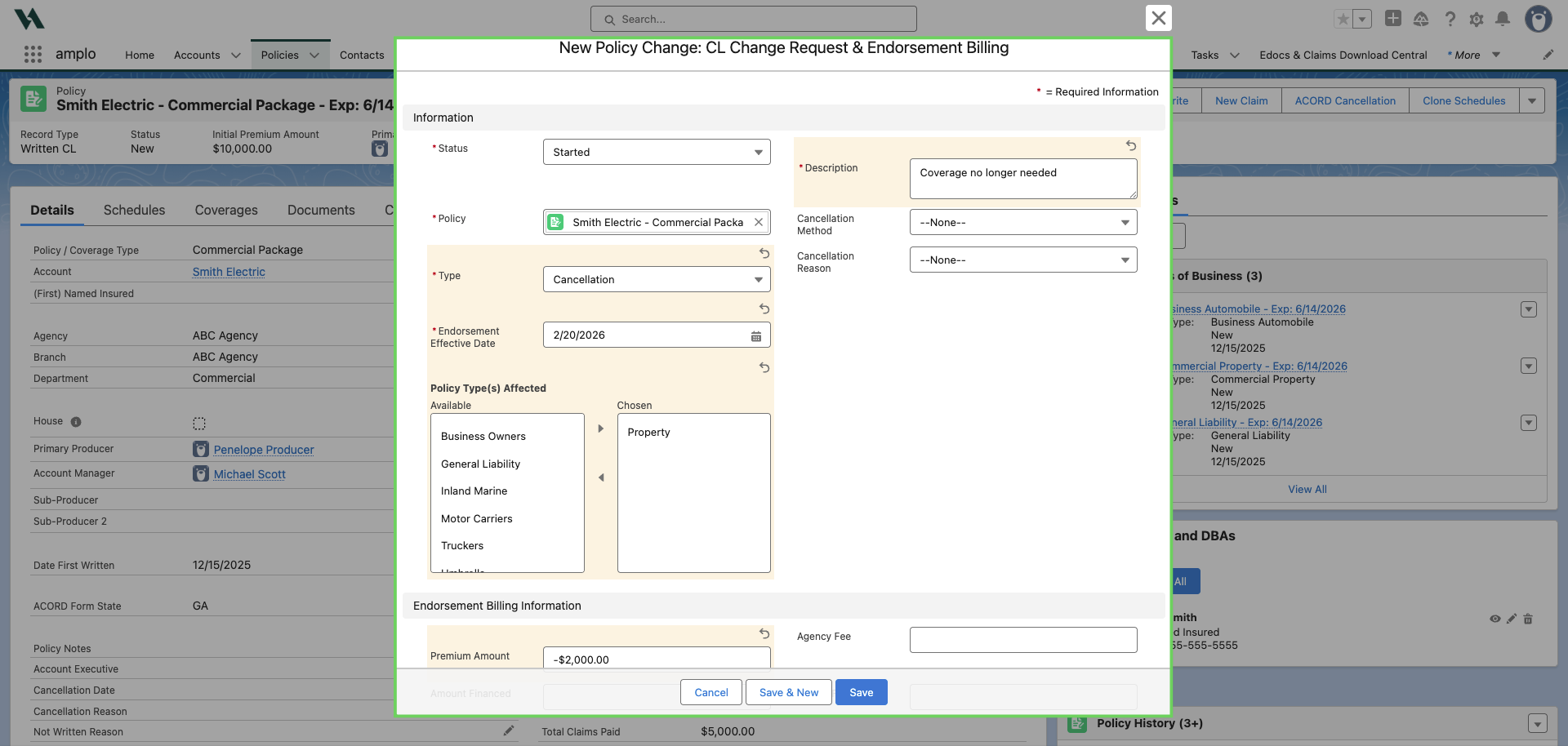
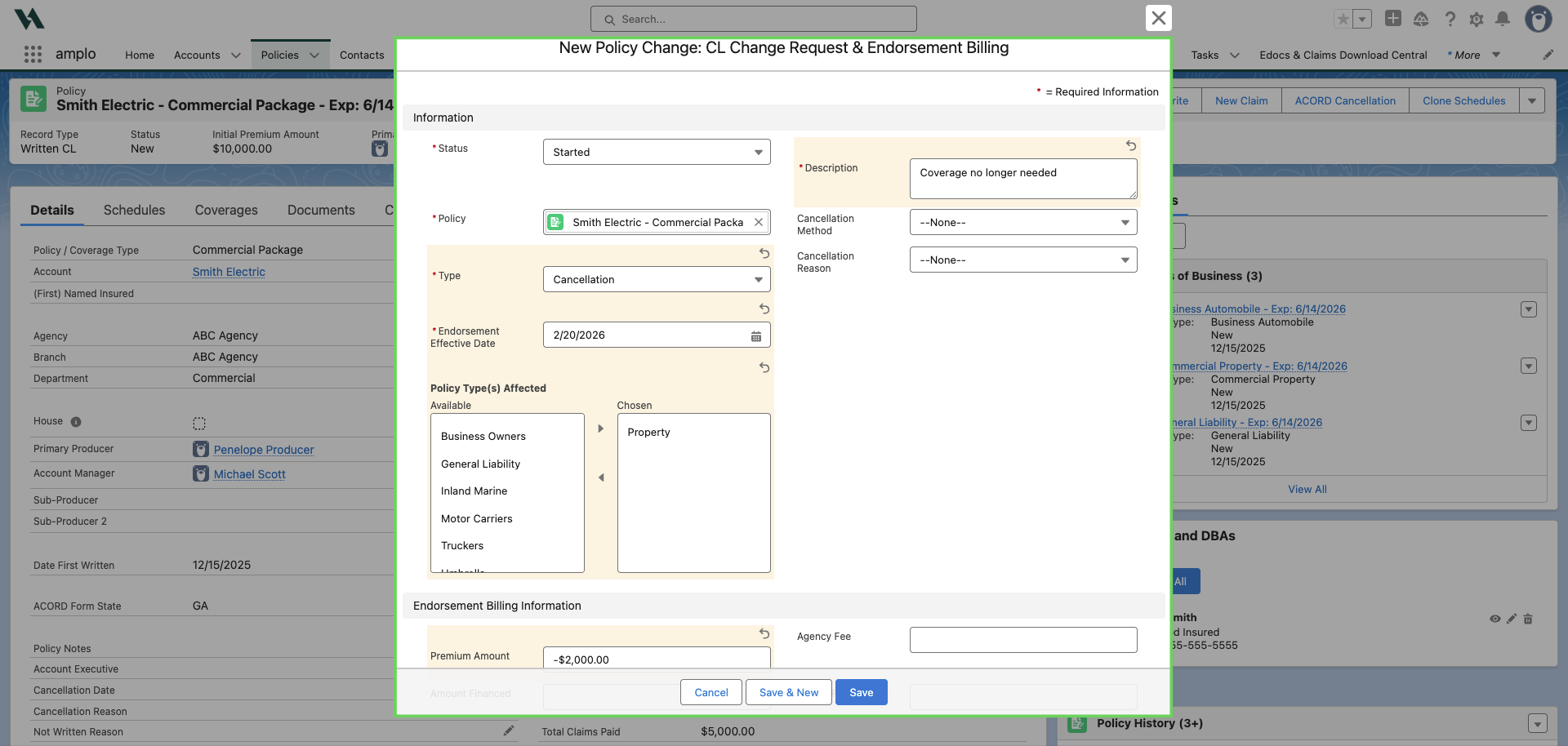
Enter the following information:
Type: Cancellation
Endorsement Effective Date: Date the policy should be cancelled
Description: Reason for the cancellation
Policy Type(s) Affected: Select the affected line(s) of business. If a monoline policy, leave this blank.
Cancellation Method and Cancellation Reason: These fields are optional, but should be referenced.
Premium Amount: Enter the premium amount sent by the carrier. Since it's a cancellation, the amount should be negative. This will update the Current Term Premium and Annualized Premium on the policy.
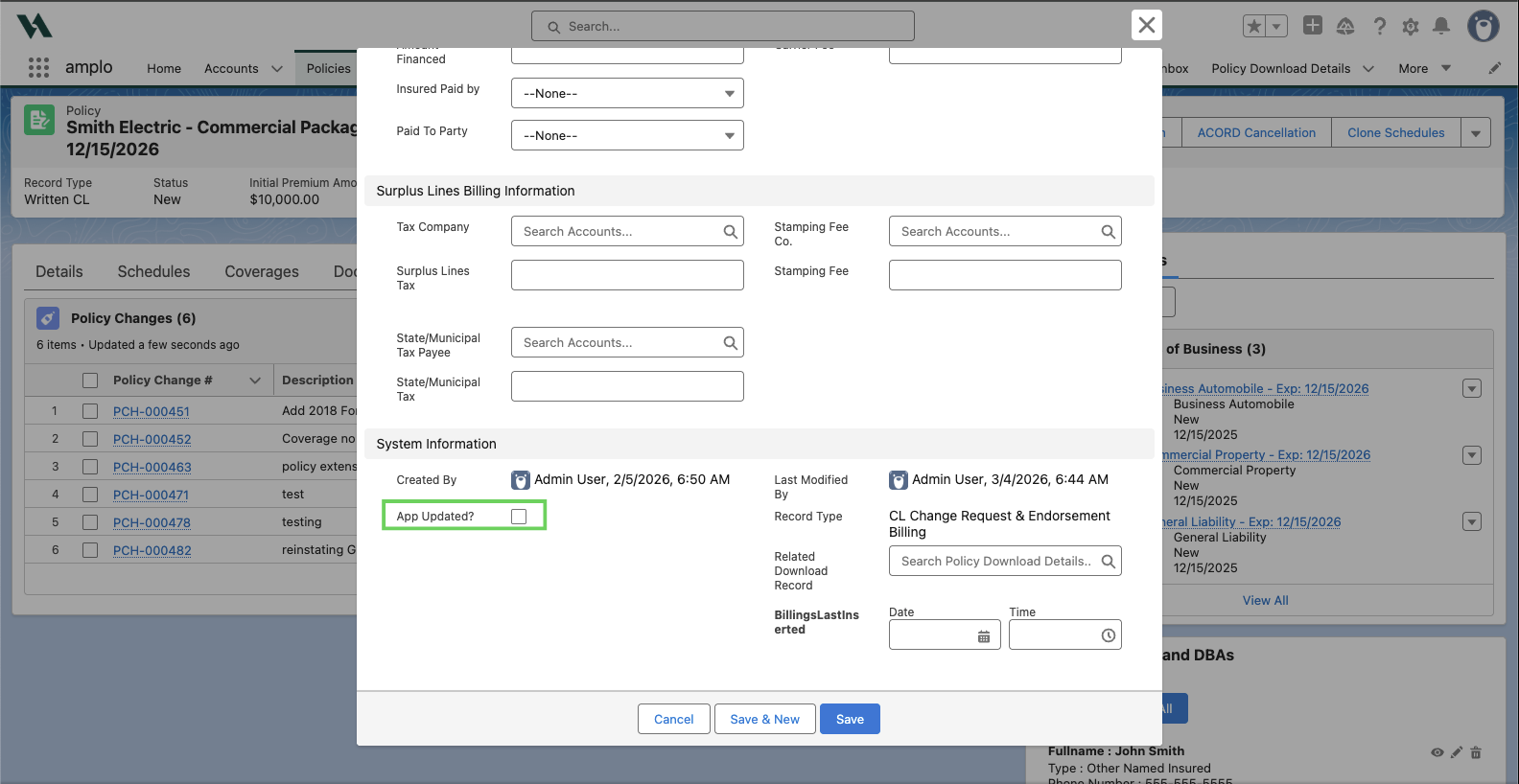
If you already have the information for the remaining sections, you can input the values here. Often, you may not have this information until after submitting the change to the carrier.
The App Updated? field is used to notate whether the policy changes have been pushed to the ACORD form. At this point in the process, it should be left unchecked.
Select Save to save the changes.
Select Update App on the policy change record. This action will automatically update the policy status and Policy Expiration Date based on the effective date of the cancellation and pushes changes made to the ACORD Forms.
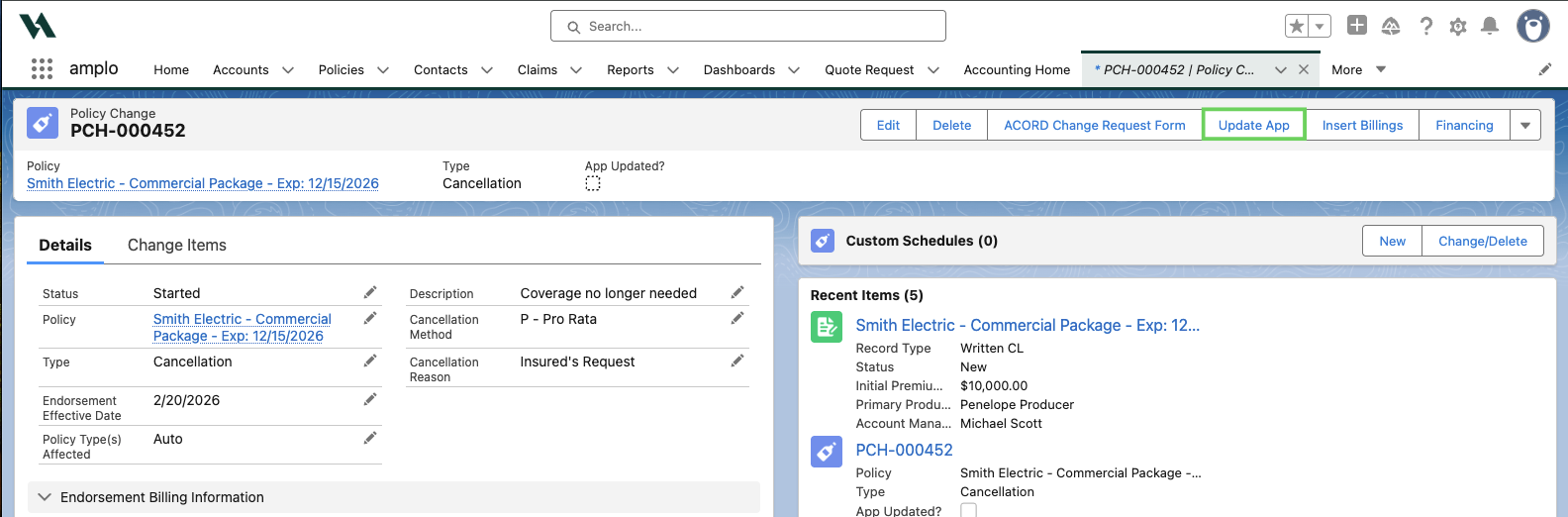
If entered, the Premium amount will appear automatically when saving the Cancellation Policy Change. The Policy Status and Policy Expiration Date updates require clicking the Update App button.
To confirm the changes, click on the policy hyperlink to return the policy.

The carrier will send a reinstatement or final cancellation. If the customer makes a payment on the policy, follow the steps in 📄 Reinstating a commercial policy .
Note: It's best practice to add a task to document the change. For more information on creating a task, see 📄 Manage activities and client interactions
Insured request to cancel
Use the steps below for insured-initiation cancellations.
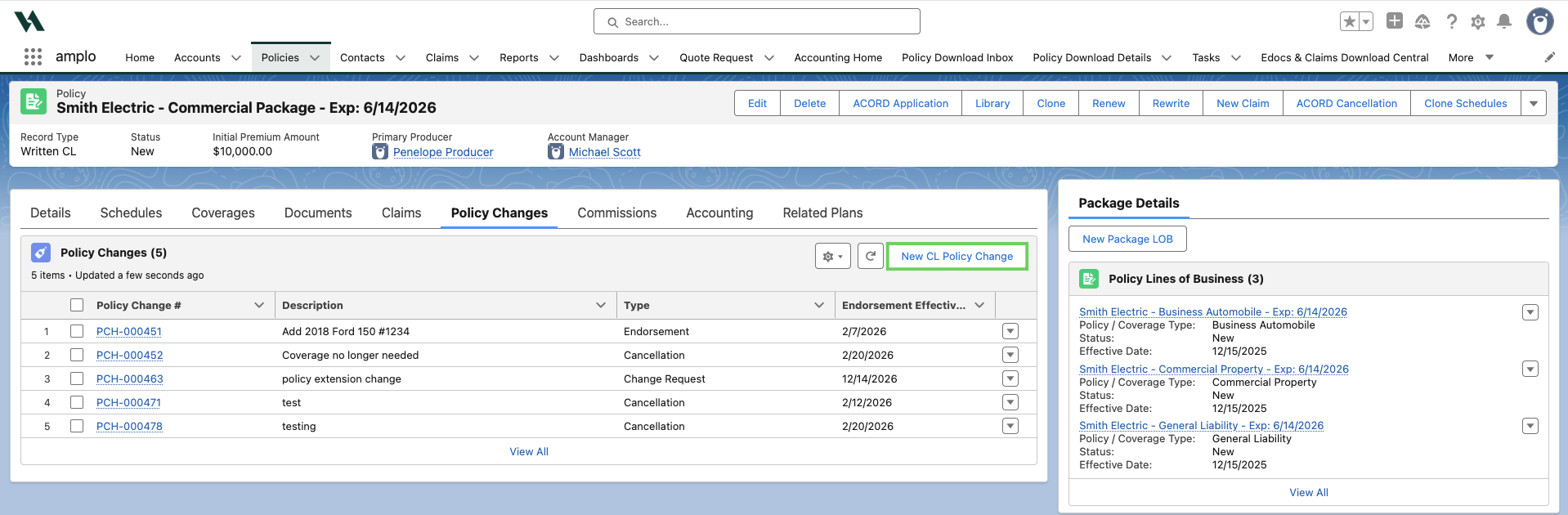
On the policy record you wish to cancel, select the Policy Changes tab.

Select New CL Policy Change.
Fill in the information for cancellation request and Save.
Select Update App on the policy change record. This action will automatically update the policy status and Policy Expiration Date based on the effective date of the cancellation or reinstatement.

Note: If entered, the Premium Amount will appear automatically when saving the Cancellation Policy Change. The Policy Status and Policy Expiration Date updates require clicking the Update App button.
Click the policy hyperlink from the the policy change.

Send the request to the carrier
The steps below outline how to create the ACORD Cancellation form.
On the policy record, click ACORD Cancellation.

Once the form opens in a new window, review mapped information for accuracy, and enter the Cancellation Date.
Select either Cancellation Request or Policy Release as needed.

select Save or Download (depending on your process).

After you download/save the form, send it to your insured for their signature.
Once the insured returns, send the signed form to the carrier.
Finalize the cancellation
Once the carrier sends the cancellation endorsement, follow the steps below:
On the Policy Changes tab, click back into the policy change record.

Use the edit pencil to change Status to Finished.
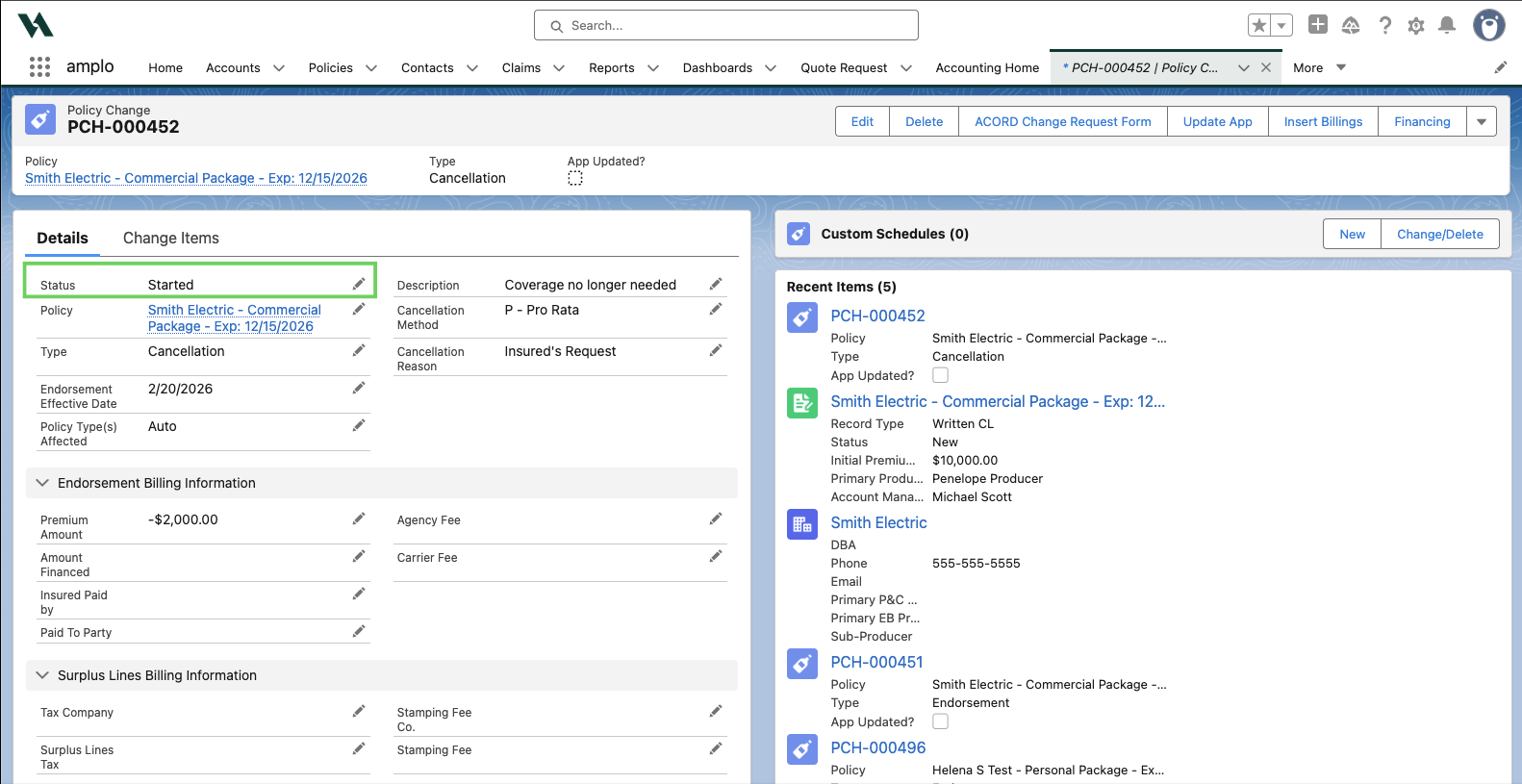
Then, select Save.

Note: The system automatically cancels the policy on the Endorsement Effective Date.