Managing premiums for CL package policies
Last updated: March 6, 2026
Overview
Premium roll-up automatically totals premiums entered at the Line of Business (LOB) level and updates the parent package policy, reducing manual work, prevents discrepancies, and keeps package policies financially accurate. If premium roll-up is disabled:
Enter the premium manually at the package level.
Premiums entered on child LOBs will not roll up automatically.
Note: To disable the roll-up process, contact your system administrator.
Enter premiums
Open the package policy record.
Select one of the Policy Lines of Business.
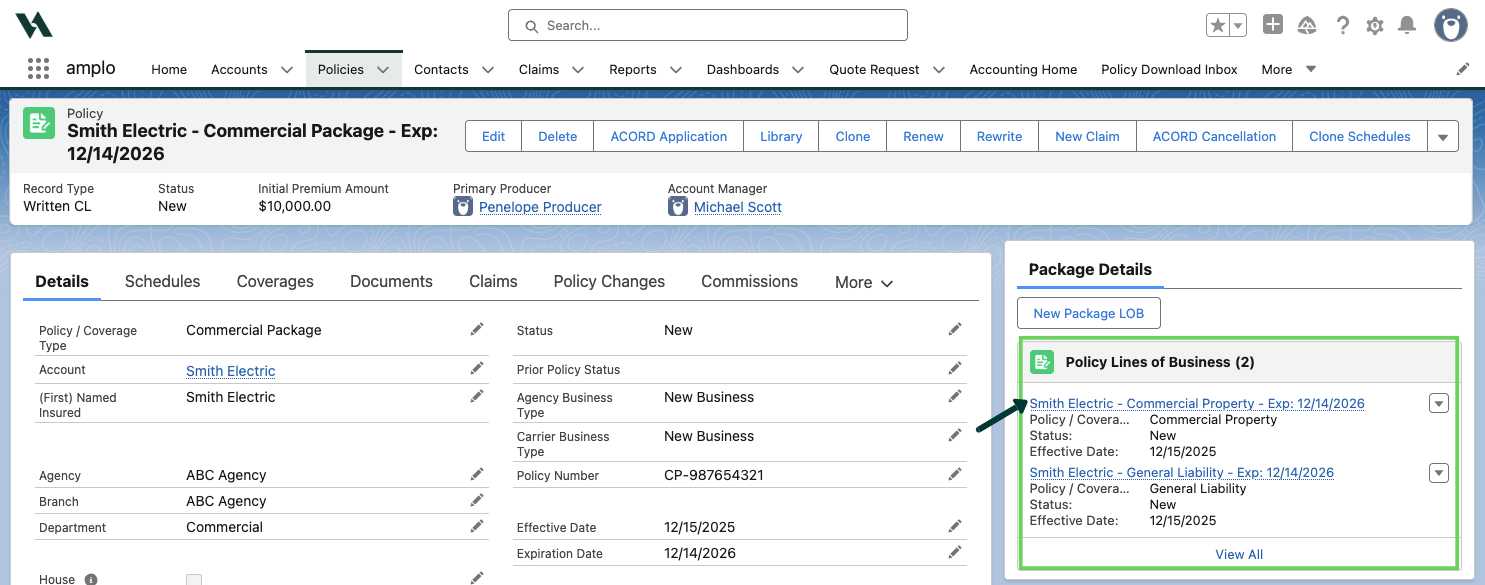
Select Edit or click the pencil icon next to Initial Premium Amount.
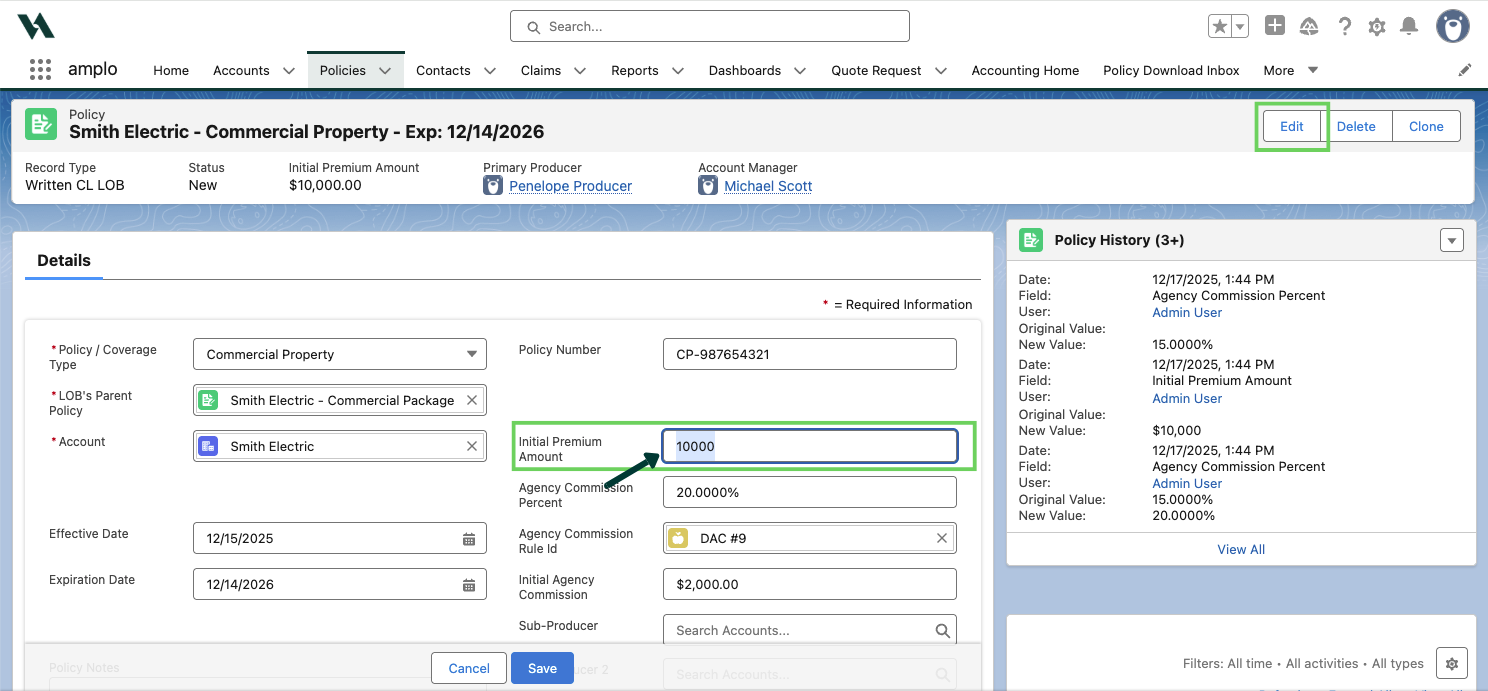
Enter the premium amount, then Save.
Note: If Agency Commission Rules aren’t set up, update the commission percentages manually. For details, see 📄 Managing agency commission rules.
Repeat the process for any additional LOBs.
Confirm the premium amount
Return to the parent package policy to confirm the Initial Premium Amount in Accounting section reflects the rolled-up total.
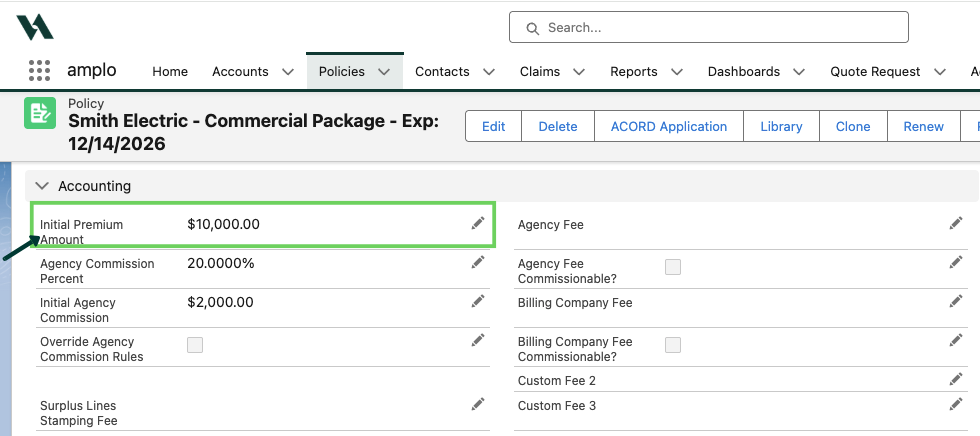
Note: If the premium amount appears incorrect, check whether the Managed Policy checkbox is selected. For more details, see Managed Policy setting.