Troubleshooting agency commission rules
Last updated: February 27, 2026
Overview
If default agency commission rules are not applying to package policies, the issue is typically caused by one of two configuration settings. This article explains how to identify the cause and resolve it.
Determine the cause
Agency commission rules will not attach to a package policy if:
The commission rule's Effective Date is later than the policy's Effective Date
The Managed Policy checkbox is preventing rules from rolling up to the package level.
Commission rule Effective Date
Check the Effective Date of the Commission Rule.
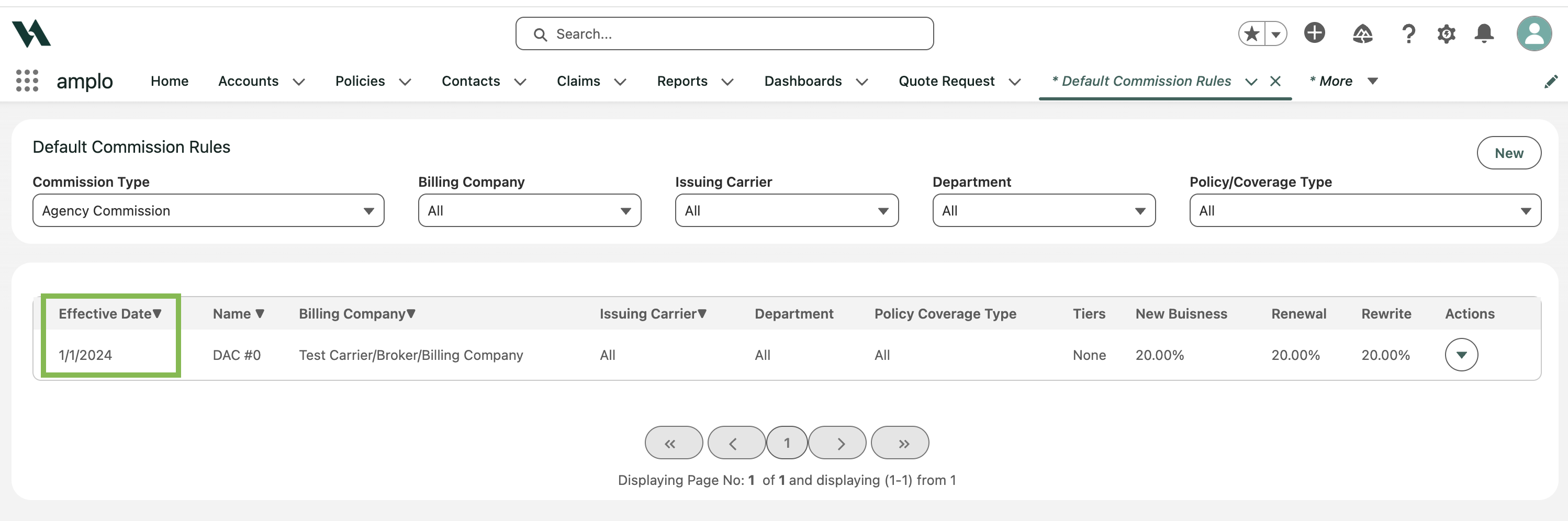
Check the Effective Date on the Policy record.

If needed, update the commission rule’s Effective Date so it is on or before the policy’s Effective Date.
Managed Policy setting
The Managed Policy checkbox prevents commission rules from rolling up to the package level.
Open the package policy record.
Scroll to the System Information section.
Uncheck the Managed Policy checkbox.

Click Save.
Reset the agency commission
After updating the settings, reset the commission at the Line of Business (LOB) level.
Open the policy record.
Navigate to the Commissions tab and click Reset Agency Commission.
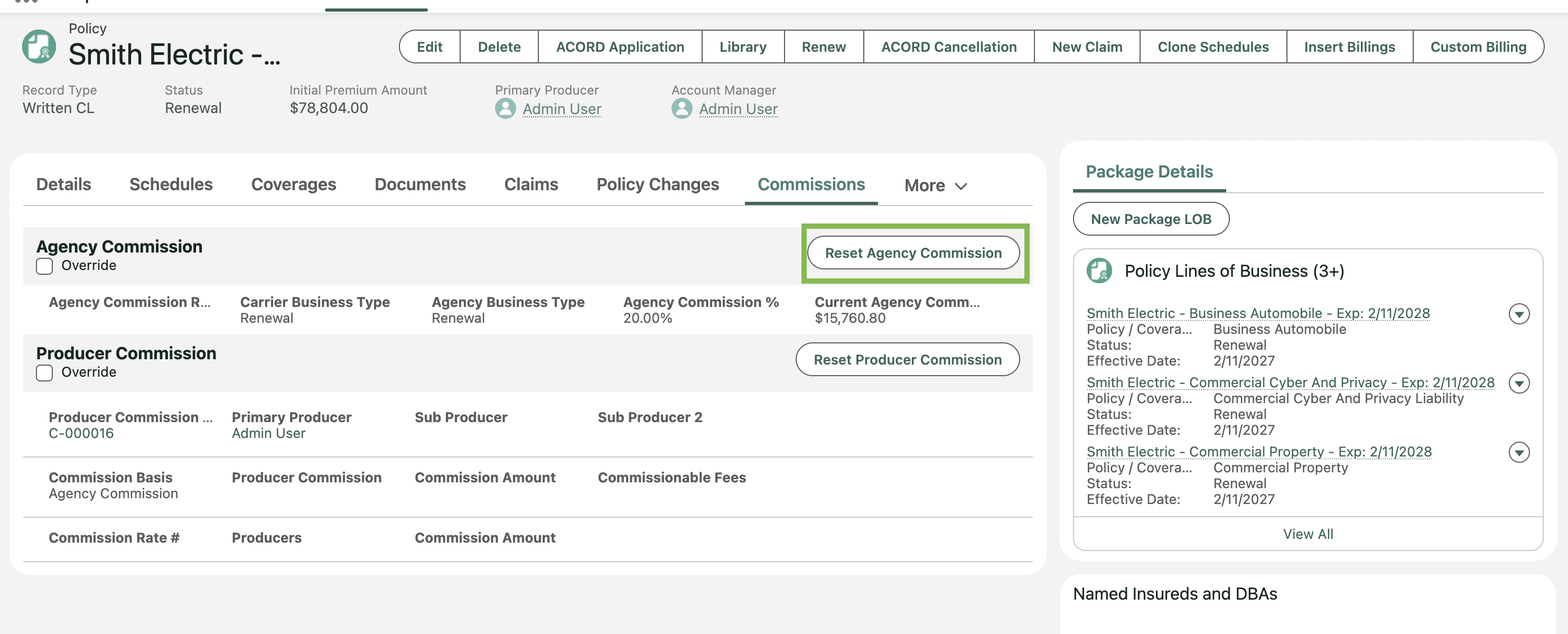
This prompts the system to reapply the correct default commission rule.
Bulk updates
If multiple policies require updates, you can prepare files for bulk processing.
Update agency commission defaults
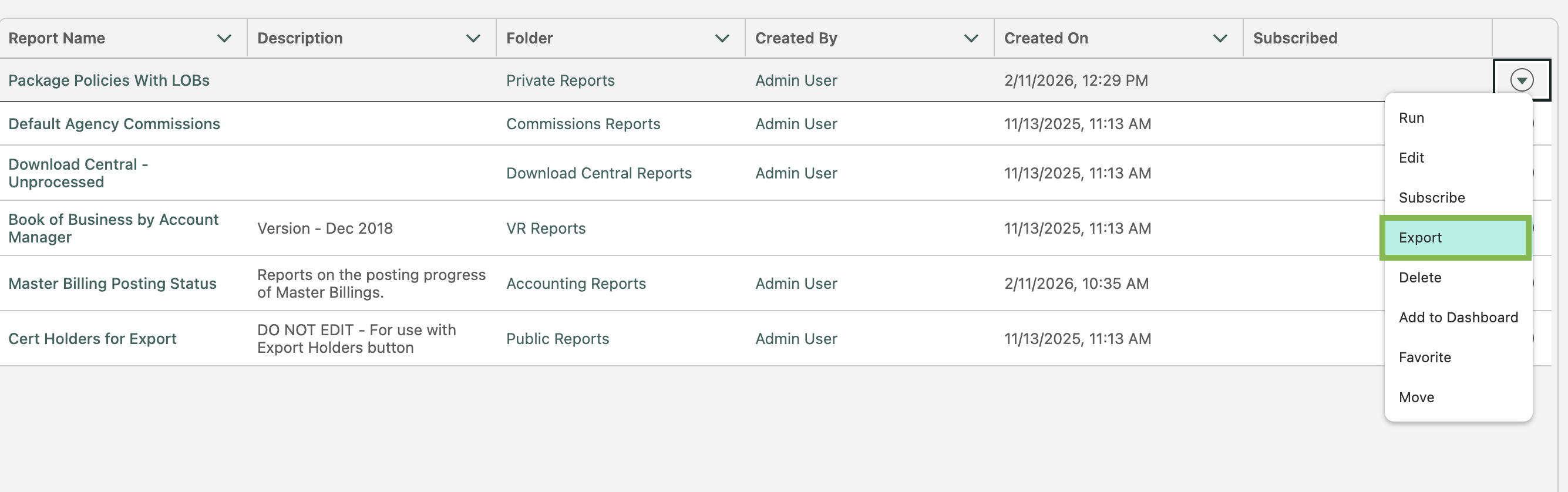
Navigate to the Reports tab, and click All Reports.

Search for Default Agency Commissions.
Click the dropdown arrow, then select Export.

Open the file and update the Effective Date column so each date is on or before the policy’s Effective Date (format: MM/DD/YYYY).
Save the file as a CSV.
Update package policy LOBs
In Reports, search for Package Policies With LOBs.
Click the dropdown arrow, then select Export.
Open the file and change all Managed Policy values to false.
Save the file as a CSV.
Once both CSV files are prepared, contact amplo@support.com to import the updates on your behalf.