Unfreeze a user account and reset password
Last updated: September 1, 2026
Overview
Use this article to resolve issues where a user can't complete a password reset because their account is frozen, and prevent the account from automatically re-freezing after login. Re-freezing can happen because of Salesforce security controls, particularly when a user connects through a VPN with an IP address Salesforce doesn't recognize as trusted.
You may need this information if:
A user clicks a password reset link and lands on an error screen.
A user's account freezes again immediately after logging in, even without any failed login attempts.
Unfreeze the user account
If a user's password reset link leads to an error, their account may be frozen. Unfreezing it is the first step toward letting them complete the password reset.
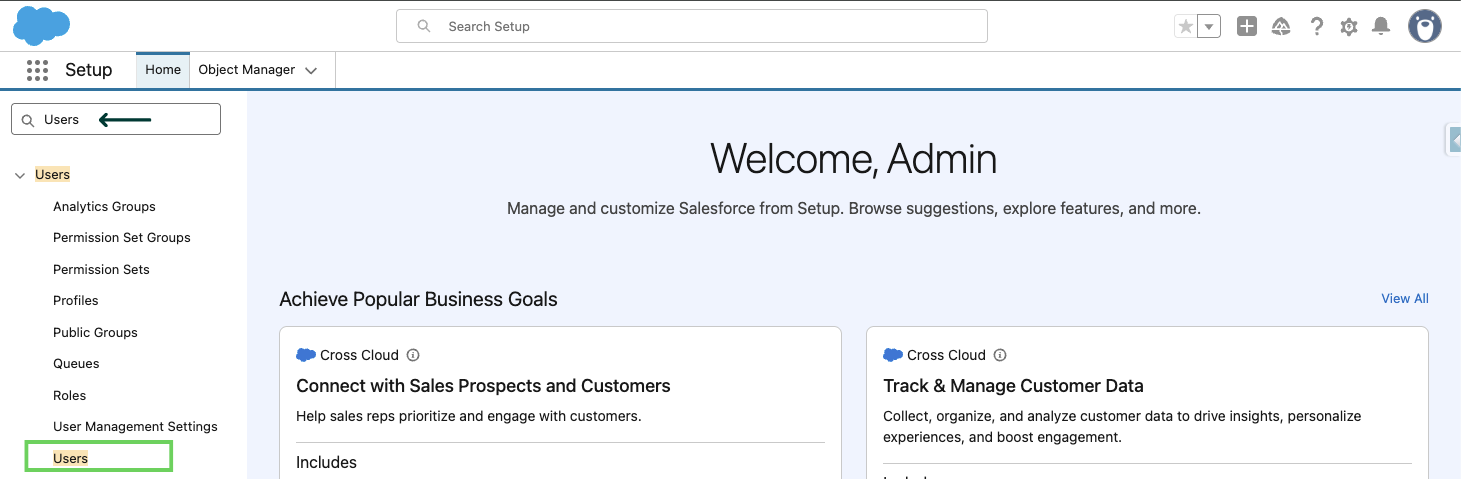
In Setup, use Quick Find to search and select Users.
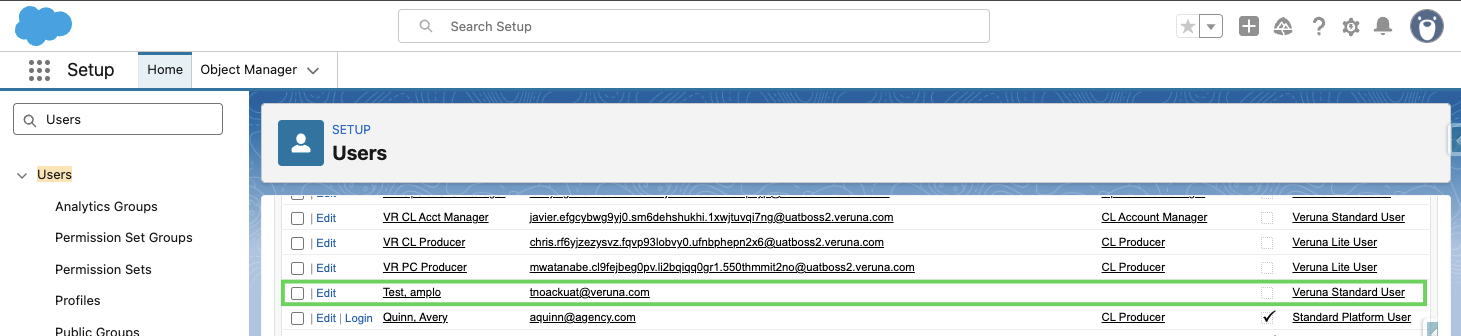
Select the user's profile.
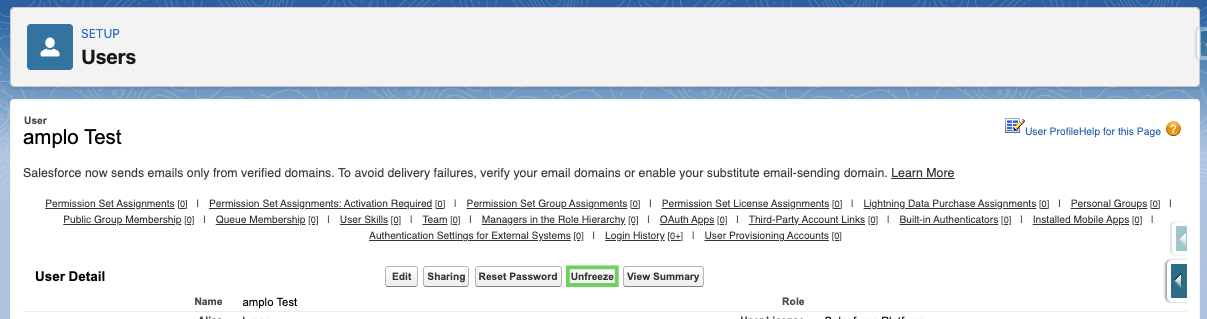
Click Unfreeze on the user's detail page.
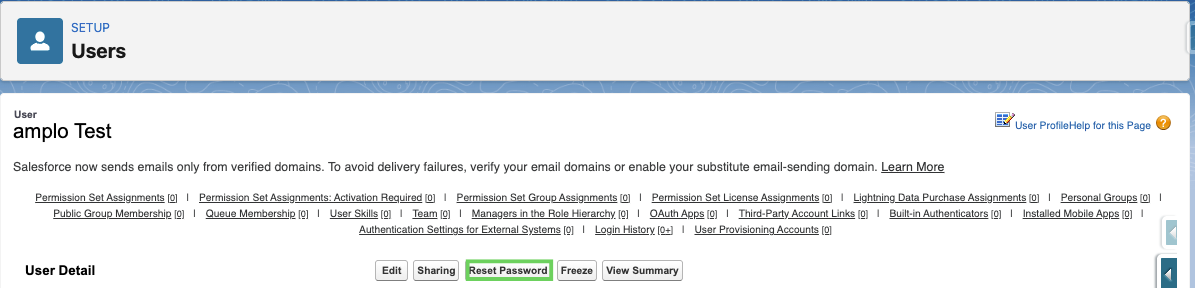
Send the user a new password reset link.
Update the password policy to prevent link expiration
If the password reset link expires too quickly, the user may not have enough time to complete the reset. Updating the password policy keeps the link valid long enough for them to use it.
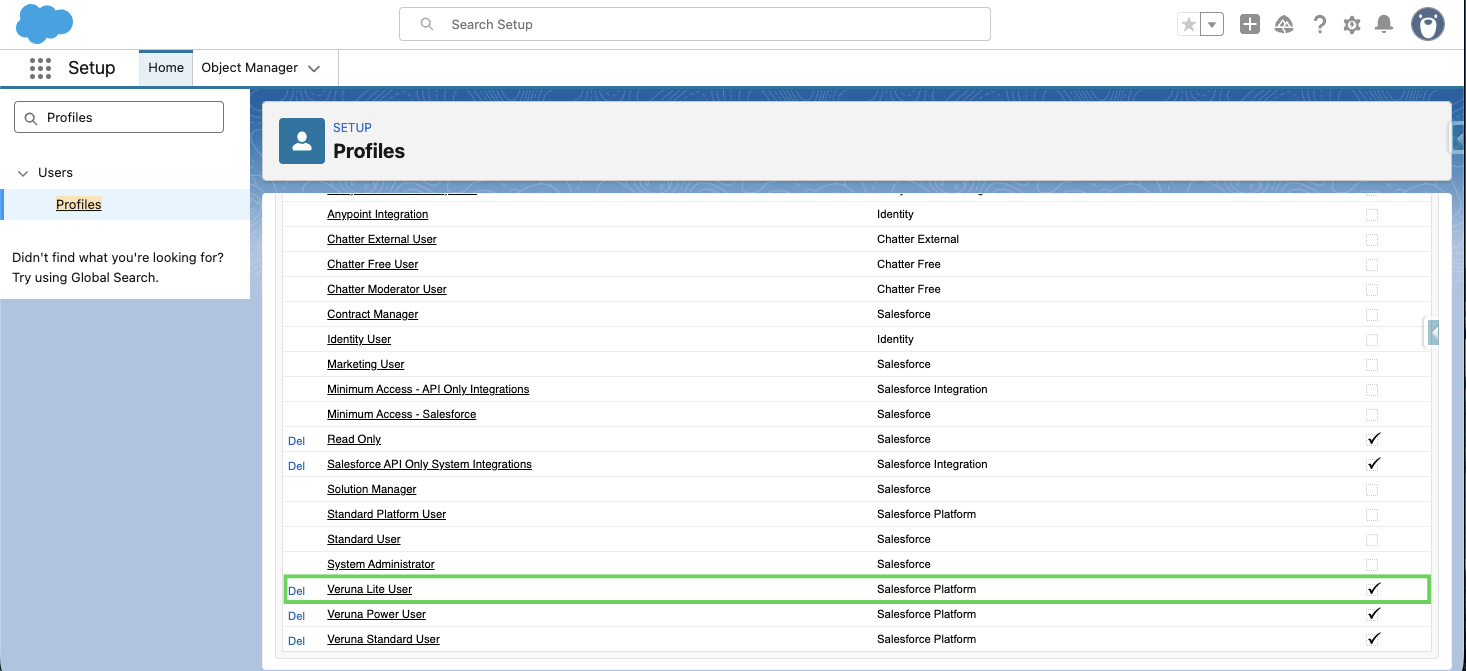
In Setup, use Quick Find to search and select Profile.

Select the appropriate user profile.
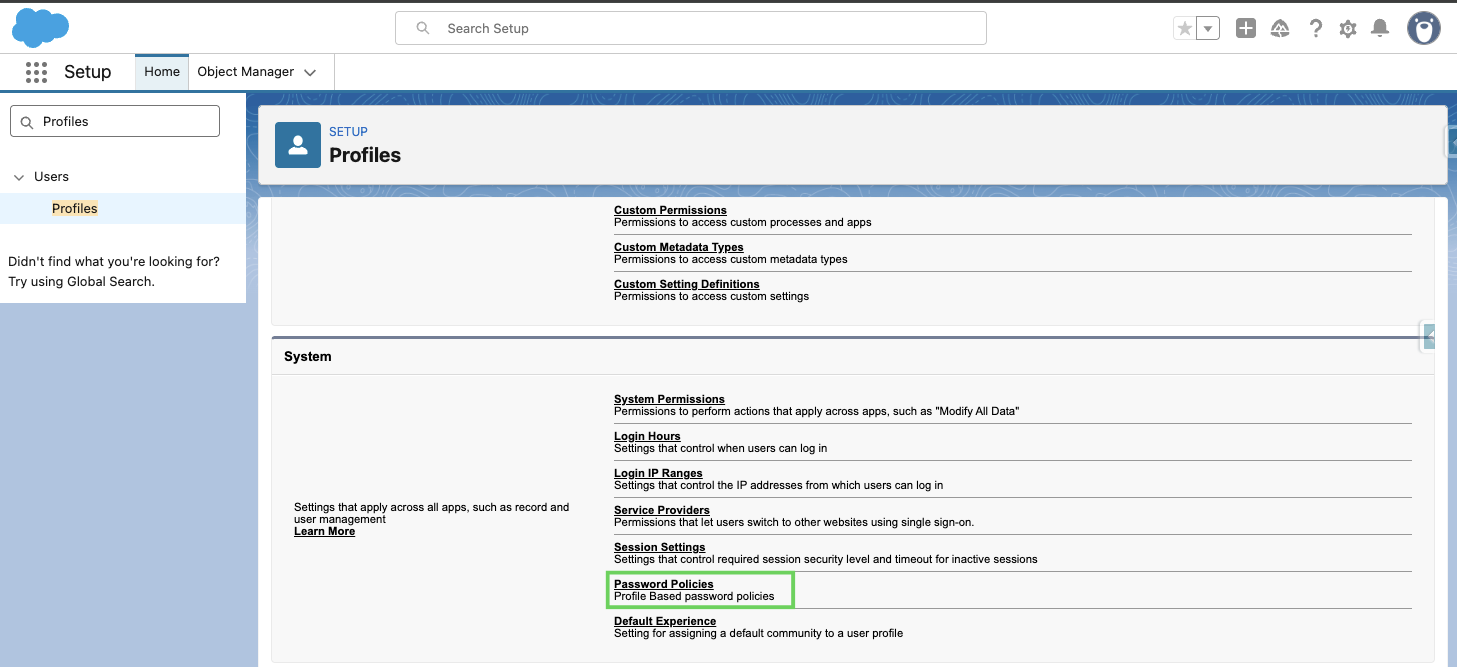
Then, select Password Policies.
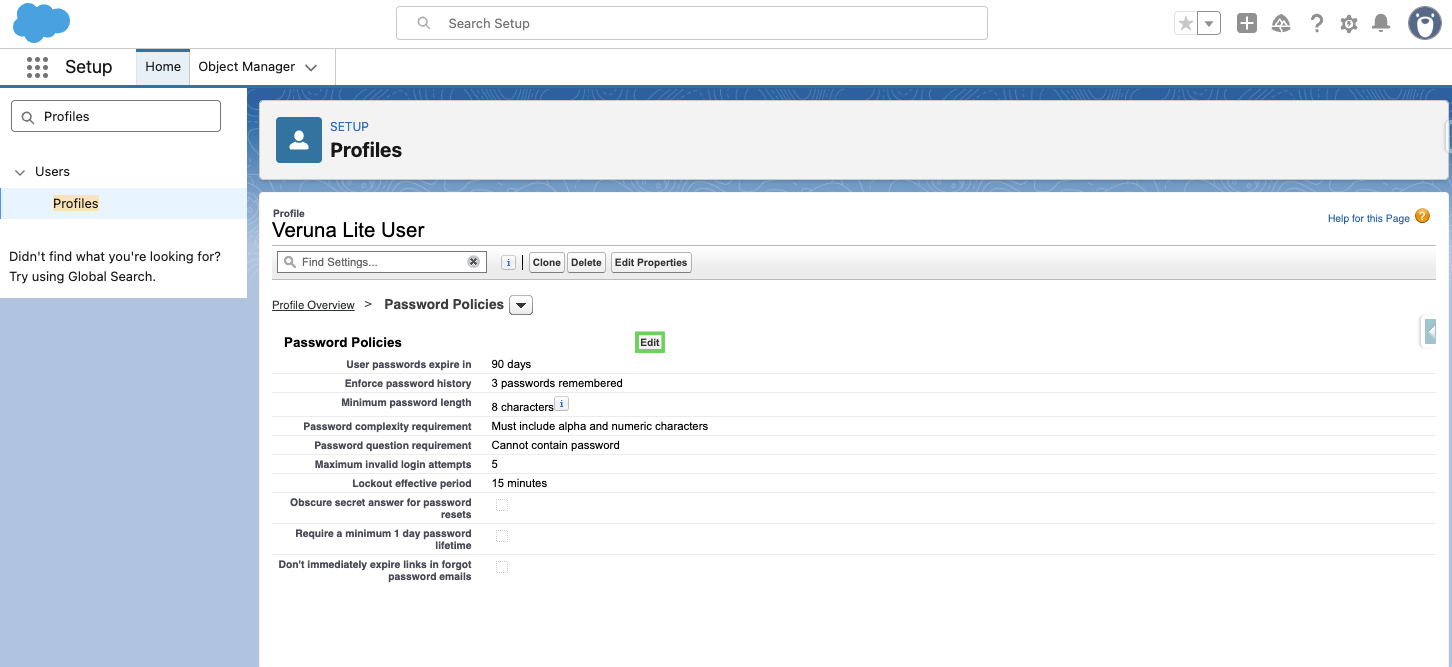
Click edit.
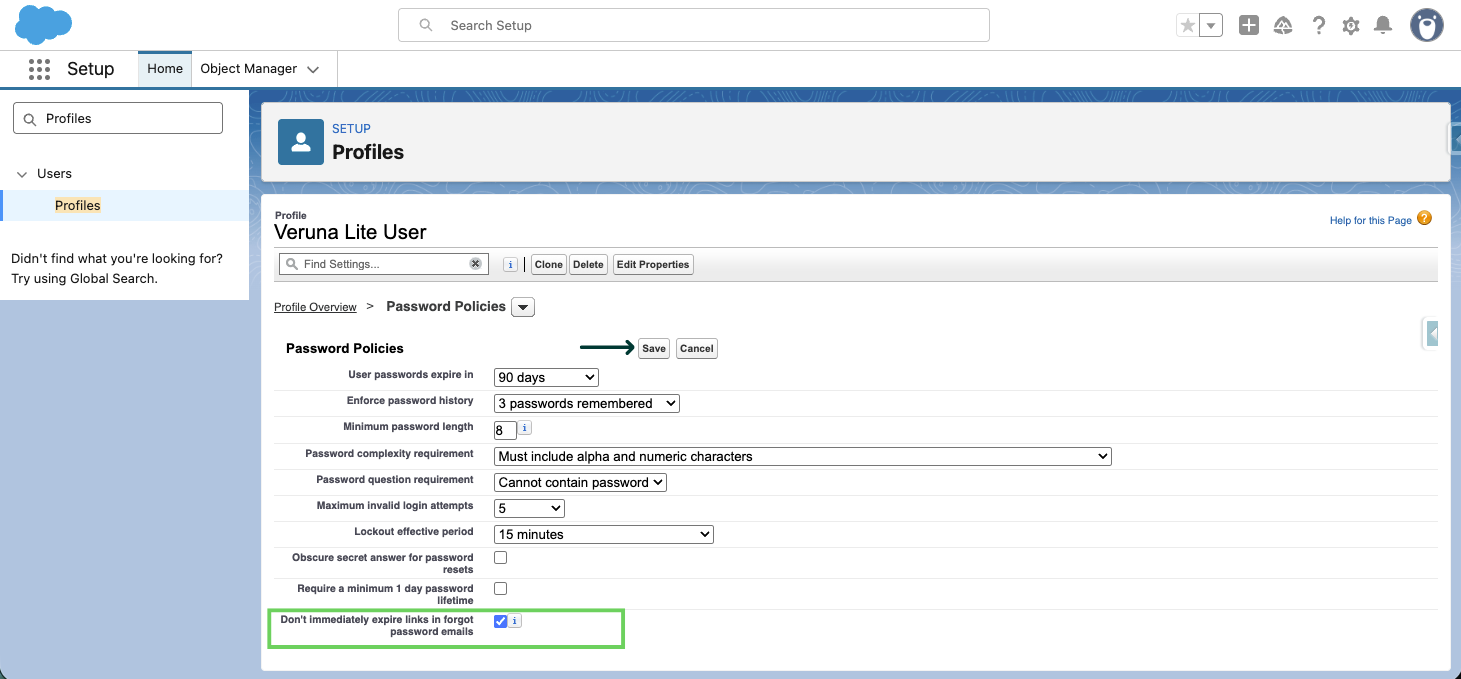
Select the checkbox next to Don't immediately expire links in forgotten password emails and click Save.
Whitelist the user's VPN IP address
If the account re-freezes immediately after login, even after a successful password reset, Salesforce may be detecting the user's VPN IP address as high-risk or unrecognized. Adding the VPN's IP address to Salesforce's trusted IP range list can prevent this. This is especially relevant when multiple users share the same VPN but only one is experiencing the freeze.
Review the login audit trail to identify the user's consistent VPN IP address.
In Setup, use Quick Find to search and select Network Access.

Select New.
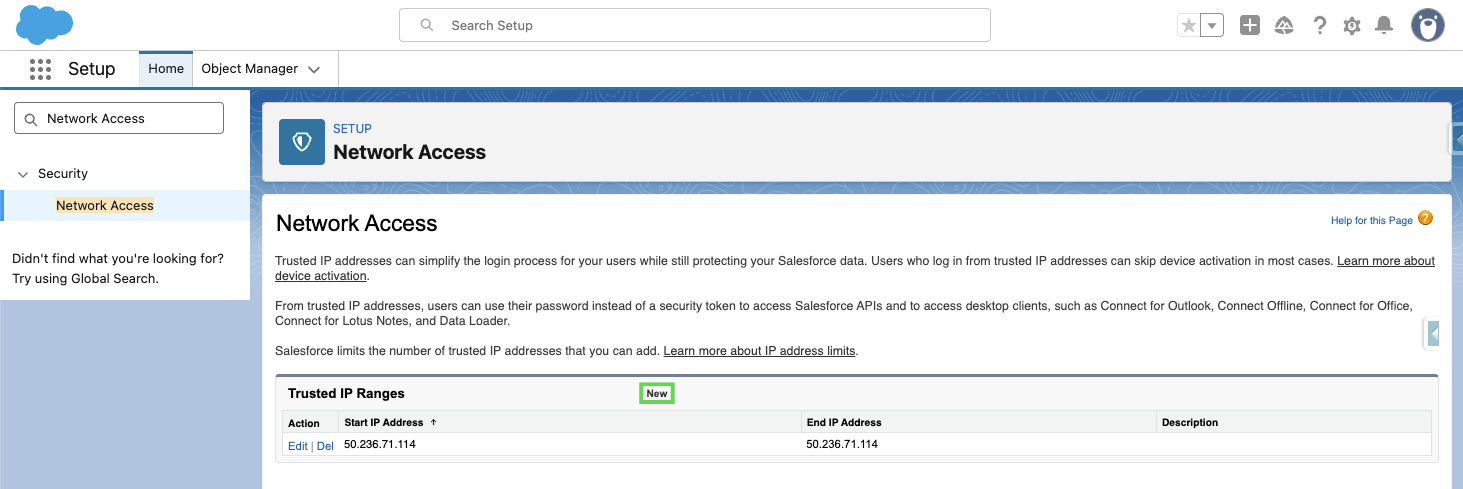
Then, add the VPN IP address to the Trusted IP Ranges list and select Save.
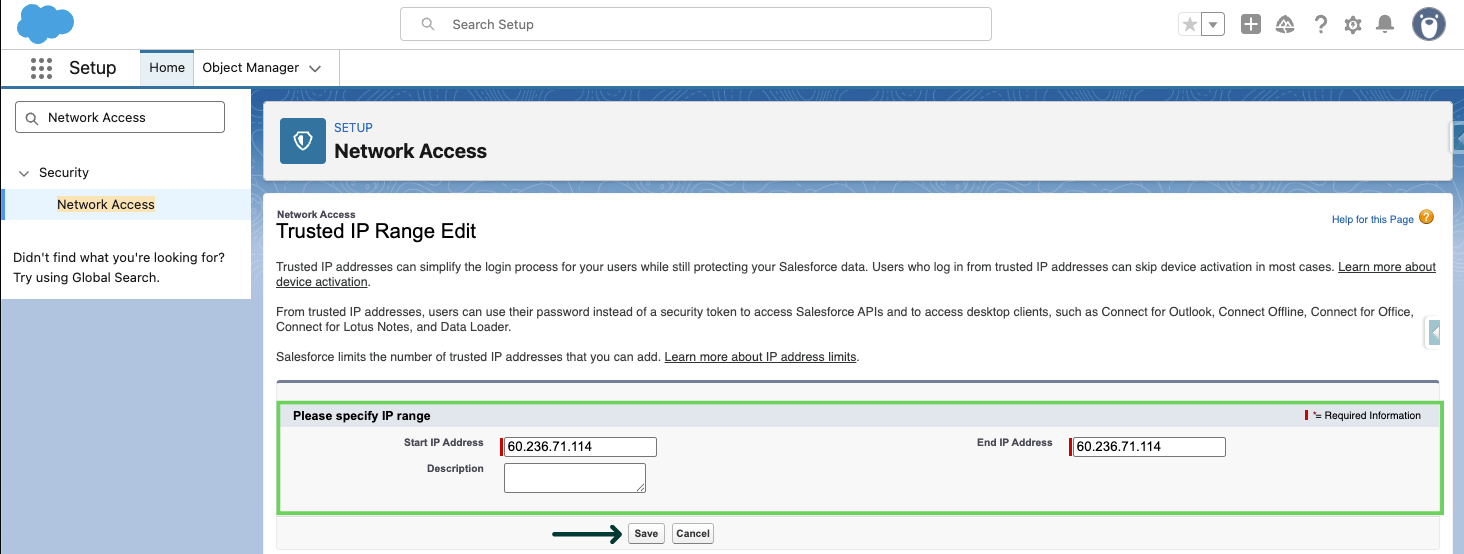
Unfreeze the user's account again, then have them attempt to log in.
Note: Account re-freezing after login is typically a Salesforce security control, not amplo behavior. If the audit trail shows Automated Process as the actor, this points to a platform-level security response to an unrecognized IP address. Whitelisting the IP is the recommended fix.