Identifying and correcting 'orphan' LOB policies
Last updated: March 18, 2026
Overview
An orphan LOB policy occurs when a Line of Business (LOB) policy remains linked to a parent monoline policy, causing the parent policy to be restricted by the LOB’s values. This can lead to errors during actions such as renewals if the LOB’s effective and expiration dates do not align with the parent policy. For example, you may see the error: Policy Effective Date must be between its parent Policy's effective and expiration dates.

Common causes
The following are common causes of orphan LOB policies:
A user enters a monoline policy in the LOB policy’s LOB Parent Policy field. This creates a connection, but because the parent is monoline, the relationship does not appear on the parent policy record.
A user changes the Policy/Coverage Type of a package policy to a monoline policy without first removing the associated LOBs (for example, changing a Commercial Package policy to a Commercial Property policy while LOBs are still attached). To correctly convert a package policy to a monoline policy, see 📄 Convert an LOB into a monoline policy.
This article explains how to identify orphaned LOB policies and resolve this error if it occurs.
Identifying orphan LOB records
To proactively identify orphan LOB records associated with monoline policies, create a report using the following criteria.
Click on Reports.

Select New Report.

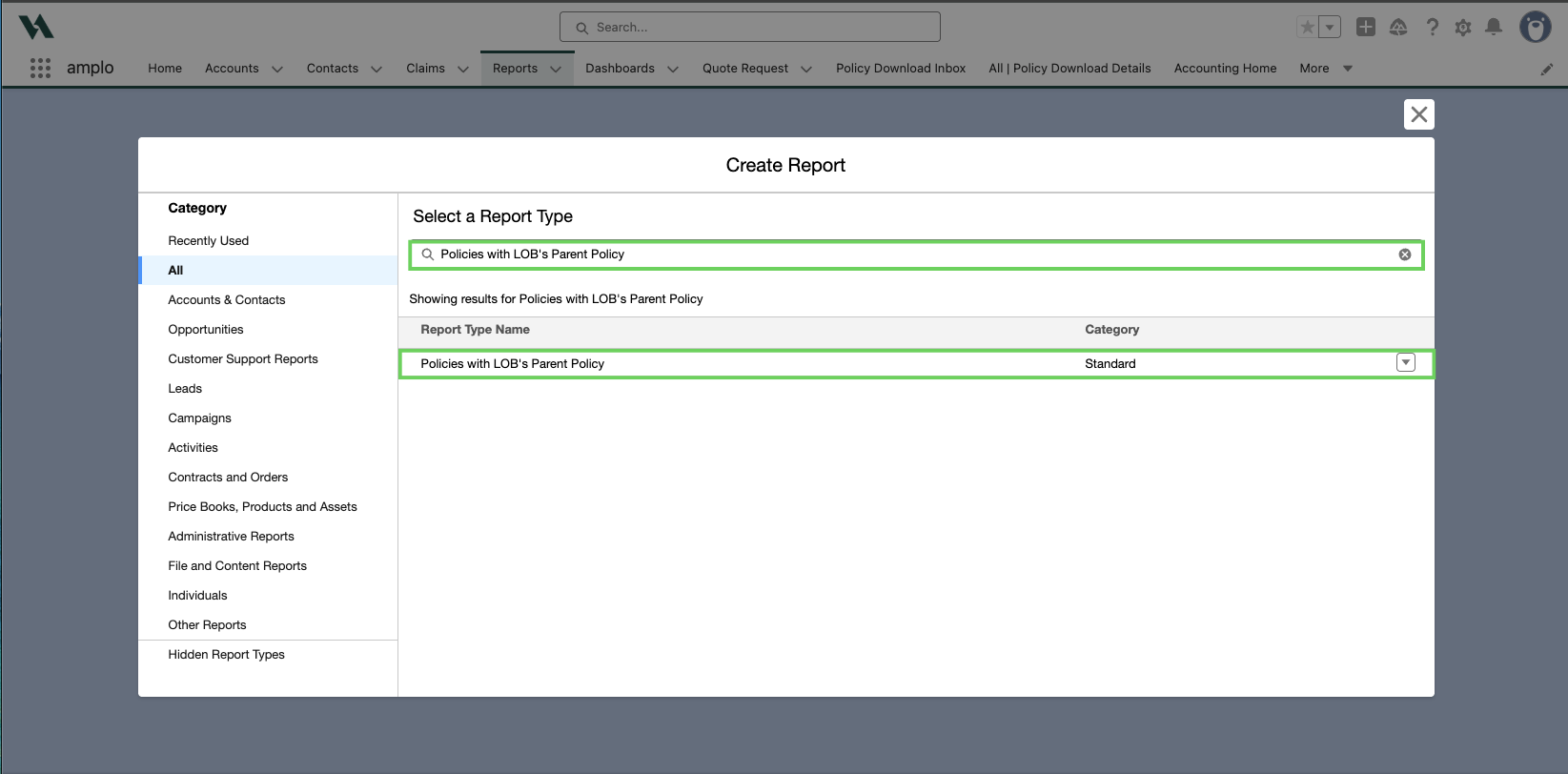
In the Create Report modal, select All.

Then, in the Search, enter and select "Policies with LOB's Parent Policy".
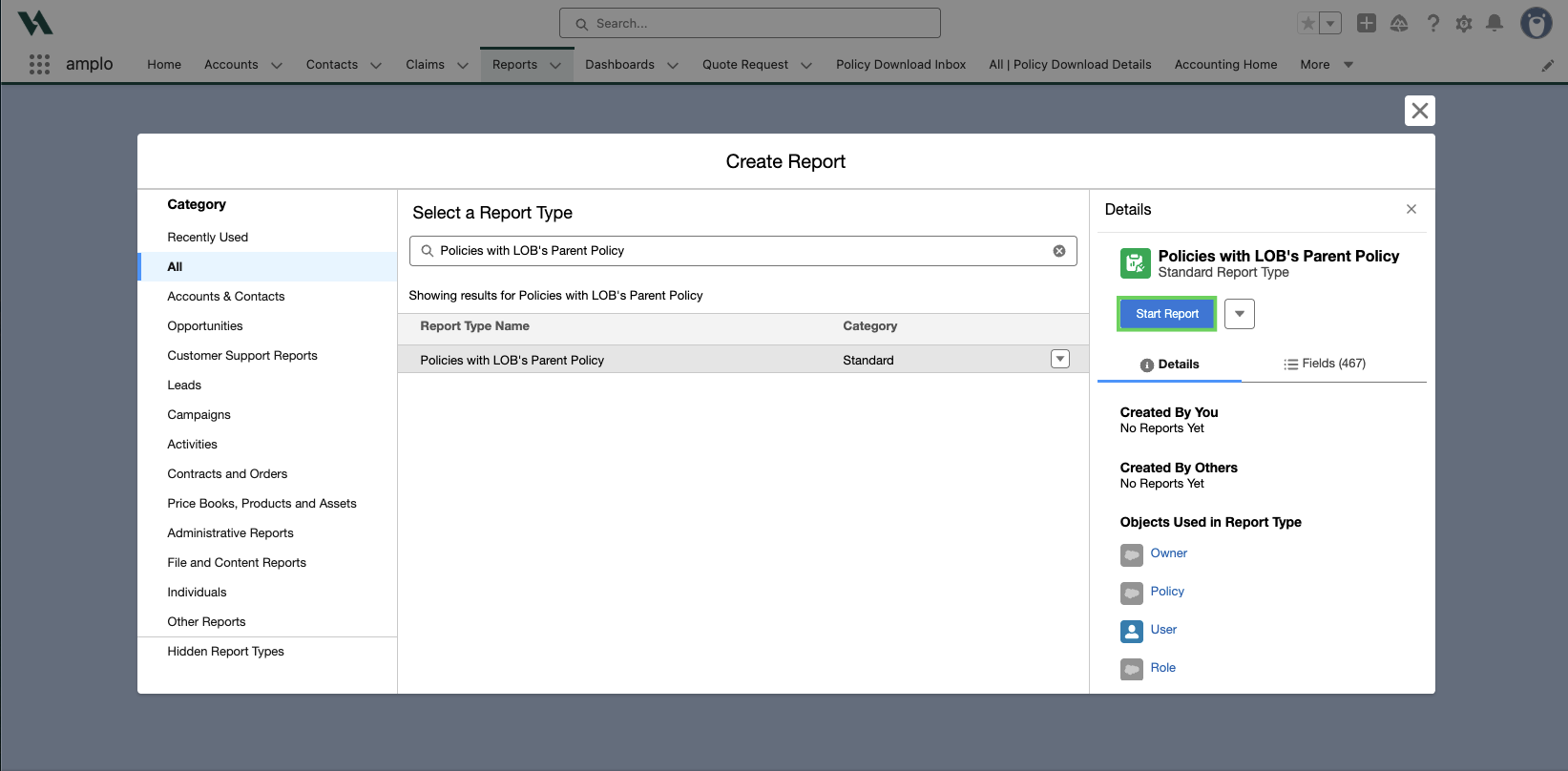
Click on Start Report.
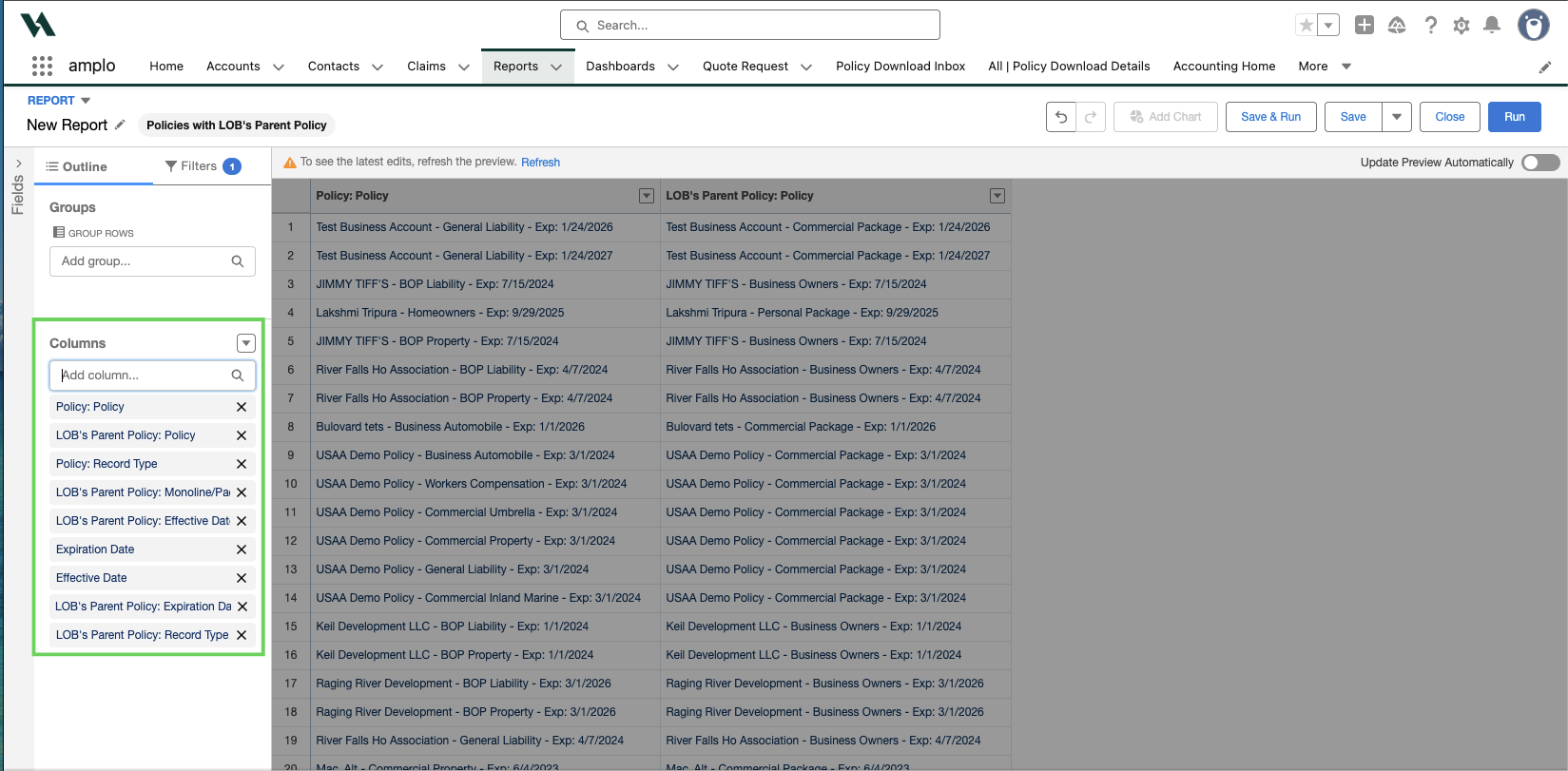
In Columns, use the Add Column search bar to add the following recommended fields:
Policy: Policy
Policy: Record Type
Effective Date
Expiration Date
LOB's Parent Policy: Policy
LOB's Parent Policy: Record Type
LOB's Parent Policy: Monoline/Package
LOB's Parent Policy: Effective Date
LOB's Parent Policy: Expiration Date
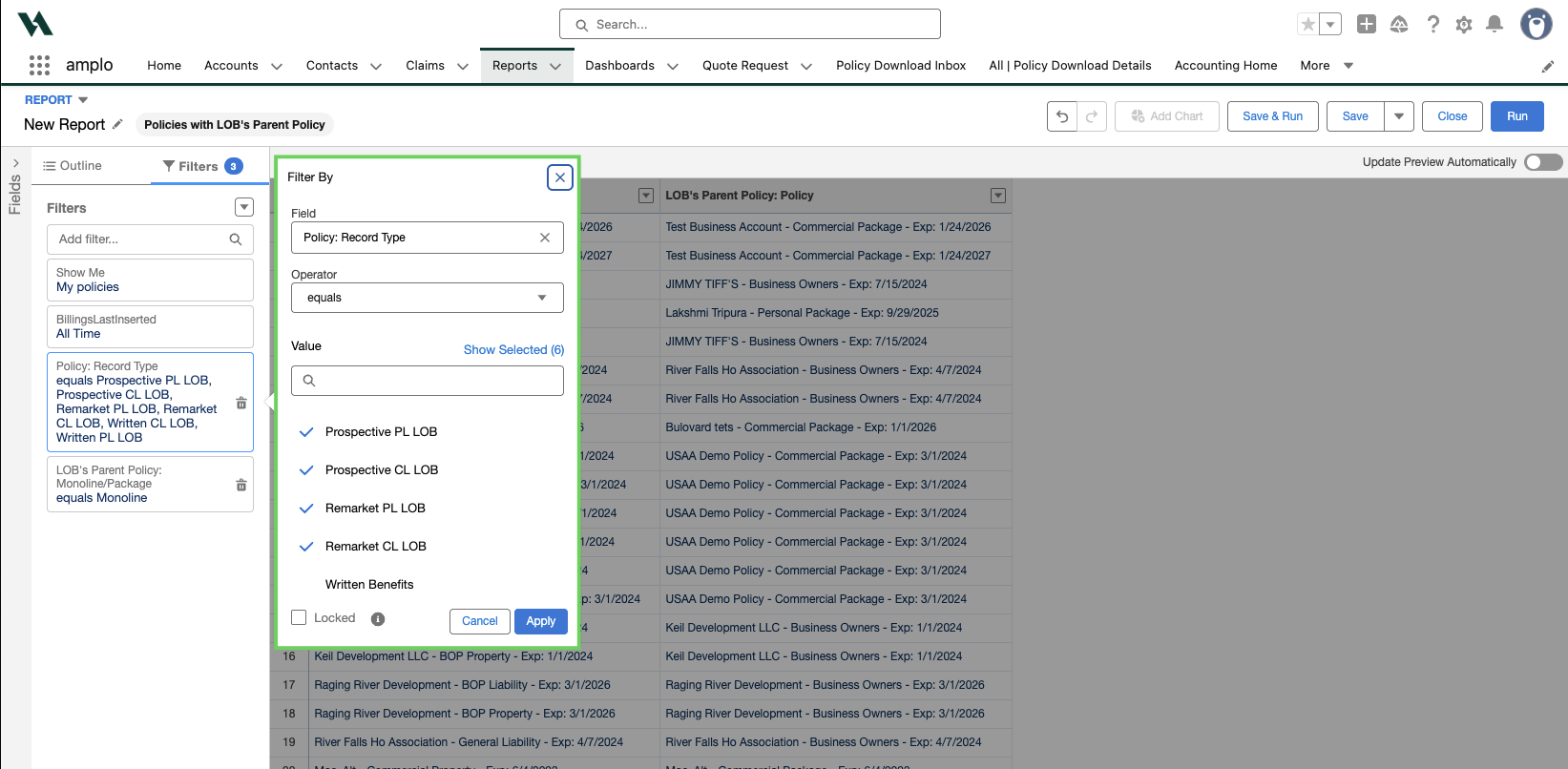
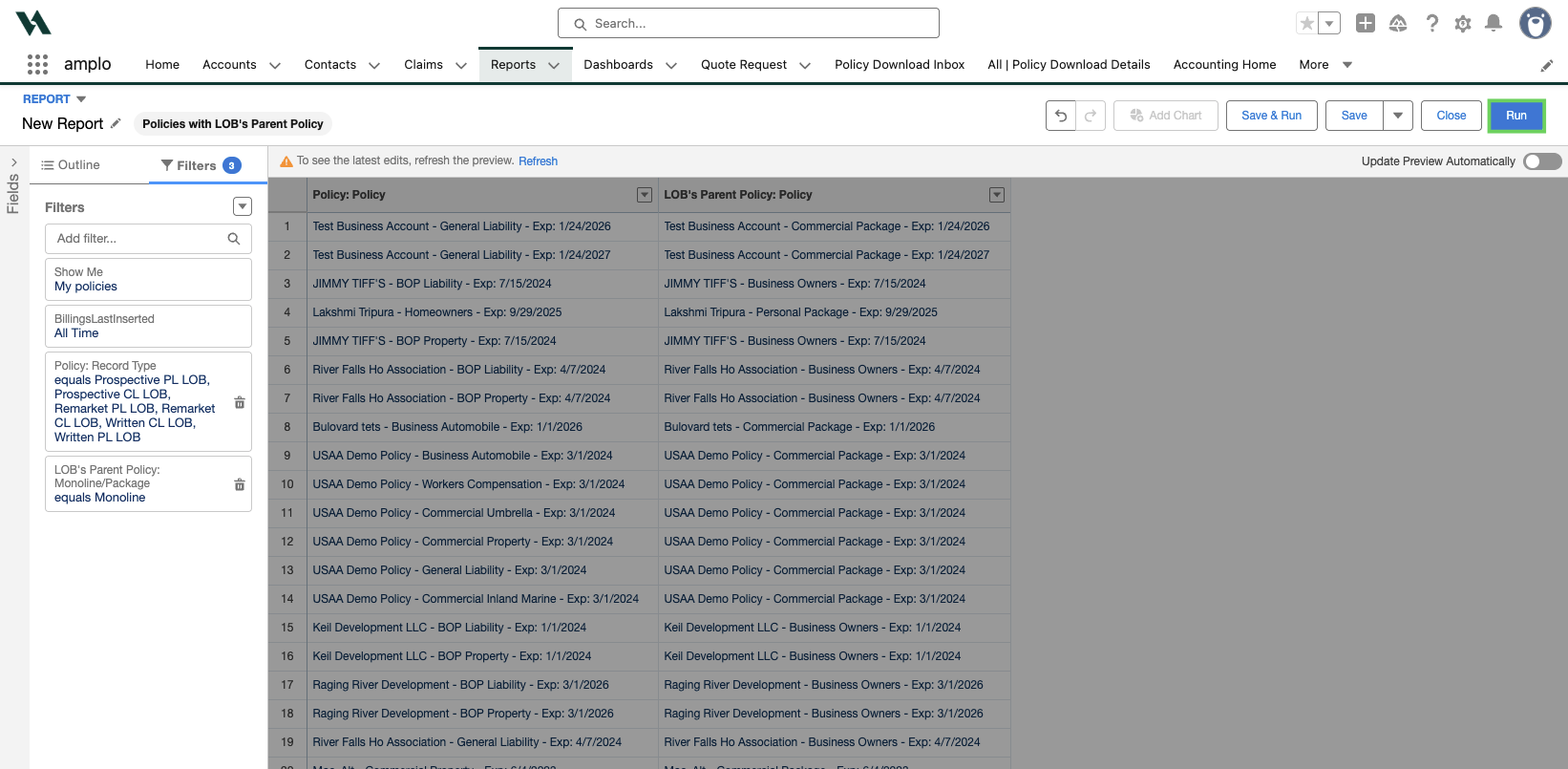
Select Filters. Then, use Add filter and enter the following:

Show Me: All policies
LOB's Parent Policy: Created Date: All time
Policy: Record Type:
In Values, select:
Prospective PL LOB
Prospective CL LOB
Remarket PL LOB
Remarket CL LOB
Written CL LOB
Written PL LOB
Then, click Apply.
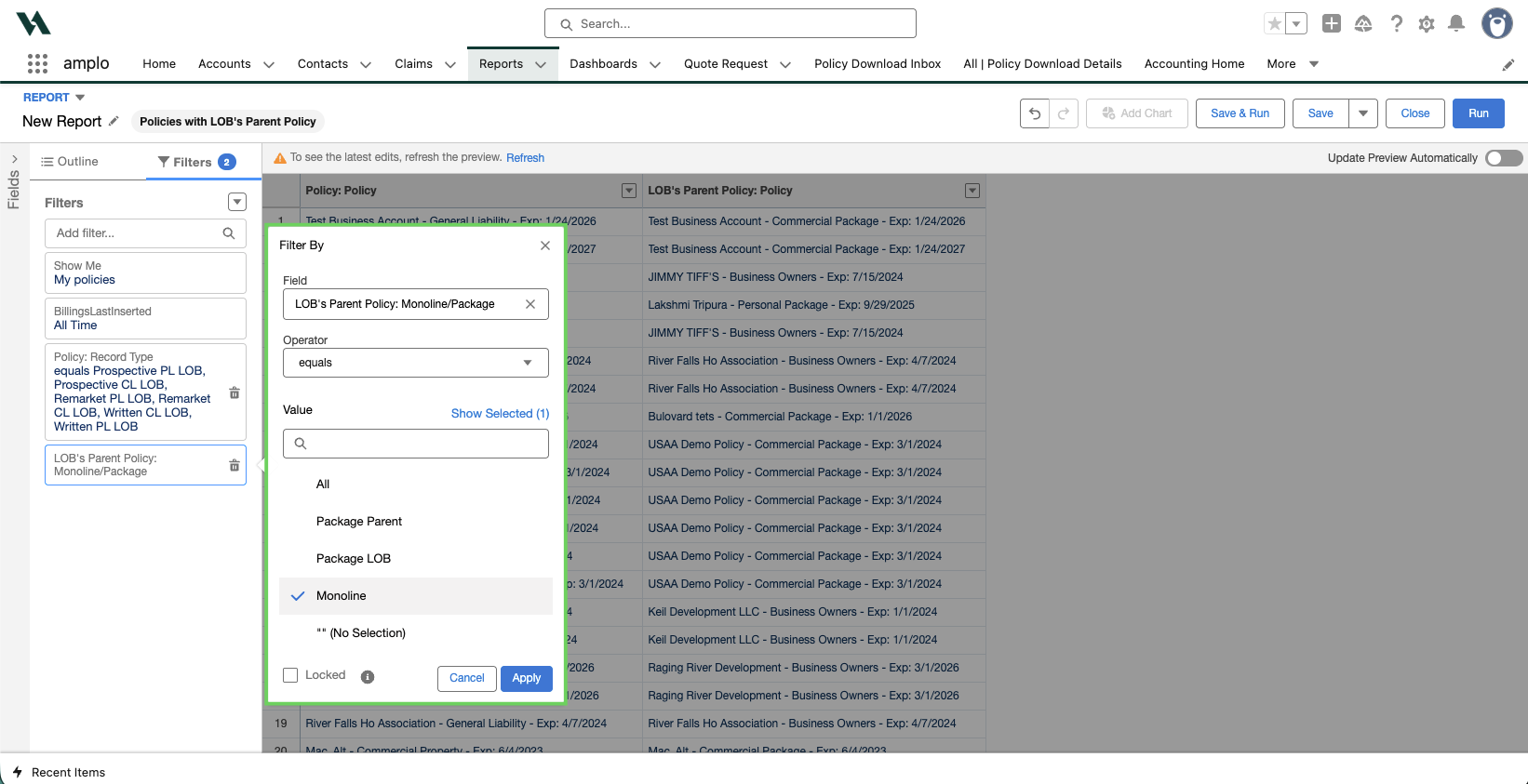
LOB's Parent Policy: Monoline/Package:
In Values, select Monoline
Then, click Apply.
Select Run.
Resolving effective date errors
If you receive an error on a monoline policy related to an LOB policy, the error message will include the record ID causing the issue.
Copy the 18-character ID that appears after:
“Update failed: first exception on row 0 with id…”
(Do not include the semicolon.)Paste the ID into your browser after .com/ to open the record.
Review the Effective Date and Expiration Date on the LOB policy and confirm they fall outside the renewal policy’s date range.
Resolve the issue by either:
Updating the LOB policy’s dates to match the renewal policy, or
Having a System Admin delete the LOB policy if it is not needed.
After correcting or removing the LOB policy, you should be able to complete the renewal.
Note: If multiple orphaned LOB records are linked to the monoline policy, you may see the error again during renewal. Repeat this process for each record until the policy renews successfully.
Considerations
LOB policies linked to a monoline parent policy may not appear on the Account record.
Only a System Administrator can delete policies. Contact your admin if a policy needs to be removed.
You may not be able to edit the LOB policy dates if the record owner is an inactive user. A System Administrator may need to update the owner or modify the dates.
If your organization has restricted sharing settings, you may not have access to the policy causing the issue. A System Administrator can help locate or access the record.