Reinstating a CL policy
Last updated: March 9, 2026
Overview
Reinstating a commercial lines policy is important because it restores coverage, protects contractual obligations, and reduces financial and legal risk for the business. In commercial insurance, even a short lapse can have serious consequences. This article explains how to manually reinstate a policy. For more information regarding when and why to update a policy manually, see 📄 Manual policy changes.
Reinstate the policy
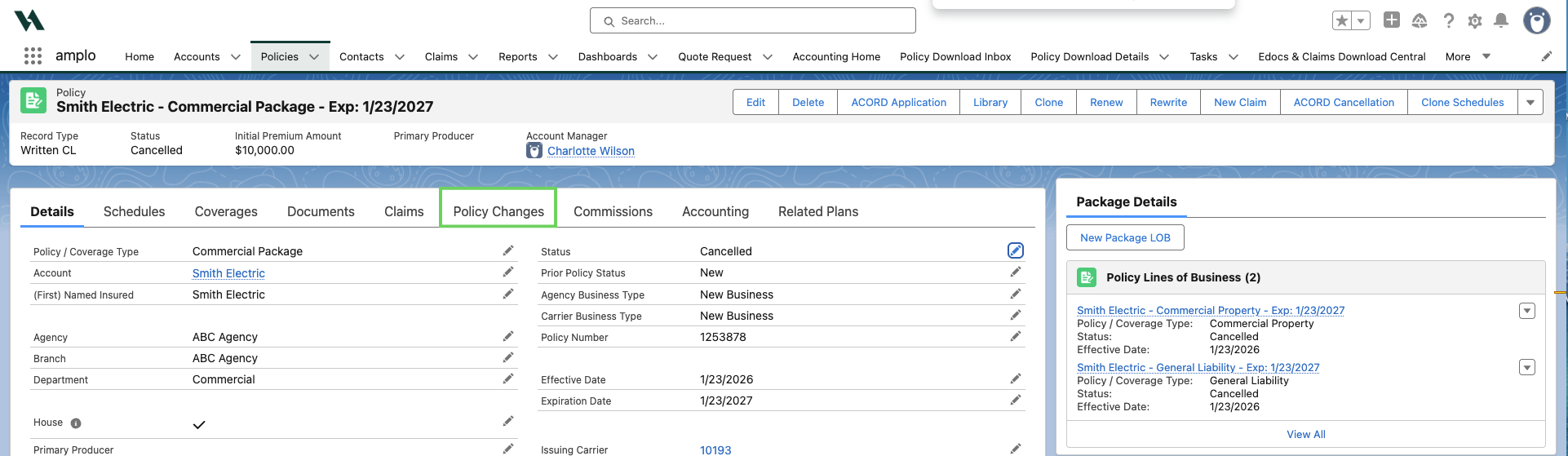
On the policy record, navigate to the Policy Changes tab.
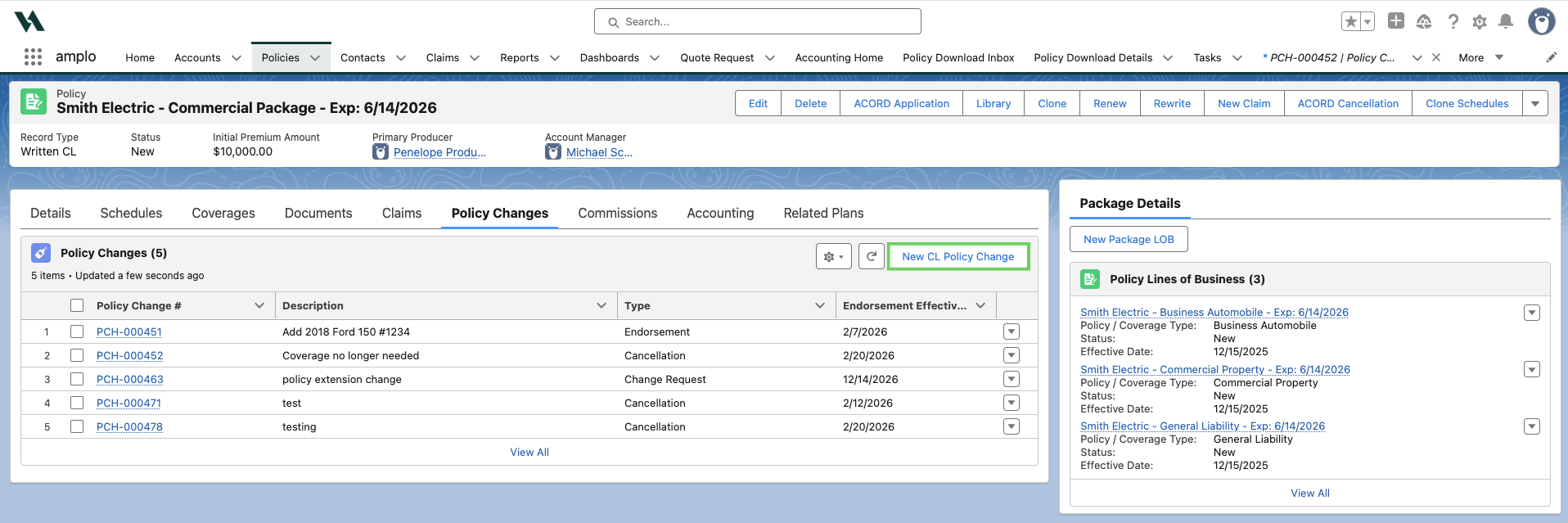
Select New CL Policy Change.
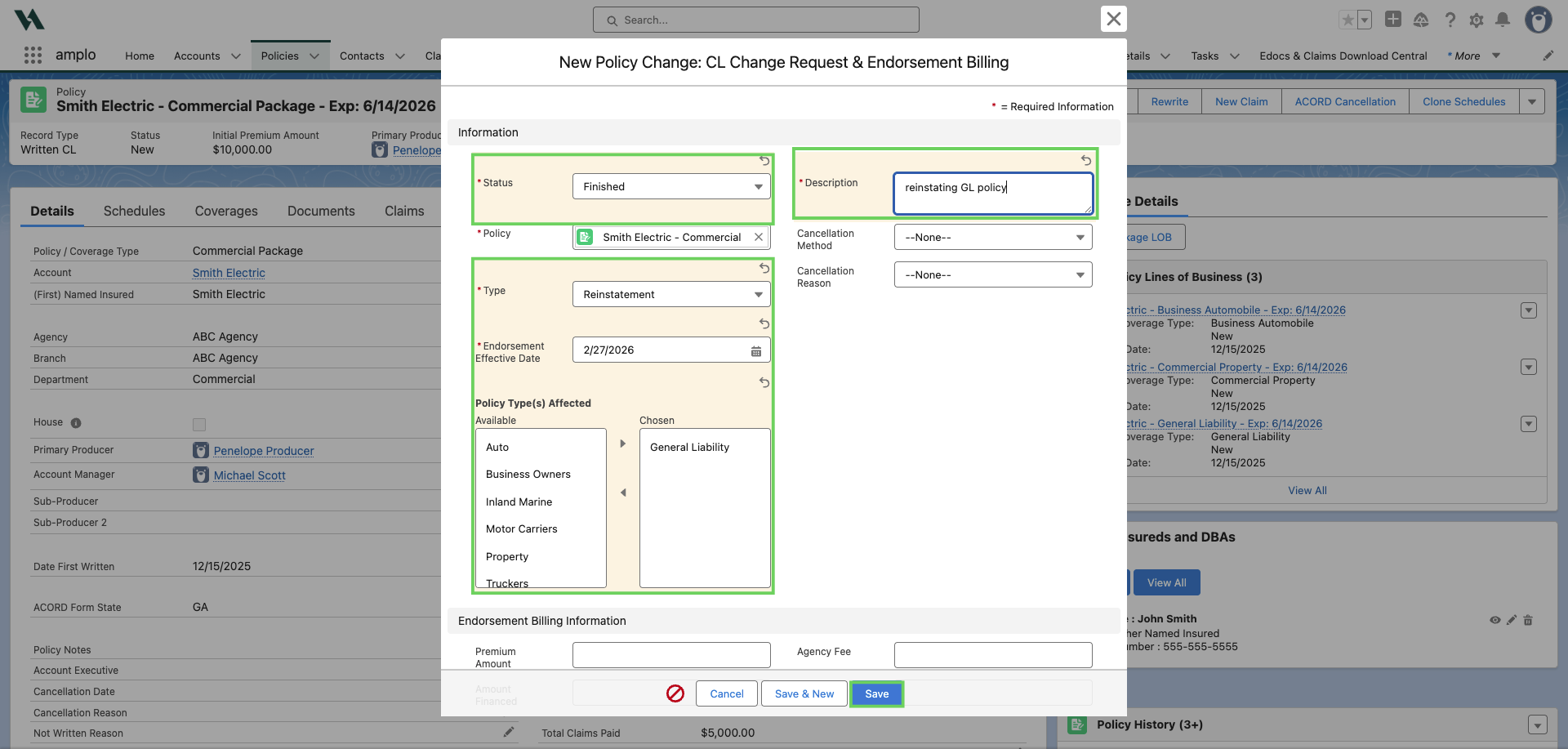
Once the New Policy Change: CL Change Request & Endorsement Billing modal opens, fill in the following:
Status: Finished
Description: Details on why the policy is being reinstated
Policy Type: Reinstatement
Effective Endorsement Date: The date when the policy should be reinstated
Policy Type(s) Affected: Use the arrows to move the affected line(s) of business from Available to Chosen. If a monoline policy, leave this blank.
Premium Amount: Enter the premium amount sent by the carrier. Since the policy change is a reinstatement, the amount should be positive.
The App Updated? field is used to notate whether the policy changes have been pushed to the ACORD form. At this point in the process, it should be left unchecked.
Select Save.
Select Update App on the policy change record. This action pushes the changes made to the ACORD Forms.
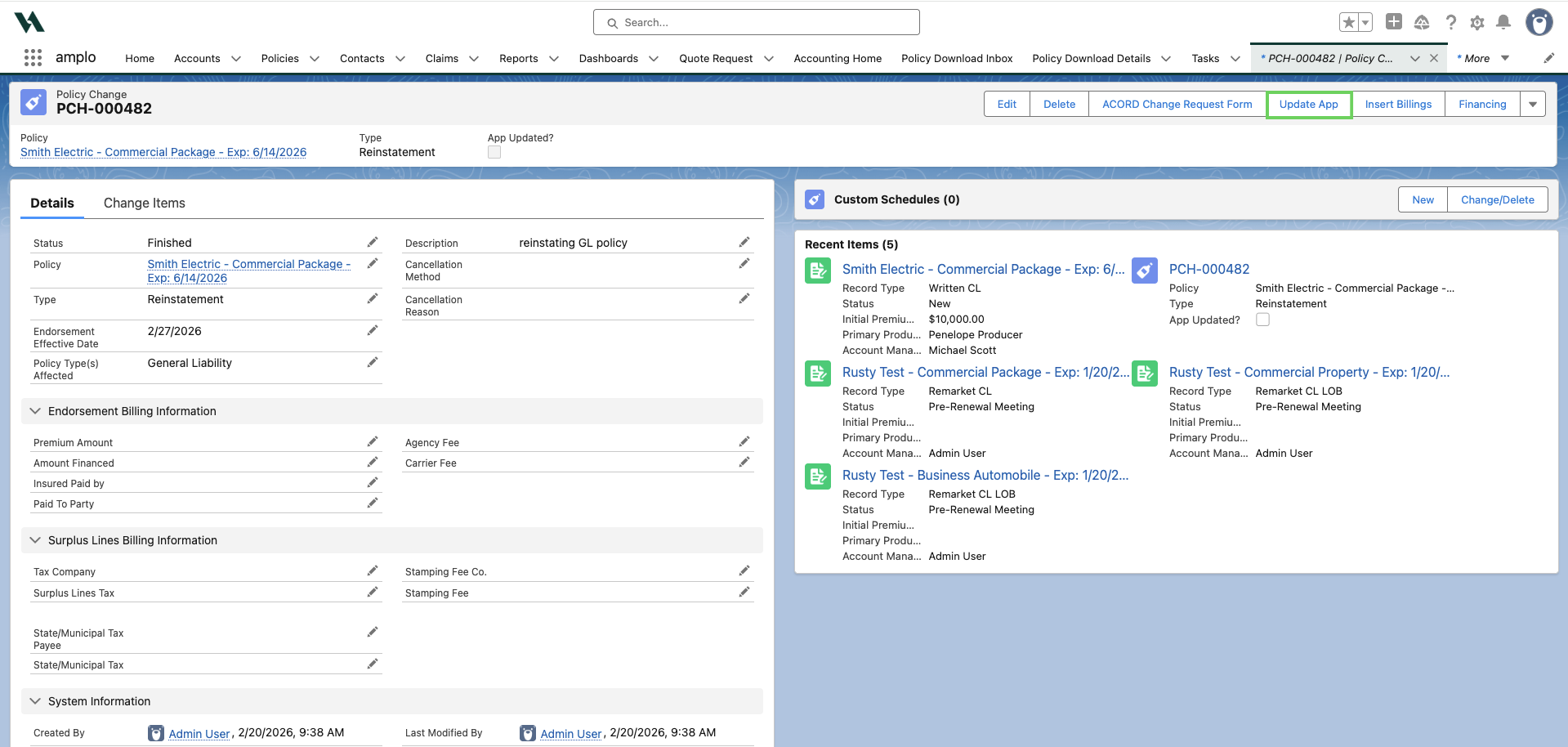
Note: The premium amount populates automatically when you save the Reinstatement Policy Change. To update the Policy Status and Policy Expiration Date, click Update App. These values are based on the policy’s status and expiration date before reinstatement.