Using cross filters in reports
Last updated: March 4, 2026
Overview
Cross filters allow you to refine reports based on the relationship between records. Instead of filtering only on fields within a single object, cross filters let you include or exclude records depending on whether related records exist. For example, cross filters can help answer questions such as:
Which accounts do not have certain types of policies?
Which policies do not have billings?
Which policies have claims?
Cross filters allow you to capture targeted data without creating custom report types or complex configurations.
Build the report
The following example shows how to build a report that identifies individual accounts with active policies but without a Personal Auto policy.
Click the Reports tab. The page opens in the Recent view.
To view all available reports, click All Reports.

Use the search bar to find a report by name.
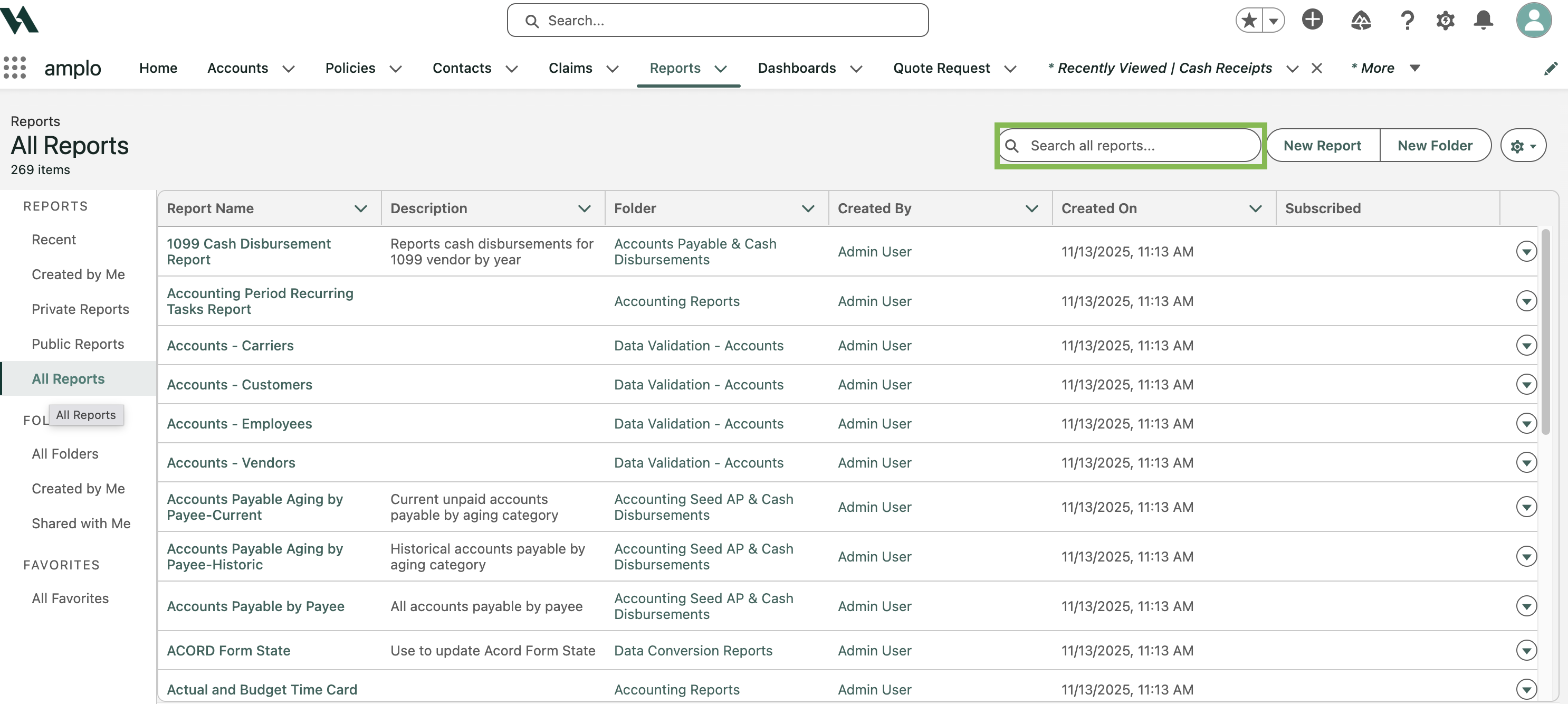
Note: Choose a report type that includes the parent object, such as Accounts with Policies, so the cross filter can be applied correctly.
Open the report and select Edit.
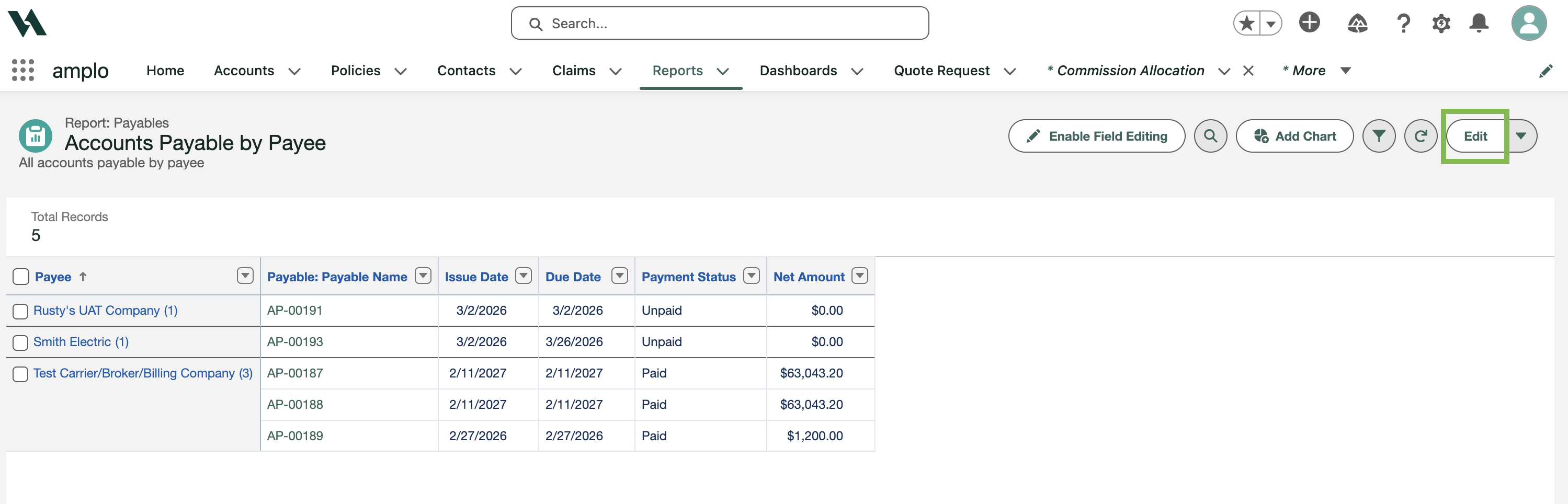
Configure the report filters
Click the Filters tab.
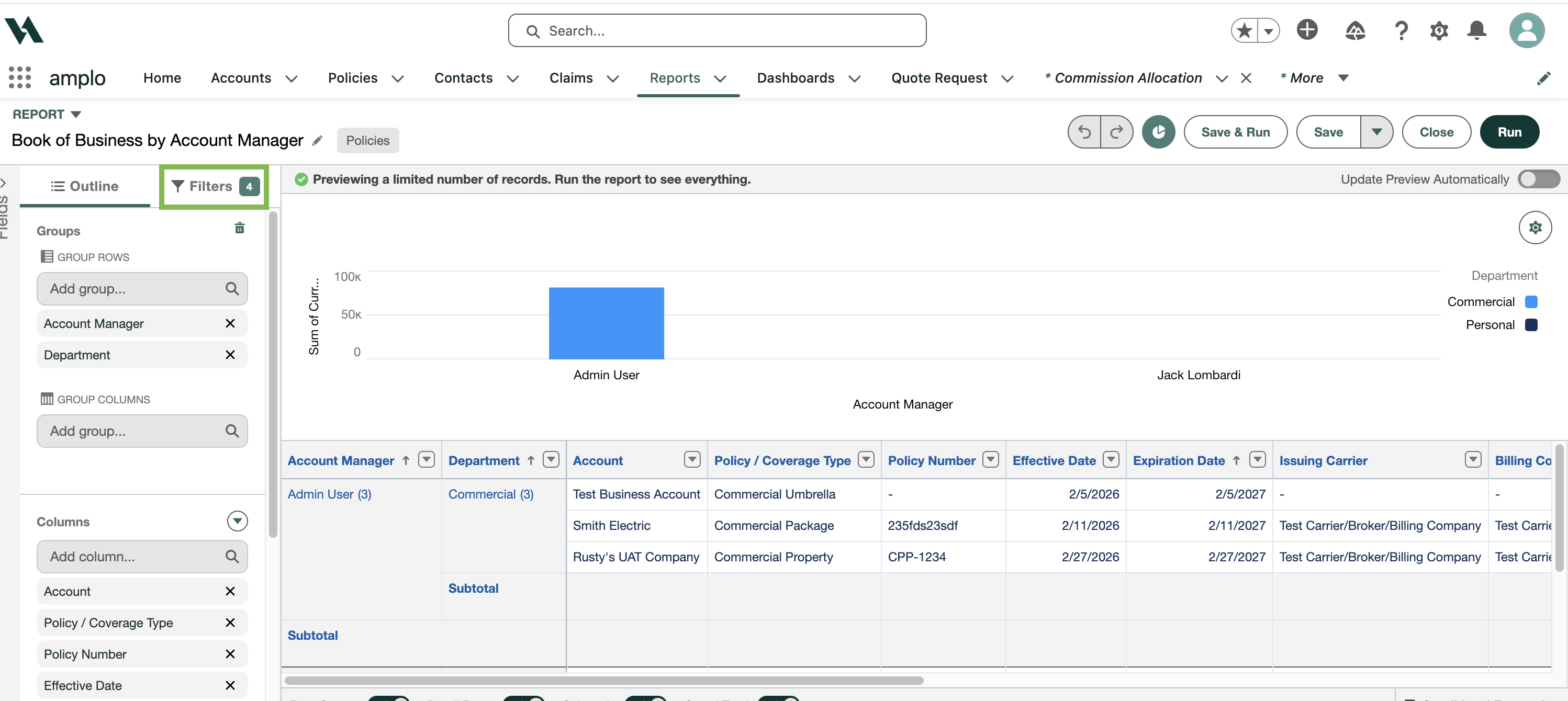
Ensure the following filters are applied:
Show Me: Select All policies.
Created Date: Select All Time (or your preferred date range).
Click the drop-down arrow and click Add Cross Filter.

In the Edit Filter modal, choose:
Show Me: Accounts
Operator: without
Secondary Object: Policies
In the connected filter box:
Set Policy / Coverage Type equals Personal Auto (or the policy type you want to exclude).
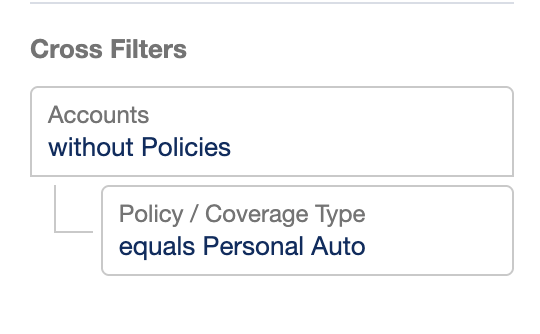
Add columns
Click the Outline tab.
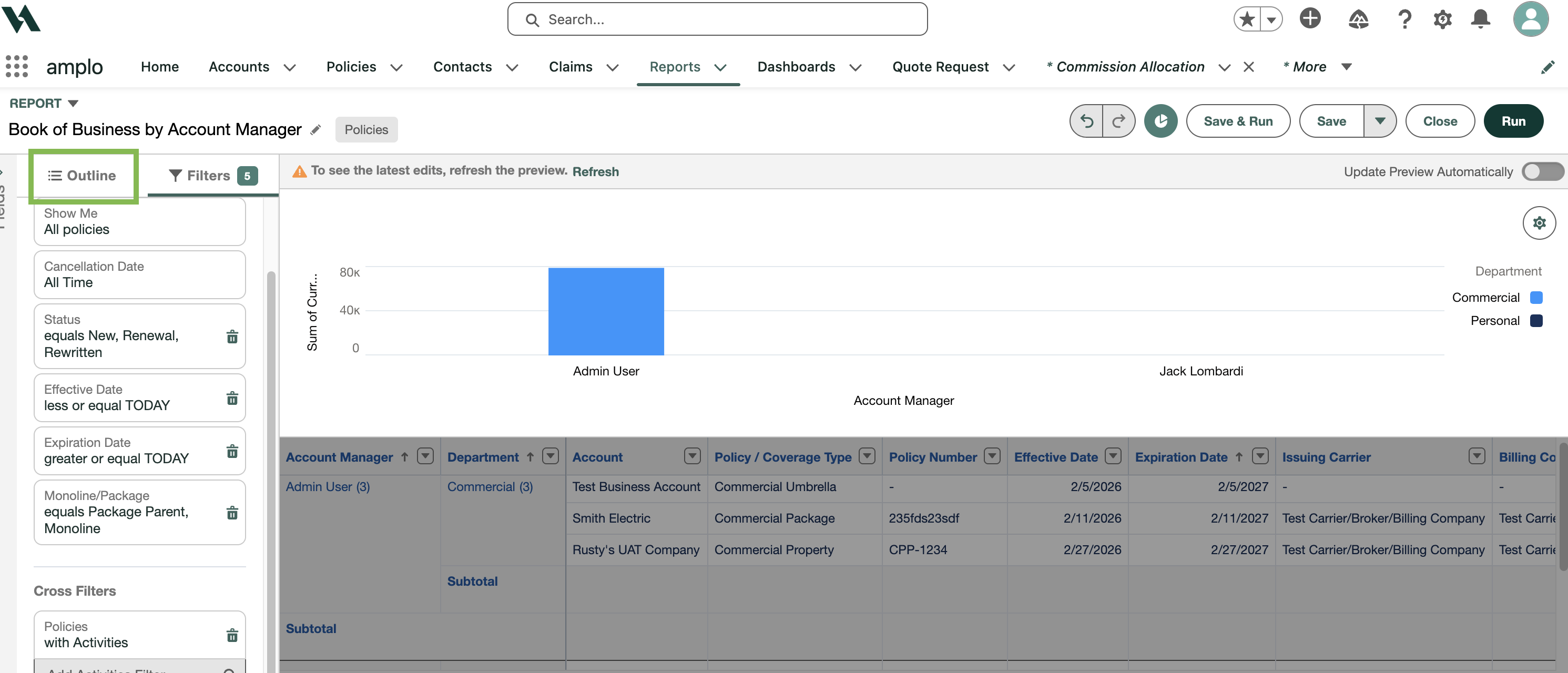
Add desired Account and Policy fields in the Columns section.

Click Save & Run.