Managing policy downloads
Last updated: April 23, 2026
Overview
Download Central gives your team visibility and control over how policy downloads are processed, whether they're automatically applied, reviewed manually, or flagged for correction. This helps ensure transactions are handled accurately and consistently. For information on managing eDocs downloads, see 📄 Managing eDocs downloads.
Note: Even if a policy downloads successfully, you can still adjust it manually. For instructions and use cases, see 📄 Manual policy changes.
Transaction codes
Transaction codes tell the system what type of transaction occurred, such as new business, endorsement, or cancellation, so it knows how to process the download. They map carrier data to the correct policy action in amplo and determine how the download is applied to the policy record.
Transaction codes explained
Use the table below for an explanation of each code.
Code | Explanation |
NBS | New Business A brand-new policy being issued for the first time. |
PAB | Premium Audit A carrier audit of the final premium on a policy, typically after the policy period ends. |
PCH | Policy Change An endorsement or update to an existing policy (like adding a driver or updating an address). |
REI | Reinstatement A policy that was canceled is being put back in force (made active again). |
REW | Rewrite A policy is rewritten as a new contract (often when big changes are needed instead of just an endorsement). |
RIX | Re-Issue A policy re-issued due to a correction or administrative change. |
RNR | Reversal of non-renewal A reversal of a perviously issued non-renewal notice, keeping the policy active. |
RRQ | Renewal Re-Quote A preliminary quote from the carrier for a renewing policy. |
RWL | Renewal/Renewal Image The renewal of a policy, with full updated details provided. |
RWQ | Renewal quote A preliminary quote from the carrier for a renewing policy. |
RWX | Non-Renewal (Sent To Policyholder/Copy Agency) The carrier decided not to renew the policy and sent notice to the insured and the agency. |
SYN | Data Base Synchronization A sync between carrier and agency records to make sure data matches. |
XLC | Cancellation Confirmation Confirmation from the carrier that a policy is officially canceled. |
XLN | Cancellation Request A request to cancel a policy, sent from the agency to the carrier. |
Matching criteria and details
Download Central validates carrier details, policy numbers, dates, and transaction types to prevent duplicate policies, incorrect renewals, and misapplied updates. Expand the sections below for more information about each matching logic.
NAIC
The NAIC code identifies the issuing carrier and ensures the transaction attaches to the correct carrier account. Without accurate carrier matching, policies can be linked to the wrong entity, leading to reporting inconsistencies and downstream servicing issues. For more information, see 📄 Creating a carrier account.
When no match is found
Downloads may appear in the inbox if the NAIC code in the download file doesn't match the NAIC code on your carrier account.
Example:
Download file: 26379H
Carrier account: 26379
Because the values don't match exactly, the system can't automatically associate the transaction.
Policy number
The policy number connects the transaction to an existing policy record and is the primary identifier for updates. If it doesn't match an existing record, the system can't confidently apply endorsements, cancellations, or renewals.
When no match is found
The transaction appears in the inbox for review.
If no customer account exists, you can create one from the inbox.
For NBS (new business) or RWL (renewal) transactions without a policy shell, Download Central automatically creates the policy to allow processing.
Note: Mismatches can also occur when a carrier adds a prefix or suffix to the policy number during download. See 📄 Fixing policy number mismatches in downloadsto configure prefix and suffix removal on the carrier account.
Policy term dates
Effective and expiration dates confirm the correct policy term and prevent updates from being applied to the wrong policy period. This is especially important when multiple terms exist for the same policy number.
For a renewal policy to create automatically, the effective date on the renewal download must match the expiration date on the expiring policy. If the dates don't match, the renewal download goes to the inbox and requires manual matching to the prior term.
When no match is found
The renewal download appears in the inbox for review. Manually match it to the prior term to continue processing.
Line of Business (LOB)
The LOB ensures the transaction aligns with the correct policy type and helps maintain reporting accuracy across coverage categories.
When no match is found
The transaction appears in the inbox for manual review. No policy updates are made until the LOB issue is resolved.
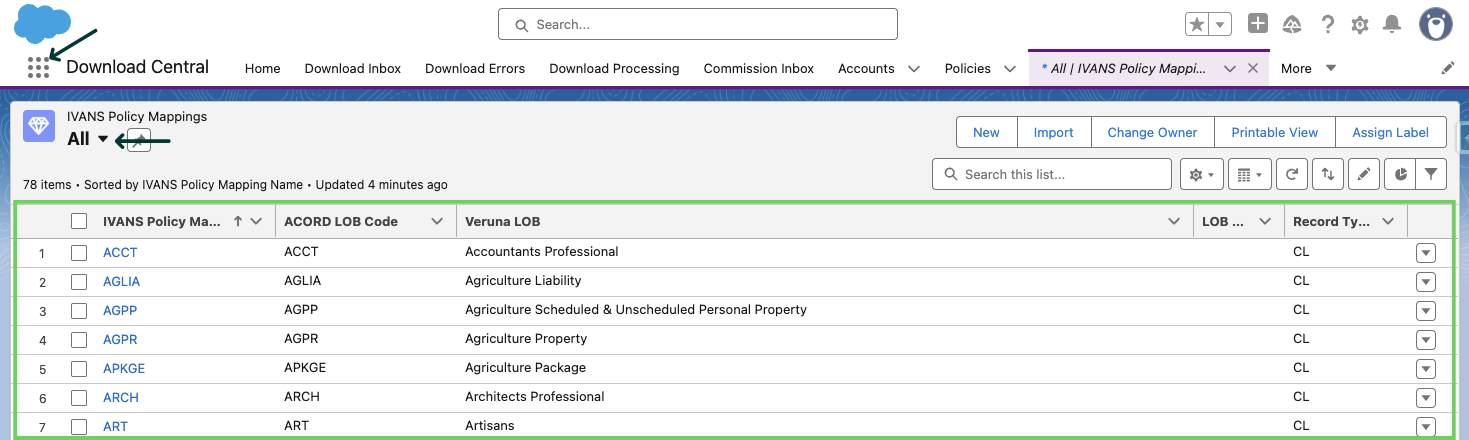
Note: For a full list of LOB codes, open the App Launcher, search for Ivans Mappings, and switch the view to All.
Renewals
For a renewal to process automatically, the effective date on the renewal download must match the expiration date on the expiring policy. This ensures the new term is linked to the correct policy record rather than creating a duplicate.
When no match is found
A new renewal policy is created under the same account. Check the effective and expiration dates on both the download and the expiring policy to resolve the mismatch.
This prevents duplicate policy records and keeps your term history complete.
Download Central
To access Download Central, use the App Launcher to search and select Download Central.

Download Central organizes IVANS activity into four primary categories. Expand the menu items below to learn more about the purpose of each tab:
Download Inbox
Transactions appear in the inbox when:
The download doesn't meet your policy download preferences.
There's a mismatch in the defined matching criteria.
The system can't find a carrier account that matches the NAIC code.
No matching policy is found.
Review and resolve each transaction before applying updates.
Download Errors
If a file cannot be processed, it appears in Download Errors.
Use the Troubleshooting section below to review error details.
If the message is unclear, take a screenshot and contact support@amplo.com.
Download Processing
Transactions being actively processed appear briefly in the Processing tab. Refresh your browser to check the status (most transactions move quickly).
If a transaction stays in Processing and you believe a valid policy exists, take a screenshot and contact support@amplo.com. For more information, see 📄 Reprocessing a policy download.
Commissions Inbox
Commission downloads have their own inbox, separate from the Download inbox. Any commissions that don't match automatically appear there for review. Matching criteria are the same as policy downloads (see the matching criteria section above for details).
Commission records must be processed one at a time from the Commissions inbox.
To learn more about commissions, see 📄 Managing commission allocation.
Processing multiple downloads
When multiple transactions are received for the same policy, Download Central automatically groups and processes them in the correct order.
How Inboxed grouped transactions are processed
When multiple transactions are received for the same policy, Download Central automatically groups and processes them in the correct order.
How grouped transactions are processed
When you select U(update), amplo:
Reviews all grouped transactions for that policy
Determines the correct execution order
Processes each transaction in sequence
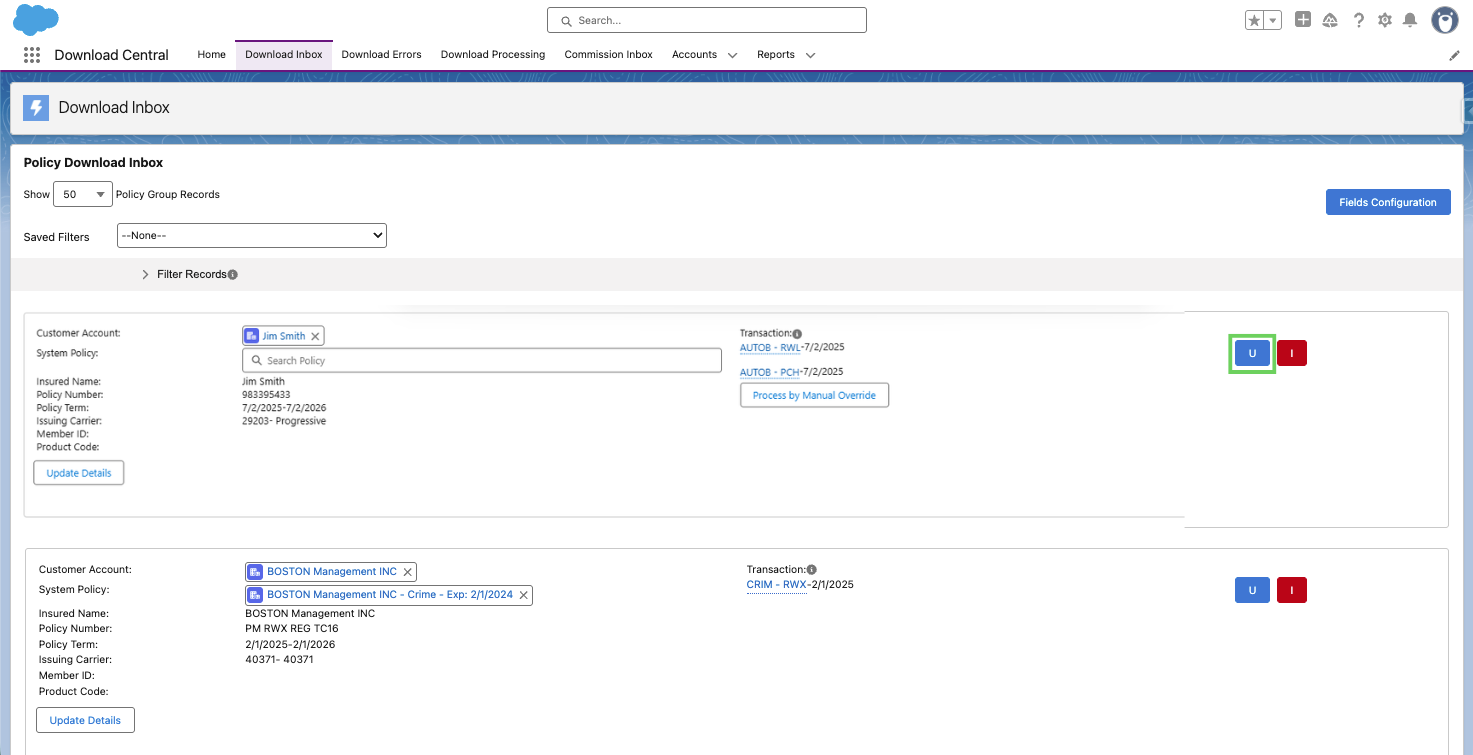
Example: If both a renewal (RWL) and a policy change (PCH) are received, the renewal runs first, a new policy term is created and the renewal download is linked to it. The policy change is then applied to the newly created renewal term, ensuring the endorsement attaches to the correct policy period.
Managing download errors
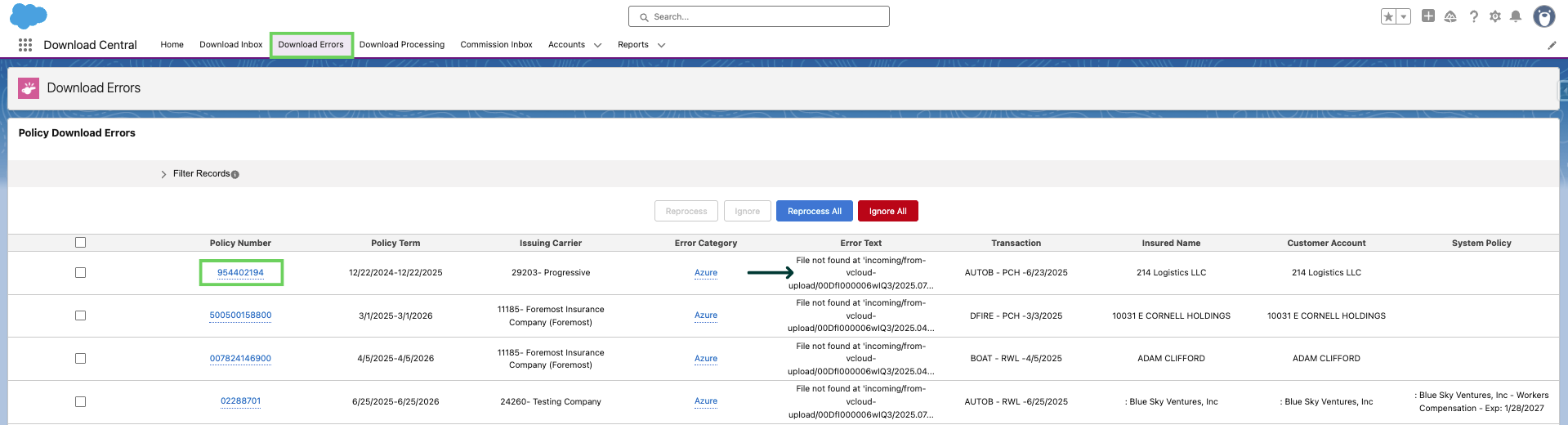
If a download can't be processed, it appears in the Download Errors tab. To view the full Error Text for more context, select the policy number.
Correct and reprocess
After making corrections, select the checkbox next to each policy you want to resolve. Then choose:
Reprocess: Saves changes and reprocesses the record.
Ignore: Removes the record from the Errors tab without processing.

Successfully processed records are automatically removed from the Errors tab.
Troubleshooting
Below are common download issues and how to address them:
Transaction not processing
If a transaction isn't processing as expected:
Confirm your download preferences are set correctly (Update, Reconcile, or Ignore).
Verify that matching criteria (NAIC, policy number, term dates, and LOB) are accurate.
Check whether the transaction appears in the inbox, Processing, or Errors tab.
Missing or invalid transaction code(s)
If a transaction code is missing or invalid:
The system may route the file to the Inbox or Errors tab.
Review the transaction details and confirm the code aligns with your configuration.
If needed, reconcile the transaction manually.
Duplicate policy records
Duplicate records don't always have an obvious source, but you can investigate by checking timestamps on the duplicate records (they're often created within seconds of each other) and reviewing whether the records were created by a user action or automation.
If you identify multiple duplicate instances, email support@amplo.com with links to the affected policy records and a brief description of what occurred during processing.
Missing Account or System Policy mapping
If a policy is missing the Account or System Policy mapping, it will not process.
PAB transactions issues
PAB transactions are most commonly associated with workers compensation policies. Before processing, verify that both the Policy Status and Endorsement Date are accurate.
Missing or incorrect Endorsement Effective date
Always verify the Endorsement Date falls within the policy's Effective Date range before processing downloads.