Error when renewing a policy in Salesforce
Last updated: October 2, 2026
Overview
This article explains how to resolve an error that appears when you try to renew a policy in Salesforce. You may see a red error banner on the policy management interface after clicking Renew. This issue is typically caused by a user profile lacking access to certain required fields.

Common cause
When a user gets an error after clicking Renew on a policy, it's often because their Salesforce user profile doesn't have access to one or more required fields — for example, Fee Amount fields. Without the correct field-level permissions, amplo can't complete the renewal and displays an error.
How to resolve the error
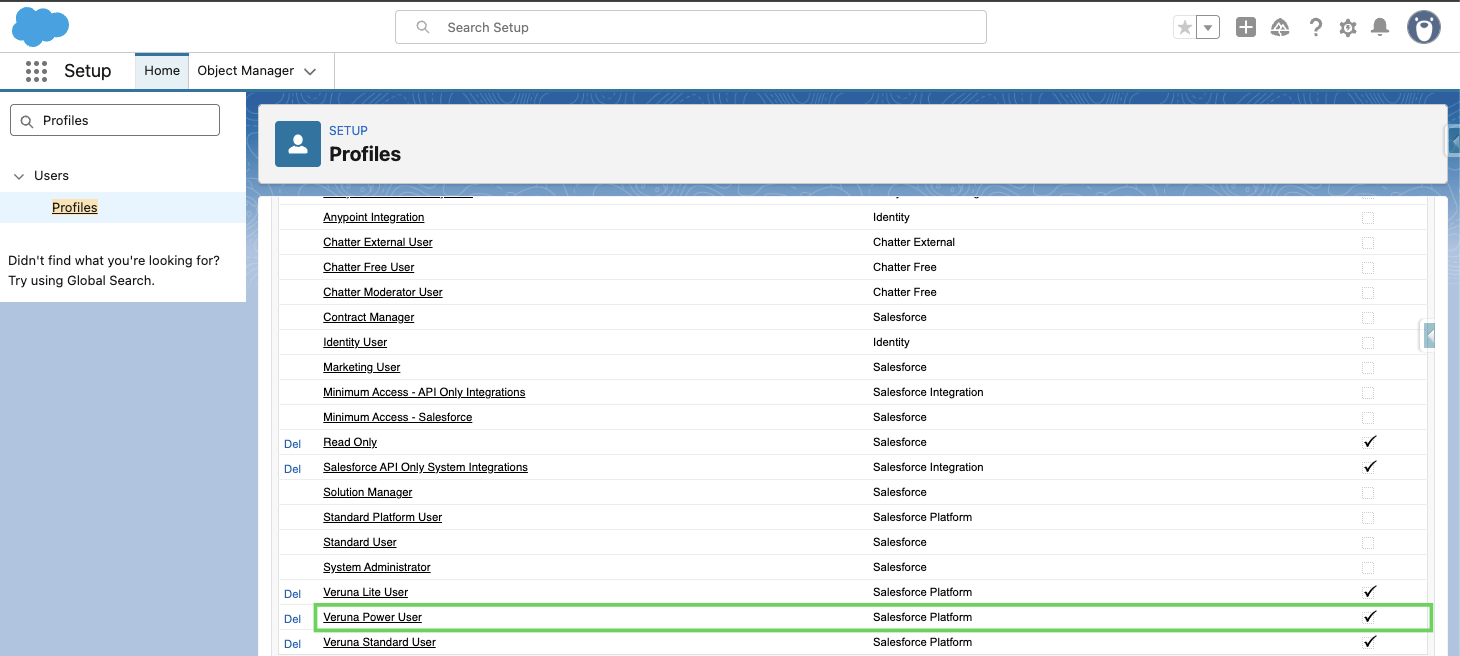
In Setup, use Quick Find search and select Profiles.

Select the profile of the affected user.
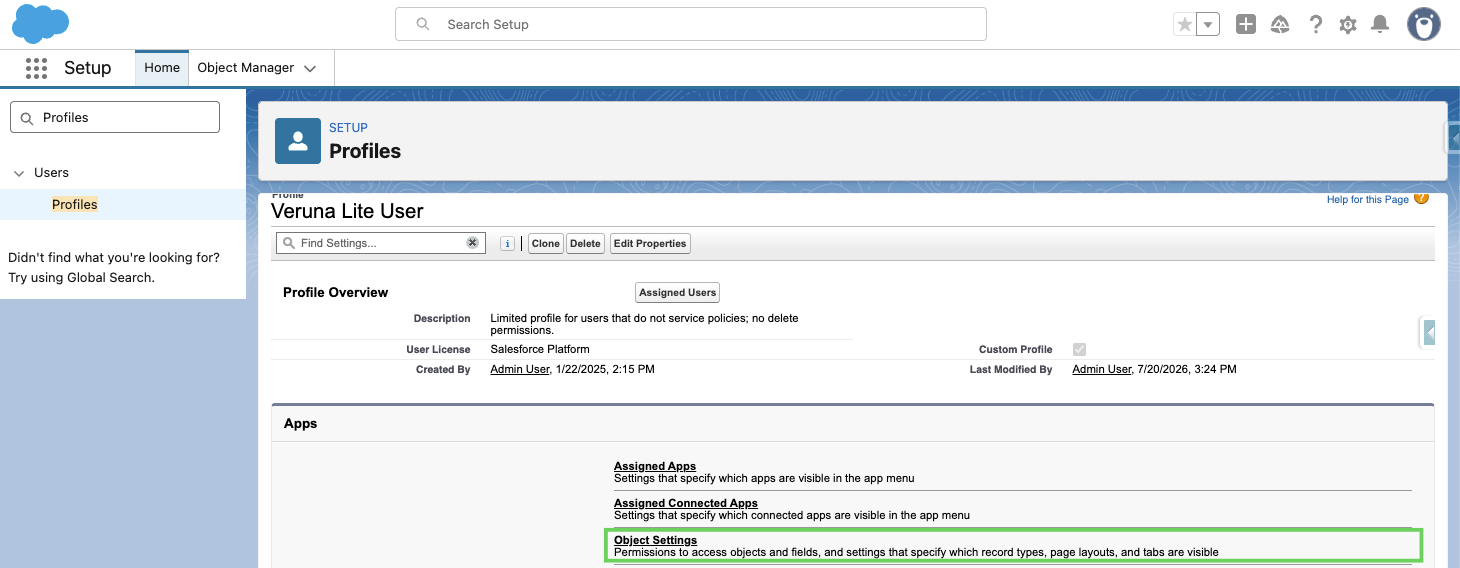
Select Object Settings.
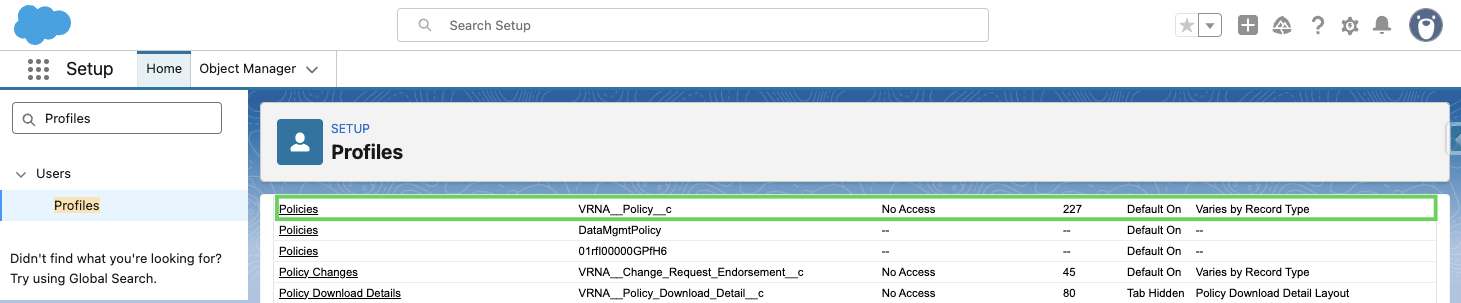
Select the object named in the error message. For example, if the message reads "...on entity 'VRNA__Policy__c'...," select the Policy object.
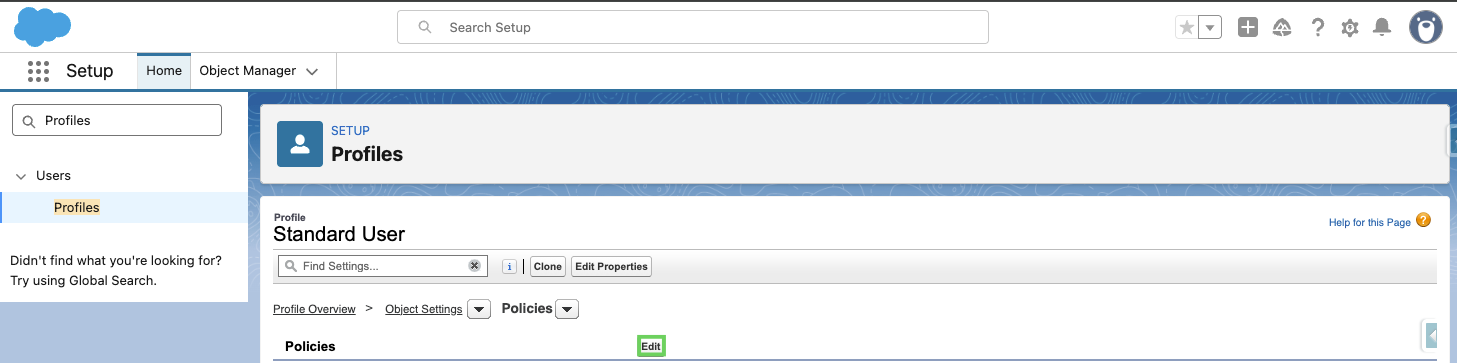
Click Edit.
Then scroll to the field named in the error message. For example, if the message reads "No such column 'VRNA__Fee_Amount__c'...," look for Fee Amount.
Confirm that both Read and Edit are checked for that field.
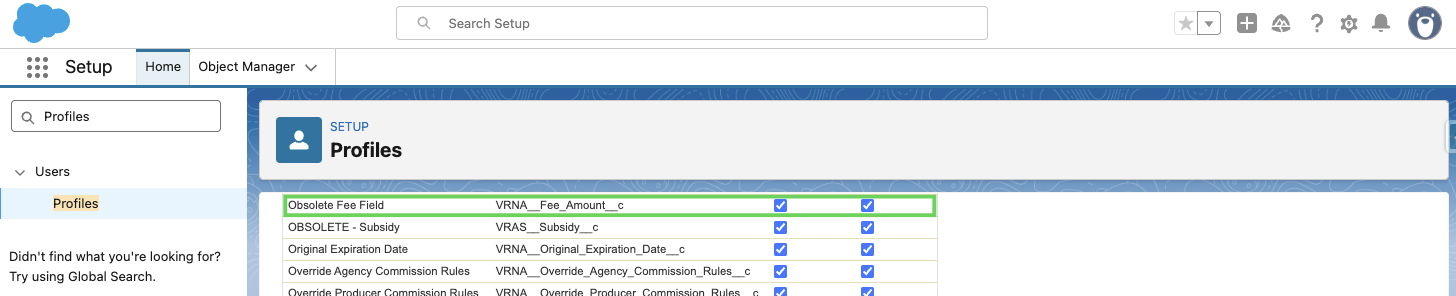
Select Save. Then, ask the user to retry the renewal.
Note: If multiple users on your team are experiencing the same error, you may need to update each affected profile individually. Be sure to mention all affected users when contacting support.