Managing claims
Last updated: February 24, 2026
Overview
Claims are a critical part of the insurance lifecycle — it’s when your clients need you most. Managing claims efficiently helps ensure nothing falls through the cracks and keeps everyone informed. This article walks through how to:
Submit a new claim
Generate and finalize an ACORD claim form
Edit an existing claim
Record a claim payment
Submit a new claim
Follow these steps to create a new claim from a policy record.
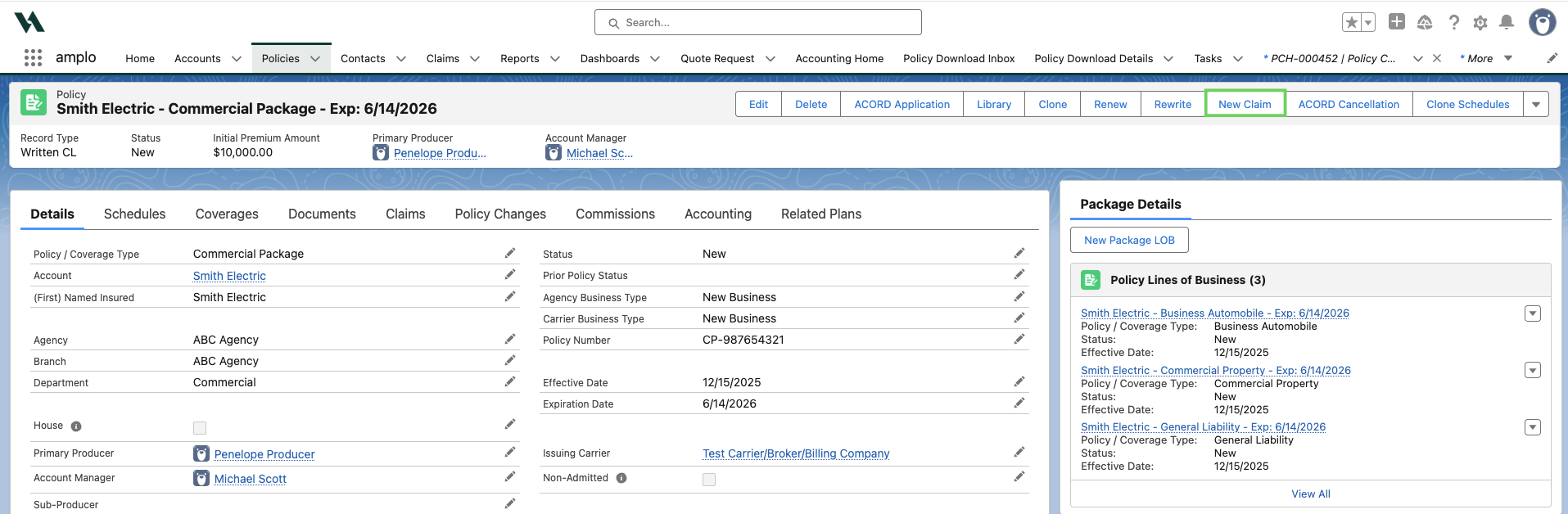
From the policy record, click New Claim.
On the New Claim modal, fill in the relevant claim information.
Important: When generating an ACORD form, you must enter a Date of Loss. While the field is not marked as required, the form will not generate without a date.
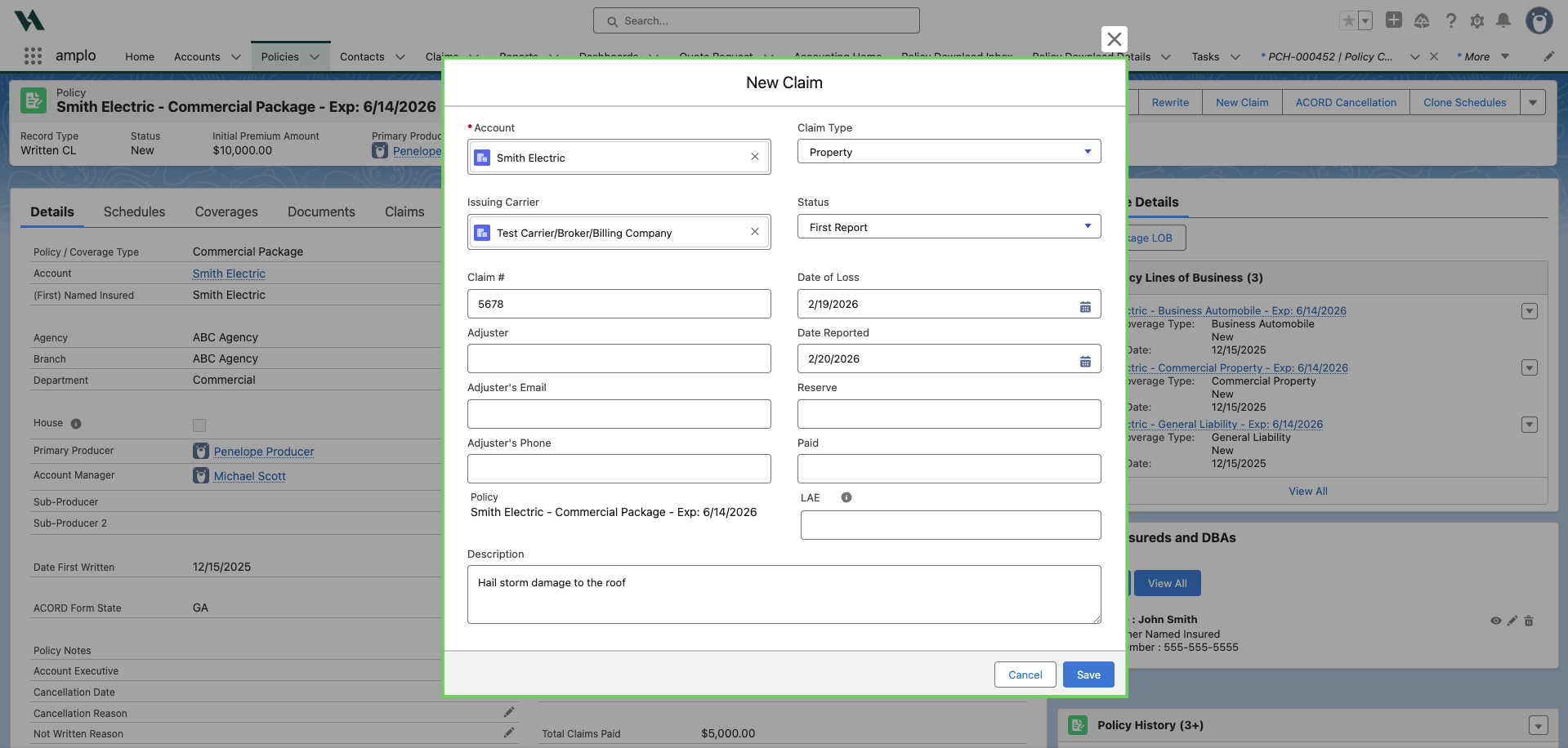
Click Save. A green confirmation will appear once the claim has been saved.
Select the link in the header to navigate to the claim.

In the Claims record, update the details in the Schedule information section as needed.
Note: The fields that appear in the Schedule Information section of the claim record vary based on the claim type (i.e. auto, property, etc).

Generate the ACORD Claim form
Follow these steps to generate the appropriate ACORD form.
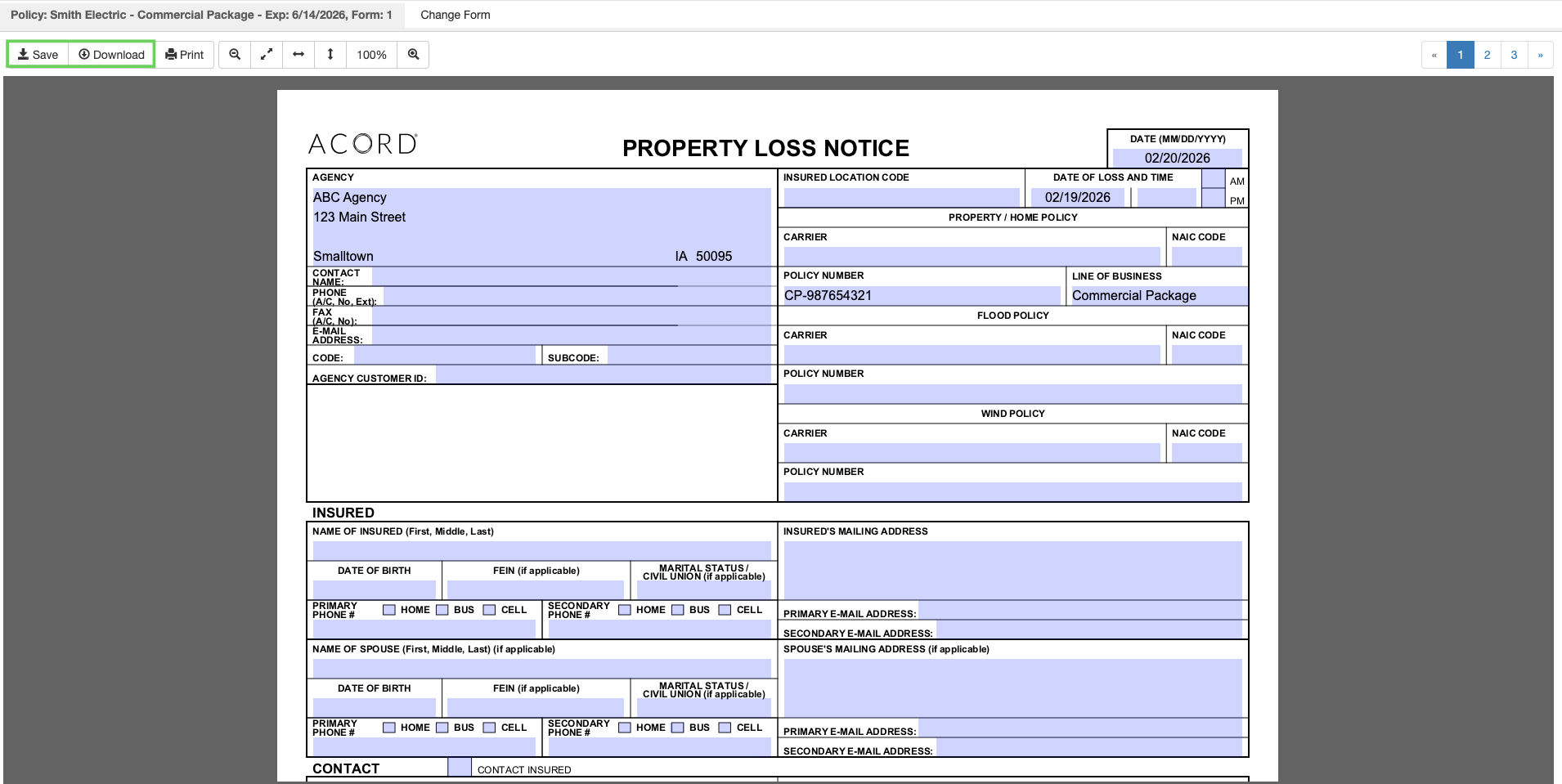
From the claim record, click ACORD Claim Form.

The ACORD Form Viewer will open in another window. The required ACORD Claim Form will generate based on the Claim Type. In amplo, the follow claim types map to designated ACORD form:
Claim Type | ACORD Form |
Auto | ACORD 2 |
Property | ACORD 1 |
Liability | ACORD 3 |
Work Comp | ACORD 4 |
Click Download to save the file to your computer, if needed.
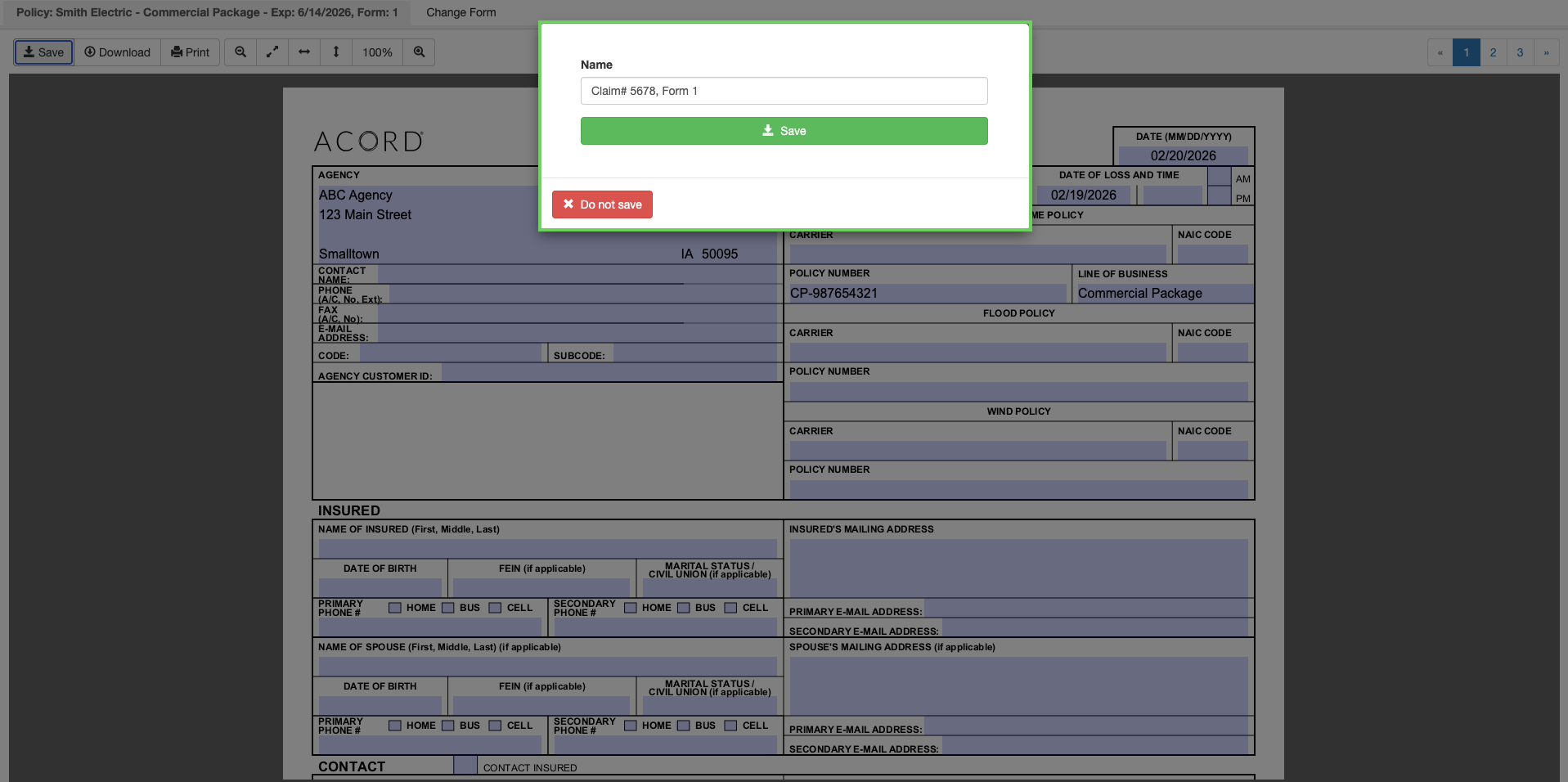
After you review the form, click Save.
In the confirmation window, click Save again.
Finalize the claim form
Use these steps to finalize the ACORD form.
In the ACORD Form Viewer, click Change Form.
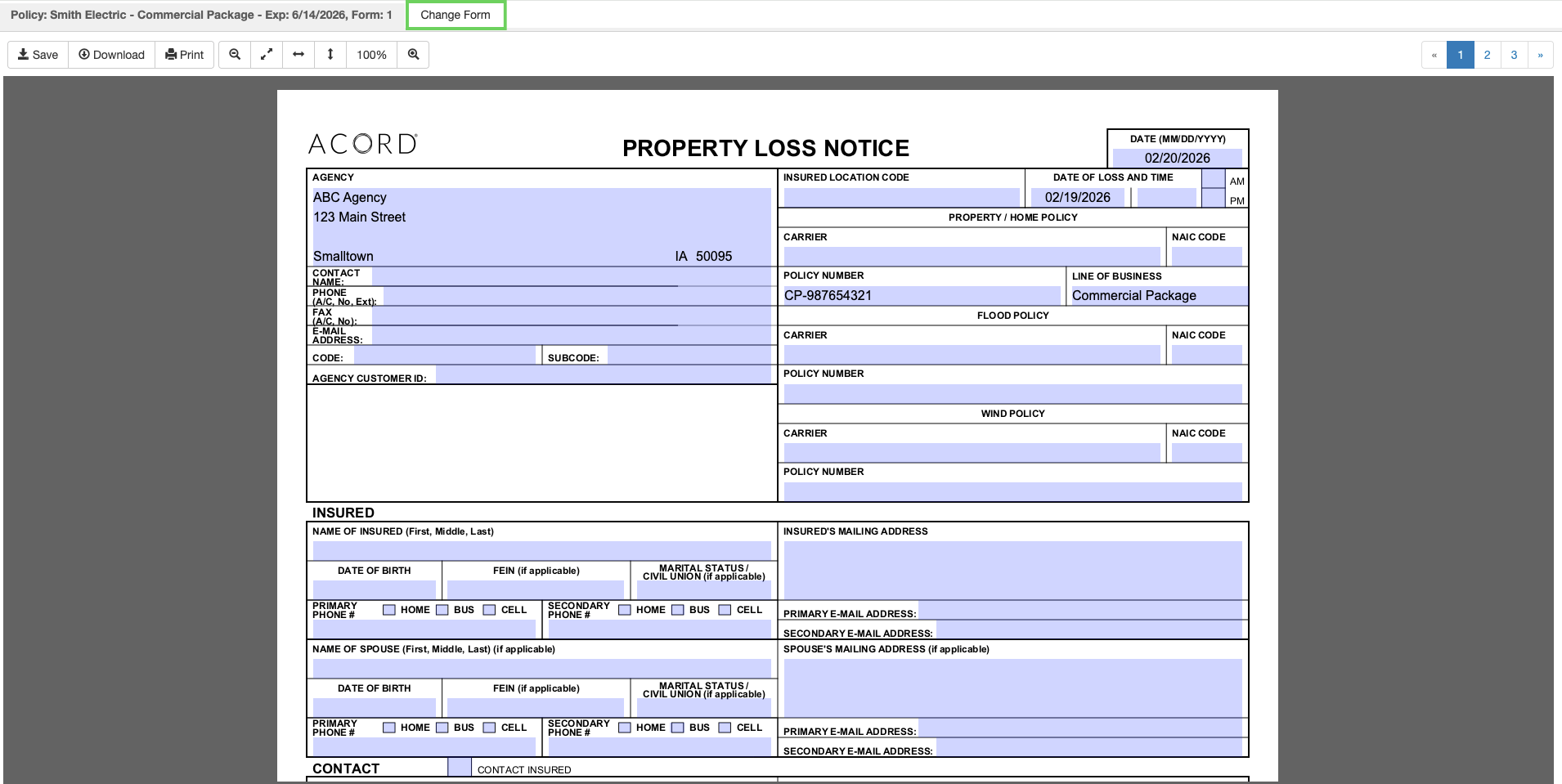
Select Finalize Forms.
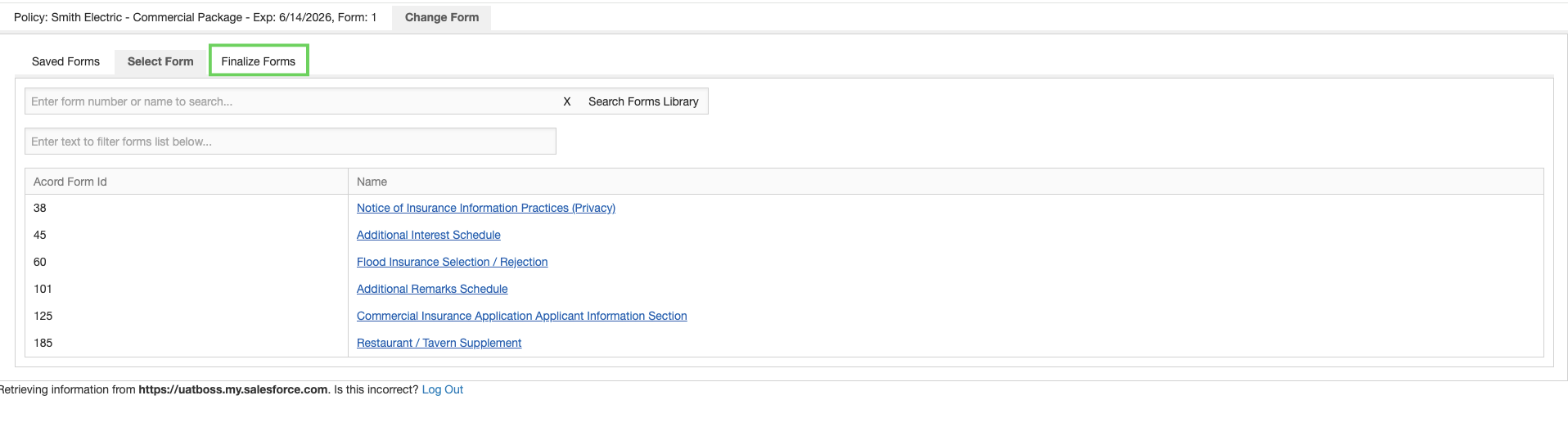
Select the checkbox next to the claims form
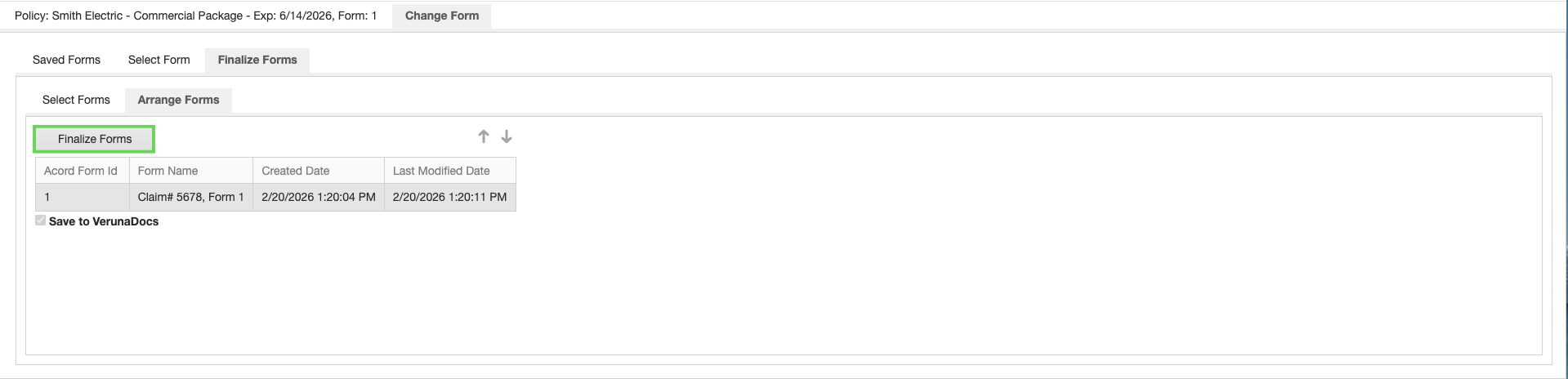
Click Arrange Forms.

Select Finalize Forms.
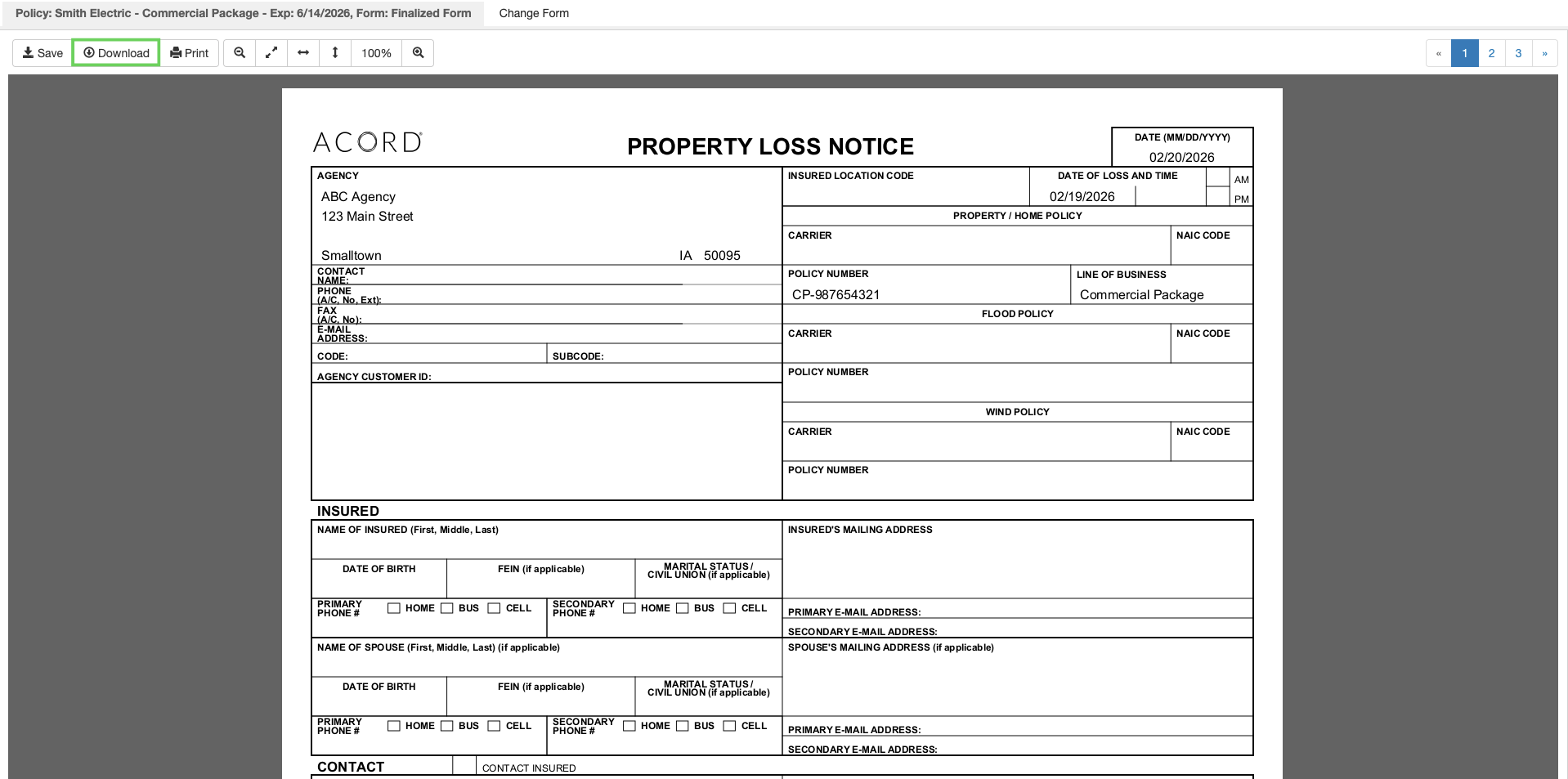
After you finalize the form, a read-only PDF opens in a new window.
Click Download to save a copy to your computer.
Edit an existing claim
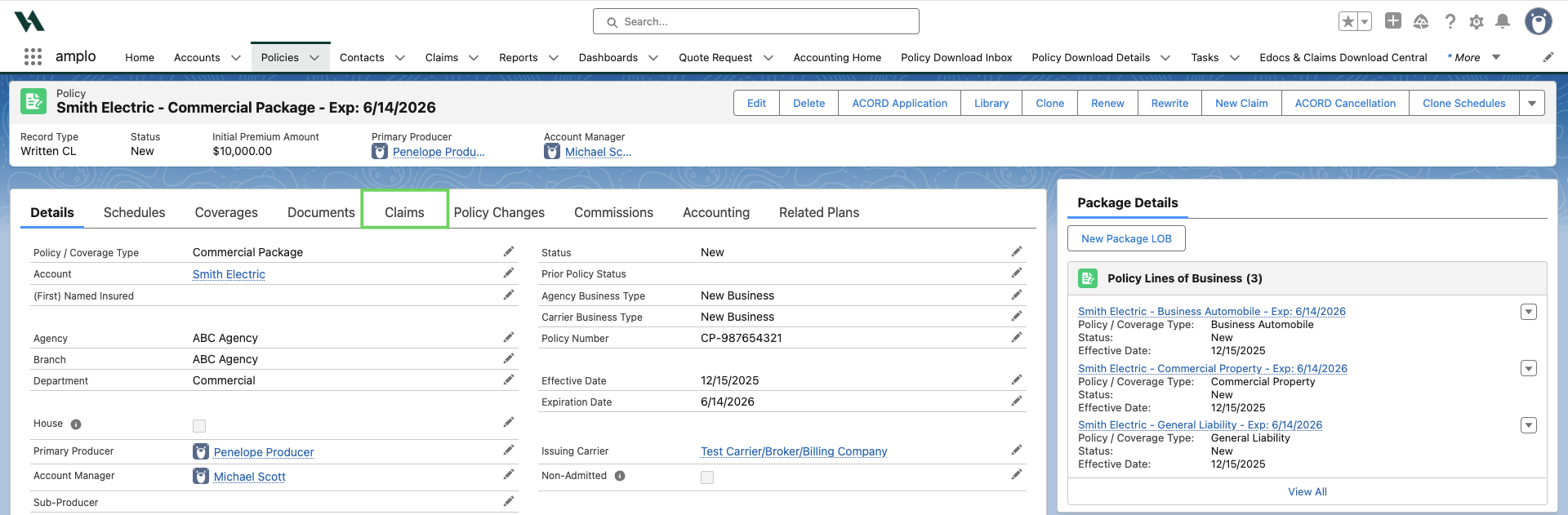
From any policy record, open the Claims tab.
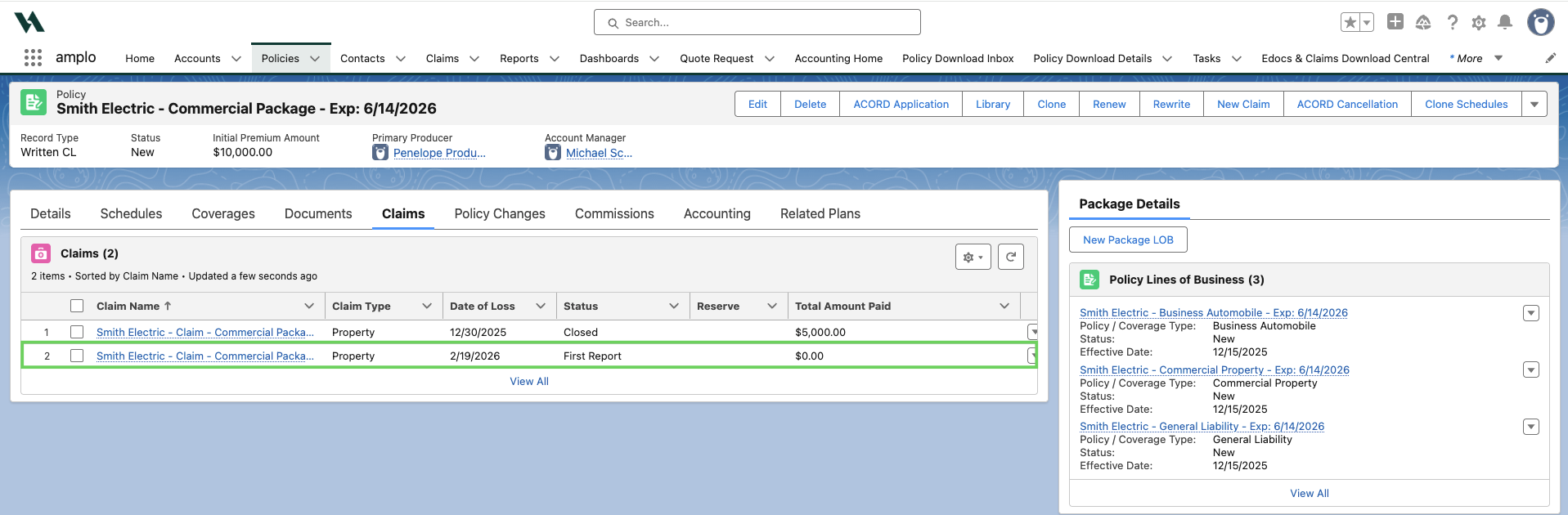
Search for and click he claim name to open the record.
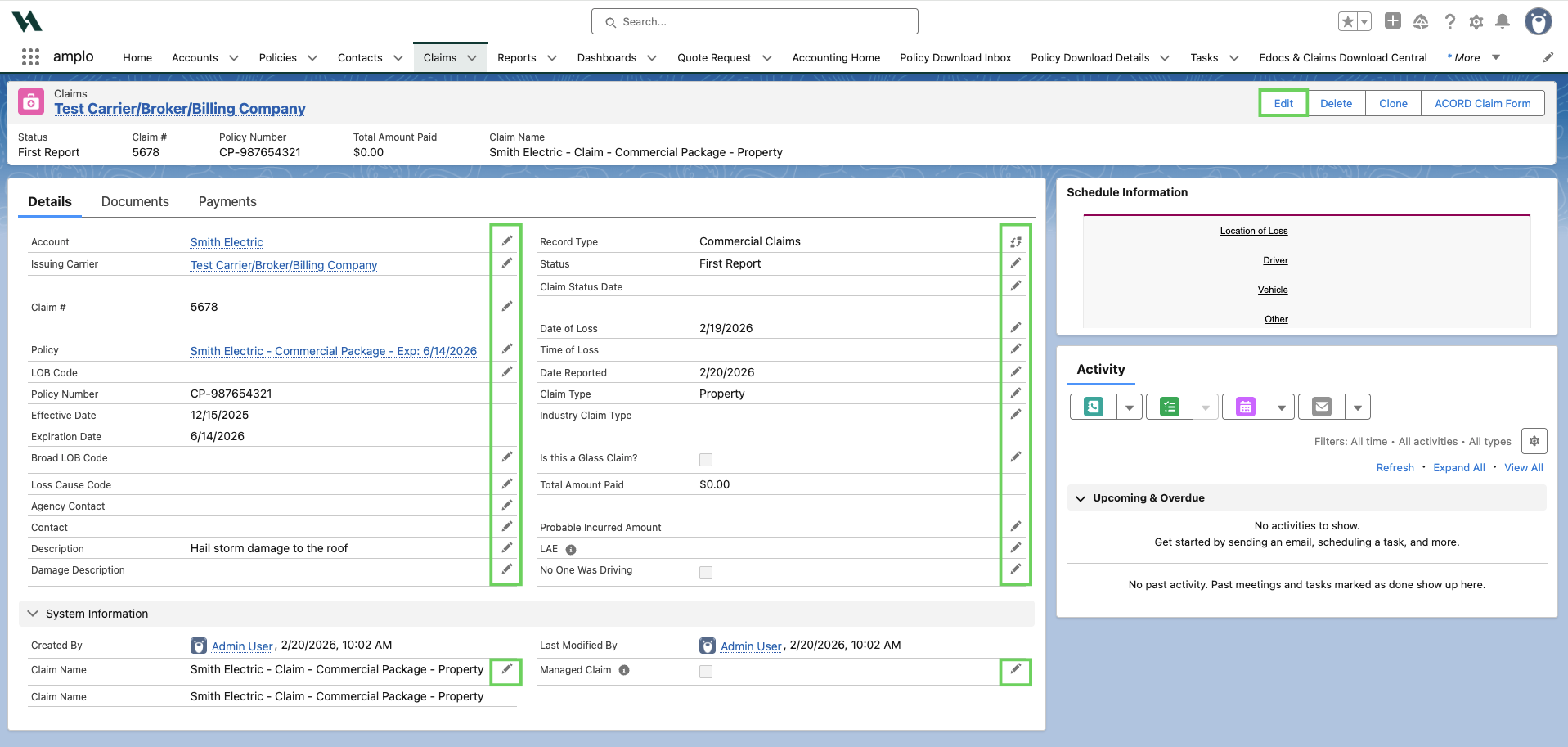
Click the pencil icon to update the claim information as needed.
Enter a claim payment
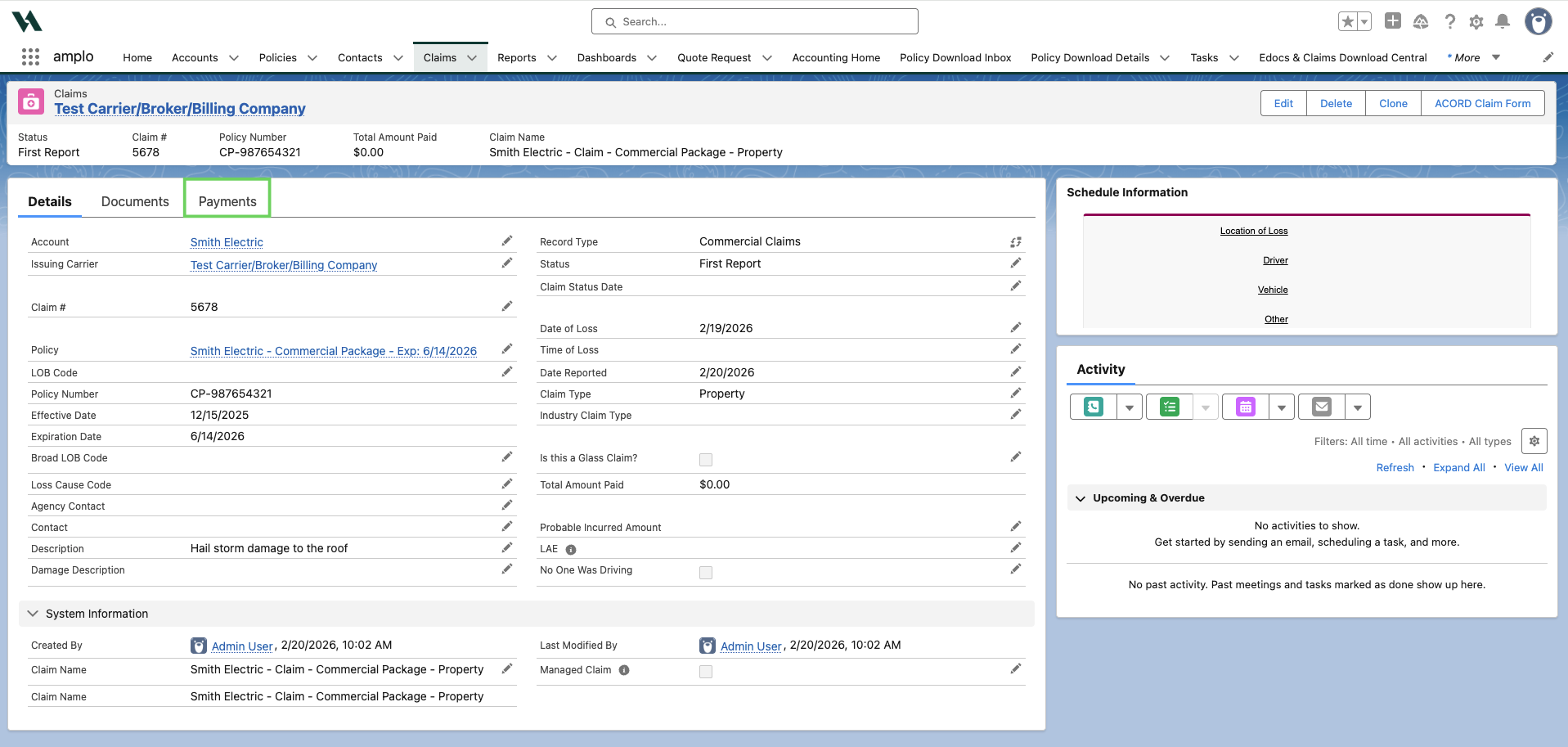
From the claim record, open the Payments tab.
Click New.
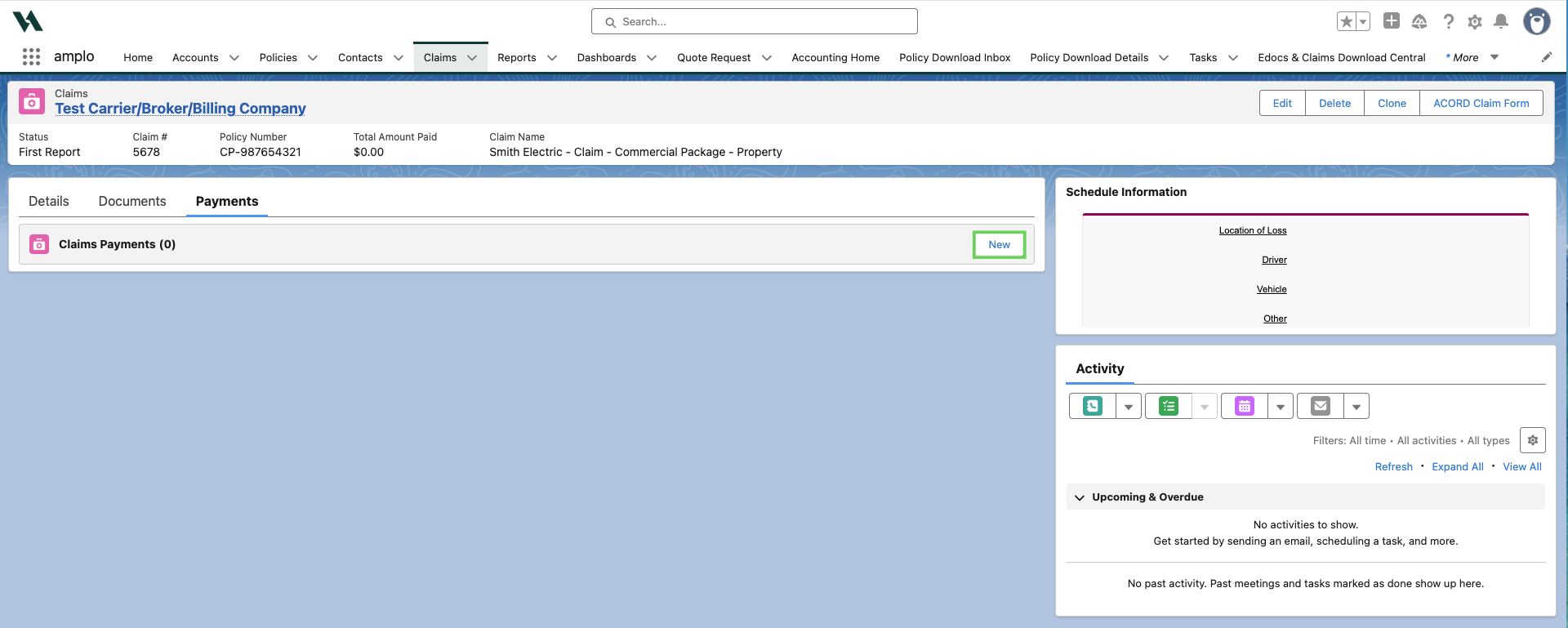
In the New Claims Payment modal, enter the payment details.
Click Save.
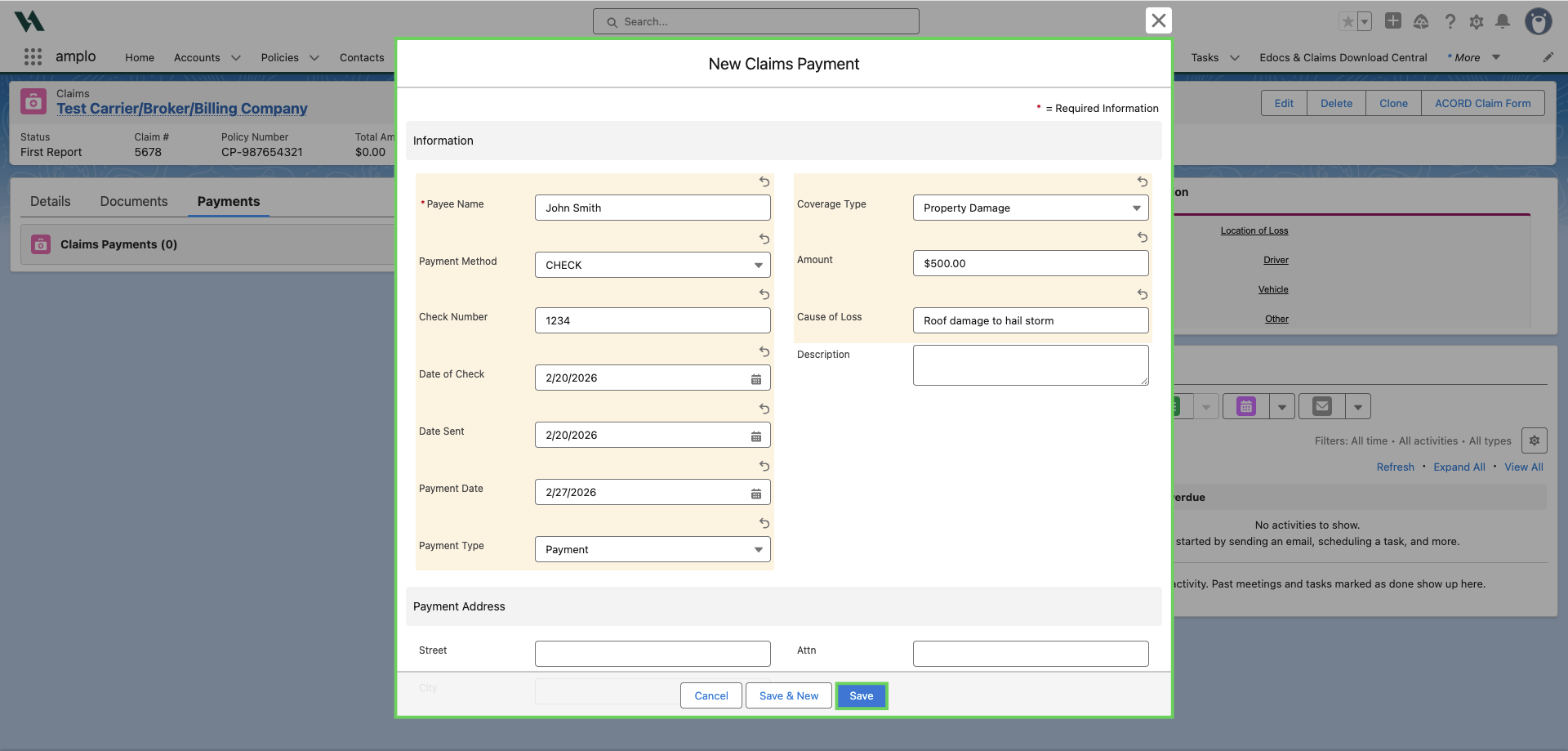
Payment requirements for accurate totals
The Claim Payment Amount field aggregates at both the policy and account levels. To ensure accurate values display in Amount Paid (claim level) and Total Claims Paid (account level), ensure the Claim Payment record:
Is associated with the correct claim
Has a Payment Type of:
Payment
Adjustment Expense
Subrogation Recovery
Salvage Recovery
Deductible Recovery