Managing underlying insurance policies
Last updated: April 6, 2026
Overview
Umbrella policies may contain underlying insurance policies, or primary liability policies, such as General Liability, Auto Liability, or Employers Liability for commercial lines or auto or home for personal lines. The umbrella policy provides additional coverage once the limits of these underlying policies are exhausted. This article explains how to add an underlying insurance policy to an umbrella or excess liability policy.
Add a standard underlying policy
Navigate to the Policy record to add the underlying coverage.
Click the Coverages tab.

Click Commercial Umbrella.

Click Underlying Insurance to open the accordion menu.
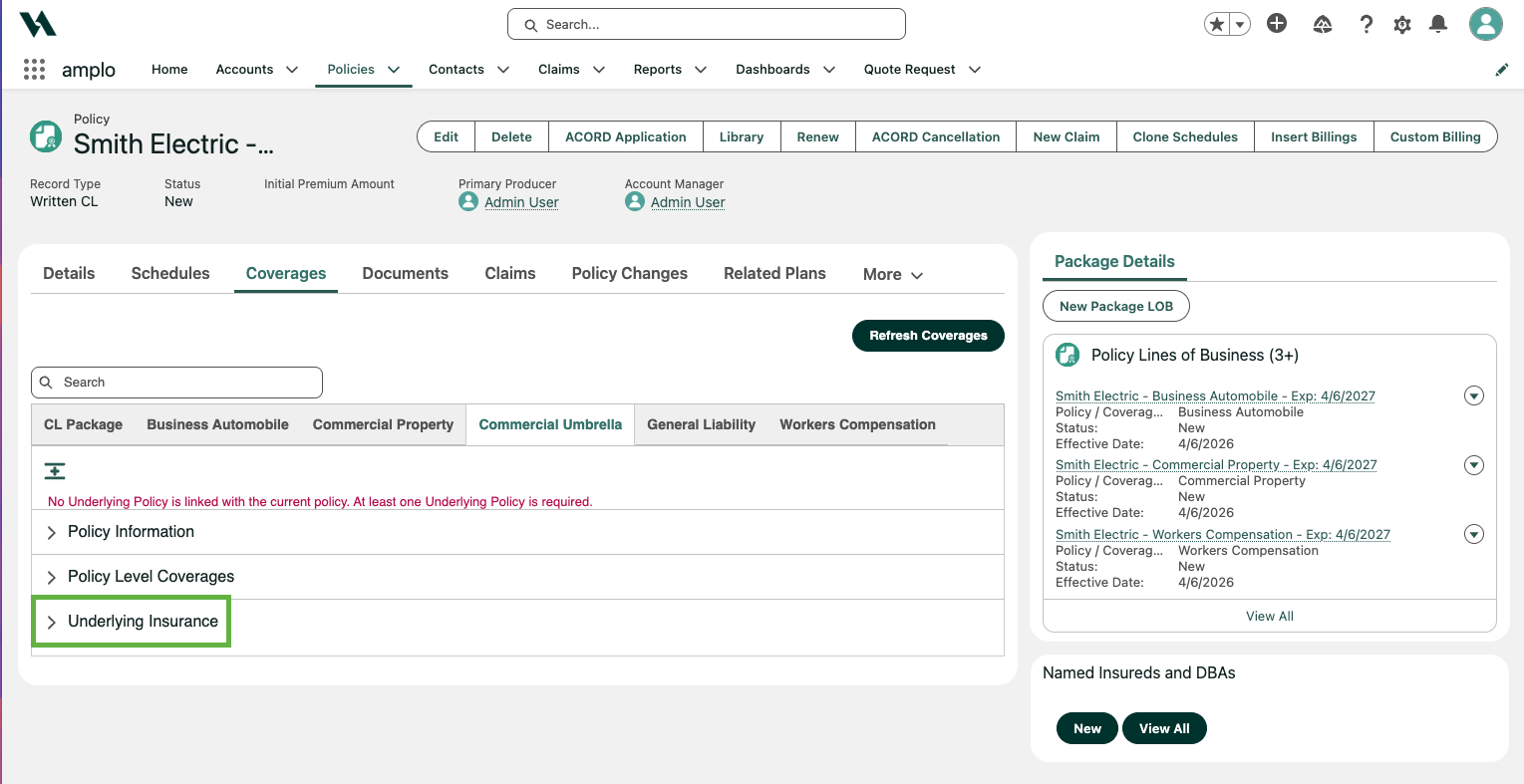
Click Add Underlying Policy.

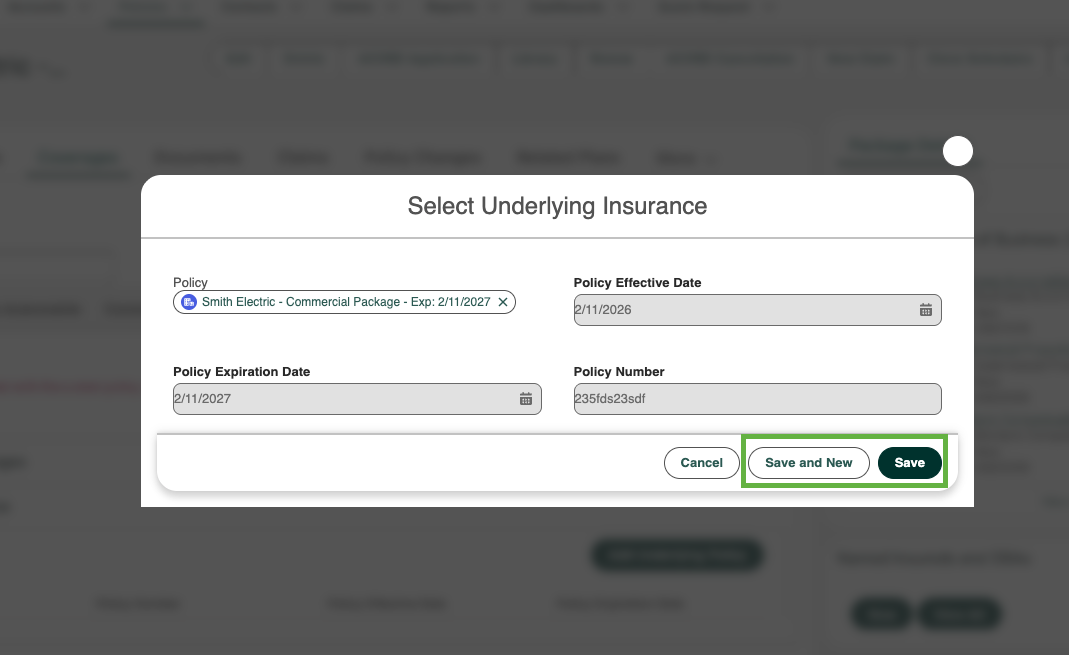
In the Select Underlying Insurance modal, click the Policy field, then select the relevant policy from the dropdown list.
Note: The rest of the policy information will auto-populate and cannot be edited.
Add the relevant policy in the Policy field, and click Save (or Save & New if adding more than one underlying policy).
Add a custom underlying policy
If the underlying policy isn't written in the system, a custom underlying policy may be entered manually.
Navigate to the Policy record to add the underlying coverage.
Click the Coverages tab.
Click Commercial Umbrella.
Click Underlying Insurance to open the accordion menu.
Click Add Underlying Policy.
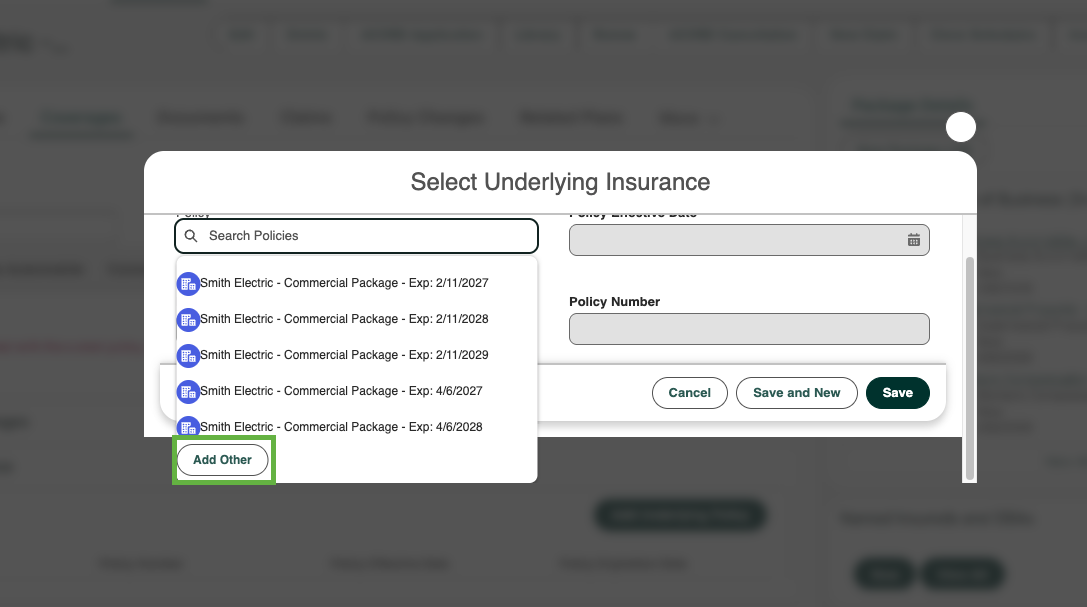
In the Select Underlying Insurance modal, click the Policy field, scroll down, and click Add Other.
Click the Policy / Coverage Type field to view the options:
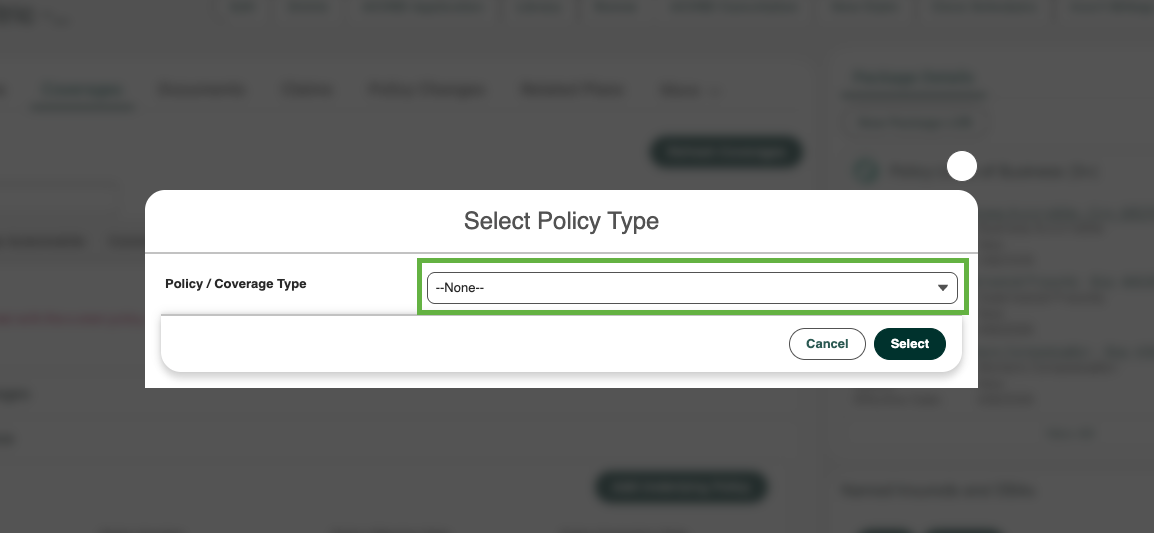
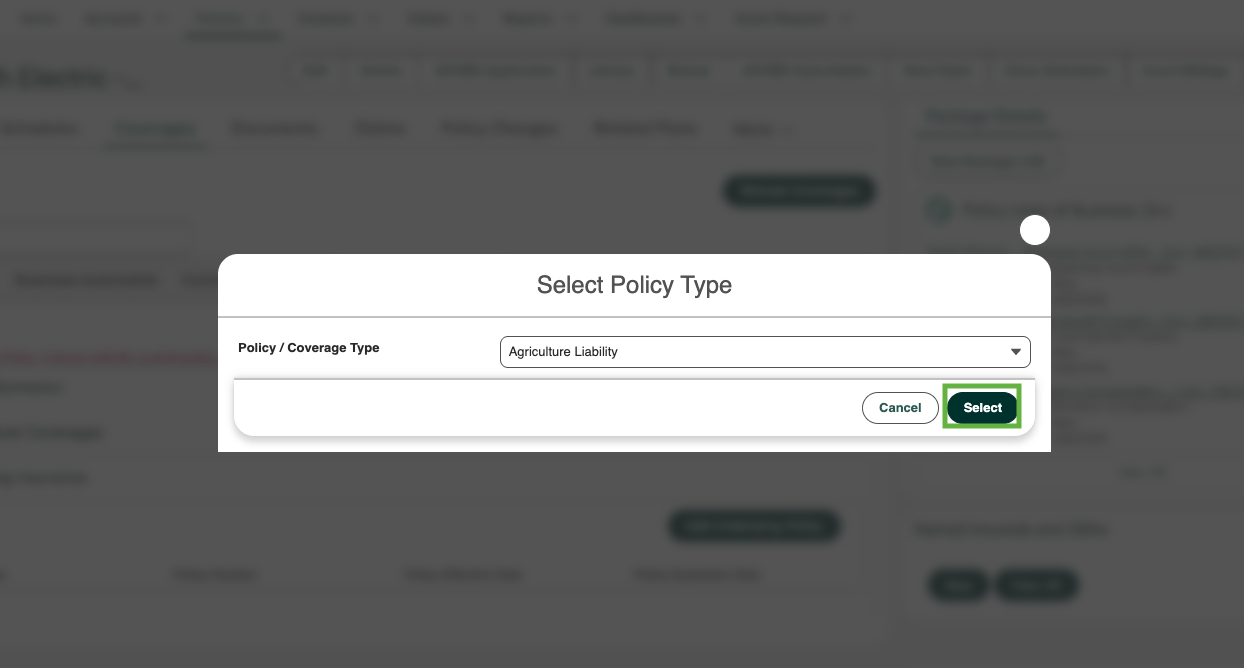
Add the Policy / Coverage Type and click Select.
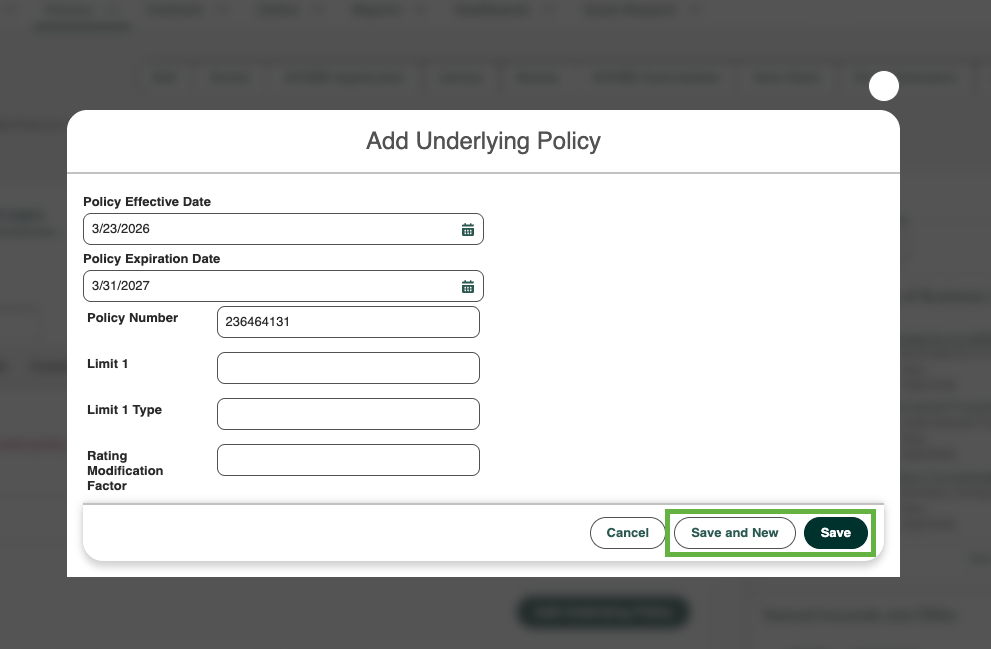
In the Add Underlying Policy modal, manually add all relevant fields and click Save (or Save & New if adding more than one custom underlying policy).
Troubleshooting
Resolve policy type error
When adding a new underlying insurance policy, you may encounter the error Policy data did not successfully save.

Note: This error occurs when the selected Policy Type value isn't included in the Underlying Insurance – Other record type. The system won't allow you to save until the value is added.
Steps to resolve
To make the Policy Type value available, an admin should update the record type settings:
Navigate to Setup.
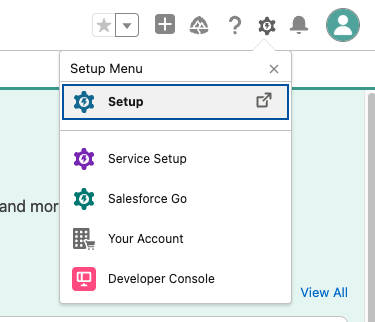
Search and select Object Manager.
In the Quick Find box, search for and select Underlying Insurance.

Click Record Types.
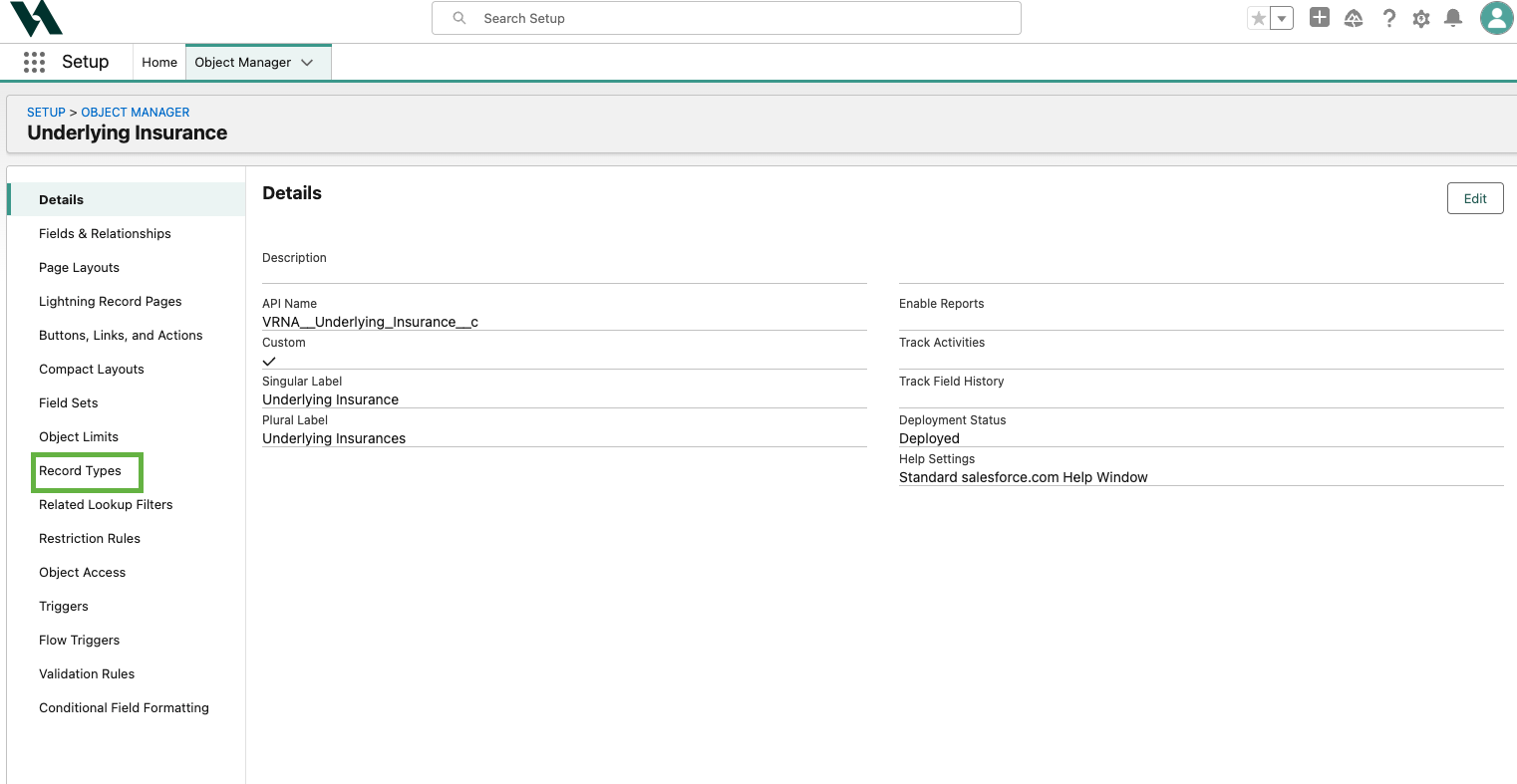
Click Underlying Insurance – Other.
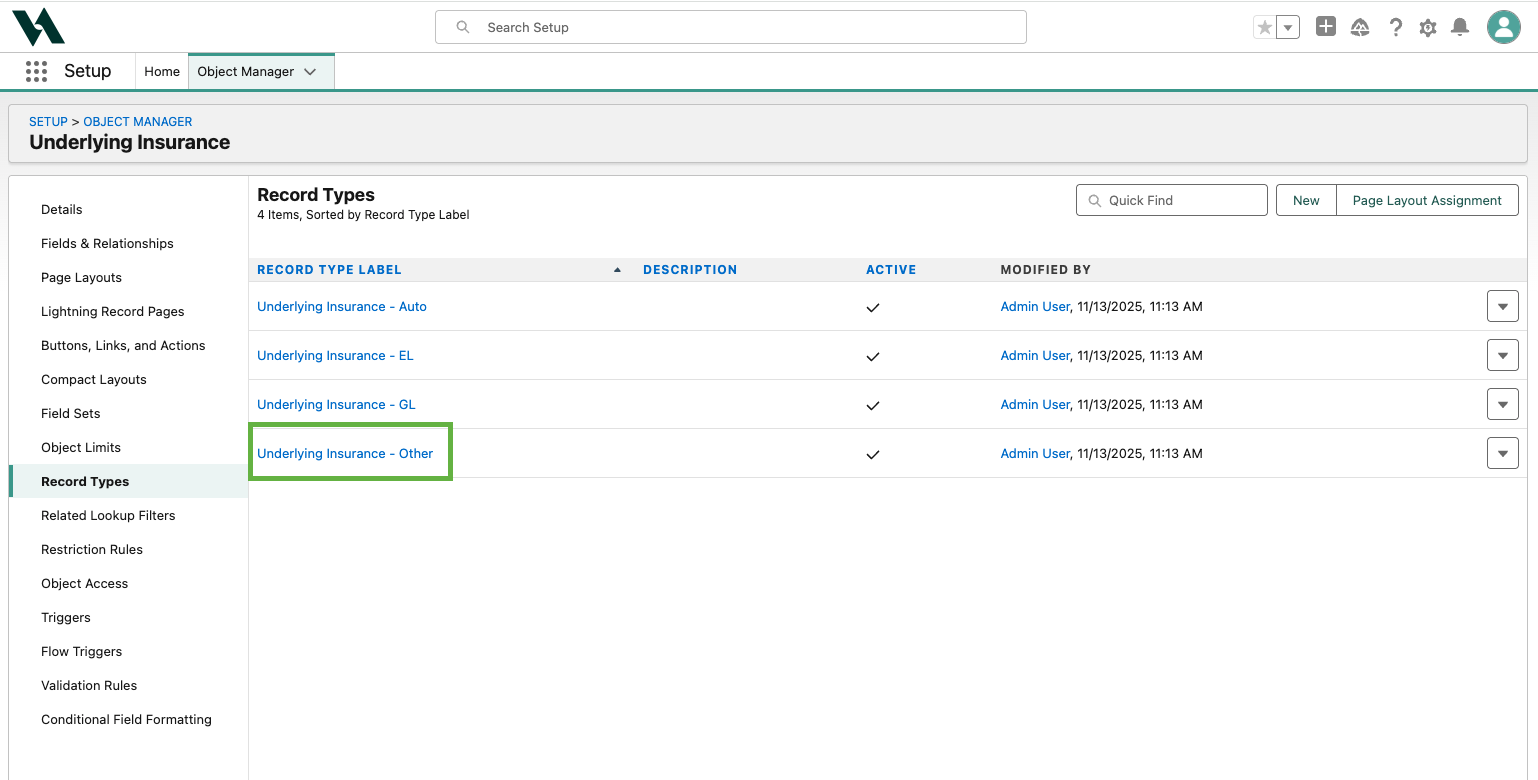
In the Picklists Available for Editing section, click Edit next to the Policy Type field.

To move the required value from Available Values to Selected Values, select the value, and click Add.
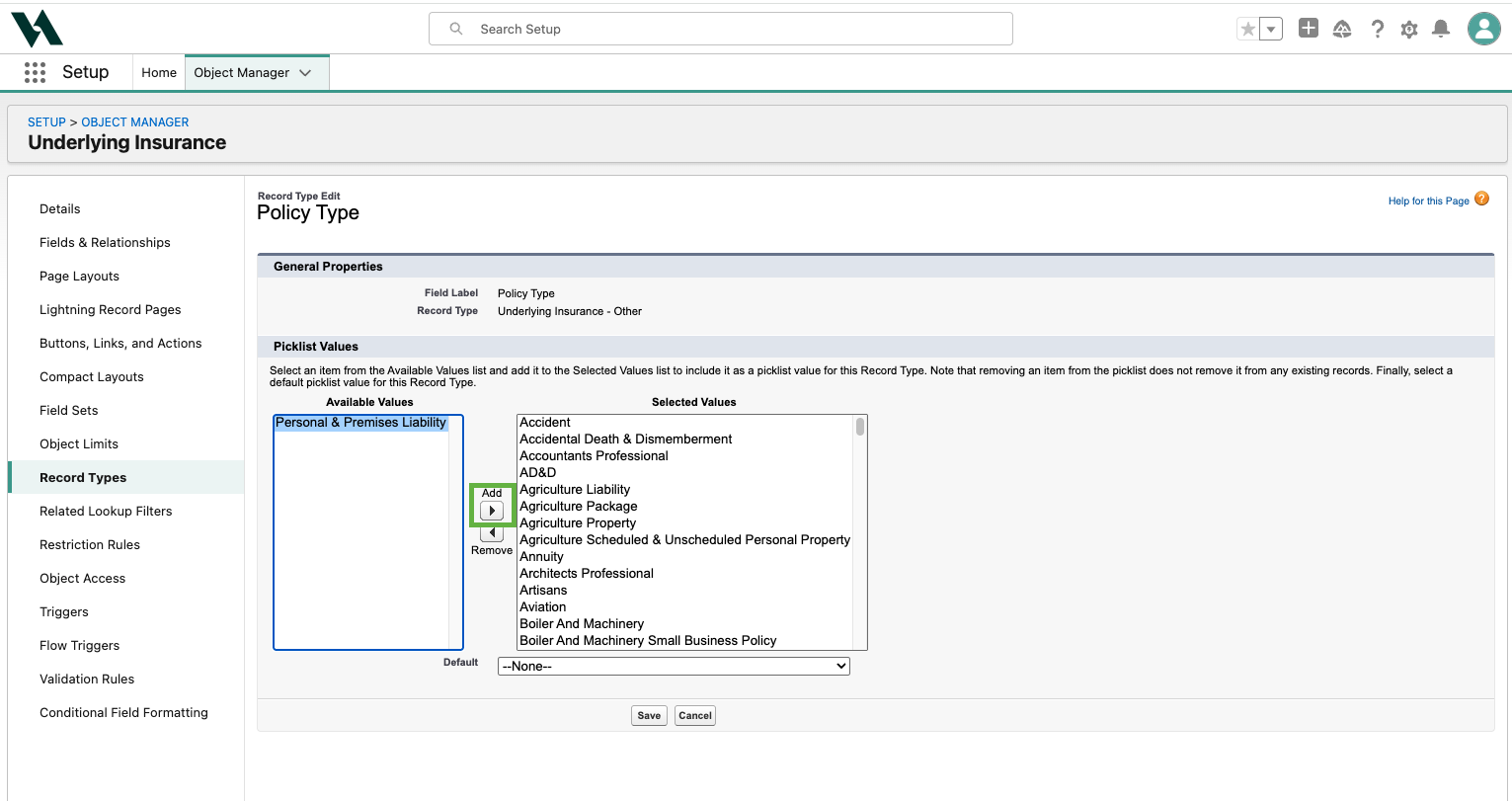
When finished, click Save.

Navigate back to the Policy record, and add the underlying insurance policy.