Direct Bill commissions
Last updated: March 2, 2026
Overview
Billing is entered from a Direct Bill Commission Statement download, manual entry, or an import method. The agency should receive a statement from the carrier detailing the amount of money and description of that money that the carrier is going to send them.
DB Commission Statement
The DB Commission Statement in amplo represents the carrier’s commission statement. Once confirmed as accurate, apply a cash receipt to the associated billings. You can apply receipts manually or automatically via downloads.
Download process
When you receive a commission download from a carrier, amplo:
Generates individual billings based on the download.
Creates applicable producer and sub-producer payables.
Generates one DB Commission Statement for the entire download.
Associates all generated billings with that DB Commission Statement.
After processing:
Compare the DB Commission Statement in amplo to the original statement received from the carrier (email or mail).
Confirm that totals and transaction details match.
Create a cash receipt for the total amount of the DB Commission Statement.
Apply the cash receipt to the associated billings.
Note: Apply one cash receipt to one DB Commission Statement, even though the system allows multiple receipts per statement.
Manual DB Statement entry
If you do not receive a commission download, create the statement manually using DB Manual Entry. This process allows you to enter individual commission lines and group them into a single statement for reconciliation.
Create a manual DB Statement
In the App Launcher, search and select DB Manual Entry.
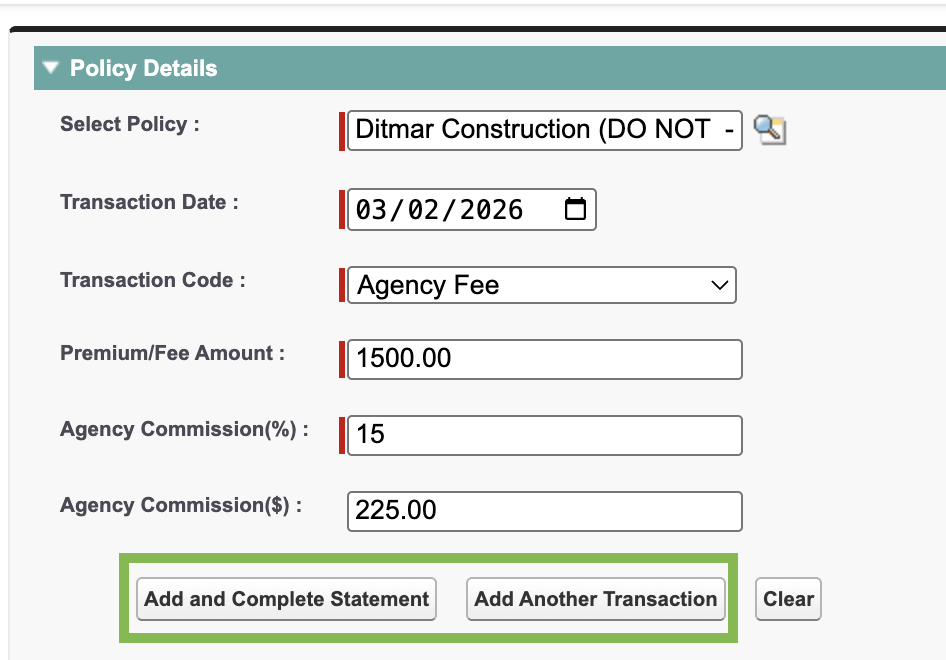
Click the magnifying glass icon to search for the policy.

Enter the remaining fields:
Transaction Date: Defaults to the current date. Edited if needed.
Transaction Code: Select Direct Bill Download.
Premium/Fee Amount: Enter the premium as a negative amount.
Agency Commission %: Auto-fills if agency defaults are set. Manually enter, if needed.
Agency Commission $: Auto-calculates based on the premium and commission percentage.
Click Add and Complete Statement when finished, or click Add Another Transaction to enter multiple return items.
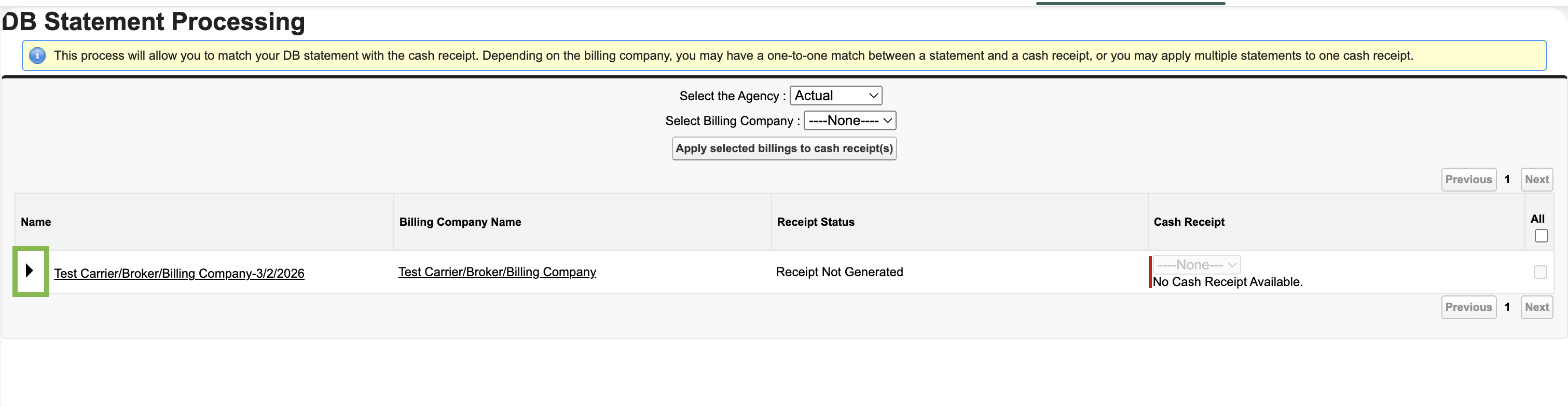
On the DB Statement Processing page, locate the billing associated with the negative entry. Filter by:
Agency
Billing Company

Select the arrow in the Name column to open the billing details.
Enter Producer Commission Details. The producer commission(s) populate based on what has been set up on the policy and may be edited or removed.
To add additional producer commissions, click Add Producer Commission. Add values for:
Producer/Sub-Producer
Commission Percent
Flat Rate Commission
Overwrite Policy?
Click Add and Complete Statement when finished.
Commission billings and payables will be created at the policy level when the statement is marked complete.