Managing signatures
Last updated: July 27, 2026
Overview
Assigning signatures ensures forms, policies, certificates, and correspondence are properly authorized and ready for distribution. Before uploading a signature file, confirm it meets the following requirements:
File format: PNG only
File size: 10KB or less recommended
Add a signature
Signatures must be created in amplo before you can assign them to users.
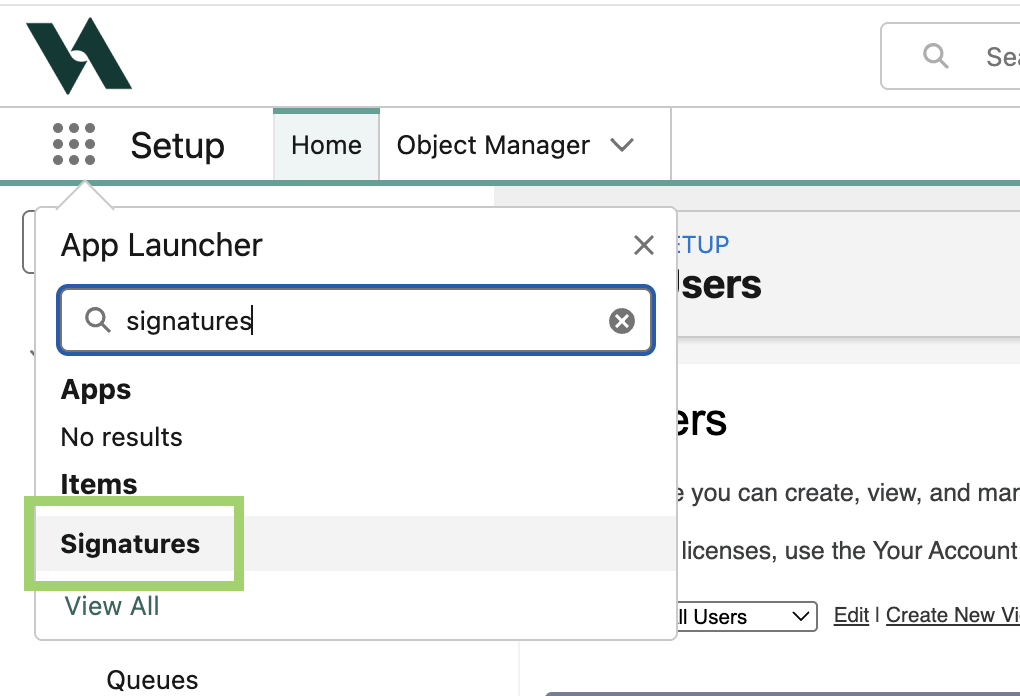
Open the App Launcher. Then, search and select Signatures.
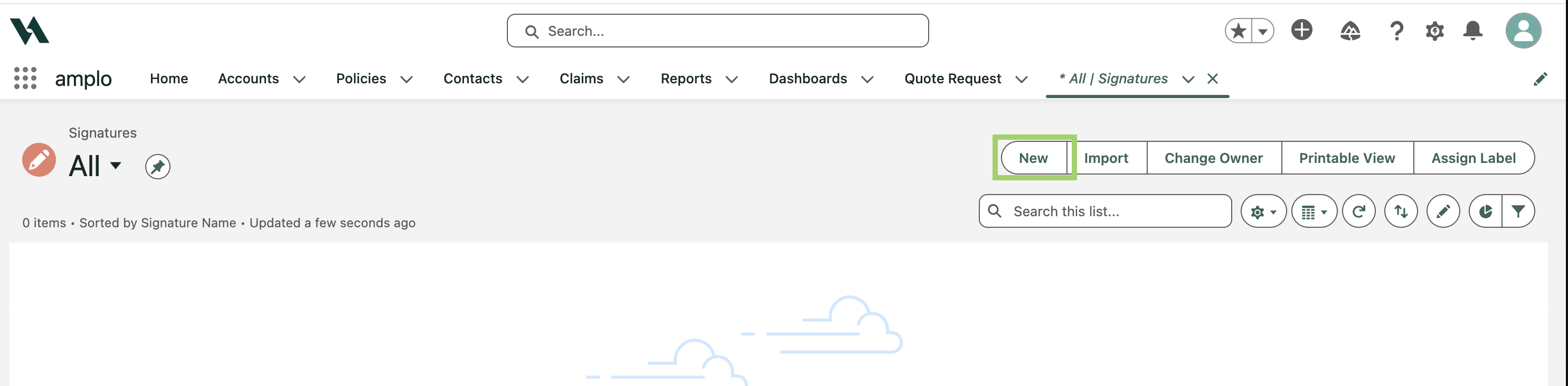
Click New.
In the New Signature: Default modal, enter:
Signature Name
Description
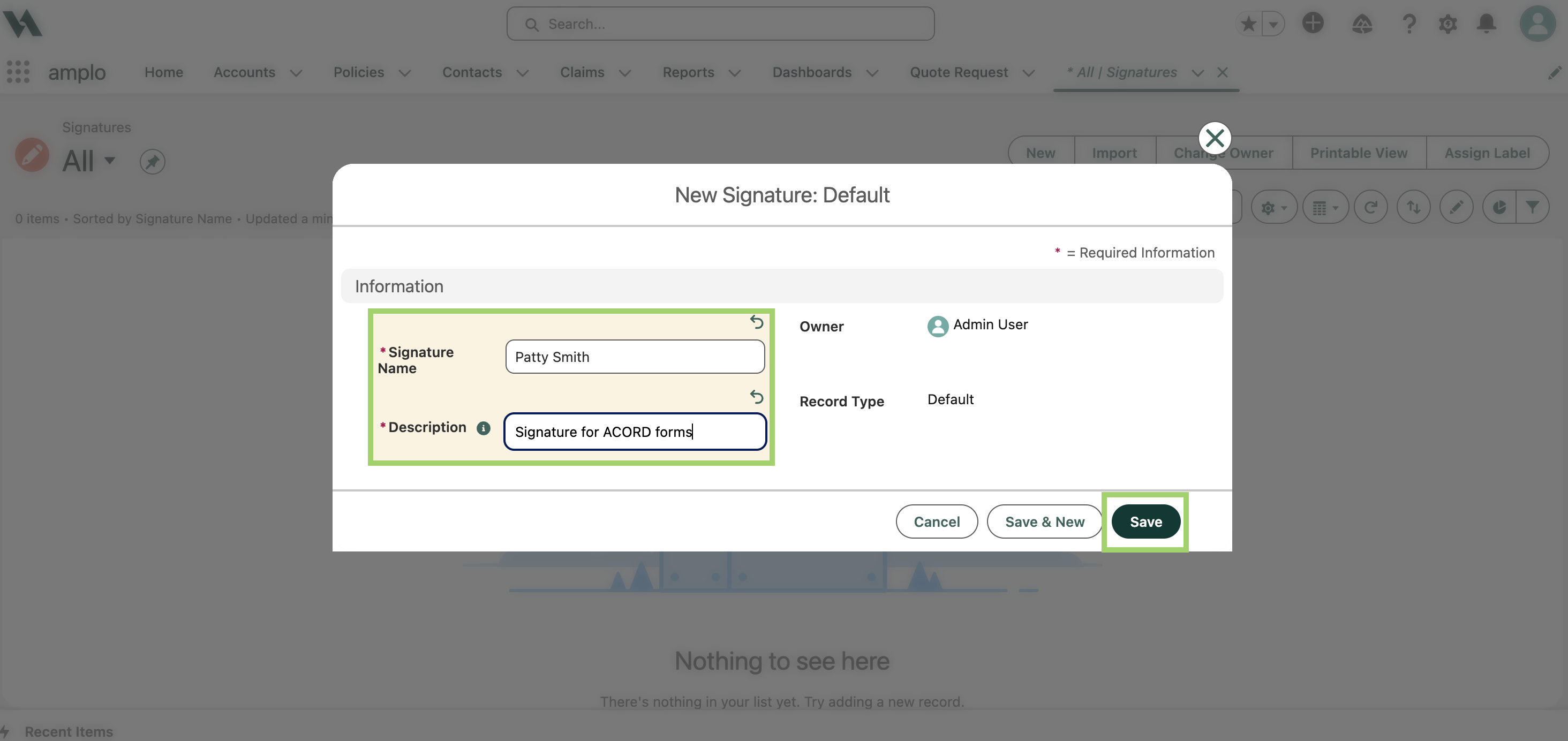
Click Save, or Save & New if adding more signatures.
Click Upload Files, or simply drag and drop to add the signature to the Files section.
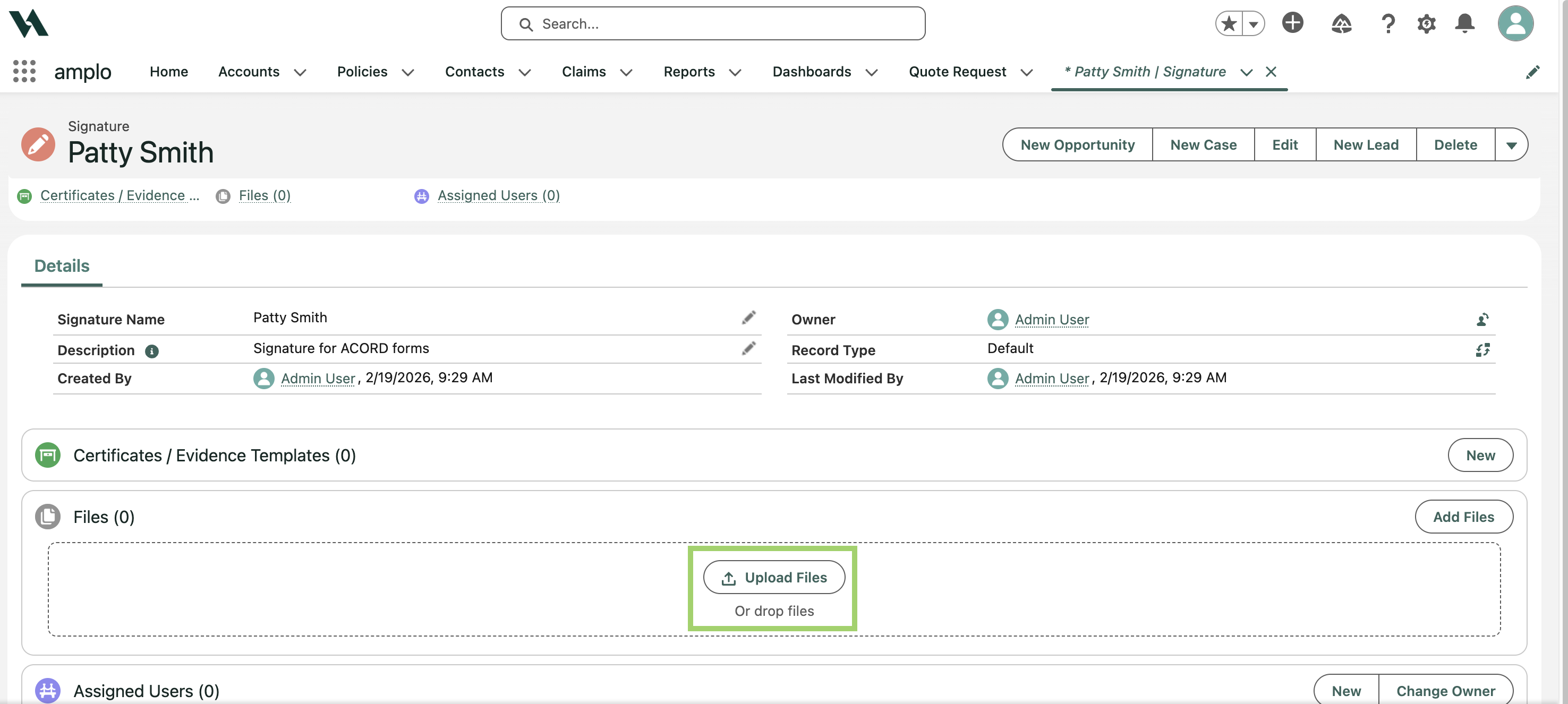
In the Upload Files modal, click Done.
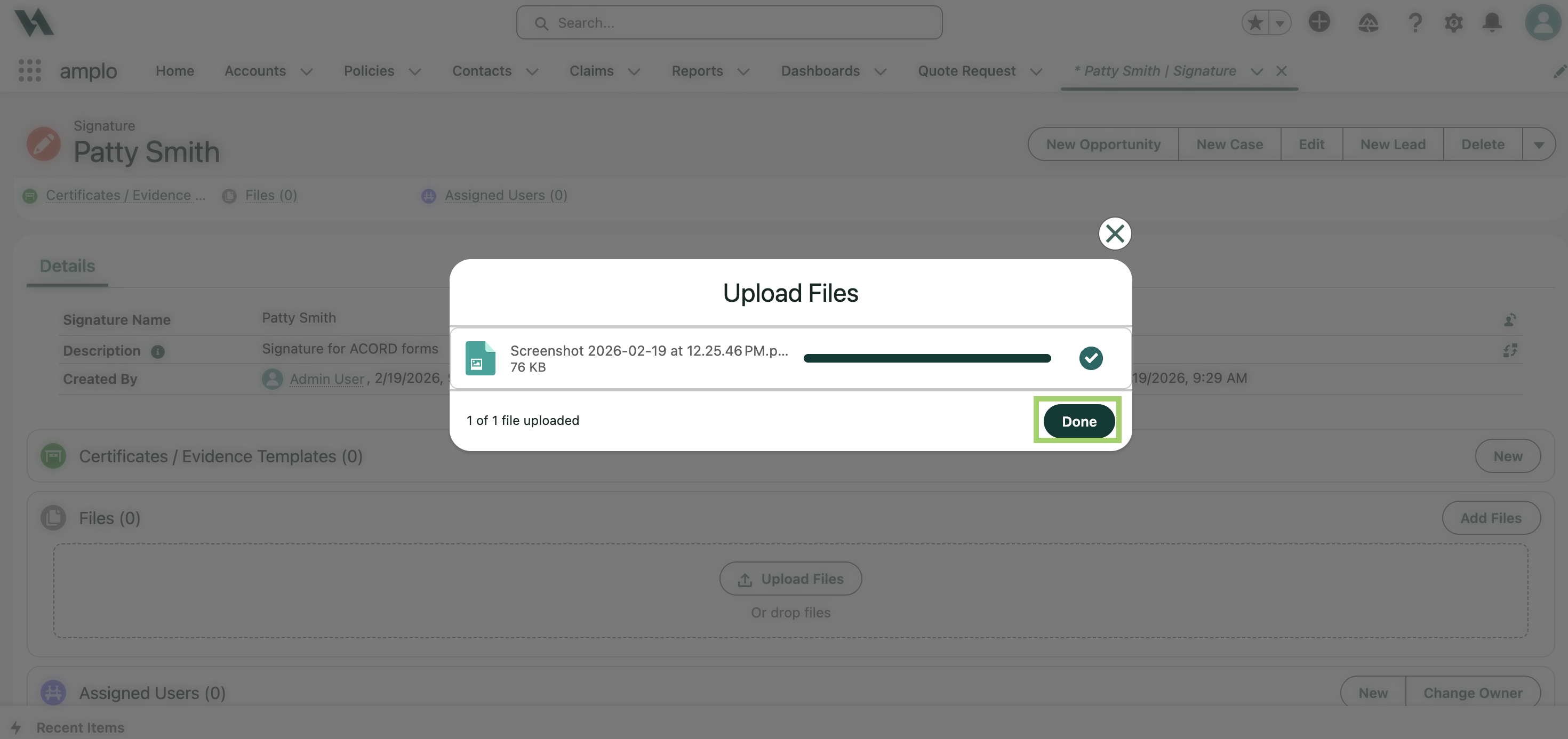
Your signature is now ready to assign.
Assign a default or additional signature
After creating a signature, you can assign it to users as either a Default or Additional signature. This determines which name and signature appear on generated documents such as proposals, certificates, invoices, and correspondence. Expand the menus to learn more about each type of signature.
Default
A Default signature is the primary signature automatically applied to documents for a specific user, producer, or account. It appears unless another signature is manually selected.
Additional
An Additional signature is optional. Users can add it to a document alongside — or instead of — the default signature.
Assign the signature to a user
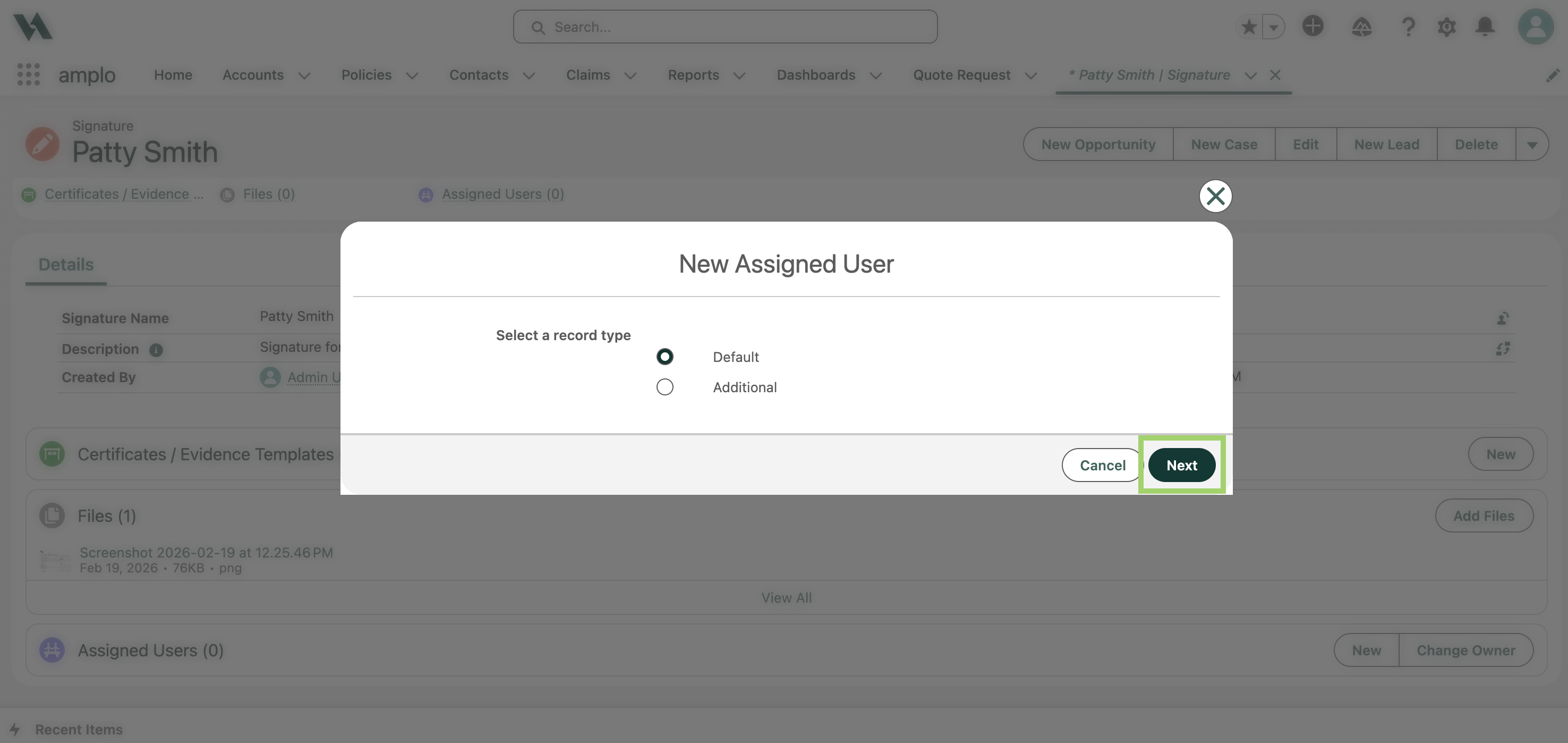
In the Assigned User section, click New.
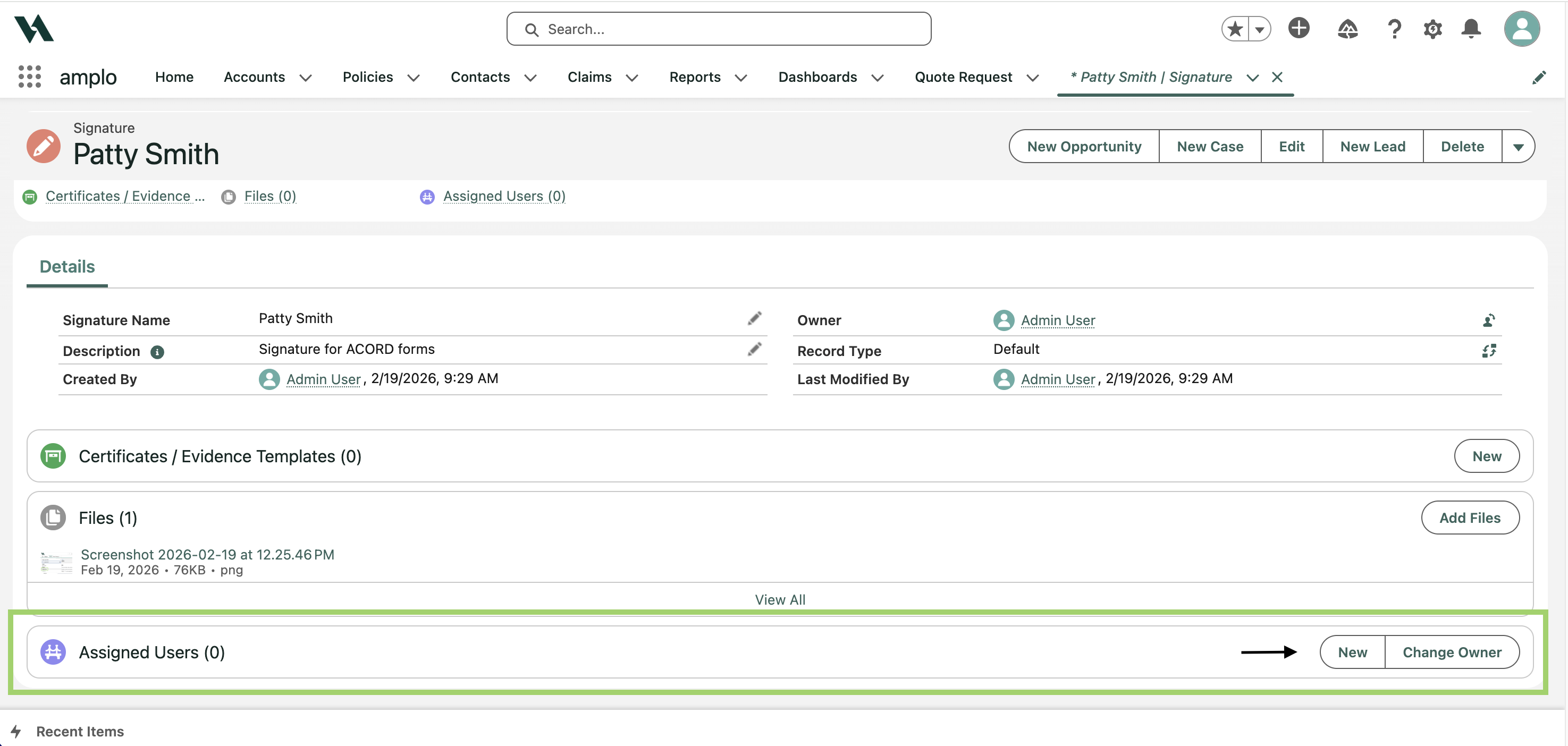
In the New Assigned User modal, select either Default or Additional as the record type, then click Next.
3. Confirm the Signature field reflects the correct record (adjust if needed).
Search and select the appropriate User to assign this signature to.

Click Save, or Save & New if adding more than one assigned user.
Note: If a user is not added as an Assigned User on the Signature record, they will not be able to use the signature when creating or editing certificates.
Remove a signature
Before deleting a signature, you must remove all assigned users.
Unassociate assigned users
Open the Signature record.
In the Assigned Users section, click the dropdown arrow next to a user.

Click Delete.

Confirm by clicking Delete again.

Repeat until all assigned users are removed.
Delete the signature
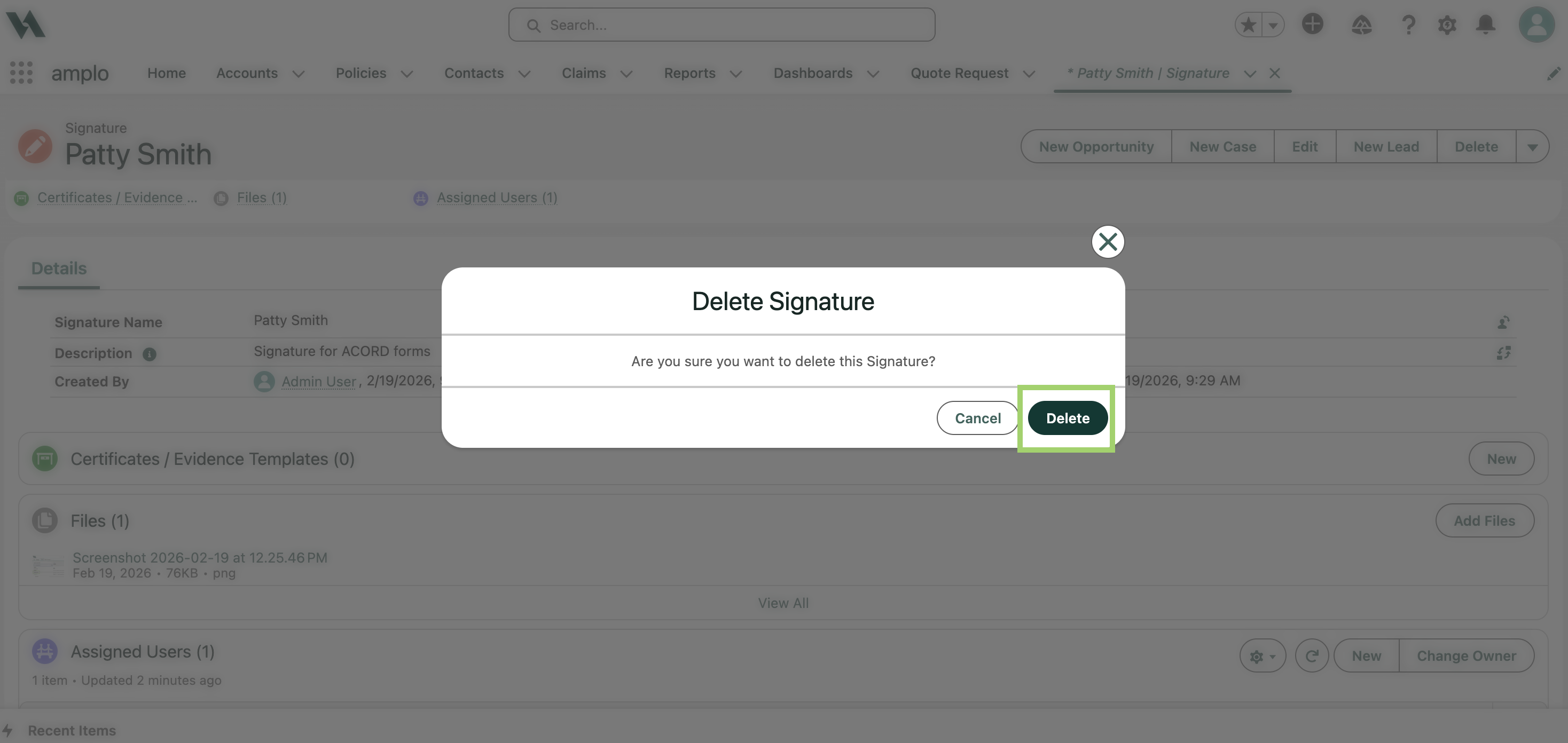
On the Signature record, click Delete.

In the confirmation modal, click Delete.
Troubleshooting
Below are common issues and how to resolve them.
File too large
If your signature file exceeds the upload limit, you may see an error during upload.
How to resolve it:
Use an image compression tool to reduce the PNG file size.
Keep the image dimensions reasonable (avoid exporting at full-page size).
Re-upload the updated PNG file.
Poor signature quality
If the signature appears blurry or pixelated, the original image may be too low resolution.
How to resolve it:
Capture the signature at a higher resolution.
Avoid resizing small images to make them larger.
Crop the image carefully before uploading to maintain clarity.
Upload failures
If the file won’t upload, check the file format.
How to resolve it:
Confirm the file is saved as a PNG.
If the file is a JPG or another format, convert it to PNG.
Try uploading again after conversion.
No attachment exists
amplo now stores signature images in Files on the signature record. Previously, images were stored in Notes & Attachments on the user record.
What to check:
Open the signature record.
Review the Files related list.
Confirm the image is attached there.
Your attempt to delete [Signature Name] could not be completed...
This message typically appears when the signature is in use or when permissions restrict deletion.
What to check:
Confirm the signature is not assigned to an active user.
Verify you have permission to delete signature records.
If needed, remove the signature from any associated records before deleting.
If the issue continues, contact your admin for additional support.