Managing tasks
Last updated: February 23, 2026
Overview
Tasks play an important role in tracking customer interactions and communications. To protect this information, task deletion is restricted by default, and audit trail functionality is always enabled. The audit trail keeps a detailed, continuous record of task comments and actions—helping maintain transparency, support due diligence, and reduce E&O risk. This article outlines key features related to tasks and audit trail functionality. The system has two methods of maintaining this log:
Legacy Task Audit Trail
All versions of amplo currently utilize the legacy audit trail functionality by default. This version of the audit trail utilizes a custom Visualforce (VF) page to enter new comments, and then those comments are appended to existing text in the standard Task Description field, generating the running log. To capture all task edits, the Edit button of the Task modal is set to redirect to this custom VF page.
Task New Audit Trail
The Task New Audit Trail feature utilizes the standard Task object to input Task information and comments but stores the subsequent running log on a custom object. The information from this custom object is then displayed on the side of the Task modal.
By removing dependencies on the custom Visualforce edit page, customers can:
Add and maintain custom Task fields.
Retain full audit history of Task updates.
Improve system integrity and traceability across workflows.
Note: Our team is aware of a limitation regarding dates entered into the Comment field. For more information, please review Blank comments in Task Audit Trail.
Enabling the Task New Audit Trail
The Task New Audit Trail functionality requires a VerunaCore license. If your organization has any users that require other licenses, we recommend continuing to use the legacy Audit Trail feature.
Click on the gear in the top right corner.
Use the Quick Find search to locate Custom Settings.
Find and click on Veruna Support.
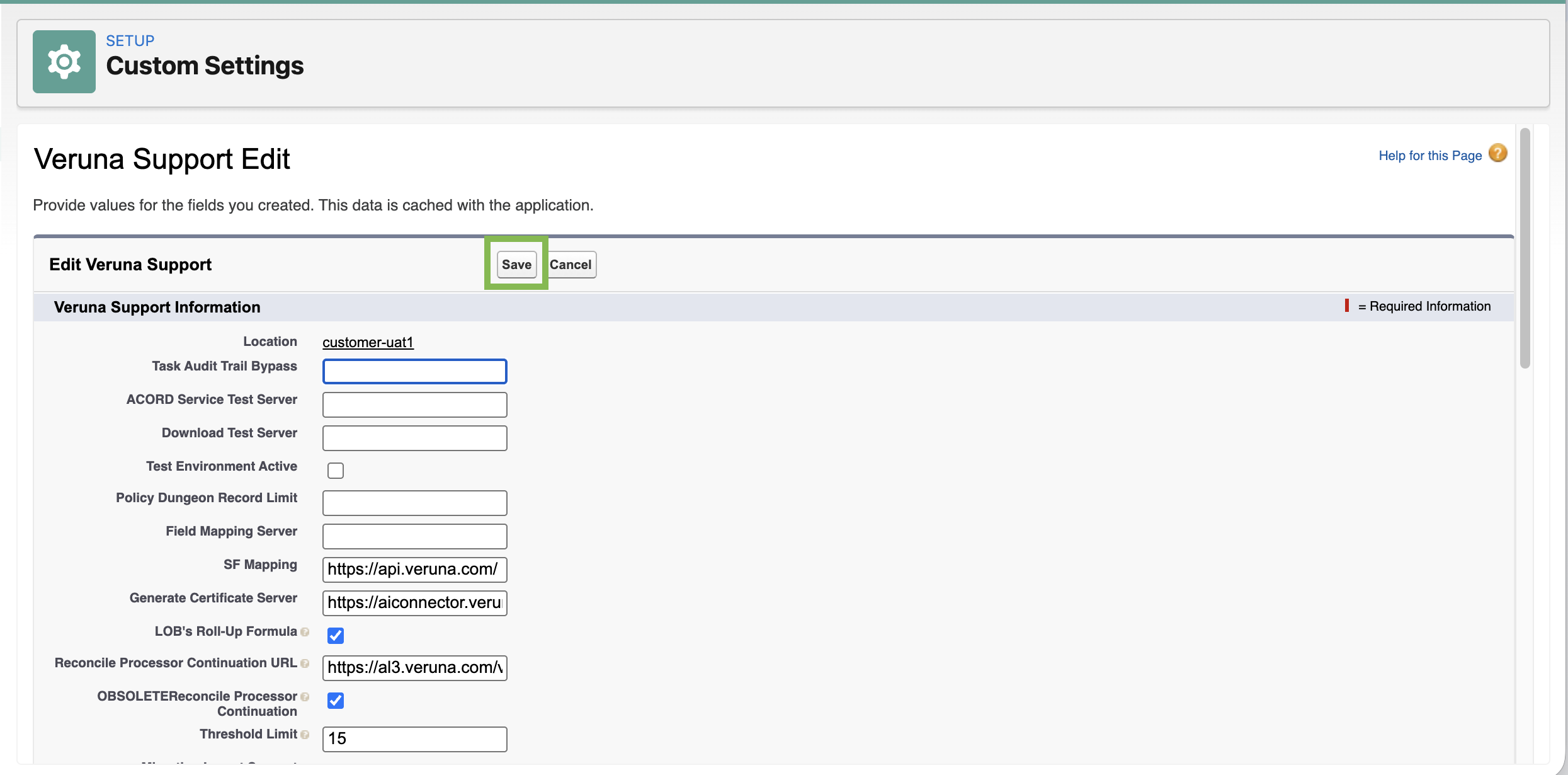
Click Manage, then Edit.
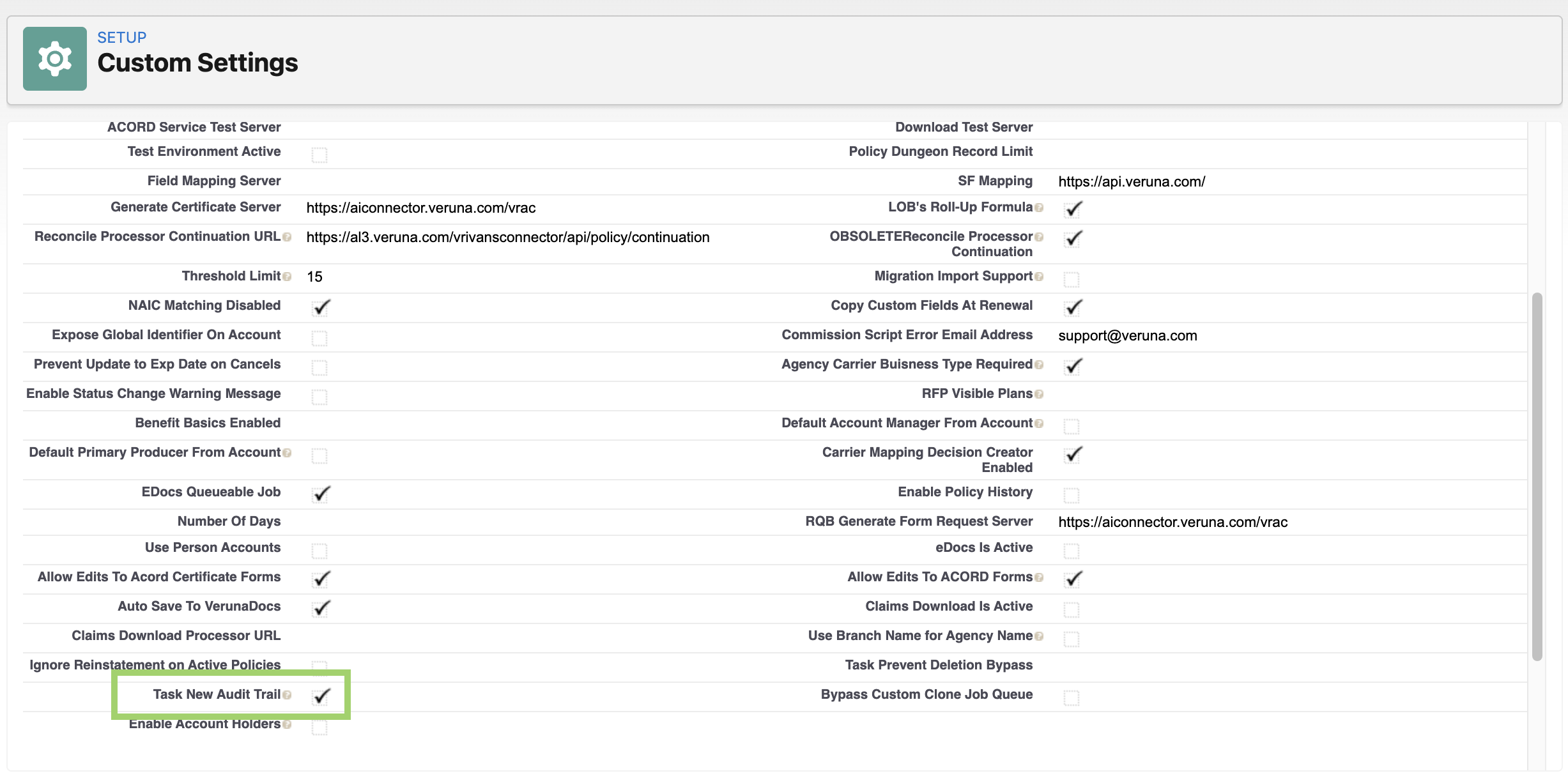
Locate the Task New Audit Trail setting.
Enable the checkbox.
Click Save.
Update the Task Object configuration
In Setup>Object Manager, find and click on the Task object.
In the left hand panel, click on Buttons, Links, and Actions.
Locate the standard Edit button, and click the drop down arrow on the right side of the screen.
Click on Edit.
Ensure that each override is set to No Override as in the screenshot below.
Click Save.

Adjust the Page Layout
Back in the Task object, click on Page Layouts in the left panel.
If multiple layouts are available, confirm which is currently being used.
Ensure that the Comments field is visible on the layout.
If displayed, remove the Audit Trail Comments field from the layout.
Click Save.

Ensure the Audit Trail component is on the Lightning Page
In the Task object in Object Manager, click on Lightning Record Pages.
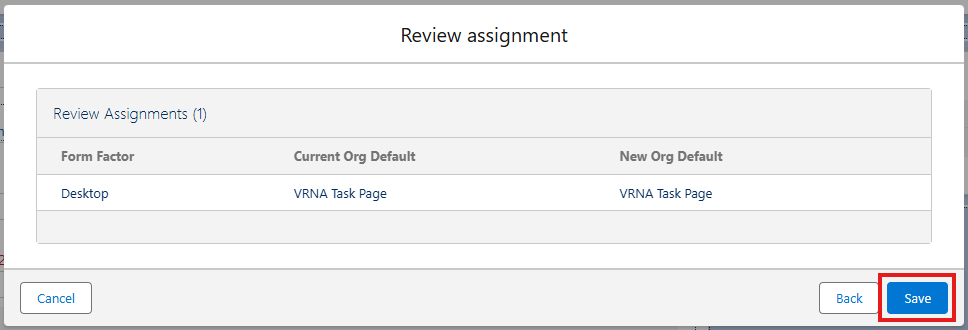
Click on VRNA Task Page, then click Edit.
You may see two VRNA Task Page entries; you will want to choose the one that is not associated to the managed package.
Ensure the custom component auditTrail is on the right side of the screen.

Click Activation.
Click Assign as Org Default.
If already assigned as Org Default, click Close and then Save.

Click Next.

Click Save.
Run the migration script
Run one of the following scripts in the Developer Console. These scripts move the current Legacy Comments over to the new Audit Trail records.
Click the gear in the top right hand corner, and open Developer Console.
In the toolbar, click on Debug -> Open Execute Anonymous Window.
Copy and paste the script below, and click Execute.
// Execute the batch - this will query all Tasks whose status is not 'Completed'
// Batch scope size must be 1, to ensure proper rollbacks on error
Database.executeBatch(new VRNA.BatchMigrateToNewTask(), 1);
Note: This script should be executed off-hours to avoid disrupting active operations or workflows.
Validate and test
After running the migration:
Confirm that all Comments are properly migrated to the Task Audit Trail.
Test creating and updating tasks to ensure the new audit tracking is functioning as expected.
Verify that custom fields on the Task object remain intact.
Deleting tasks
Task deletion is intentionally restricted to protect audit integrity, accountability, and regulatory compliance. Tasks capture important actions — such as follow-ups and communications — and create a reliable record of activity. This documentation supports due diligence and helps protect against E&O claims. In limited situations, an administrator may need to temporarily override deletion restrictions. Common examples include:
Removing test or training data
Correcting migration or import errors
Cleaning up duplicate or corrupted records
Resolving system conflicts, such as character limit issues
Important: Any override should be temporary, performed only by an administrator, fully documented, and reversed immediately once the cleanup is complete. This controlled process allows for essential system maintenance while maintaining the integrity of the audit trail and compliance with E&O standards.
Enable task deletion
Use the steps below to temporarily enable task deletion.
Click the gear icon, then click Setup to access the Setup Menu.

Select Custom Settings.
Locate Veruna Support (click the V to to filter the list) and click Manage.
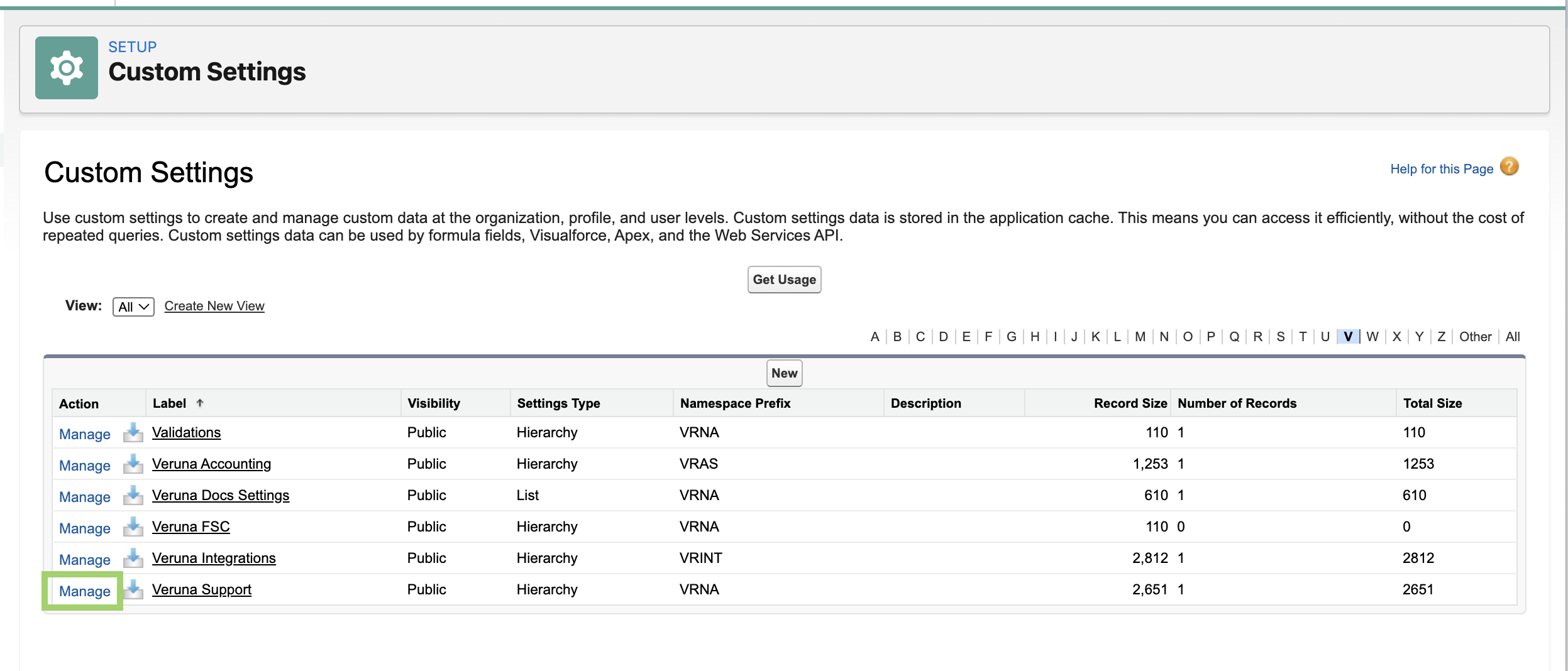
Click Edit.
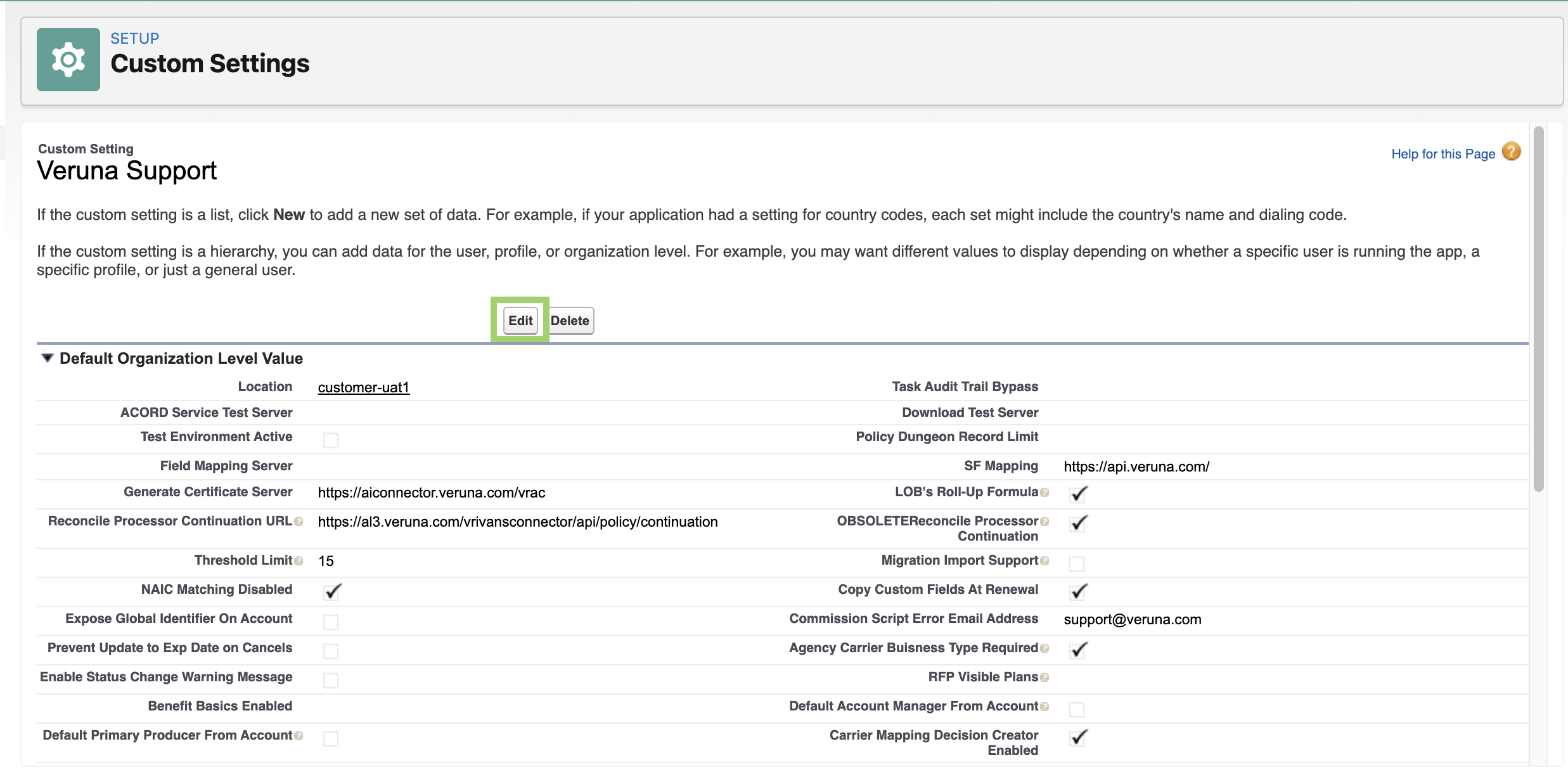
Confirm your org's task functionality
To determine which task functionality is enabled in your org:
Go to Setup > Custom Settings.
Locate the Task New Audit Trail checkbox.

a. If the checkbox is selected, follow the Task New Audit Trail instructions.
b. If the checkbox is not selected, follow the Legacy Task Audit instructions.
Legacy Task Audit Trail instructions
In the Task Prevent Deletion Bypass field, enter True.
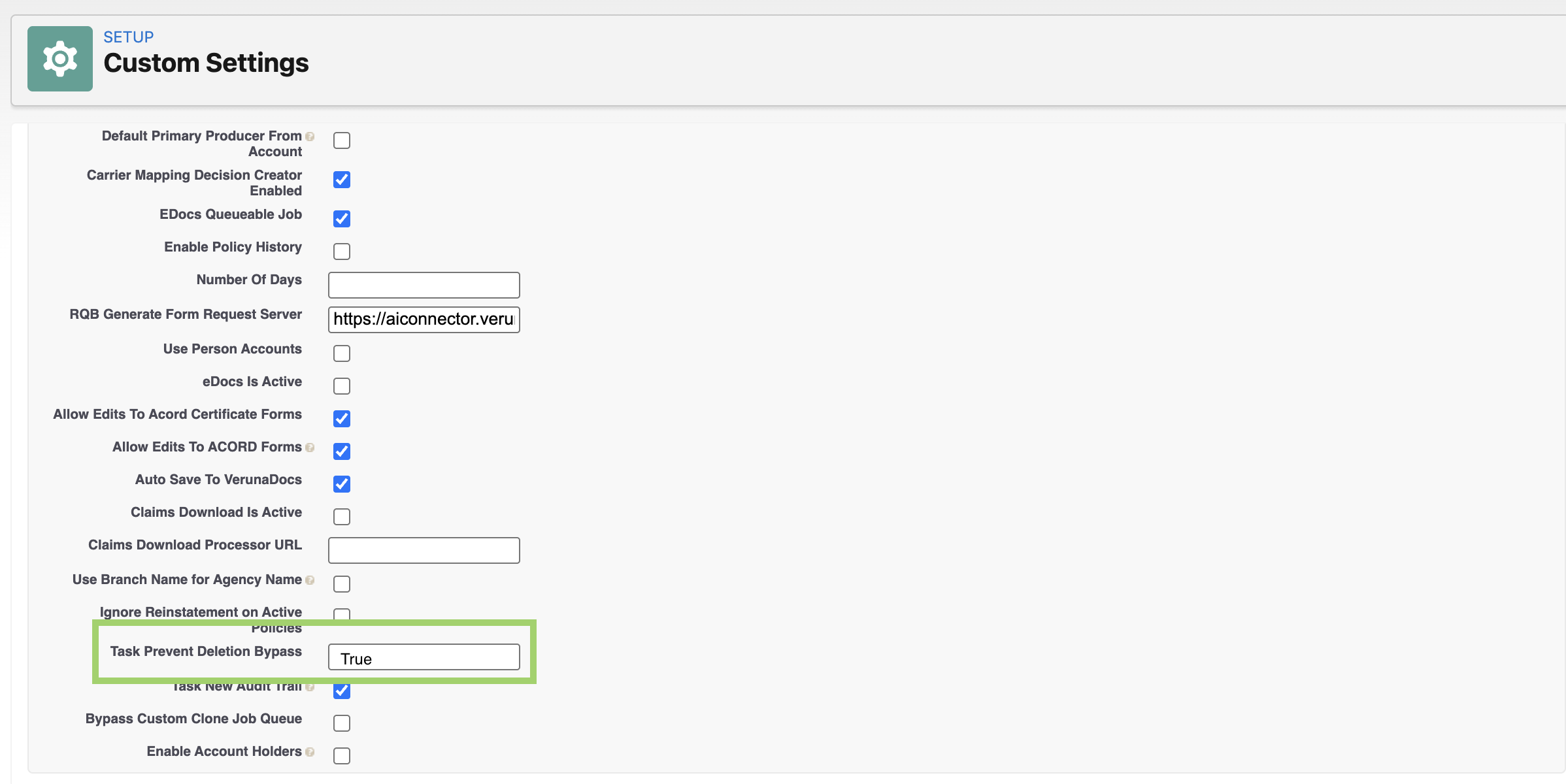
Click Save.
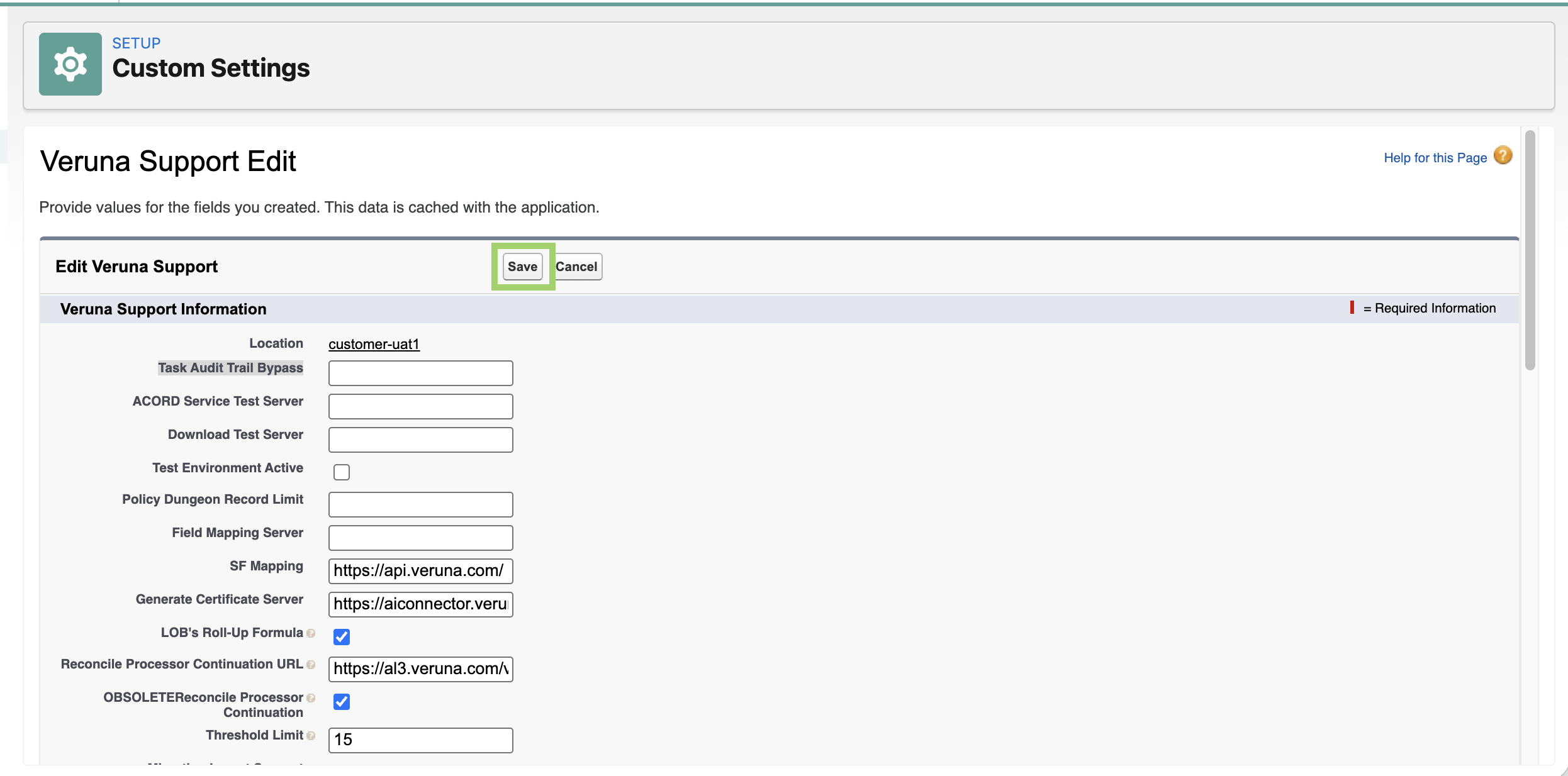
Task New Audit Trail instructions
In the Task Audit Trail Bypass field, enter True.

Click Save.
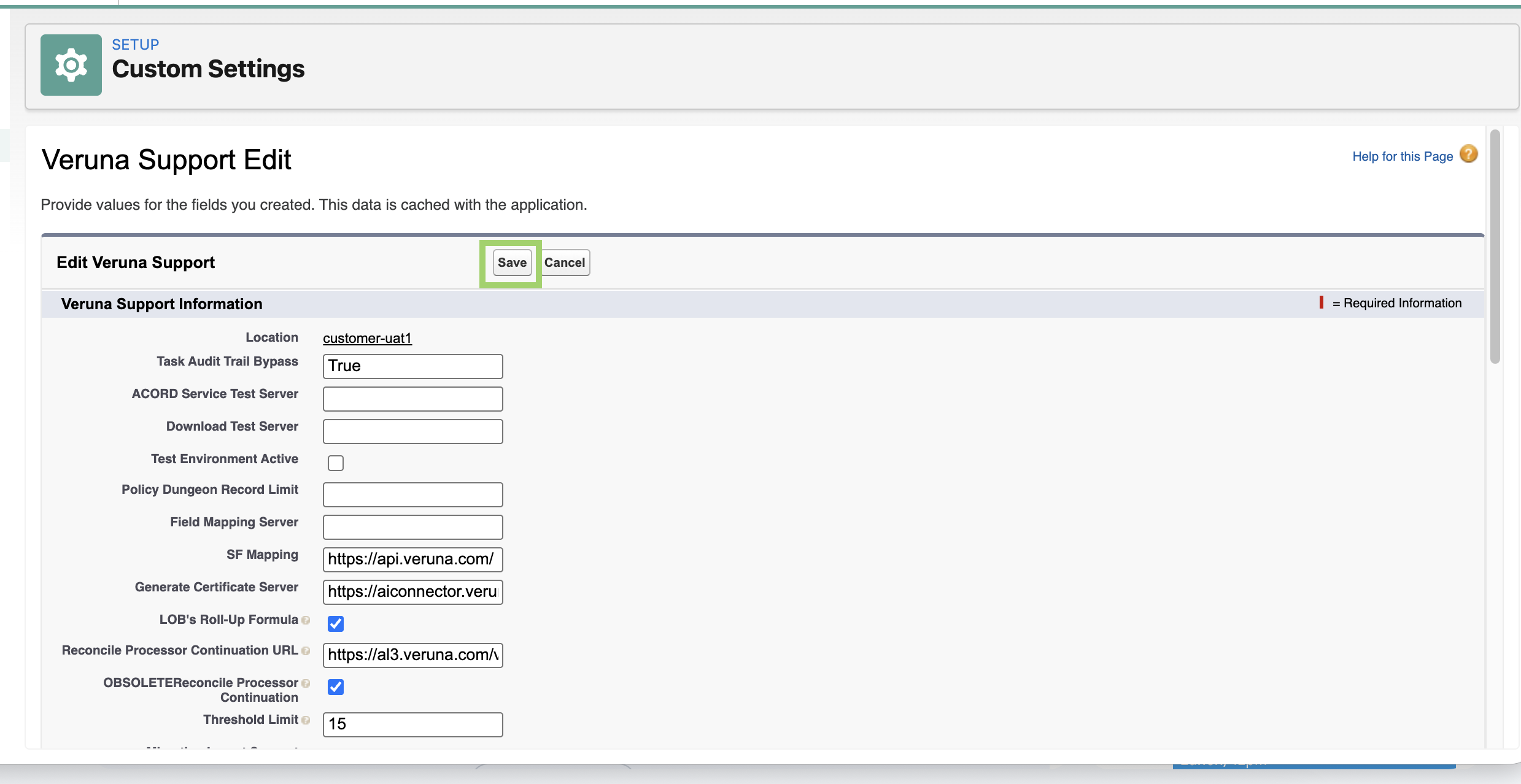
Delete the tasks
Once finished, return to Custom Settings.
Clear the bypass field.
Click Save.
Note: Restore deletion restrictions immediately after cleanup is complete. Document any mass deletions separately. Capture screenshots or maintain a log of deleted records to preserve a clear audit trail.