Requiring fields and validation rules
Last updated: April 2, 2026
Overview
Required fields and validation rules help maintain accurate, reliable data.
Required fields ensure that key information is entered before a record can be saved. They prevent users from leaving critical fields blank and support consistent reporting, automation, and compliance.
Validation rules enforce business logic by requiring fields or restricting actions based on specific conditions.
Together, required fields and validation rules create structure in your AMS. Required fields protect essential data, while validation rules ensure records follow your agency’s workflows.
Required fields
Required fields help ensure your data is complete, accurate, and usable across the entire system. They create structure to support growth, automation, reporting, and compliance without constant cleanup. You can make fields required in different ways (expand the sections for best practices for each):
Field-level required
When you mark a field as required at the field level, it is enforced everywhere in Salesforce. This includes:
Record pages
Imports (Data Loader)
Integrations
APIs
Automations
Use this when:
The field is critical to compliance.
The data is required for billing or reporting.
Automation depends on the field being populated.
Page layout required
When you mark a field as required on a page layout, it is only enforced on that specific layout in the user interface.
It does not apply to:
Data imports
Integrations
Other page layouts
Use this when:
A field is required for a specific team or role.
You are gradually introducing new requirements.
Lightning page (Dynamic Forms) required
With Lightning Dynamic Forms, you can make fields required based on conditions and visibility rules. This allows you to:
Show or hide fields dynamically
Require fields only when certain criteria are met
However, these requirements apply only within that Lightning experience.
Use this when:
The requirement is conditional (for example, requiring Sub-Producer only when Commission Split = Yes).
You want to guide users through a cleaner, role-based interface.
Each option serves a different purpose. Choosing the right one helps you balance data integrity and user experience.
Field-level required
When you make a field required at the field level, Salesforce enforces that requirement everywhere, including record pages, imports, integrations, and APIs.
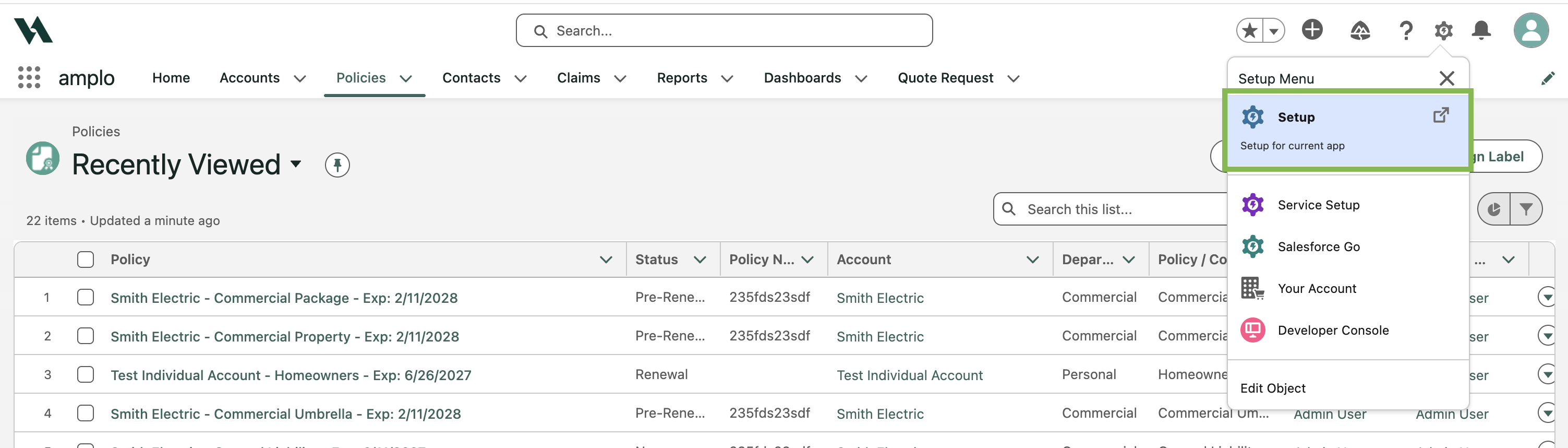
On the top navigation bar, click on the gear icon.

Select Setup.
Search and select Object Manager from the Quick Find menu.
Select the object you wish to edit from the list.
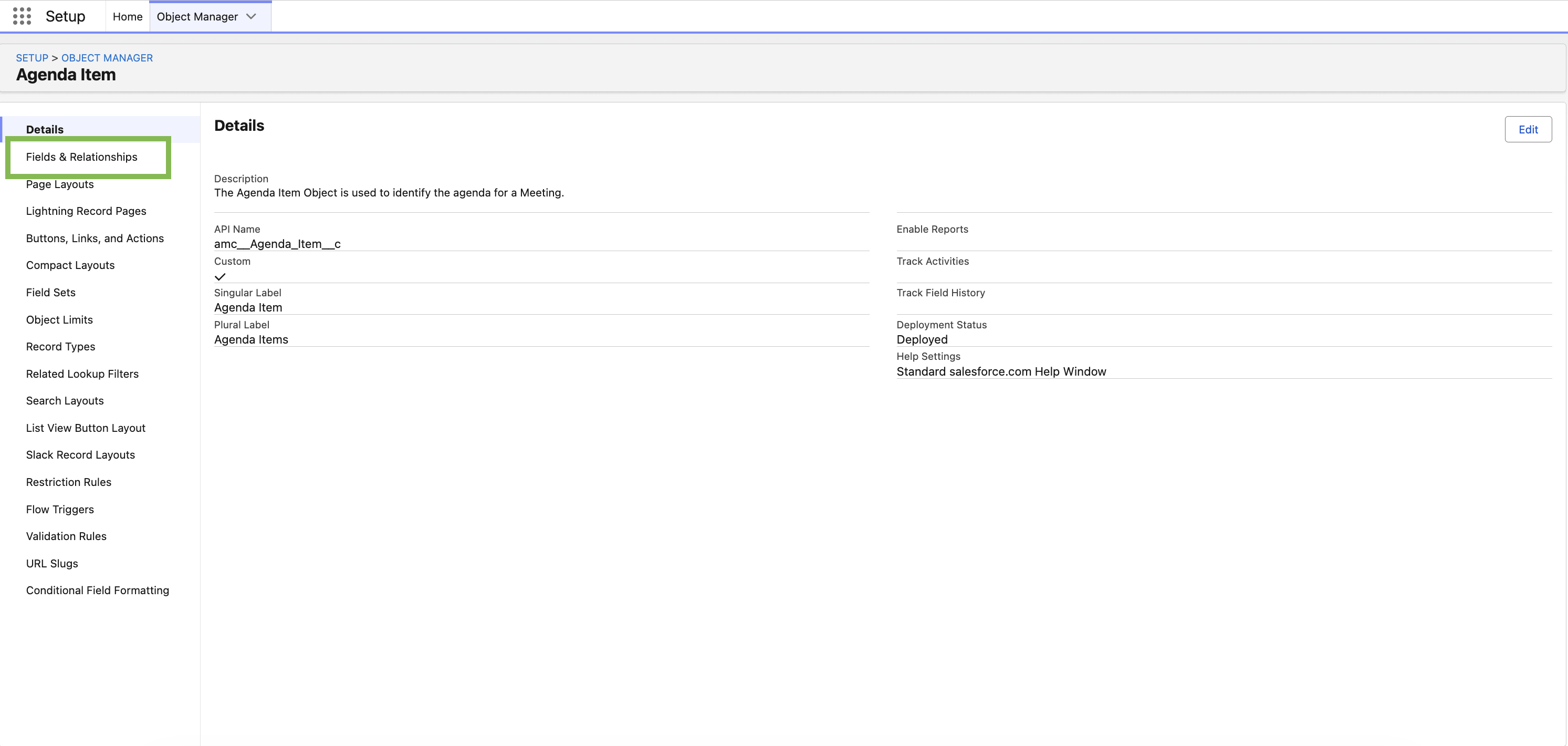
From the left-hand menu, select Fields & Relationships.
Select the down arrow next to the field you want to edit, then click Edit.

In the General Options section, check the box next to Required.
Click Save.
Important considerations
Field-level required applies everywhere, including Data Loader and integrations.
You cannot remove this requirement from individual page layouts once enabled.
If you need conditional logic (for example, only required when Status = Cancelled), use a validation rule instead.
Page layout required
Marking a field as required on a page layout ensures users must complete the field when working on that specific layout.
On the top navigation bar, click on the gear icon.
Select Setup.
Search and select Object Manager from the Quick Find menu.
Select the object you wish to edit from the list.
On the object, select Page Layouts.

From the list, click the down arrow next to the page layout to make required.
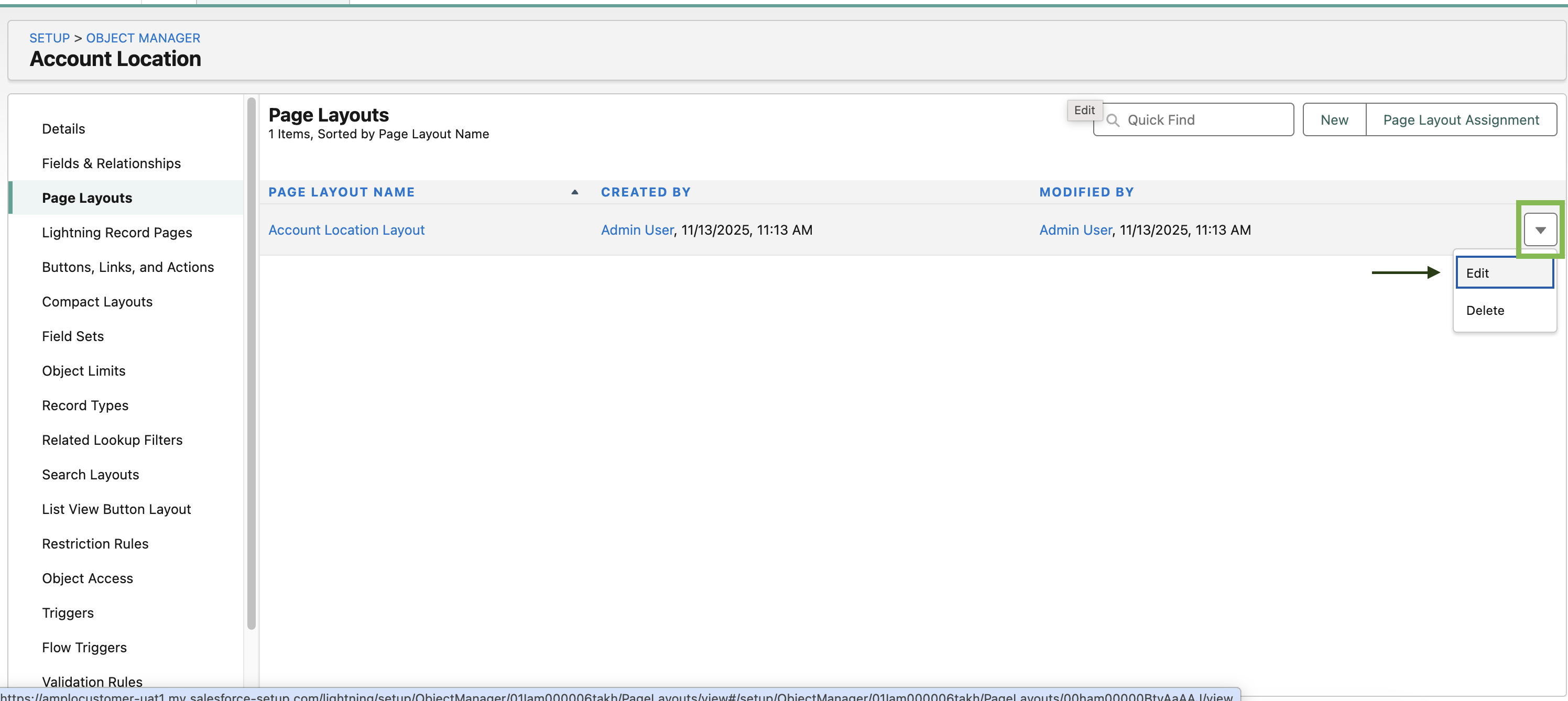
Note: Page layouts can be assigned to specific profiles. If you need the field required only for certain users, select Page Layout Assignment to review which profiles use each layout.
Hover over any of the field properties to select the wrench icon.

Check the box labeled Required and confirm by selecting OK.

Click Save.

Important considerations
Page layout required settings only apply in the standard UI.
They do not apply to Data Loader, integrations, or APIs.
If the requirement should apply everywhere, configure the field as field-level required instead.
If the requirement depends on specific conditions, consider using a validation rule.
Lightning page (Dynamic Forms) required
When using Lightning Dynamic Forms, you can mark a field as required directly on the Lightning record page.
Navigate to the record page in Lightning Experience where the field appears.
Select the Setup gear icon and click Edit Page.
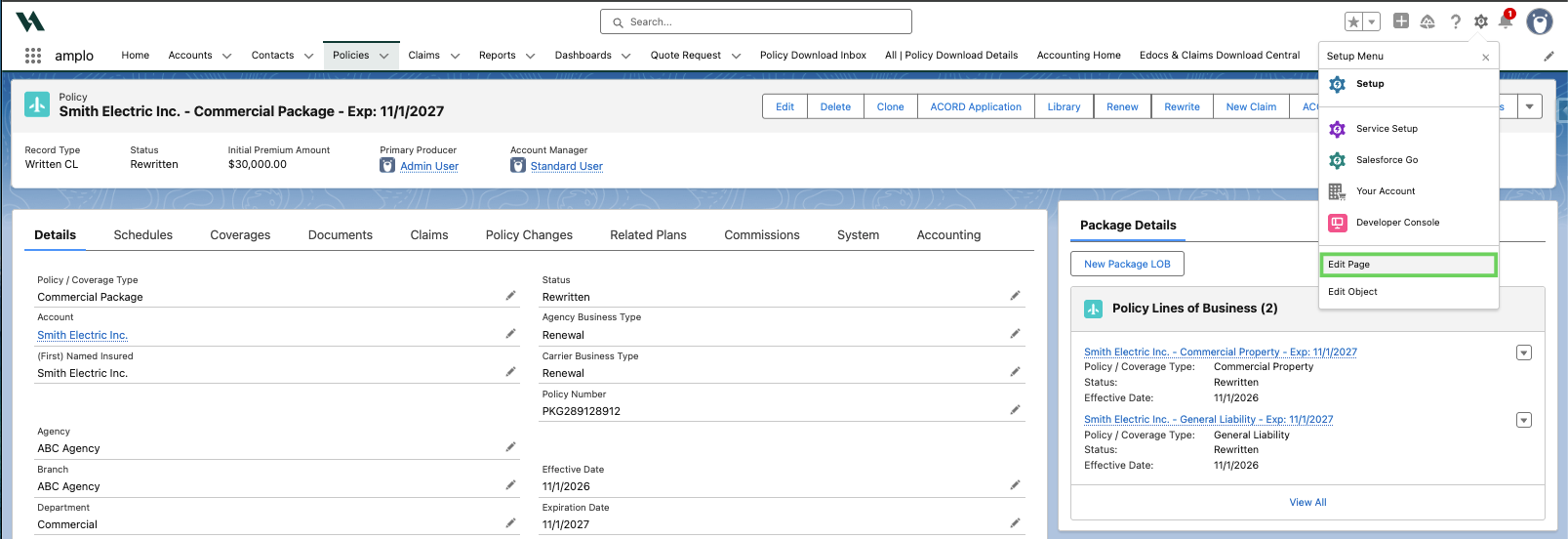
Note: Dynamic Forms must be enabled to configure field requirements at this level.
Follow the steps below if the object is not yet using Dynamic Forms:
In the right-hand panel, select the option to Upgrade Now.

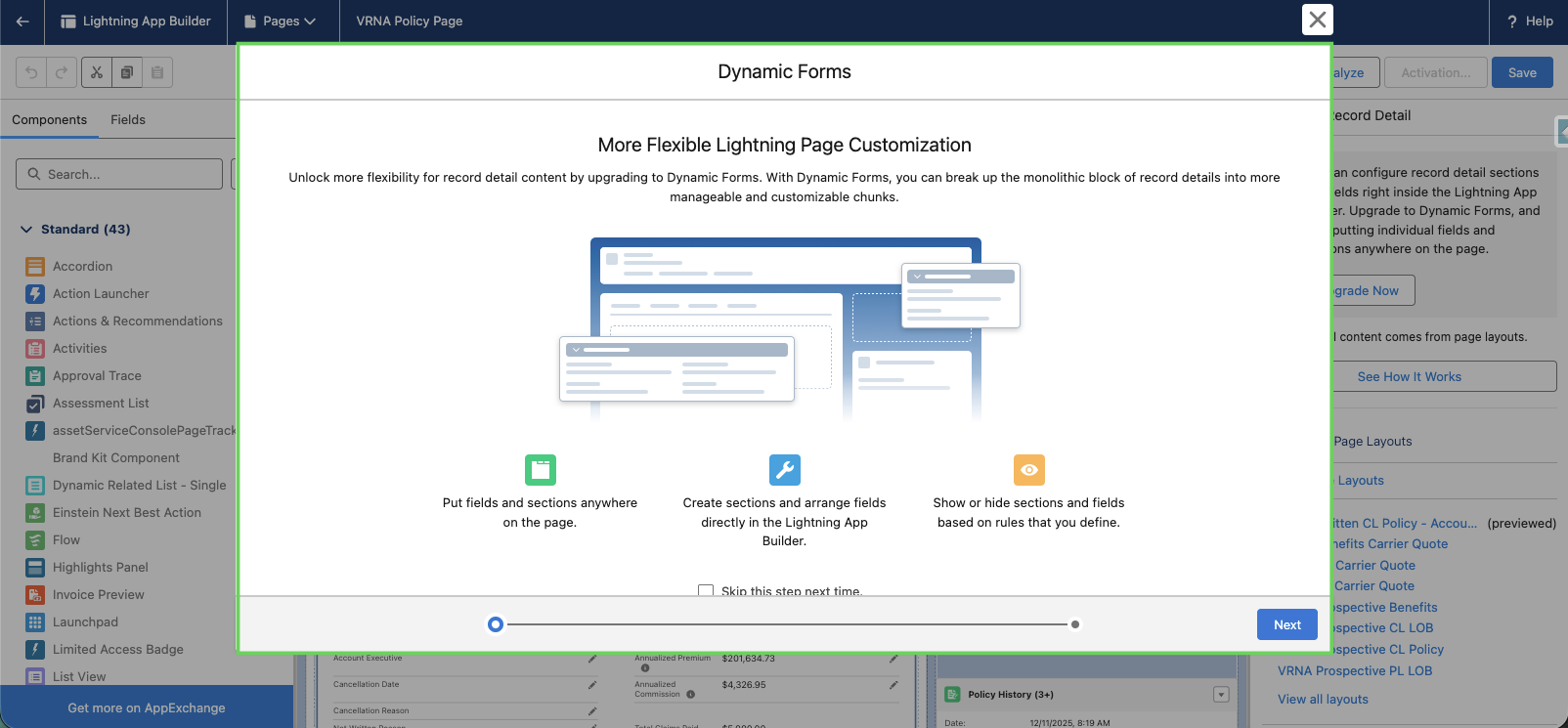
In the Dynamic Forms modal, follow the steps below:
Select Next
b. Select the button next to the layout you want to use as a source for your Dynamic Form.
Note: Select the layout name that matches the record type you're editing.
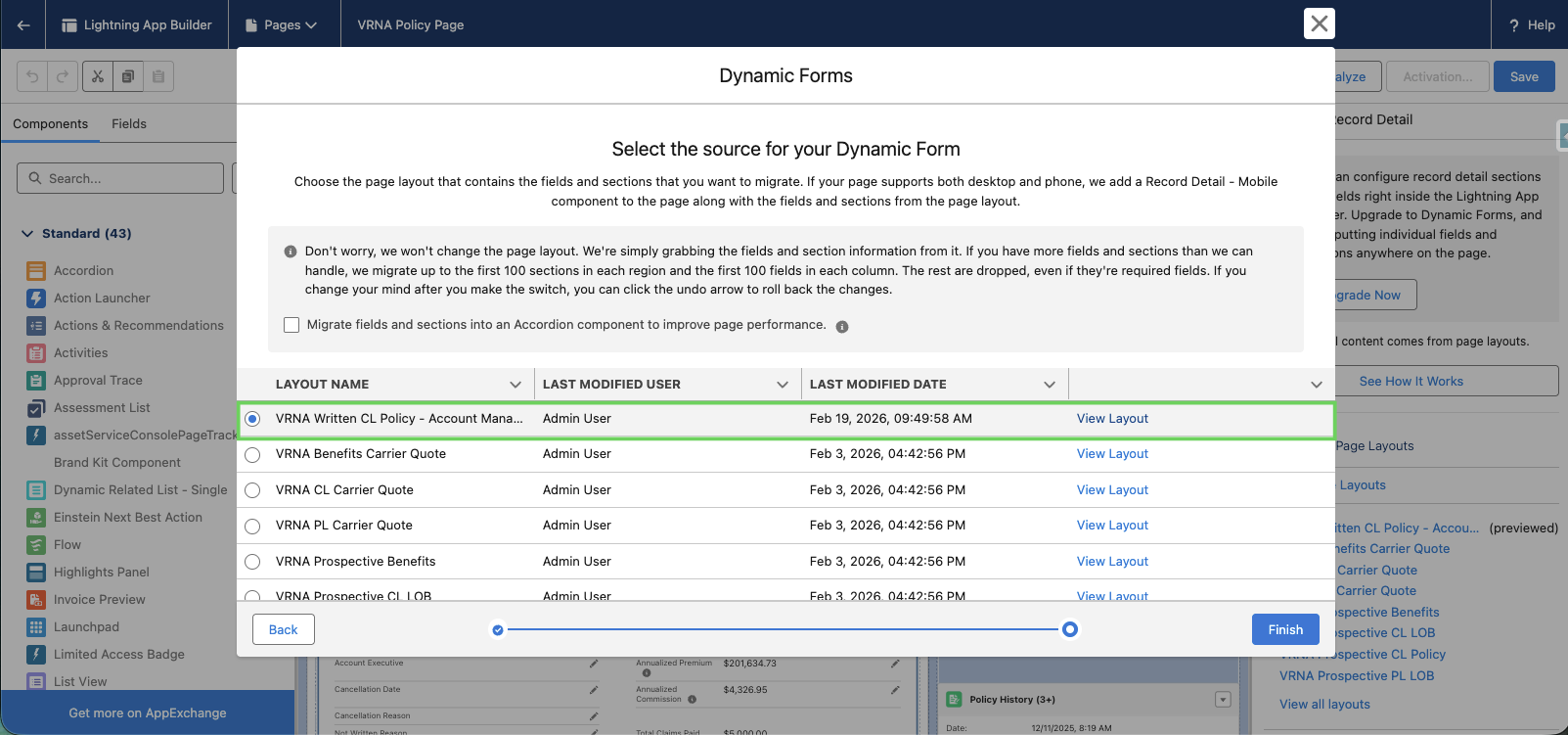
c. Select Finish.
On the Lightning App Builder canvas, select the field component you want to modify.
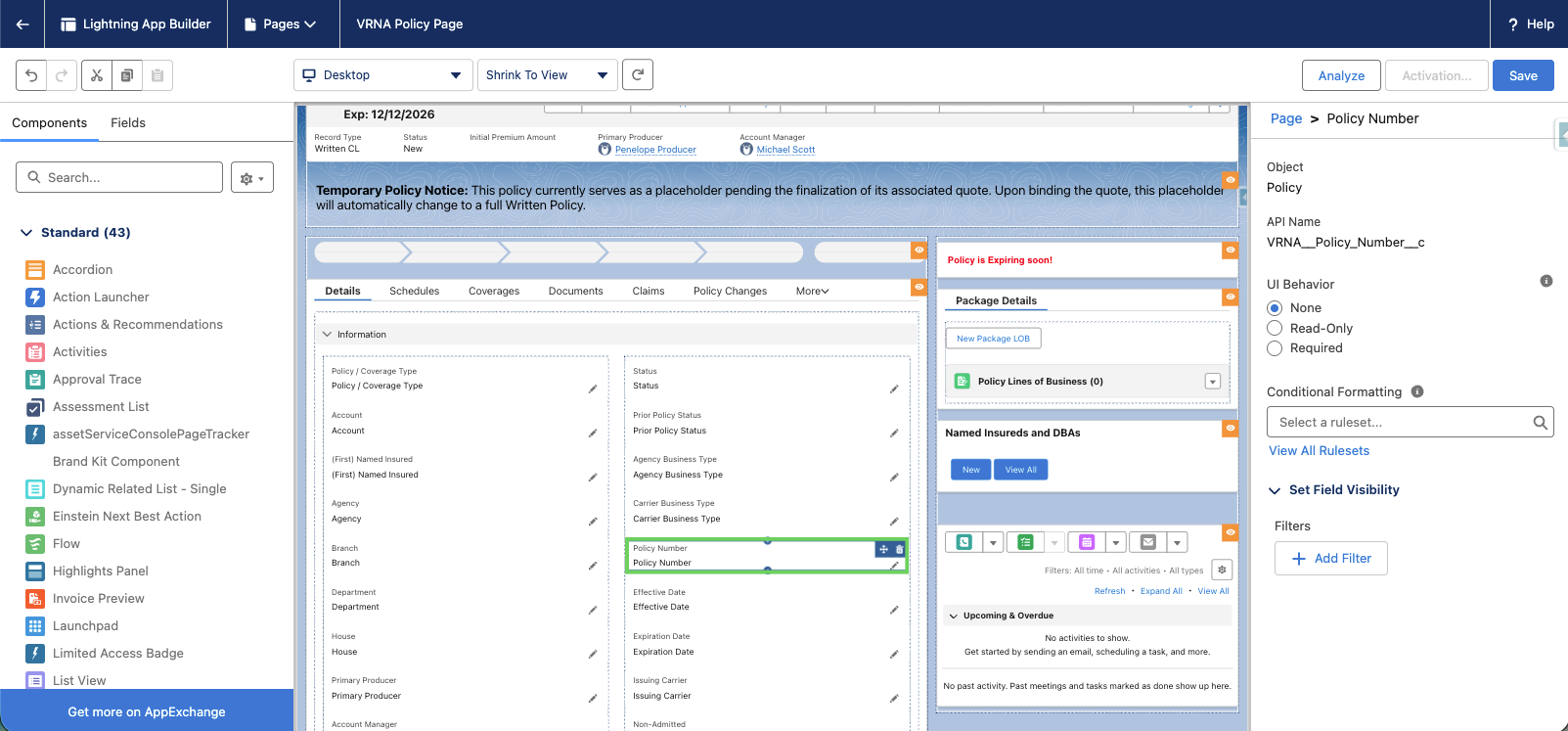
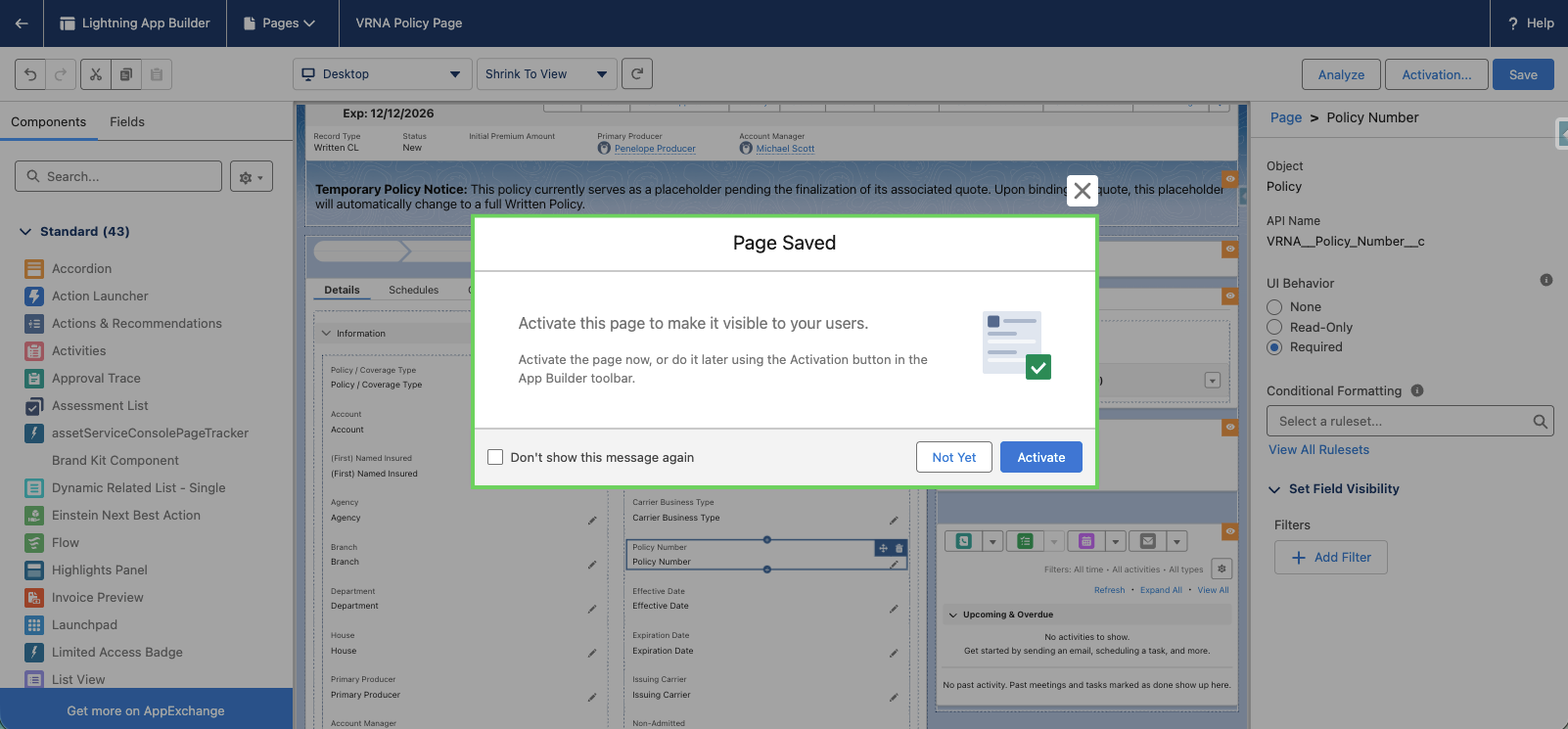
In the panel to the right, select Required under UI Behavior.
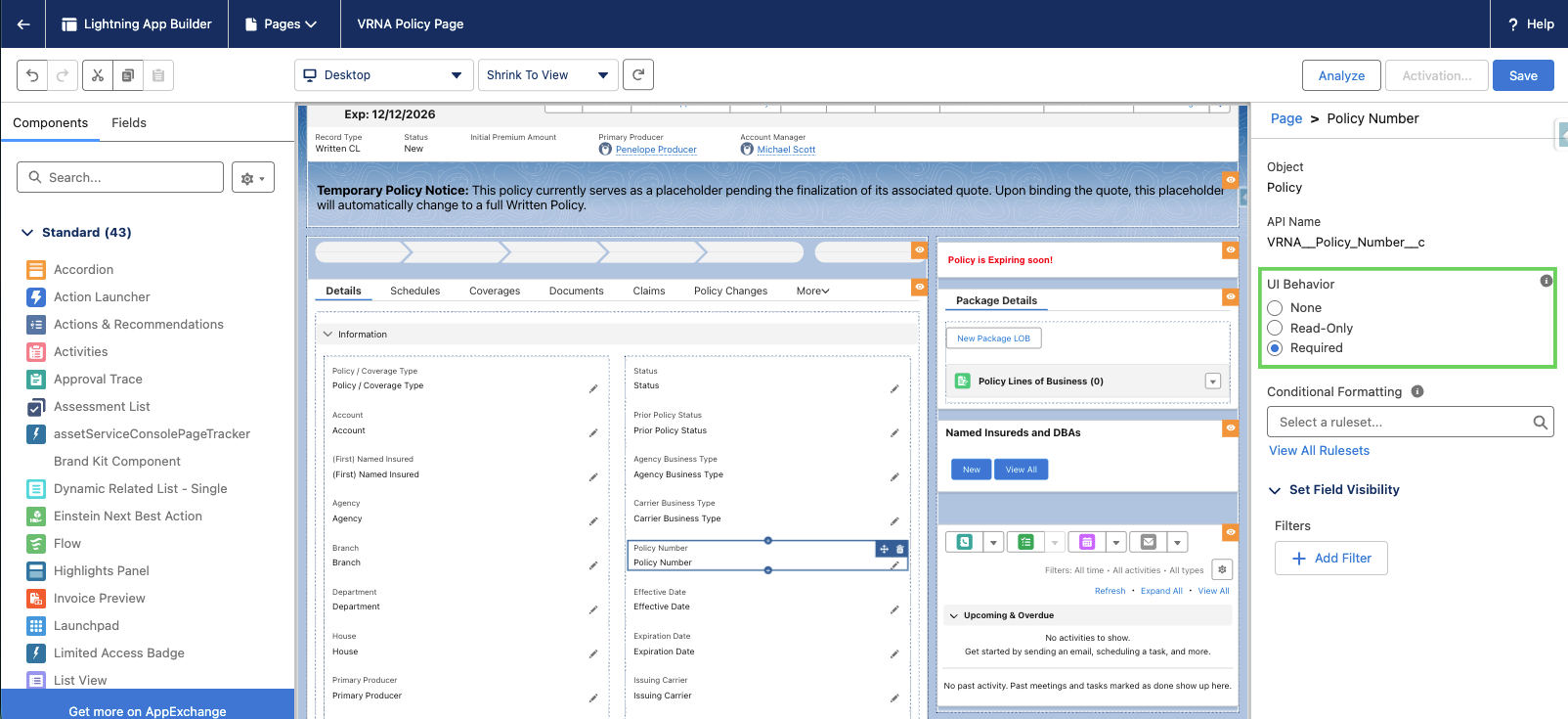
Click Save.
Confirm the change by selecting Activate.
Important considerations
This requirement only applies within that specific Lightning page.
It does not enforce the requirement for Data Loader, integrations, or other record pages.
For conditional logic (for example, required only when Status = Cancelled), consider using visibility rules combined with validation rules.
For system-wide enforcement, use field-level required instead.
Validation rules
Validation rules are closely related to required fields — but they serve a different purpose. While required fields ensure a field is not left blank, validation rules allow you to define logic that must be true before a record can be saved.
For example:
Require Sub-Producer only if Commission Split = Yes
Require Cancellation Reason only if Status = Cancelled
Prevent Status = Written (Sold) unless Premium Amount is populated
On the top navigation bar, click on the gear icon.
Select Setup.
Search and select Object Manager from the Quick Find menu.
Select the object you wish to edit from the list.
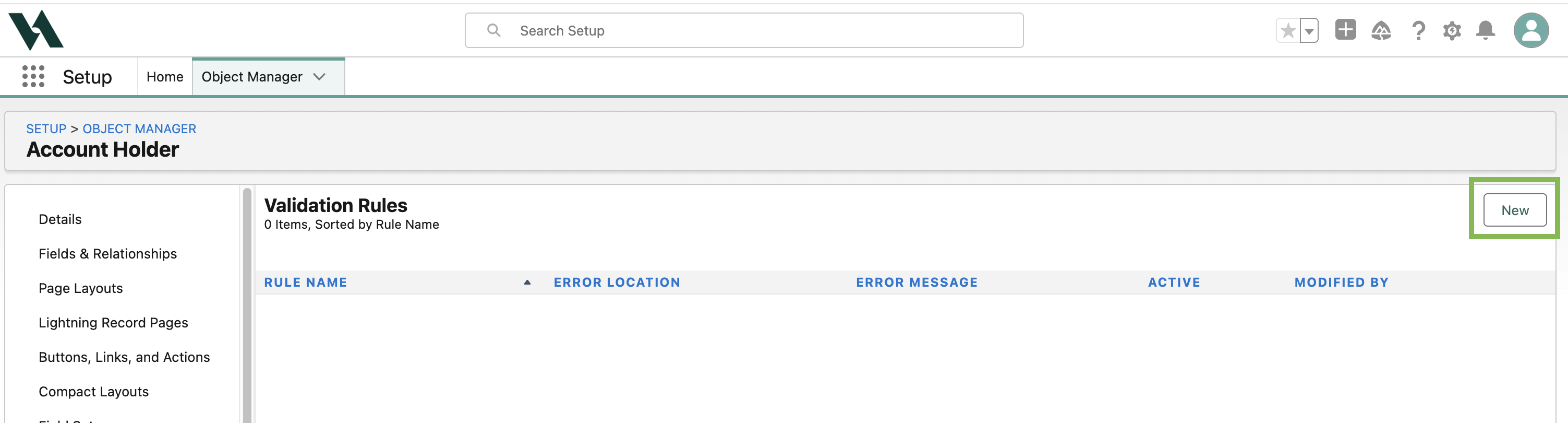
Click on Validation Rules.

Click New.
Enter a Rule Name and a description.
Ensure the Active checkbox is checked.
Define the Error Condition Formula to specify when the field should be required. When writing this formula, keep in mind that you're writing the condition to display the error (if the statement is true, the specific error message will display).
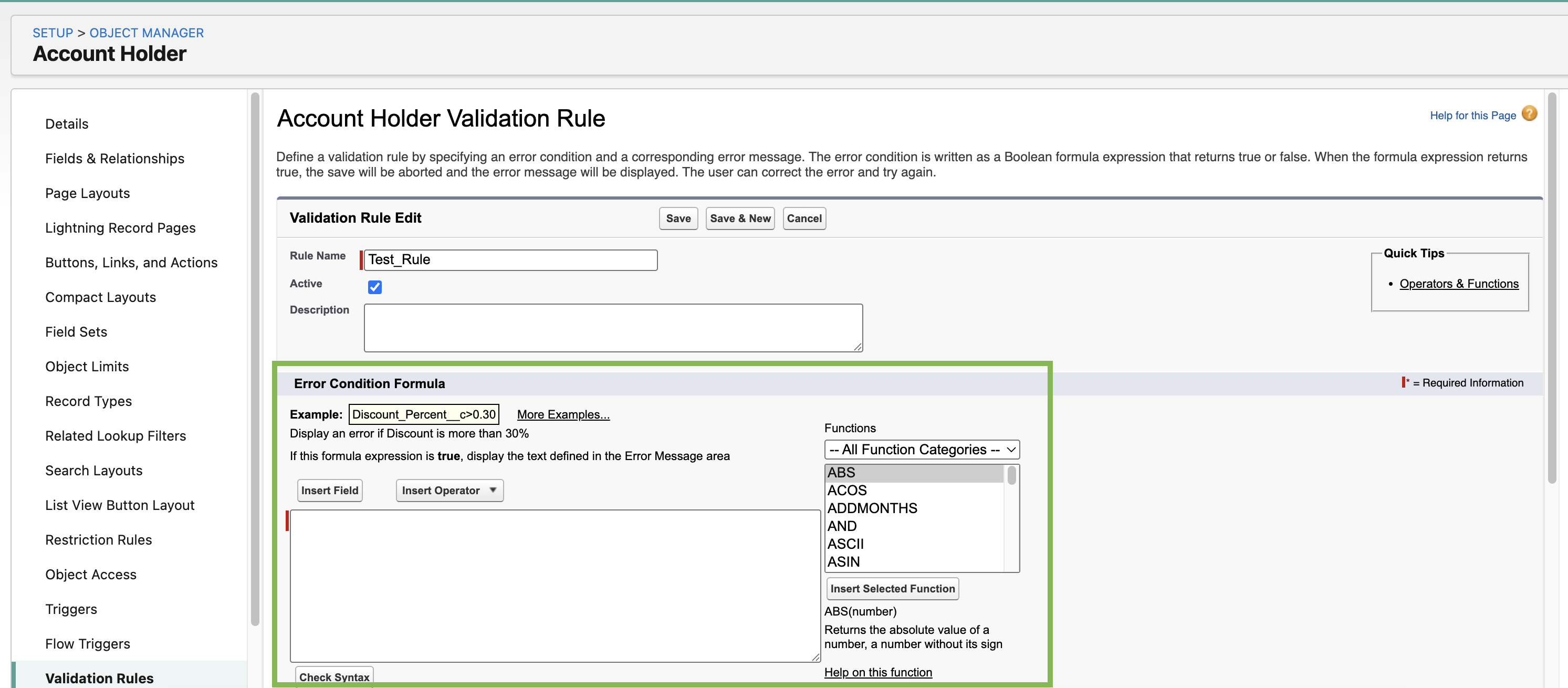
Example: if you want to make the Field Name field required, you would write: ISBLANK(FieldName__c) . For this formula, the specified error message will display when the field is blank. You can extend this formula with logical operators (e.g., AND, OR) to create dynamic requirements.
Enter the Error Message to display to users. Use an explicit instruction to correct the issue.
Choose the Error Location (field level or top of page).

Click Save or Save & New if adding more than one Validation Rule.