Processing extensions with endorsements
Last updated: February 16, 2026
Overview
A policy extension allows you to extend the expiration date of an active policy without creating a new policy record. Agencies typically use extensions when coverage needs to continue beyond the original term — for example, while renewal terms are being finalized or when additional time is needed to prevent a lapse in coverage. This article explains how to process a policy extension using an endorsement.
Process
Create a policy change
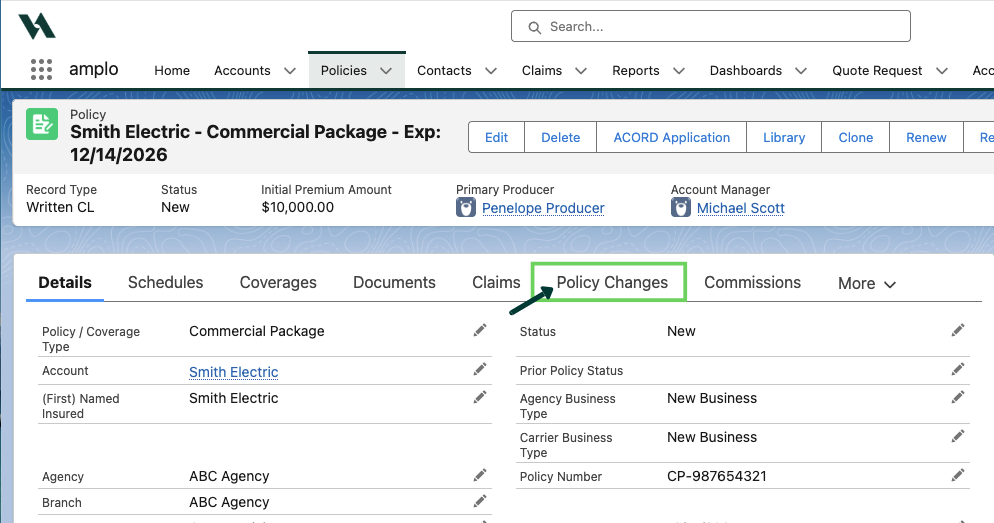
Navigate to the applicable policy record and select the Policy Changes tab.
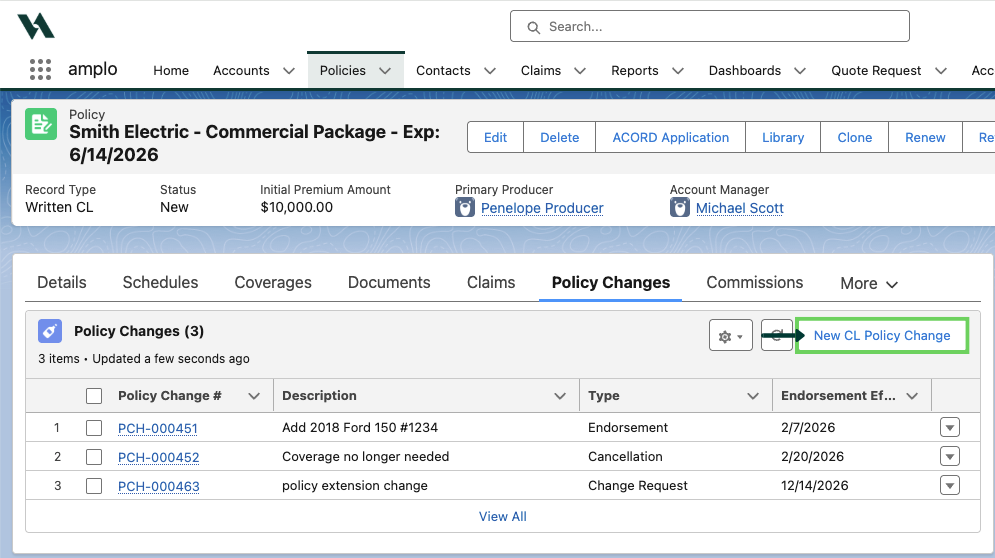
Select New CL Policy Change.
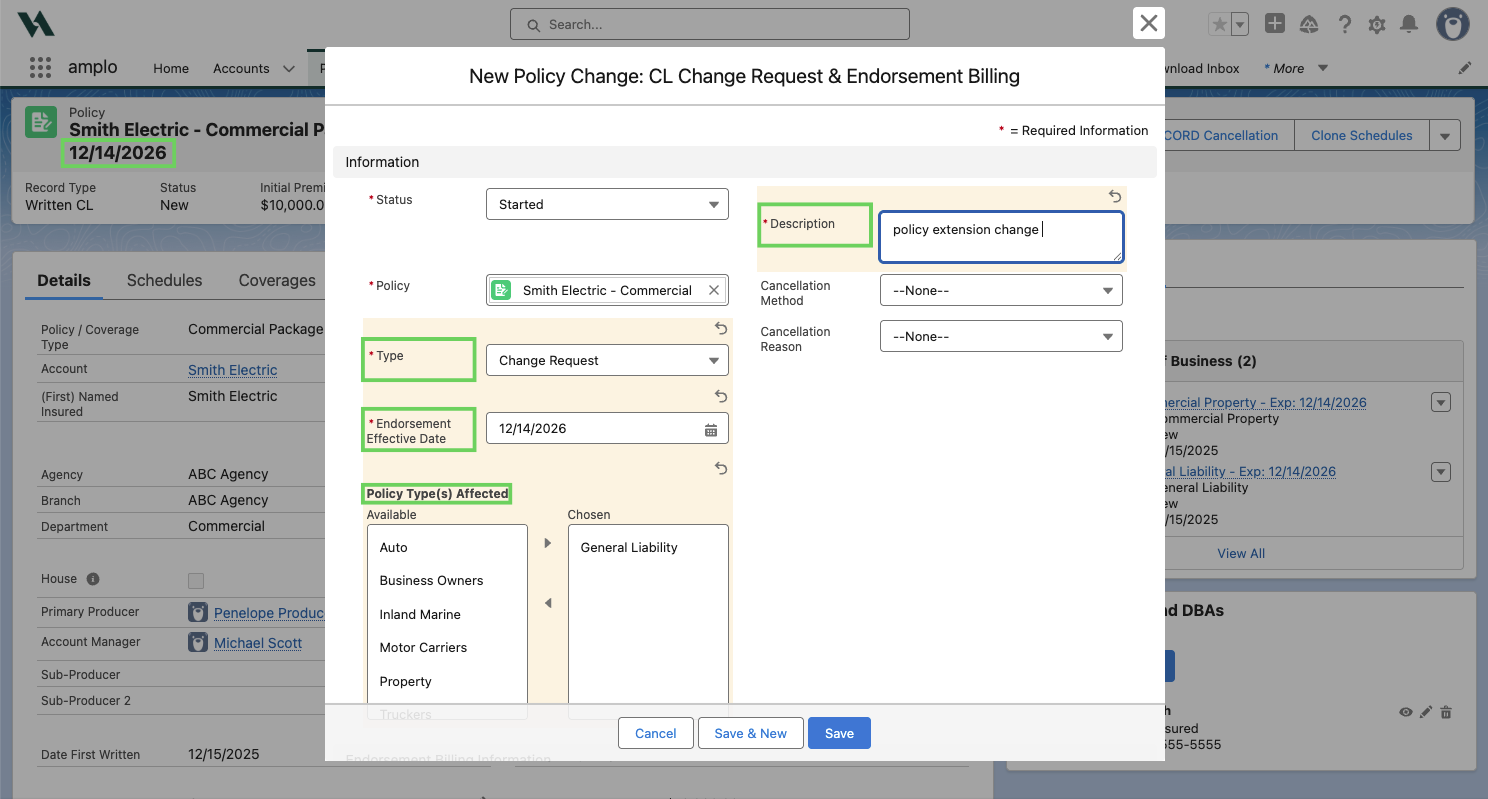
Set the Type field to Change Request (options may vary based on your picklist).
In Endorsement Effective Date, enter the policy’s Expiration Date.
For package policies, use the Policy Type(s) Affected multi-select picklist to select the impacted lines of business.
Note: For monoline policies, skip step 5.
In the Description field, note that the request is a "policy extension change."
Select Save.
Extend the policy term
From the Policy Change record, click on the hyperlink to navigate to the policy record.
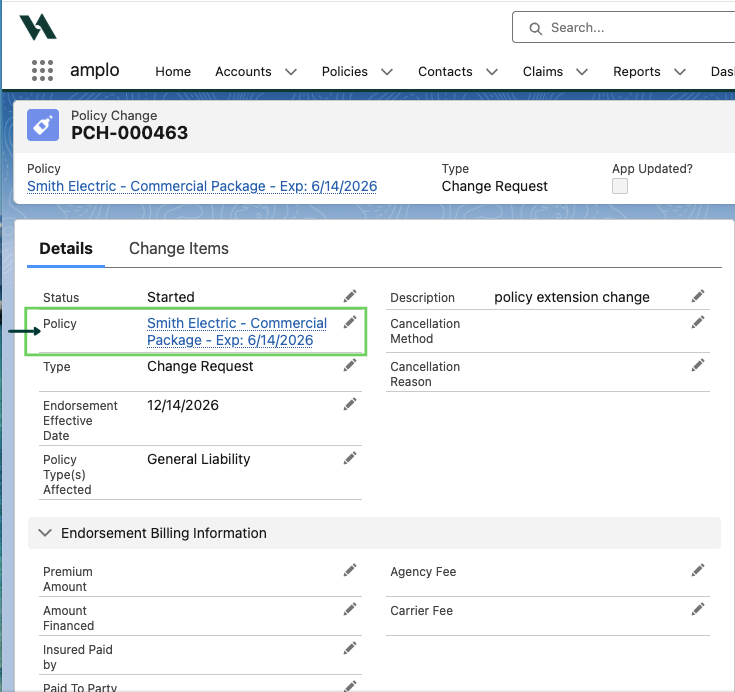
On the Policy page, select the edit pencil next to the Expiration Date and extend the policy term. Then click Save.

Best practices
Before processing a policy extension, your administrator should review any automation rules or workflows tied to policy expiration dates. These may need to be adjusted to ensure they continue to run correctly after the extension.