Rewriting a policy
Last updated: March 6, 2026
Overview
A policy rewrite creates a clean, complete new version of the customer’s policy, giving you a fresh starting point without losing important details. When you rewrite a policy, some information carries over while other details do not. The table below shows what’s included and excluded in a rewritten policy.
Includes: | Excludes: |
Named Insured | Cancellation (dates, reason and cancellation status) |
Base policy details | Endorsements (midterm changes, endorsement records, and Coverage adjustments made by endorsements) |
Schedules and exposures | Premium transactions |
Coverages and limits | Invoices or payments |
Policy metadata | Claims |
Original Expiration Date (new field when applicable) | Tasks, reminders, notes and activities |
A hyperlink back to the prior expired policy | Attachments created by previous workflows |
Rewrite a policy
Navigate to the Policy record you want to rewrite. Review schedules, coverages, and dates so you understand what information will be copied into the new policy.
Click Rewrite from the policy action menu. If the policy is eligible for a rewrite, a window opens where you can enter the effective and expiration dates. If it isn’t eligible, you’ll see a notice explaining why (missing dates, policy status restrictions, etc).
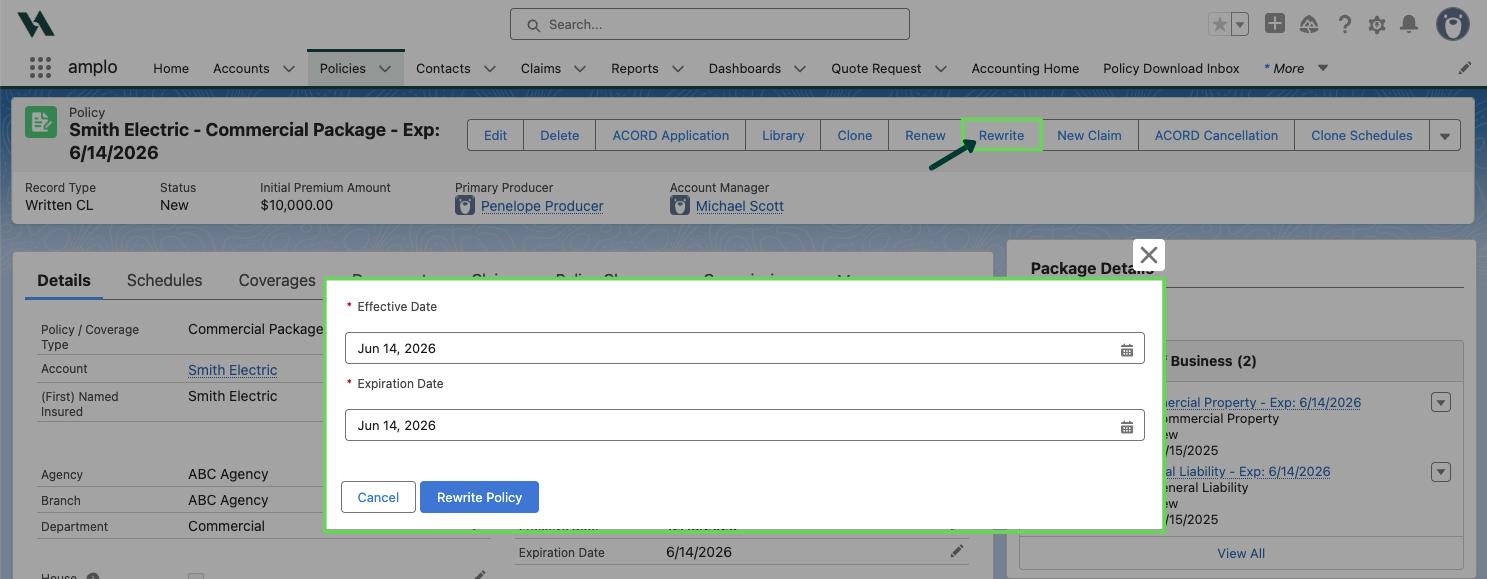
In the window, verify the dates before continuing:
Effective date of the new policy
Expiration date of the new policy
Note: If the original policy has no expiration date (e.g., canceled early), amplo automatically sets the Expiration Date to be: Effective Date + 1 year
Click Rewrite Policy. Then, amplo will redirect you to the new rewritten policy that includes:
create a new policy record
copy schedules, exposures, coverages, and base policy details
remove cancellation data
exclude endorsements and midterm changes
create a historical link to the prior expired policy.
The new policy begins in Info Gathering status. On the new rewritten policy:
review and update coverages
adjust exposures or schedule items
complete underwriting tasks
bind the rewritten policy and update the policy status to Written (Sold).
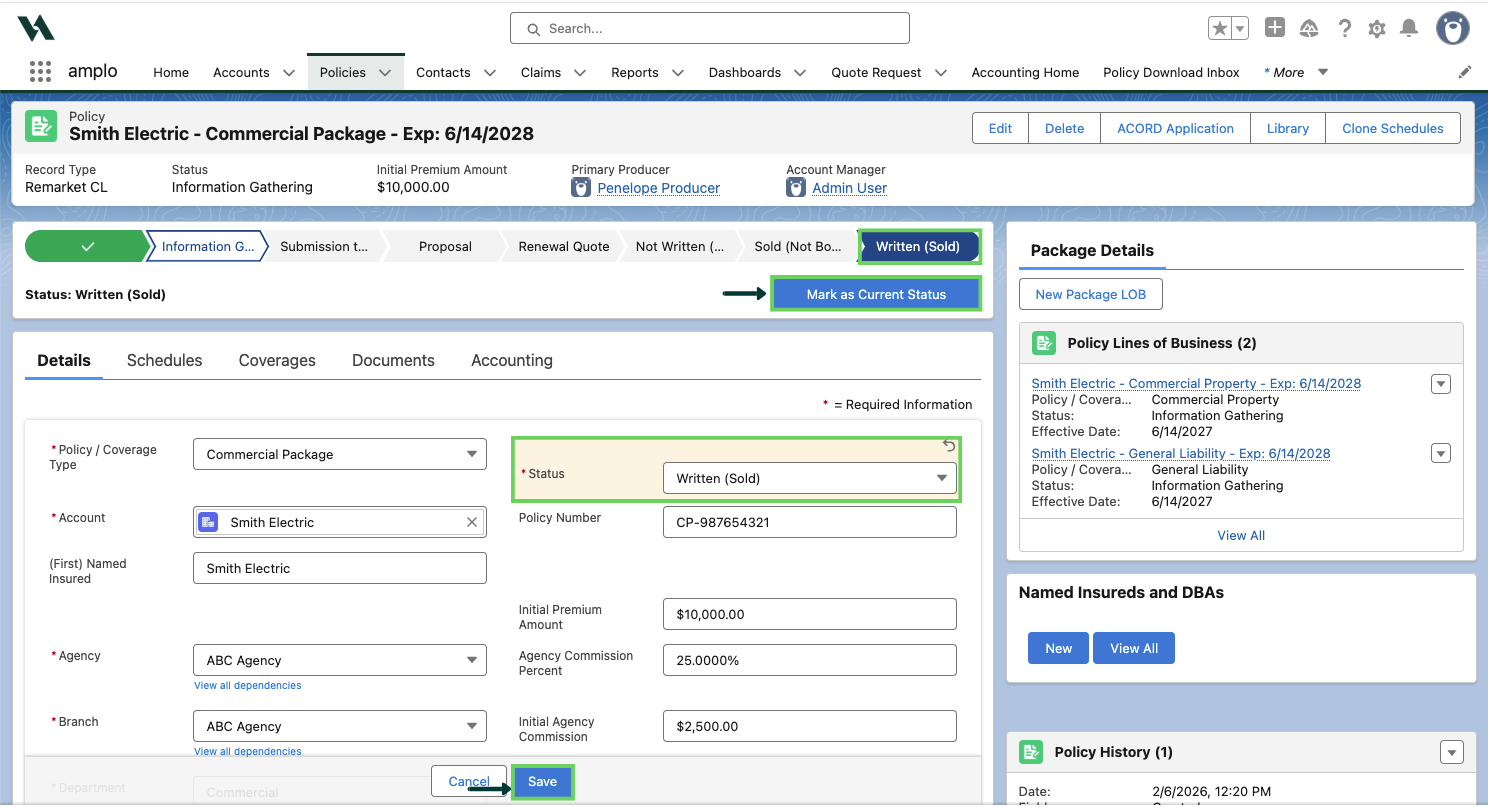
Note: When you select Written (Sold), the Status, Agency Business Type, and Carrier Business Type automatically default to Renewal. If the carrier has changed, update the Carrier Business Type to New. Always review these three fields and update them manually if needed to ensure accuracy.