Master Certificates
Last updated: July 6, 2026
Overview
Certificate Master Templates let you generate Certificates of Insurance (COIs) quickly and consistently. When you complete a certificate, the Forms Library saves a reusable master template, alongside the PDF in VerunaDocs. The template stays accessible and editable in the Master Certificate List to make changes and complete a new version without re-entering data from scratch. To generate certificates for multiple holders at once, see 📄 Generate certificates for multiple holders.
Note: Pre-fill is not yet available for the certificate workflow.
Create a Master Certificate
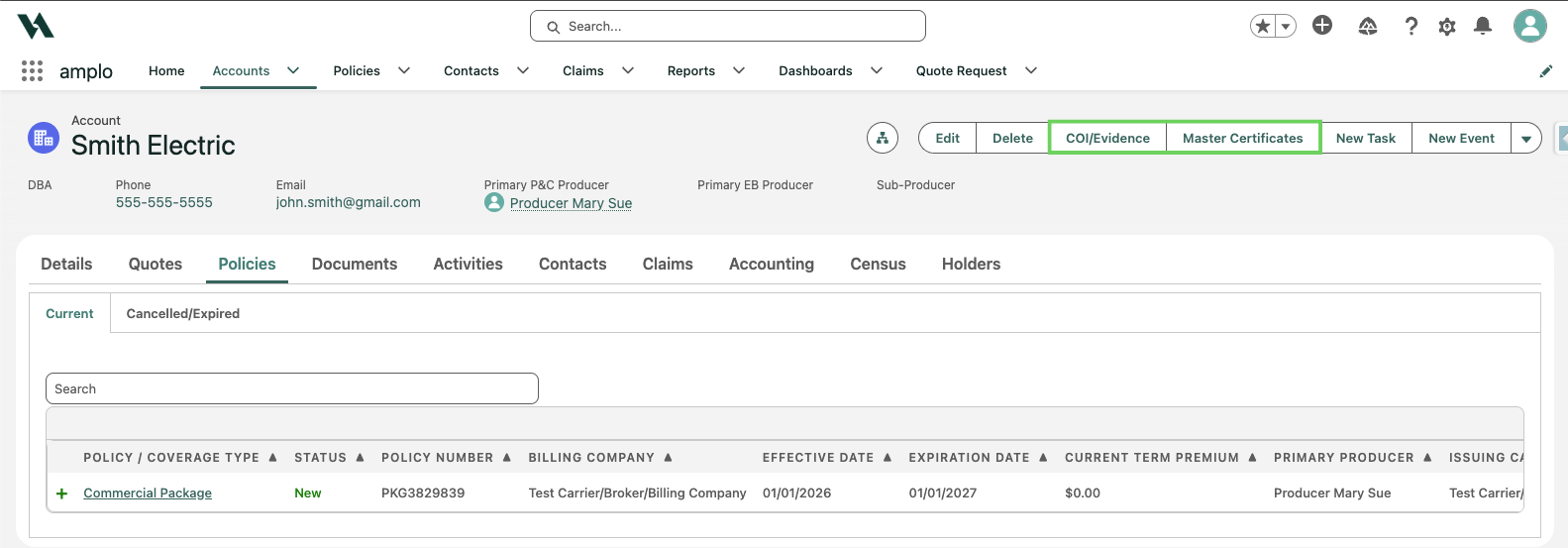
From the account record, click COI/Evidence or select Master Certificates.
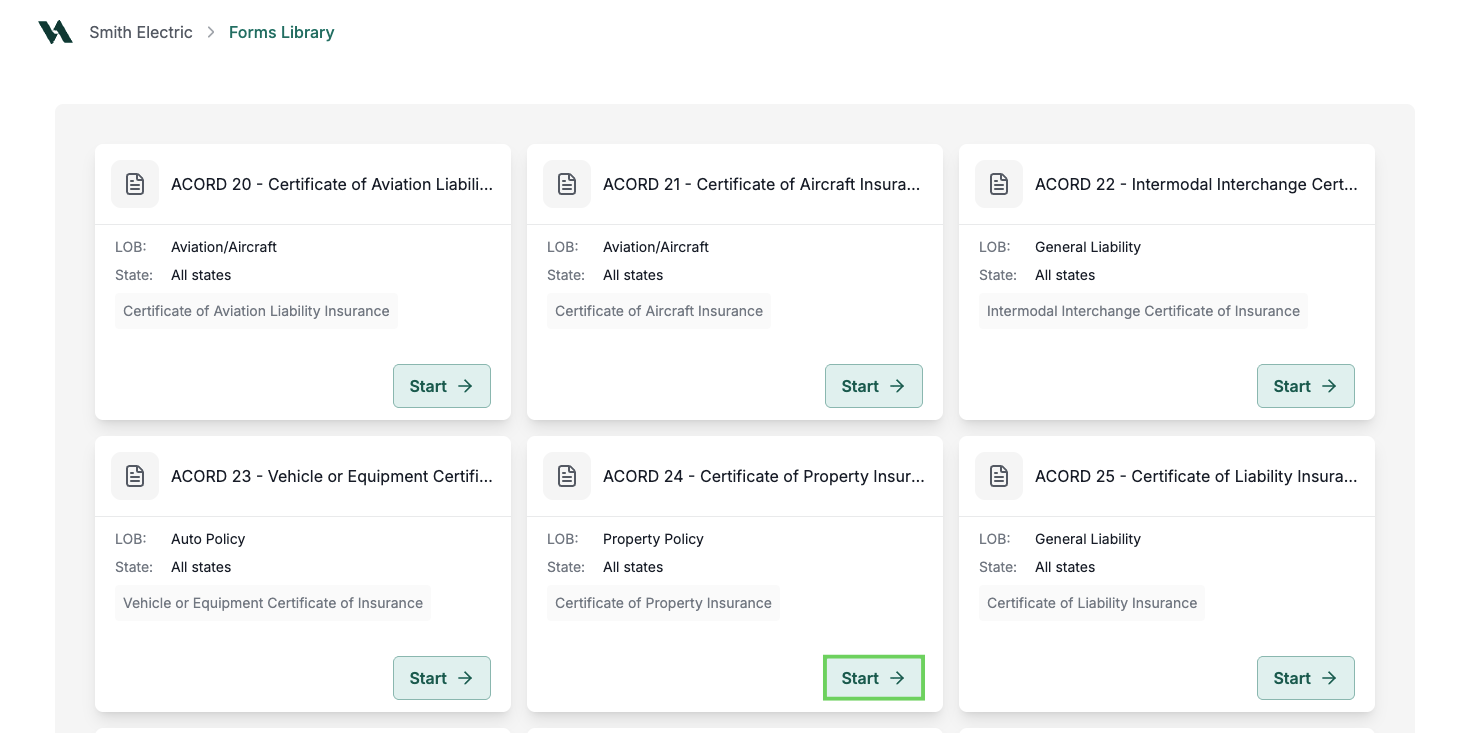
In the Forms Library, find the desired certificate form and select Start.
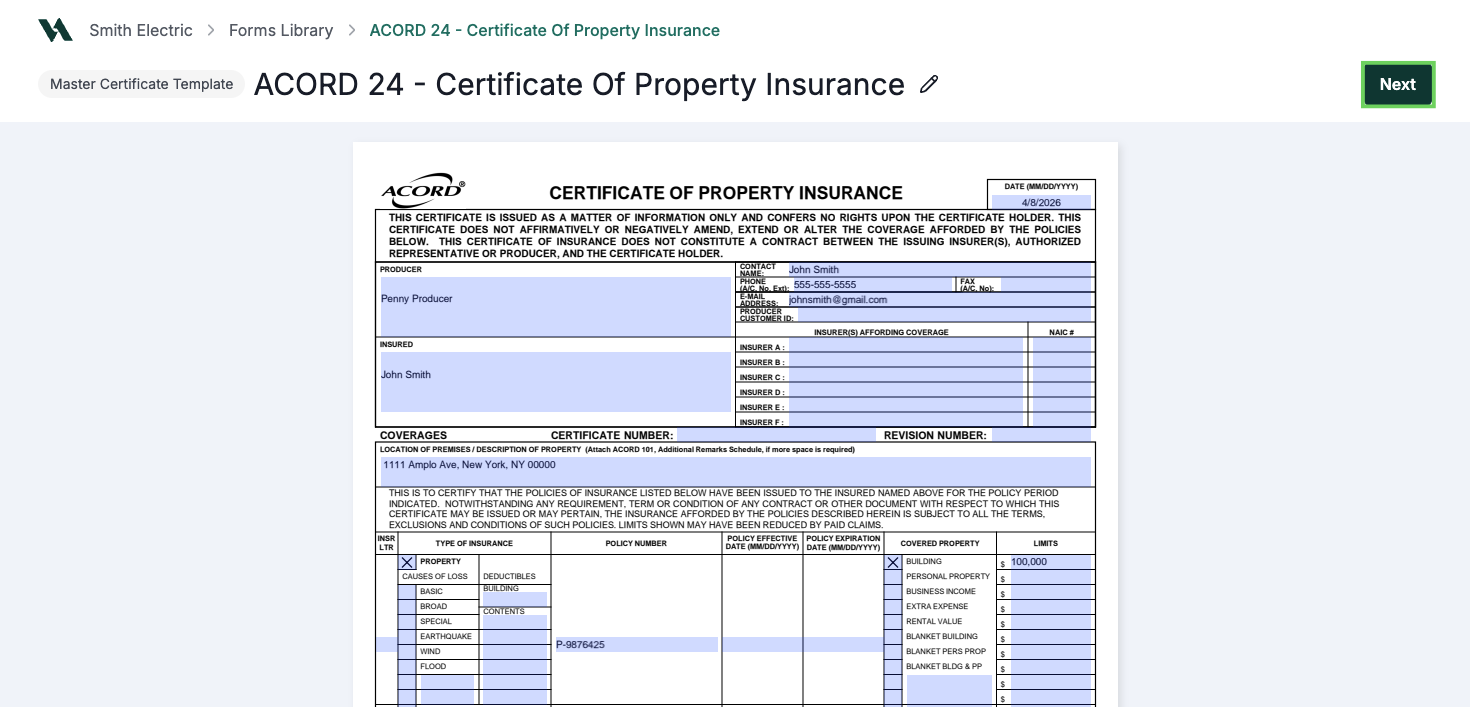
Fill out the form. Click anywhere outside a field to auto-save.
Click Next.
To save the certificate as a template, enter a name in the Master Certificate Template Saved modal.
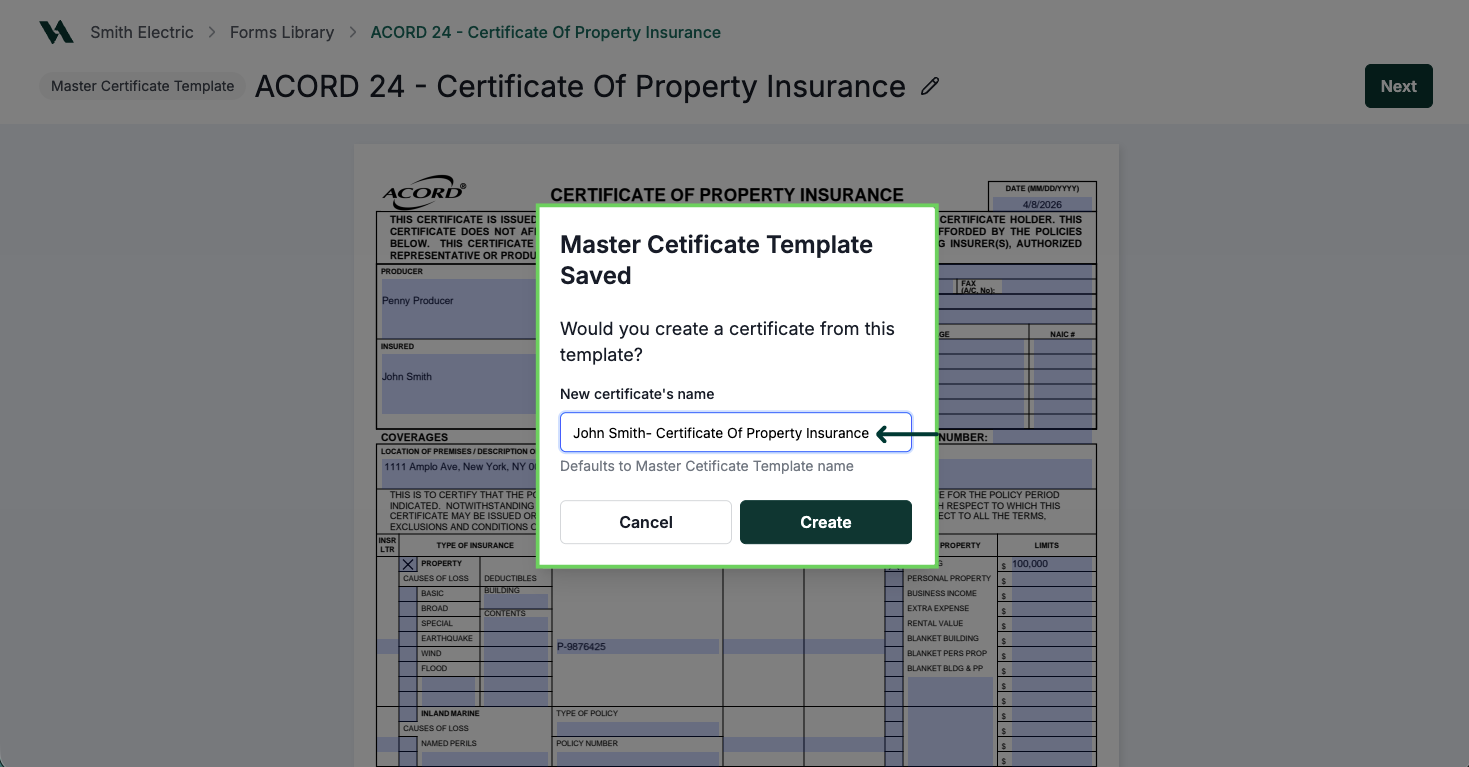
Confirm by clicking Create or select Cancel to return to the previous screen.
Click Complete to finalize the certificate.
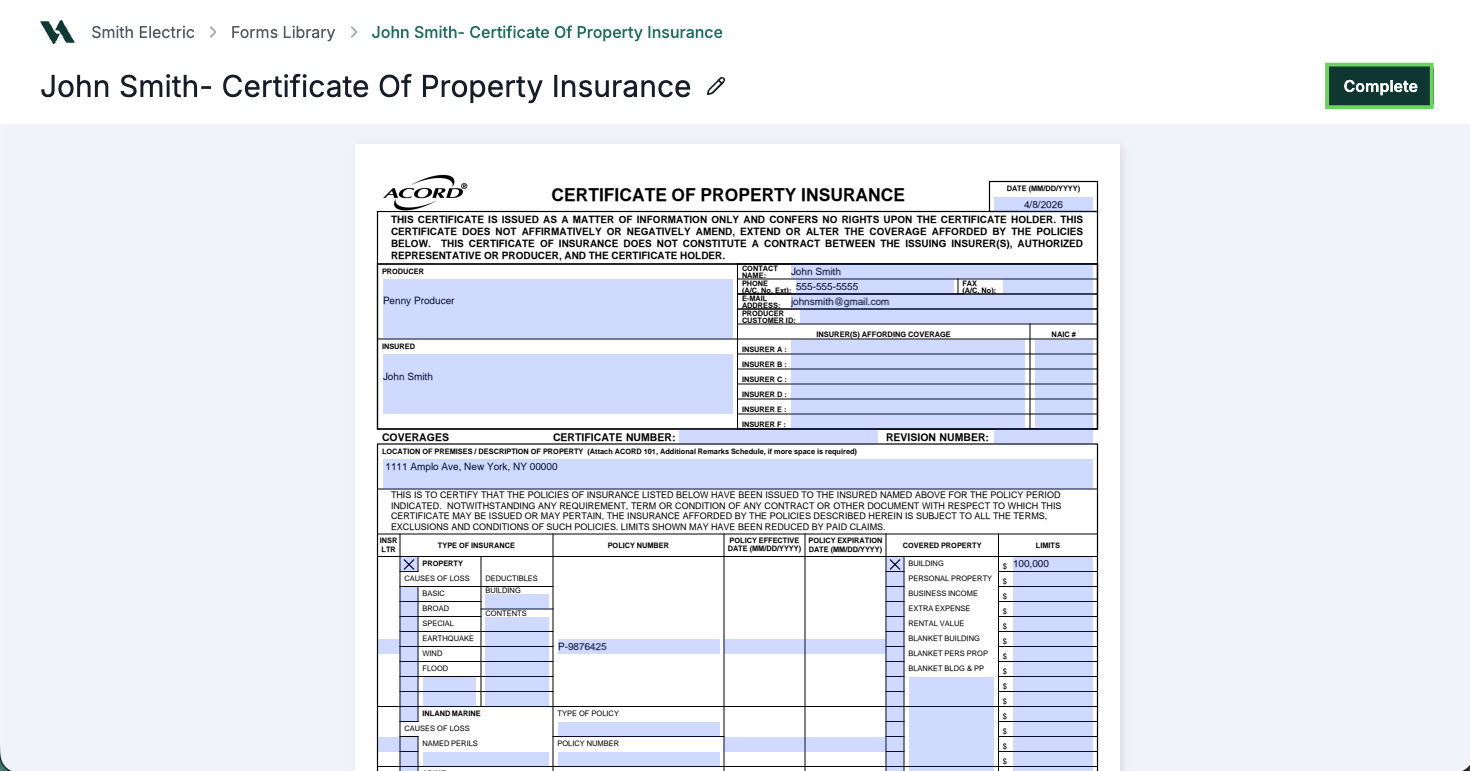
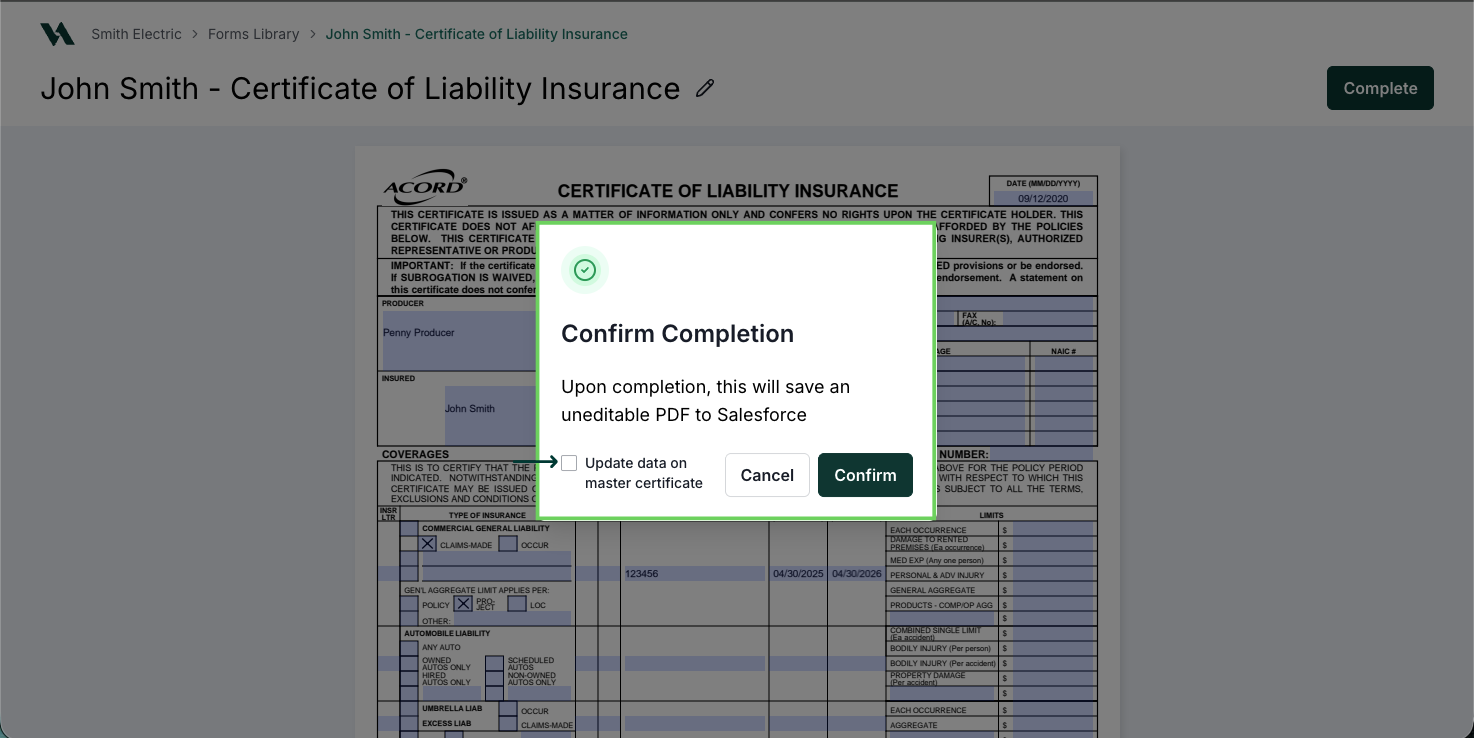
In the Confirm Completion modal, select Confirm to complete the certificate.

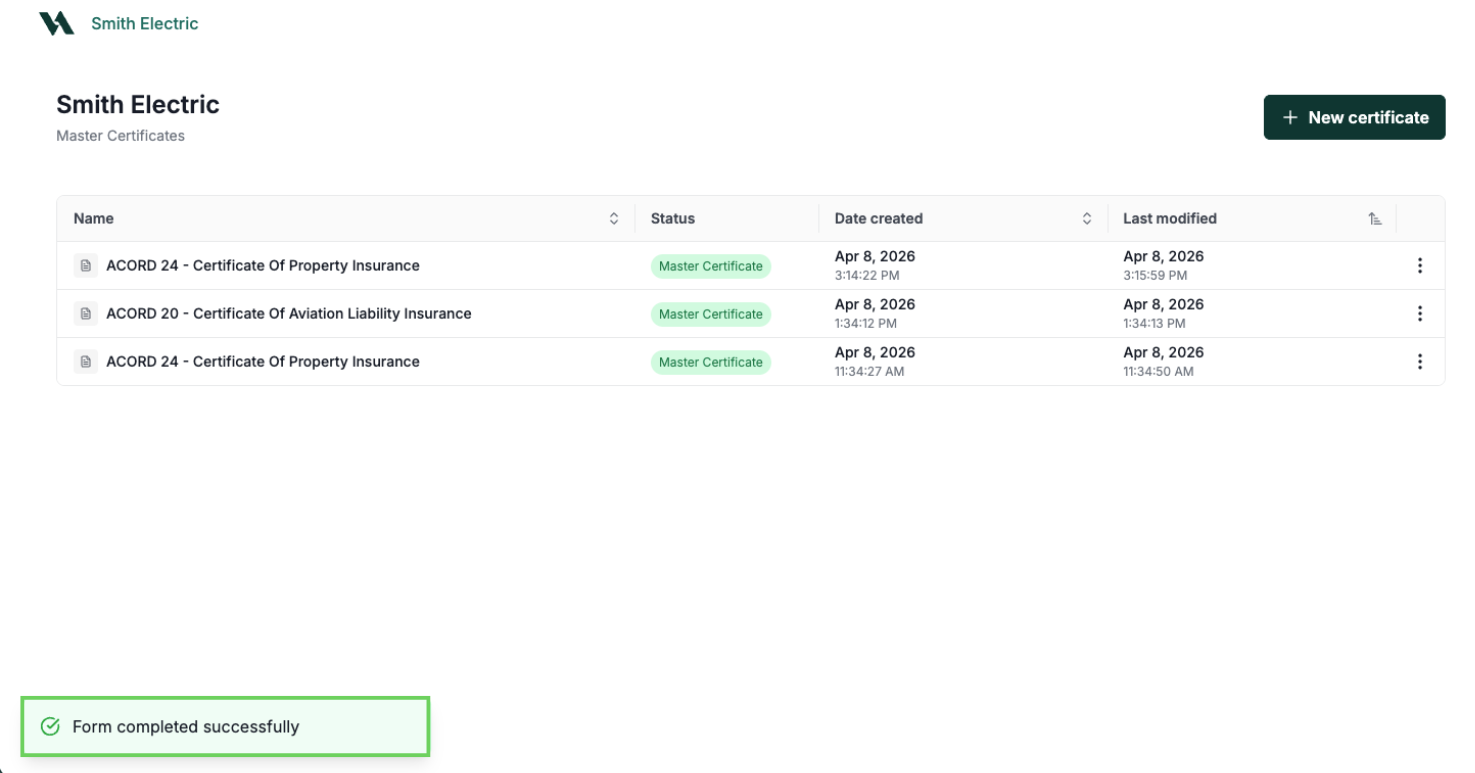
Once the certificate is complete, a confirmation will appear.
View Master Certificate List
Like the Forms List, the Master Certificate List lets you reopen and update an existing template instead of recreating it from scratch.
From the Account record, click Master Certificates.

Select the template name to reopen or click on three dots to:
Edit Master Certificate
Rename Master Certificate
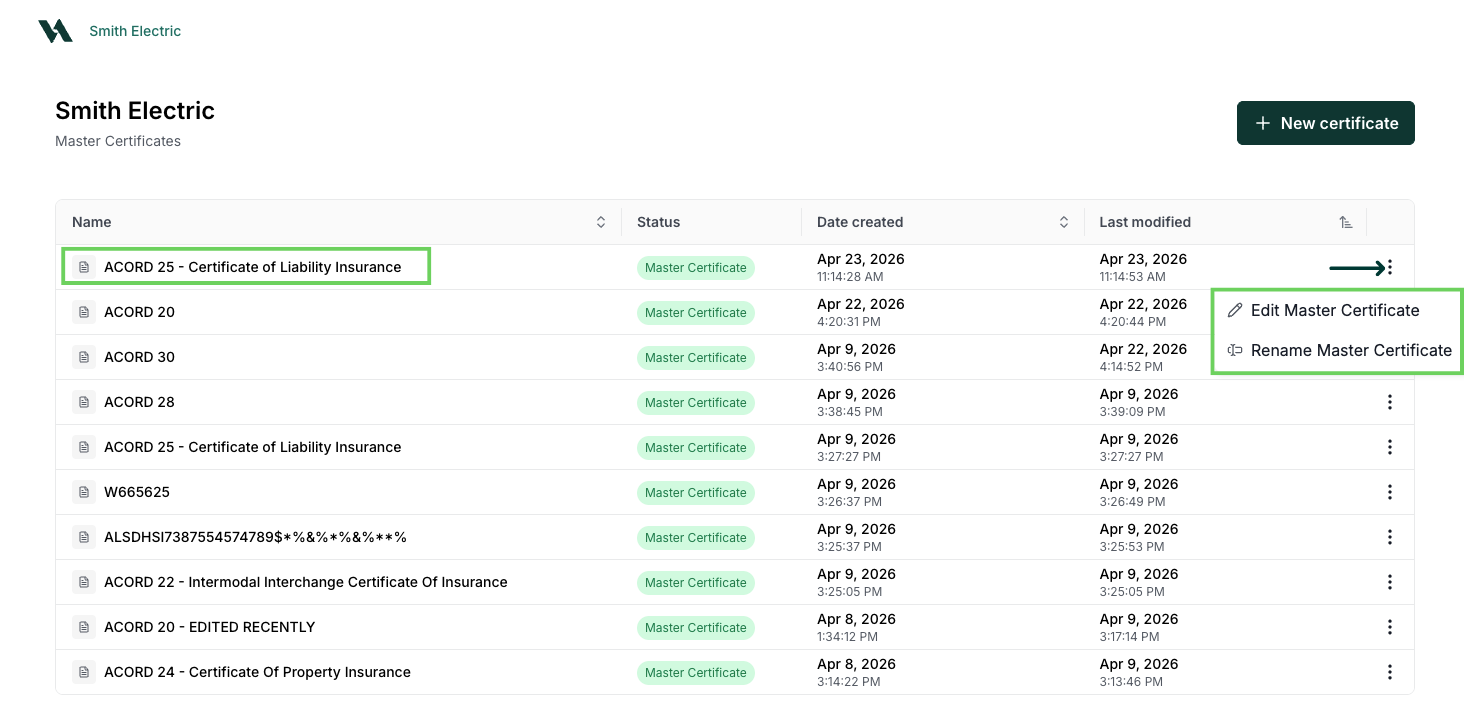
To create a new certificate, select +New certificate.
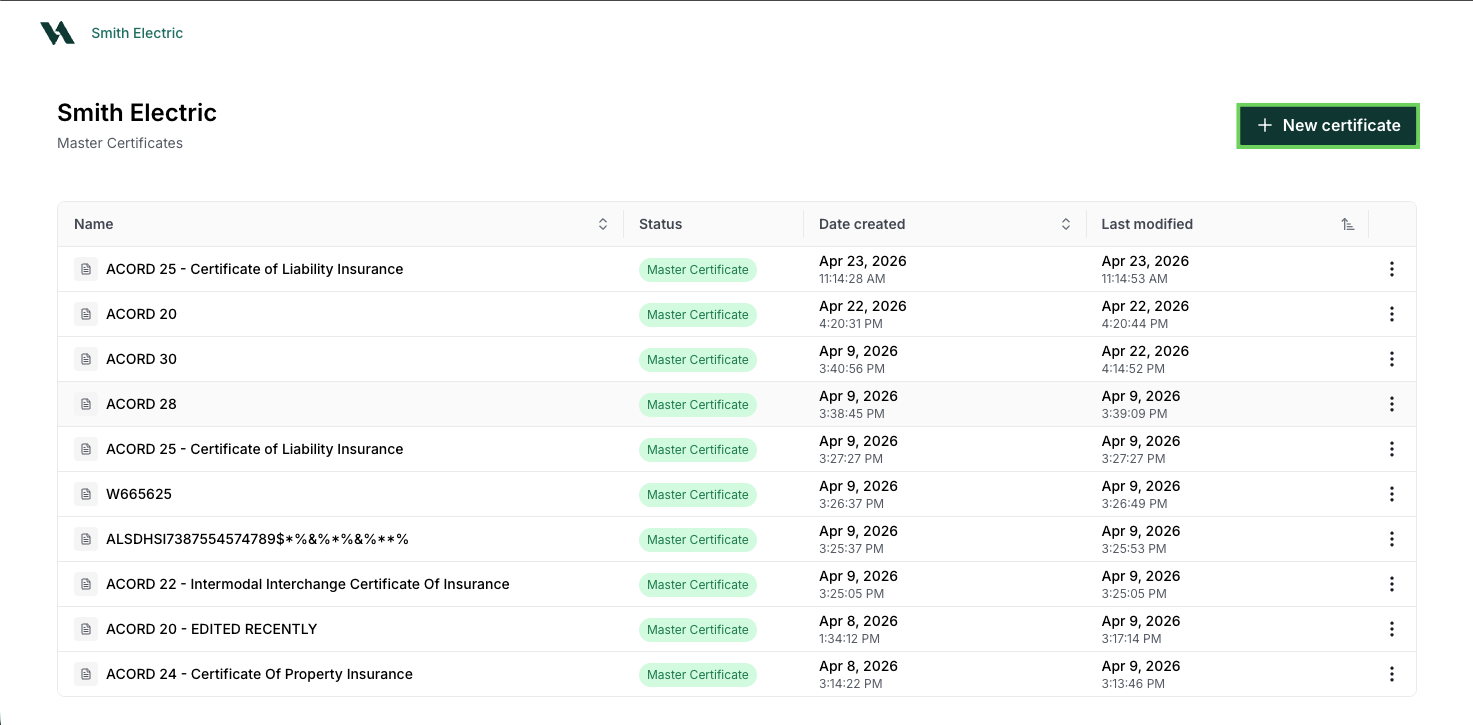
Managing Certificate Templates
Each time you save, the master certificate is updated and stored in the Master Certificate List under its original name. Select the certificate name to open it, where you can:
Edit Master Certificate: Make changes to the master template.
Delete Master Certificate: Remove the template from the list.
Create Holder Certificate: Generate a certificate for a specific holder using this template.
Holder certificates
Holder certificates are copies of an existing master certificate. Each copy saves under its own name, separate from the original template.
Once the new Holder Certificate opens, use the edit pencil to change the certificate name.
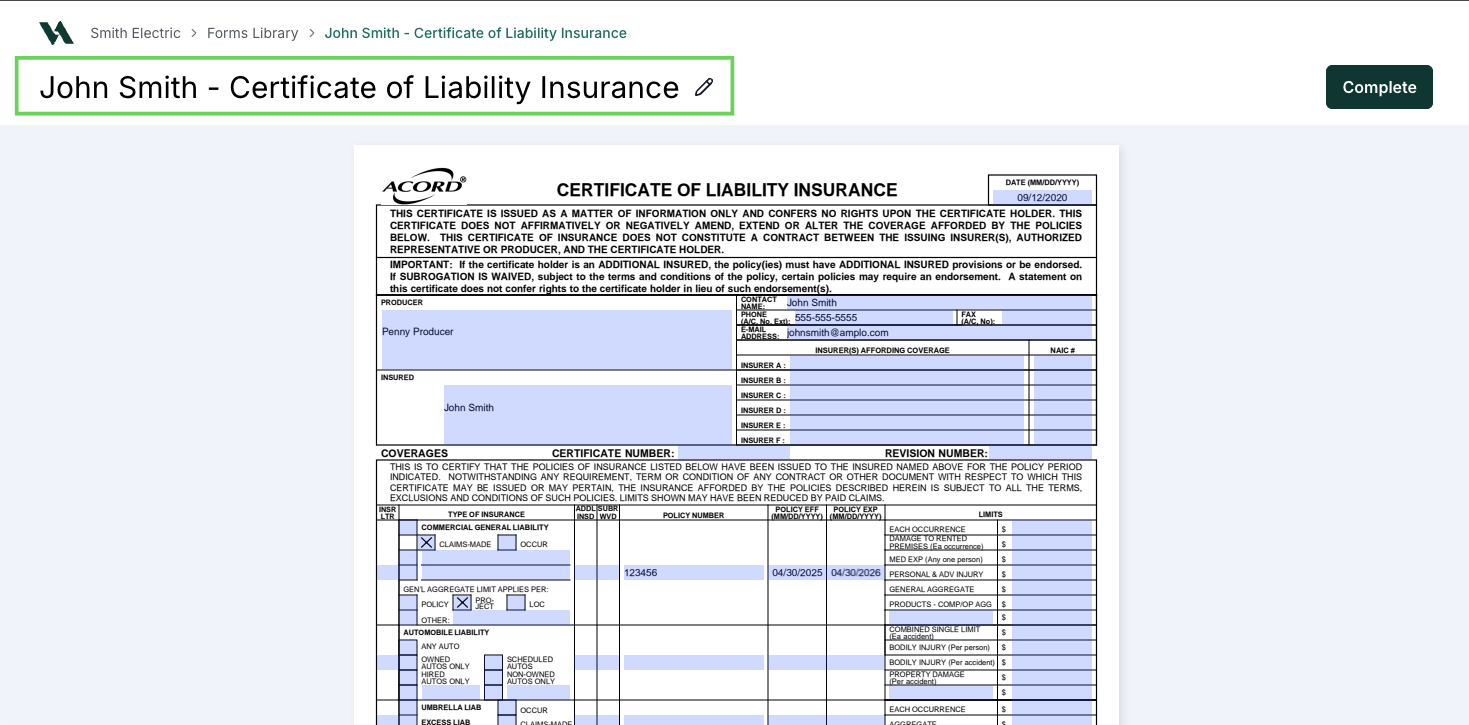
Update the certificate information as needed.
Then, select Complete.
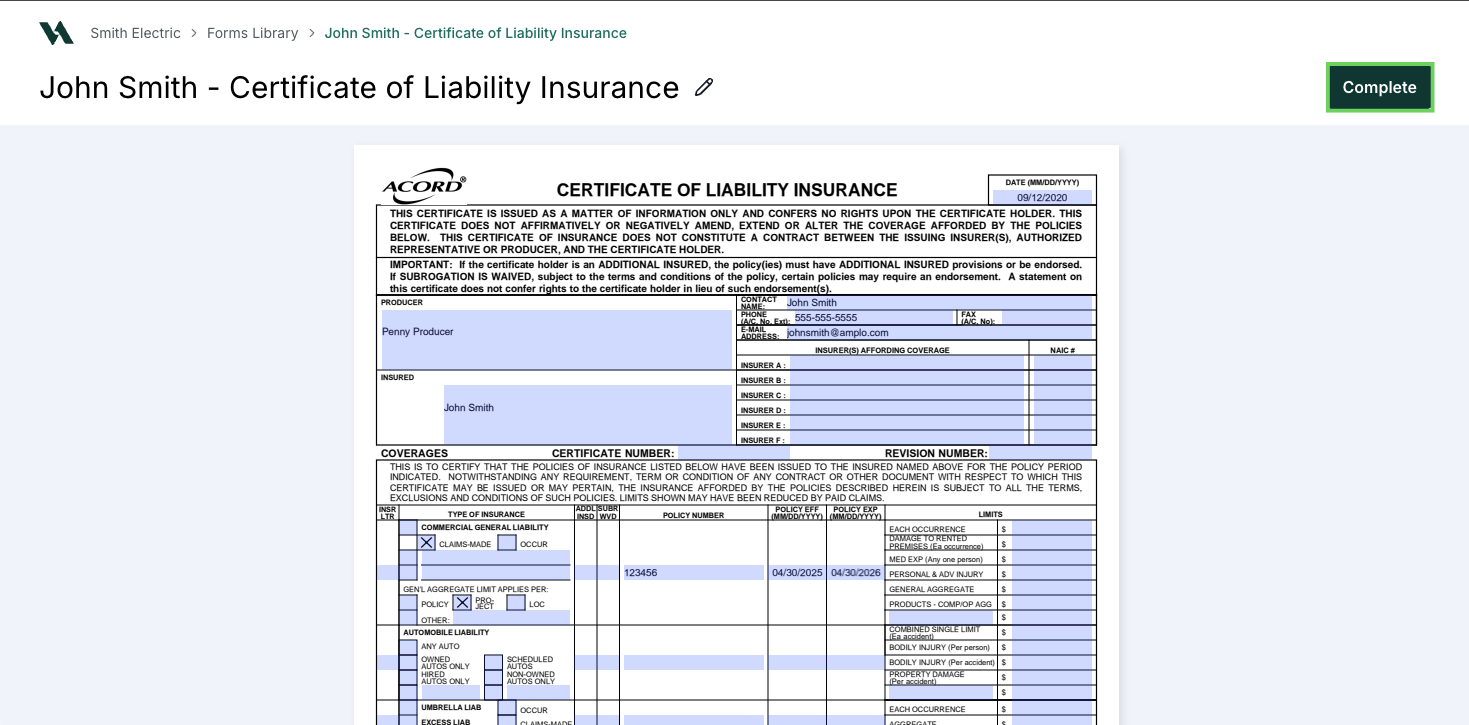
In the Confirm Completion modal, select Confirm to save the updates as a PDF or Cancel to return to the previous page.
Note: Use the checkbox in the modal to update the data on the master certificate.