Forms overflow and packets
Last updated: May 26, 2026
Overview
When a form reaches its field or row limit, amplo now alerts you and suggests the appropriate child form to handle the overflow. You can also manually combine forms into packets at any time. Completed packets save as a single PDF in VerunaDocs.
Overflow alerts
Each time a form loads, amplo checks for active overflow conditions and displays any applicable alerts. There are three scenarios where an alert may appear:
Text field overflow: When you reach the character limit in a text field, such as Remarks on a Cancellation Request/Policy Release form.
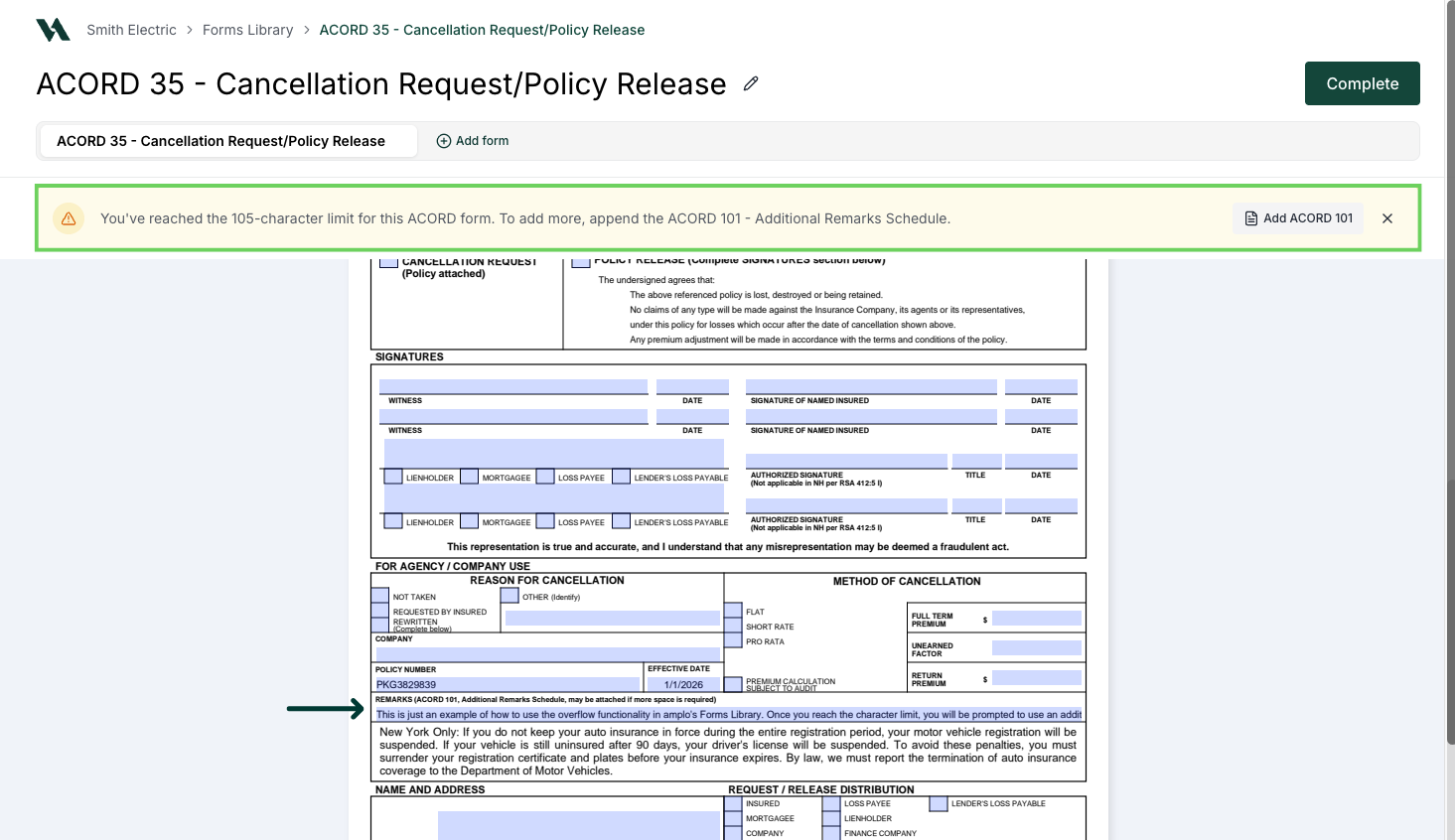
Note: When you reach the character limit, select outside the field to see the overflow alert.
Collection field overflow: When you attempt to add an entry beyond the maximum allowed rows in a collection, such as vehicles, locations, or prior losses
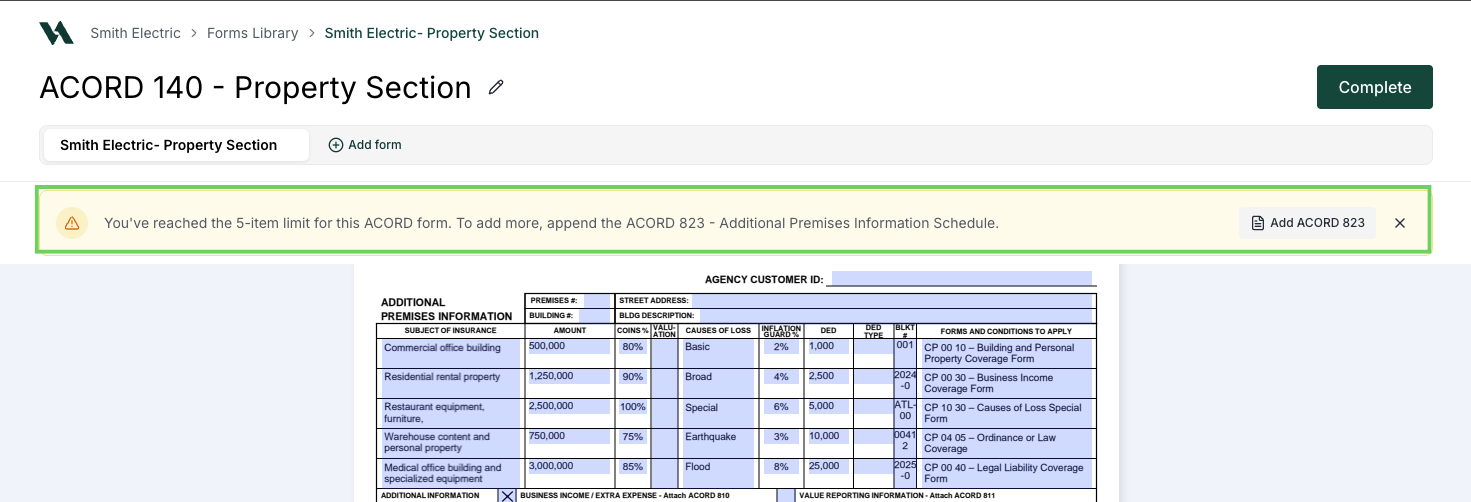
Pre-fill overflow: If pre-filled data includes more than the allowed number of entries for a field, amplo suggests the overflow child form when the form loads. This is a suggestion, not an automatic add.
Note: Child forms receive pre-fill based on current parent-child field mappings. Pre-fill coverage reflects the current state of those mappings and may not populate every field.
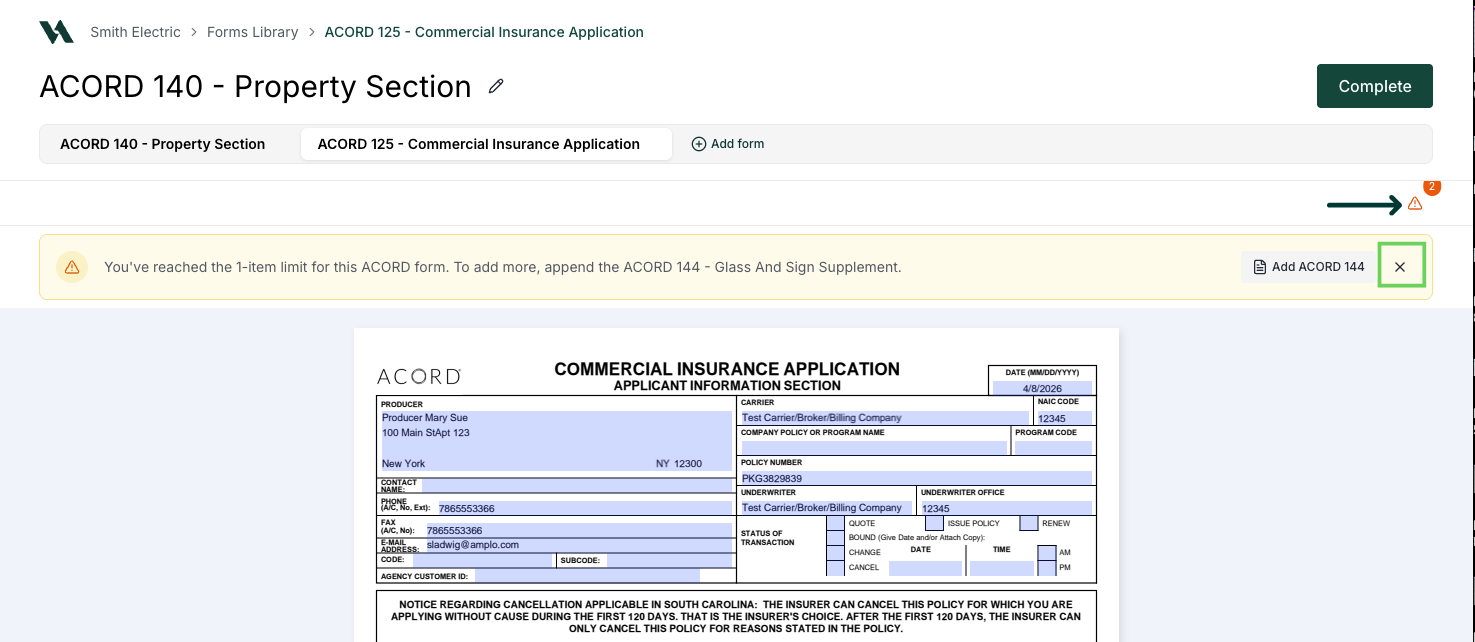
Alerts can be collapsed by selecting the X in the notification bar and re-expanded at any time by selecting the triangle icon.
Packets
A packet combines a parent form and one or more child forms into a single document. You can create a packet in two ways:
From an overflow alert: When an alert appears, select the suggested child form to add it to the packet.
Manually: Select Add a form to search for and add any form to the packet. You don't need an overflow situation to create a packet.

Forms are ordered by the time they were added and can't be reordered. When complete, the packet saves as a single PDF in VerunaDocs.
Renaming Packets
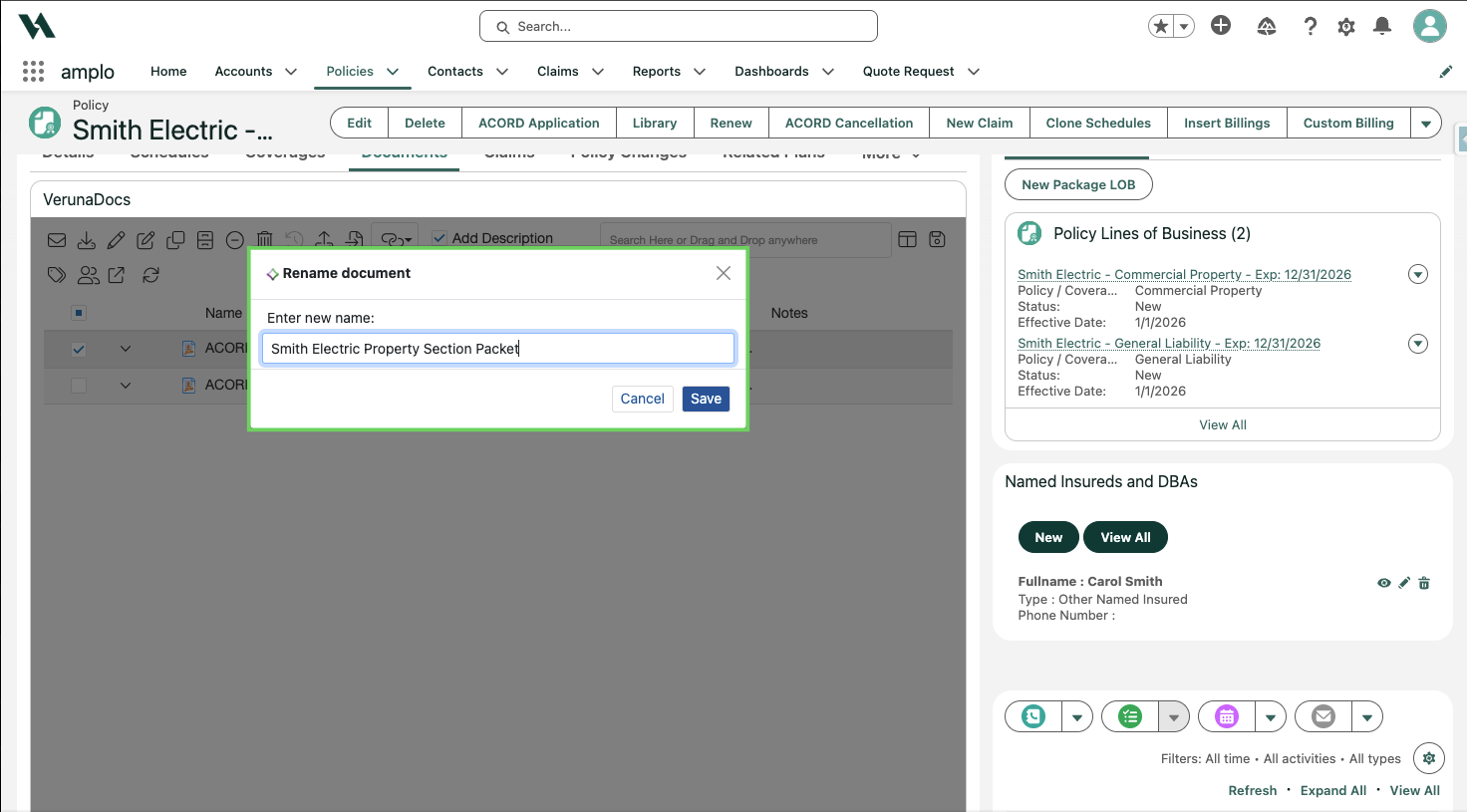
You can rename a packet at any time from the Documents tab of your policy. Use the steps below to update the packet name.
Select the Documents tab on the policy record.

Click the hyperlink to open your downloaded documents.

Click the checkbox next to the packet you want to rename and select the edit pencil.

Then, rename the form and select Save.