Forms Editor
Last updated: May 4, 2026
Overview
The Forms Editor lets you complete forms directly within the PDF, so you can work in a single view without switching screens. As you edit, amplo saves your progress automatically. This creates an in-progress form you can return to at any time. When you’re ready, you can complete the form to save it as a read-only PDF in the Documents tab.
Note: The Forms Editor can be accessed in multiple ways, depending on your workflow. For a full list of access options, see the 📄 Forms Library article.
Pre-fill for ACORD forms
When you launch a form from a policy or an account, policy fields and claims data (where applicable) are pre-populated automatically. Pre-fill is available for the following ACORD forms:
35 - Cancellation Request/Policy Release
37- Statement of No Loss
50 - ACORD Insurance ID Card
101 - Additional Remarks Schedule
125 - Commercial Insurance Application
126 - Commercial General Liability Section
127 - Business Auto Section
130 - Workers Compensation Application
131 - Umbrella/Excess Section
140 - Property section
141 - Crime Section
152 - Commercial Inland Marine Section
160 - Business Owners Section
ACORD forms have some level of pre-fill, even those outside this list. All pre-filled fields are editable, so you can make changes before finalizing.
Note: Pre-fill covers single policy and account objects only. Nested entities such as schedules, vehicles, locations, and prior losses aren't pre-filled at this time. For policies with more than six schedules, pre-fill is currently unavailable. A fix is planned for an upcoming release.
Start a new form
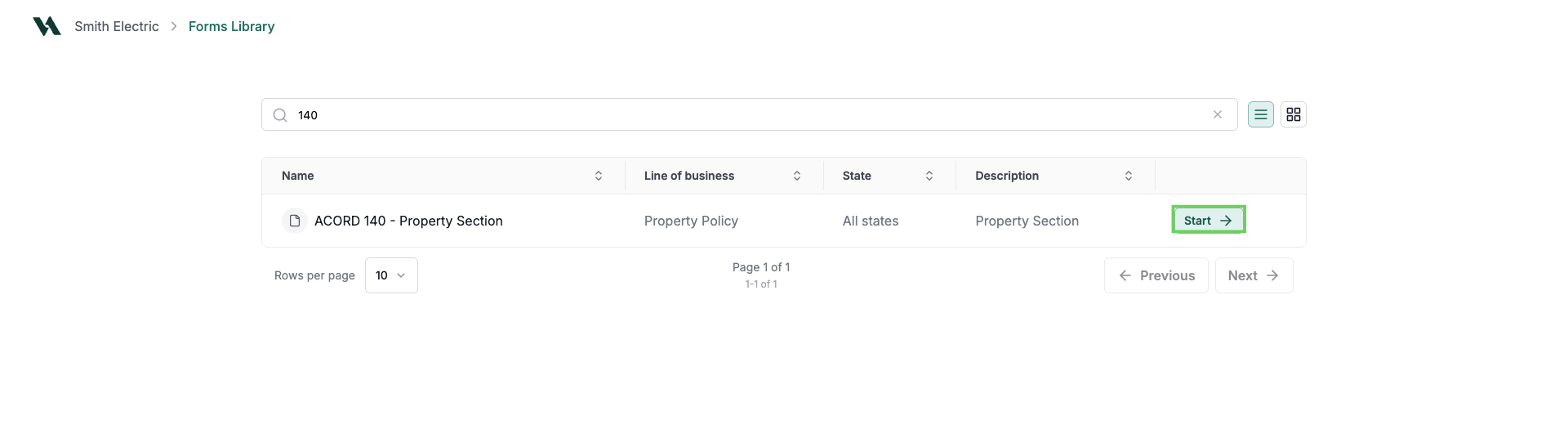
Search for a form by typing the number (e.g., 140) in the search box.

Click Start.
Add form details
Use the edit pencil to change the name of the form.
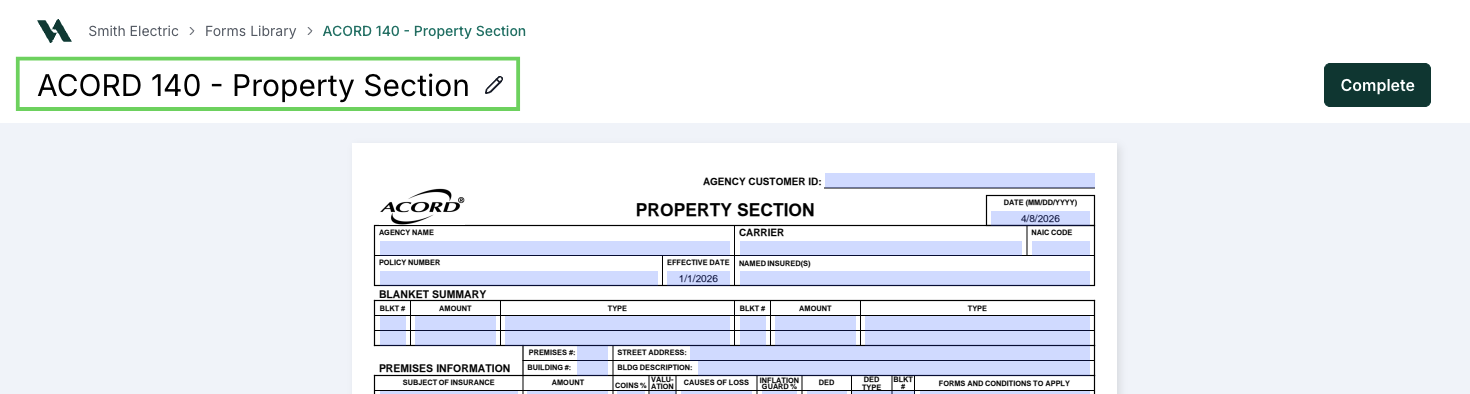
Select Save name to confirm your changes or Cancel to return to the form.

Click into the PDF field to edit and enter the required information.
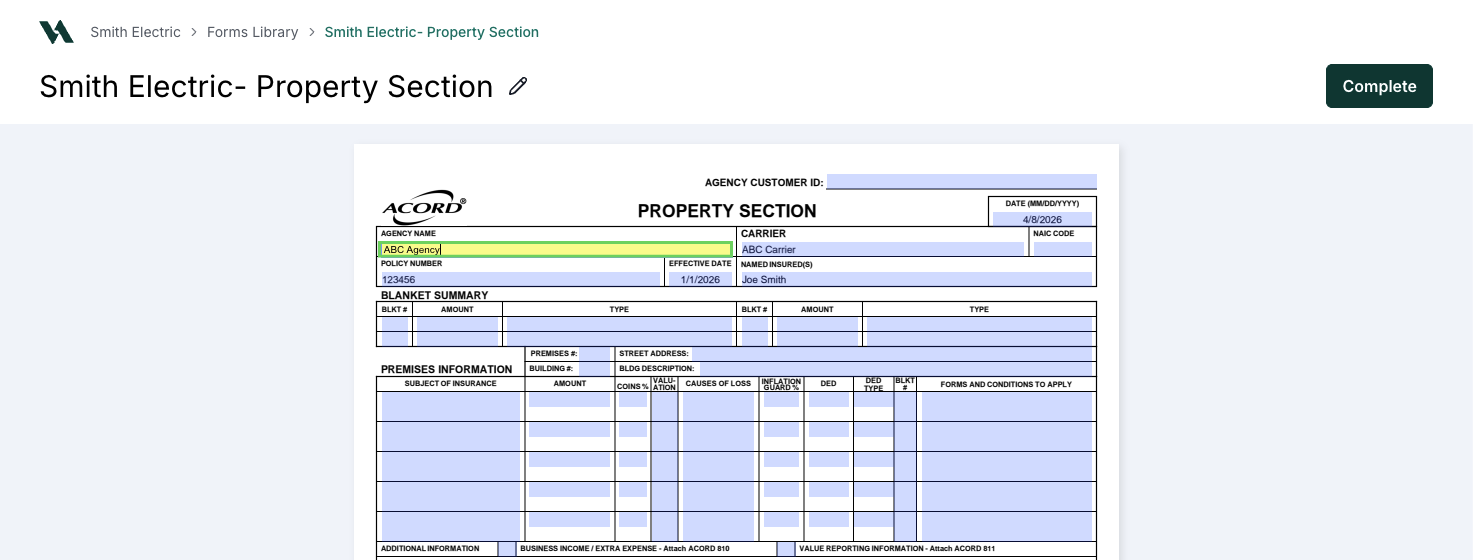
Click or tab out of the field when finished. As you make changes to the form, they will be saved automatically.
Note: Always click or tab out of a field before navigating away from the screen to ensure your changes save properly.
Edit an existing form
Use these steps to return to a previously started form.
From the Forms Library, click on the account name breadcrumb in the top-left corner.

Select the form you want to edit.

Click into any PDF field to continue editing.
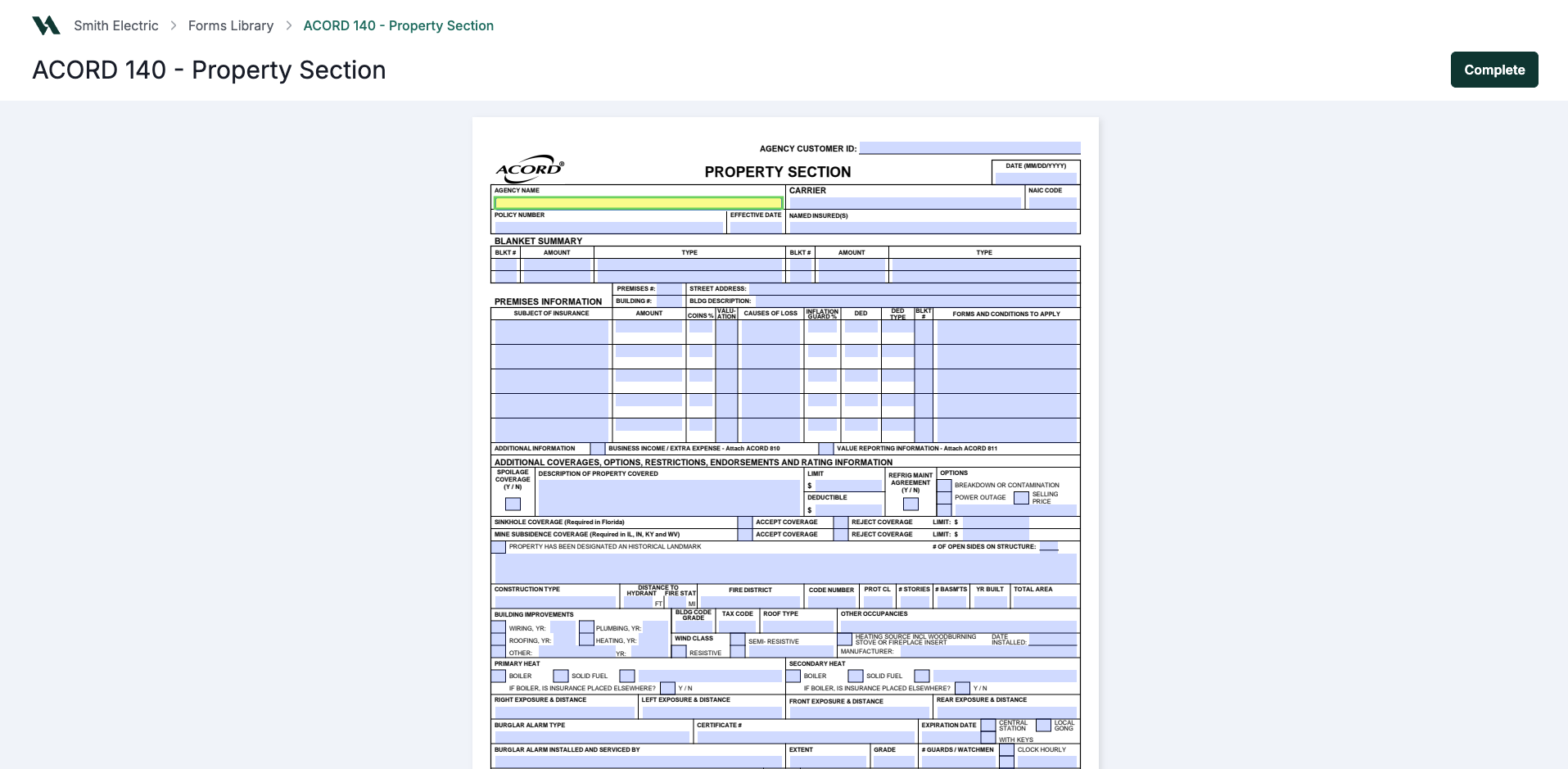
Complete the form
When you’re ready to finalize the form, follow these steps.
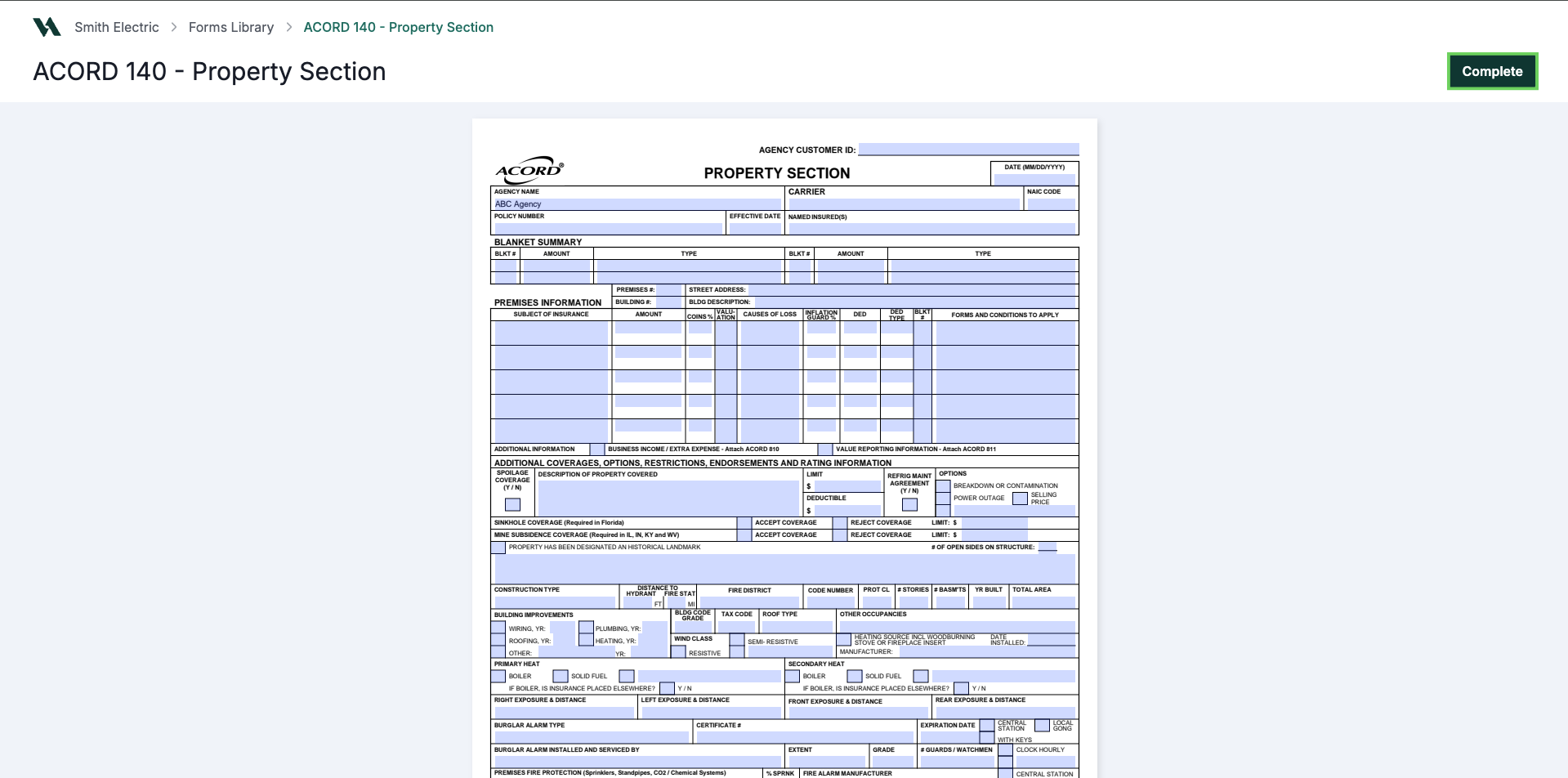
In the Forms Editor, click Complete.
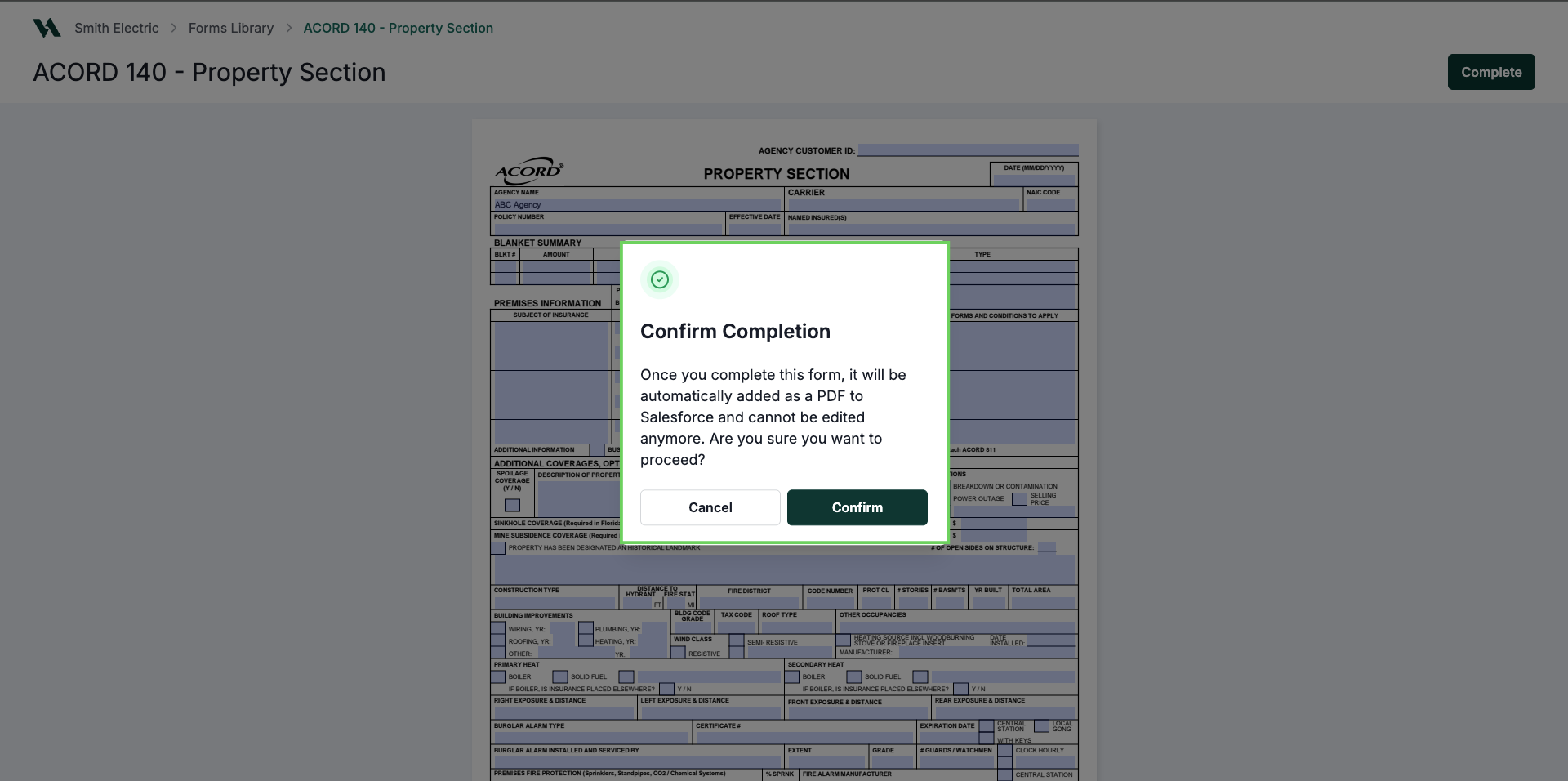
On the confirmation modal, click Confirm to finalize the form, or click Cancel to return to the editor.
Verify the completed form
Refresh the policy record.
Navigate to the Documents tab.
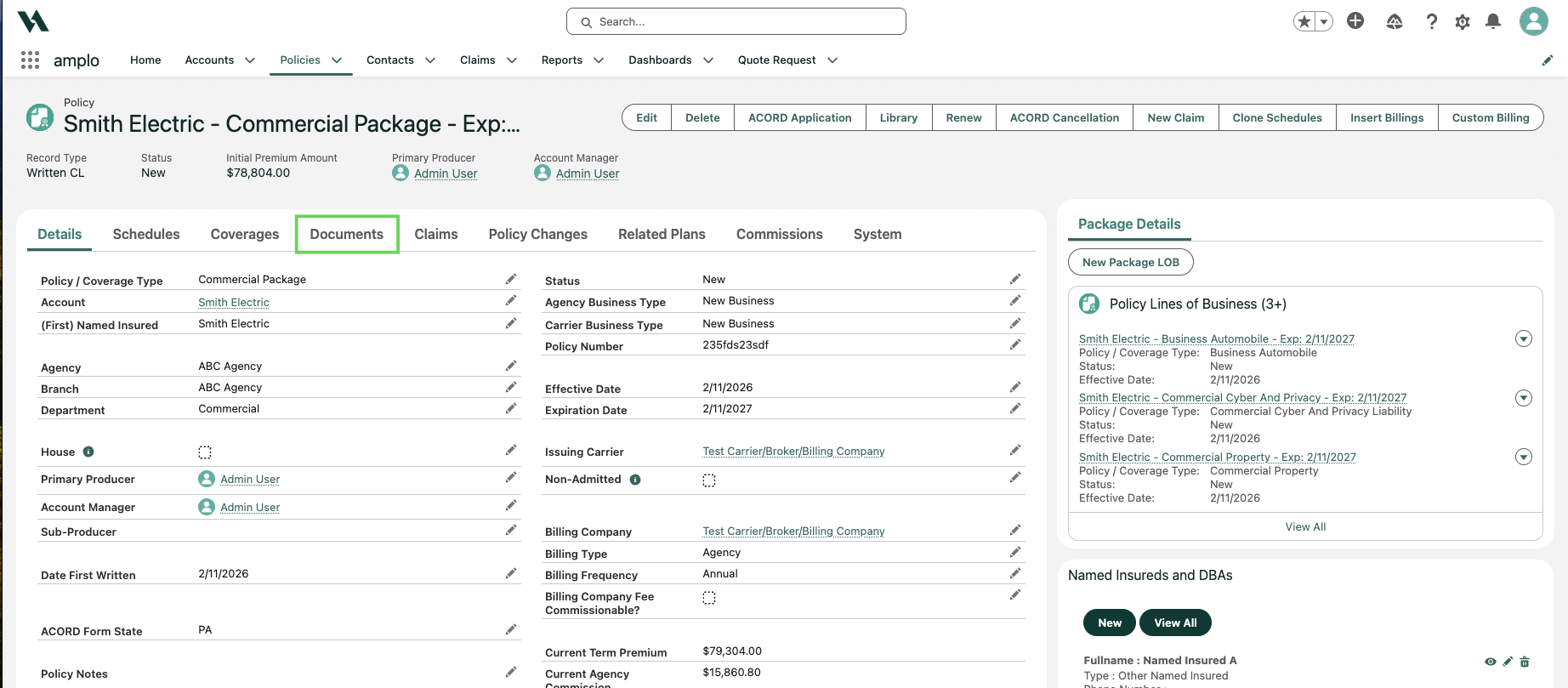
Click the hyperlink to expand the list of documents.

Confirm the finalized form appears in the list.
Note: If you open the ACORD Application and select a non-policy-based form (such as a certificate or claim form), amplo saves the form to both the policy and the related account.