Generate certificates for multiple holders
Last updated: July 6, 2026
Overview
Instead of creating certificates one at a time, you can now select multiple holders at once and amplo generates a separate certificate for each. Completed certificates save automatically to both the Documents tab and the new Holders tab in Salesforce. For more information on generating a single certificate, see 📄 Master Certificates .
Accessing certificates
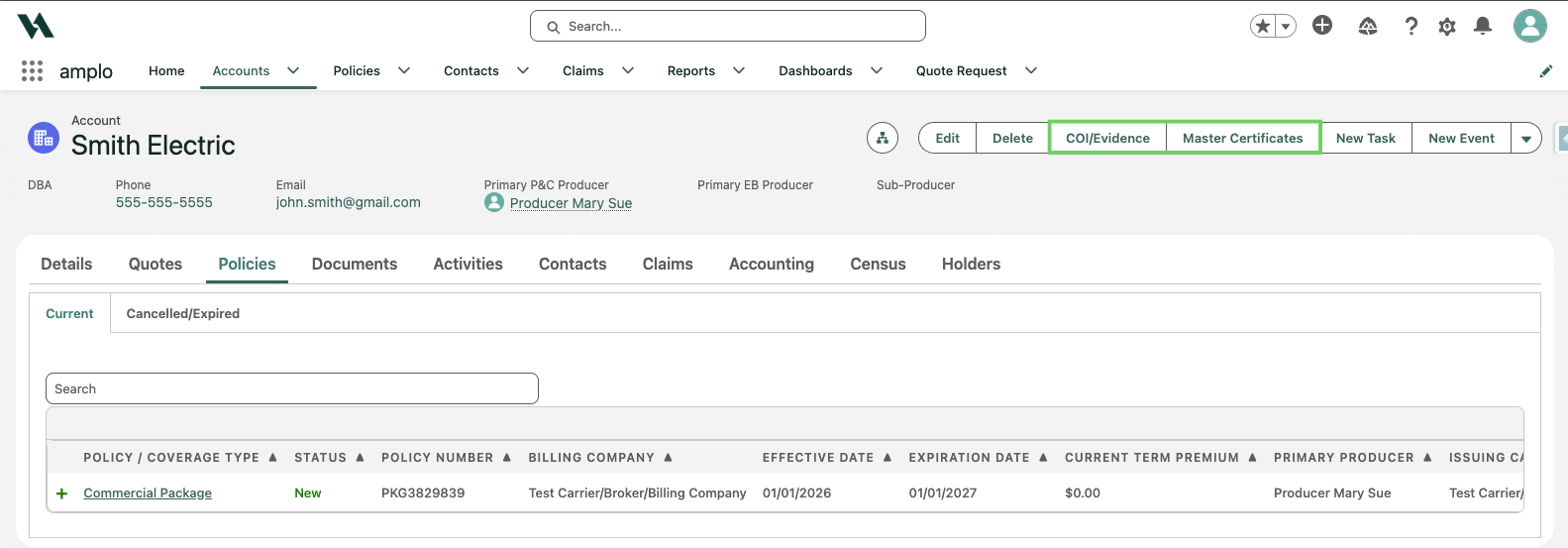
You can now access certificates through the Forms App from the Account record by using the COI/Evidence or Master Certificates buttons.
Accessing Holders
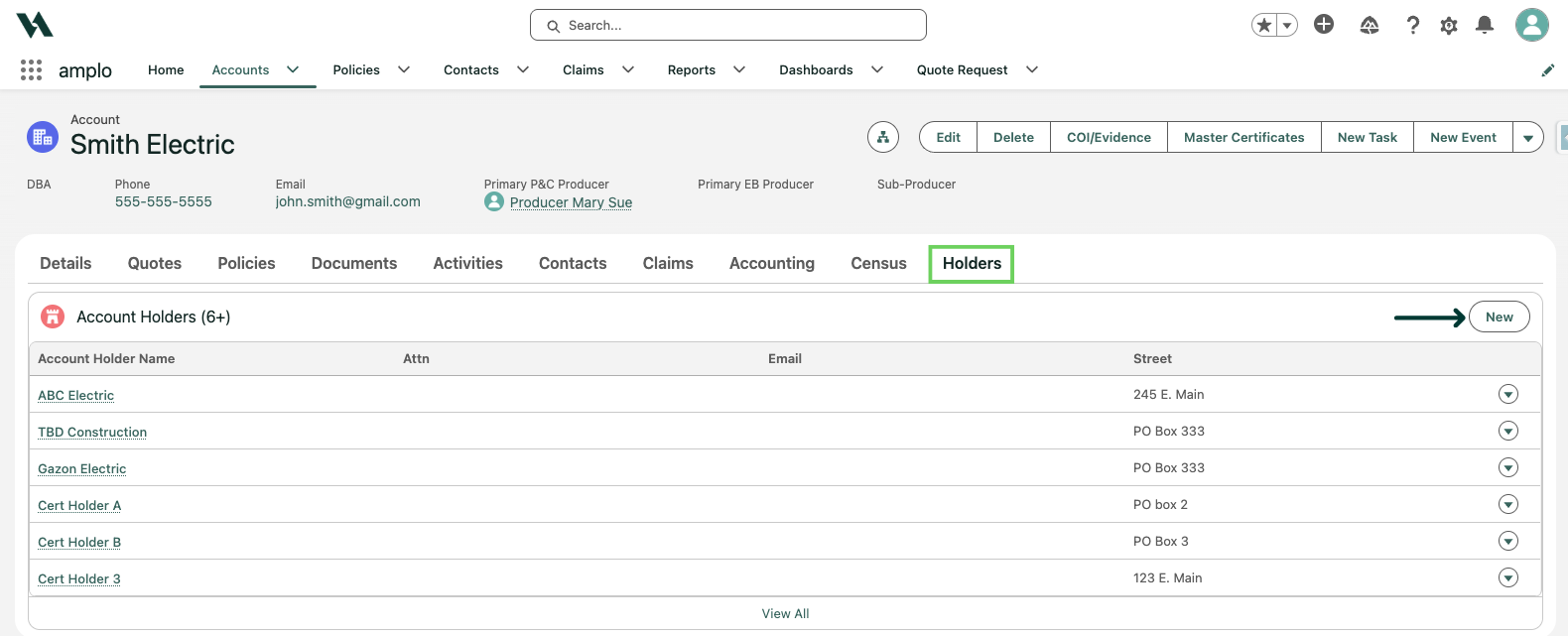
Account holders now have their own dedicated tab on the Account page. From this tab, you can add new holders and enter a unique description of operations for each certificate type.
Note: Existing customers and global holders will be migrated to the new Holders tab automatically. No action is required on your part.
Generating certificates for multiple holders
From the Account page, follow these steps to generate certificates for multiple holders at once.
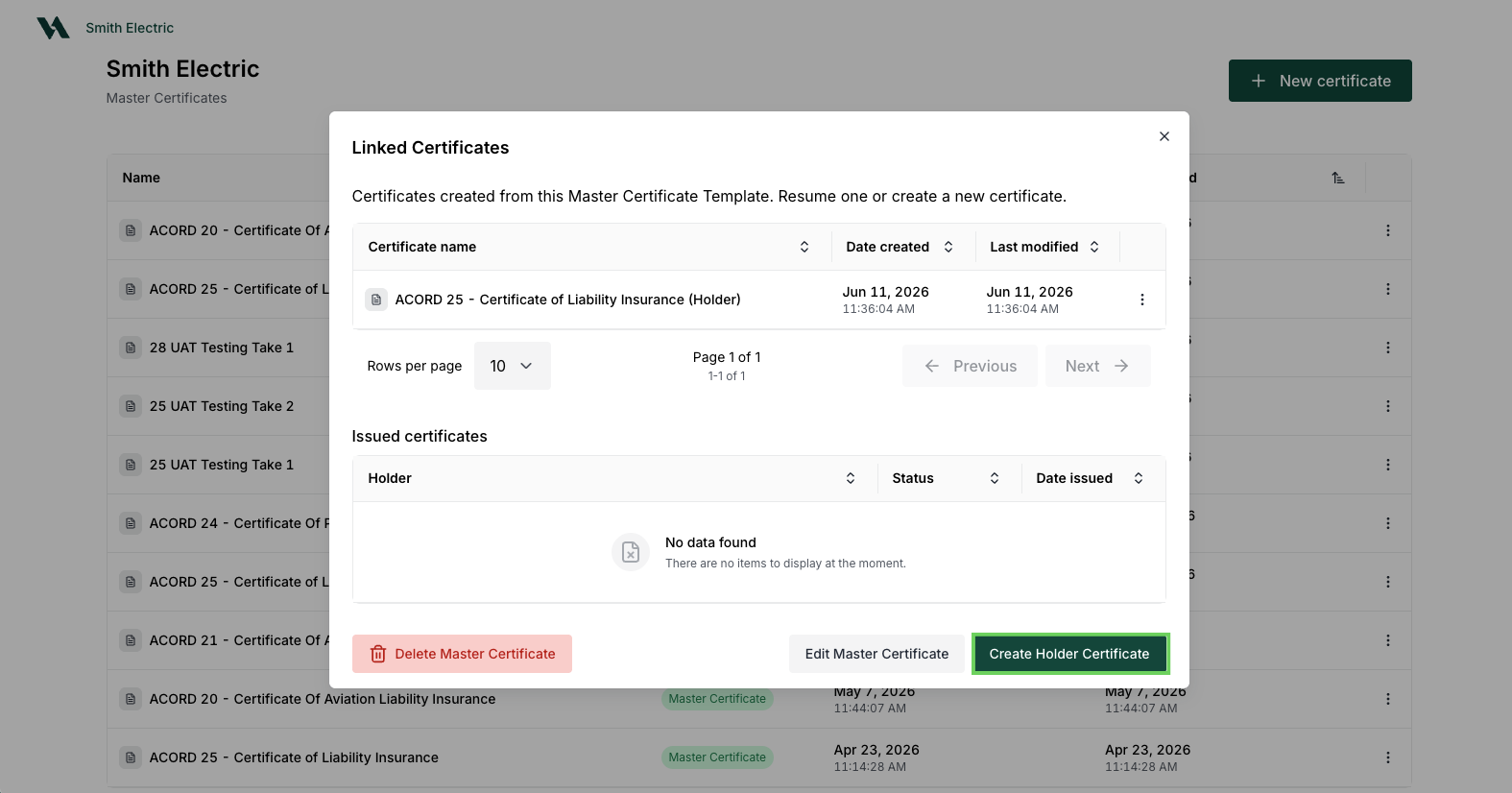
Select your certificate using the COI/Evidence or Master Certificates button.
Then, select Create Holder Certificate.
Once the certificate is open, you'll see a split screen view. The certificate appears on the left and the Output appear on the right.

Note: Some forms use Additional Interests instead of Holders. Additional Interests are managed on the policy record.
Select the holders or additional interests you want to include. You can search for a specific record of select multiple at once.
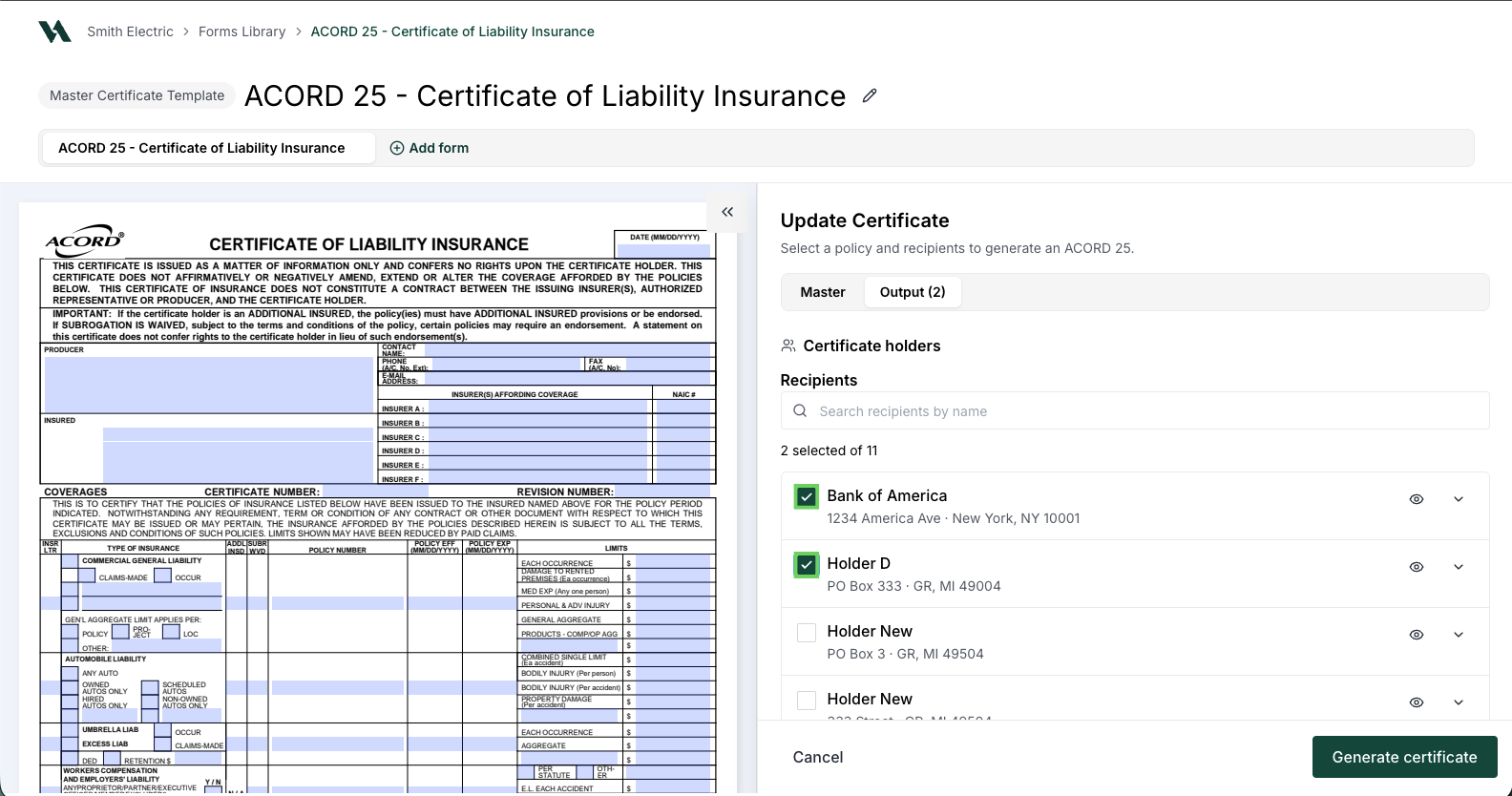
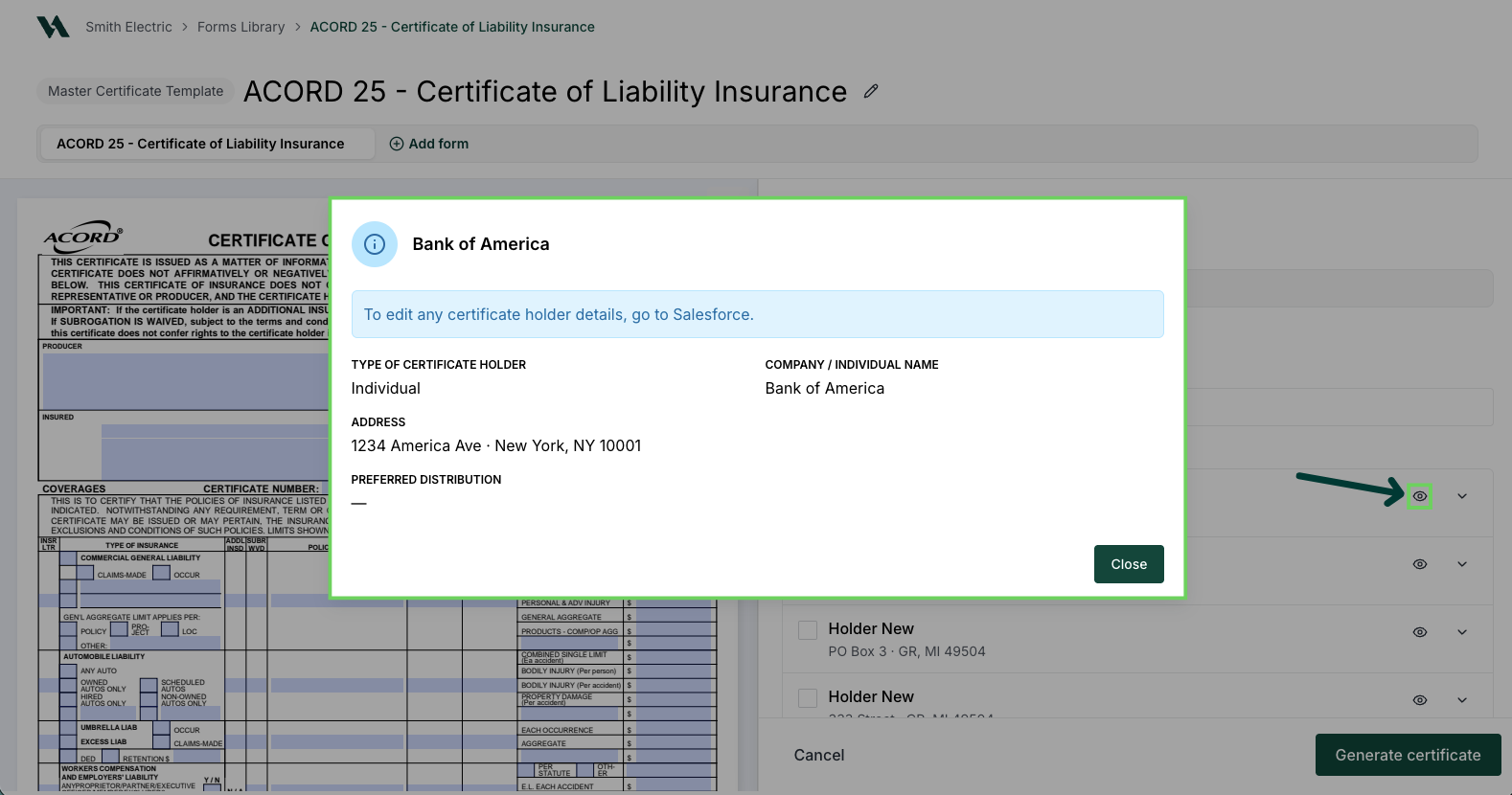
Select the eye icon on any record to view additional details from Salesforce before confirming your selection.
Note: You can create multiple descriptions of operations per certificate type, but the recommended practice is one per holder per certificate type. If a holder has a unique description of operations, it overrides the default from the master certificate template when their certificate is generated.
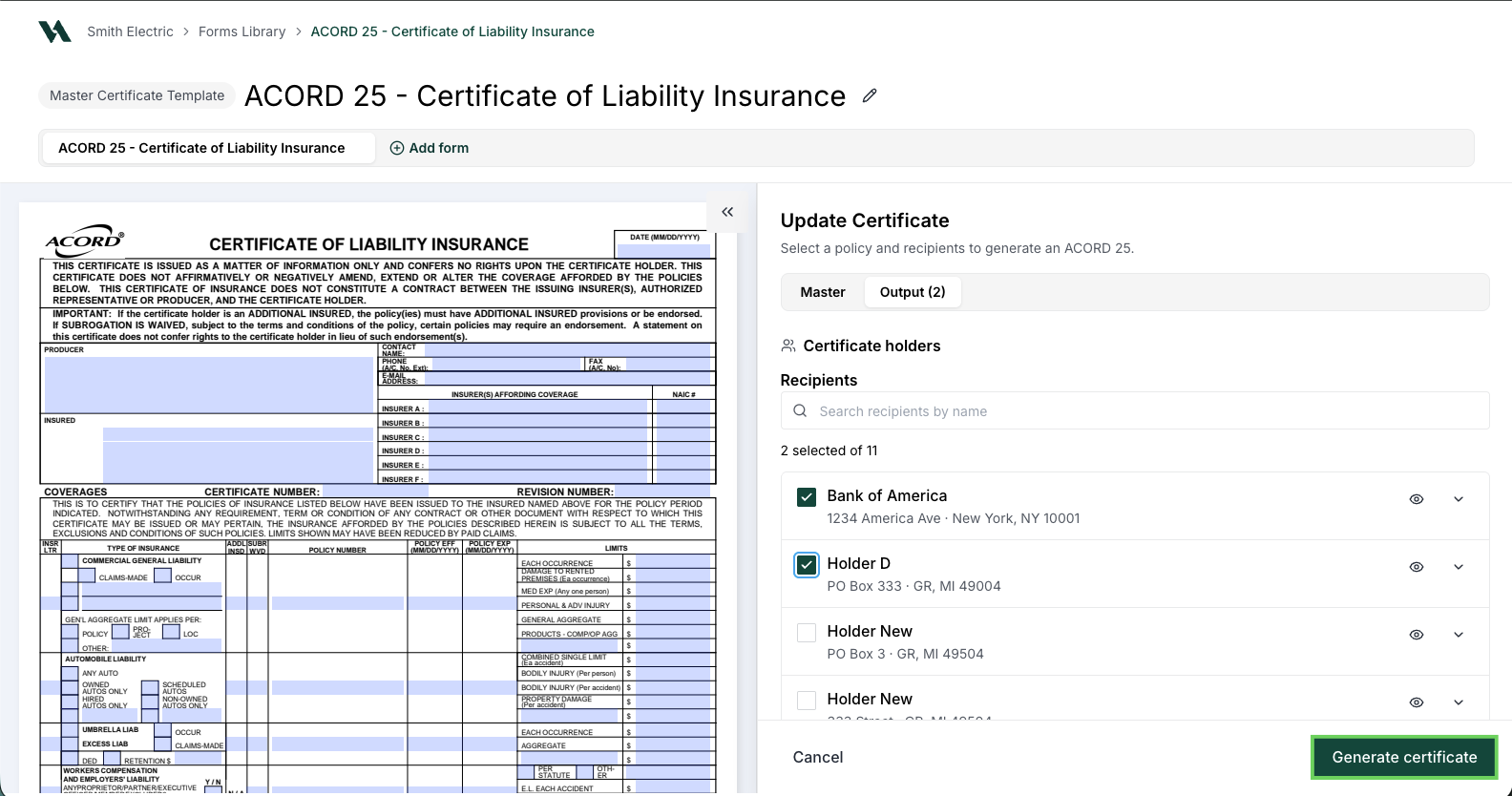
Select Generate certificate.
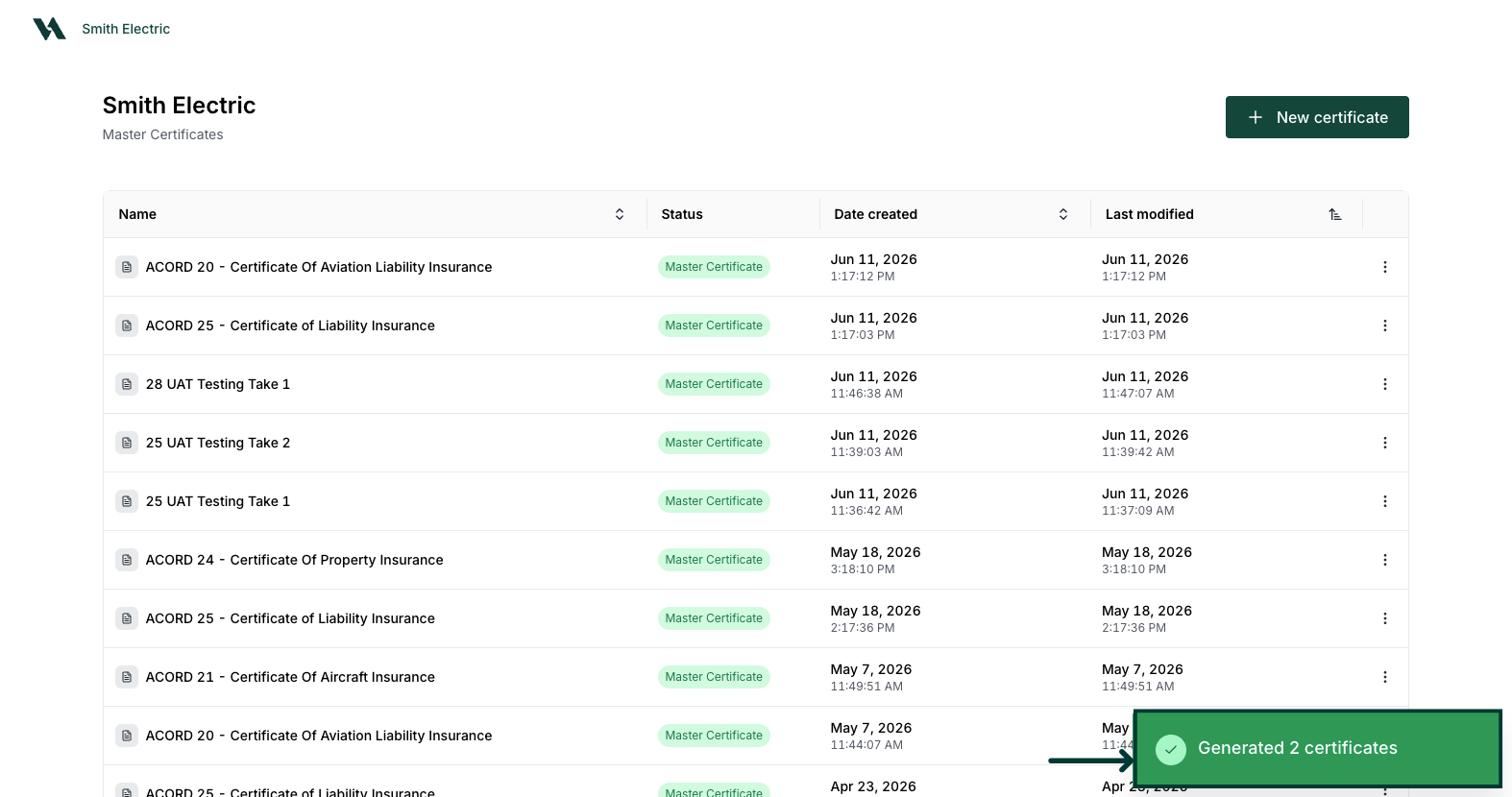
Once the certificates are generated, you'll be redirected to the Master Certificate List where a confirmation message appears.
View generated certificates
Generated certificates are saved to the Documents tab on the account. You can also find individual certificates under each holder's record. Follow the steps below to view them.
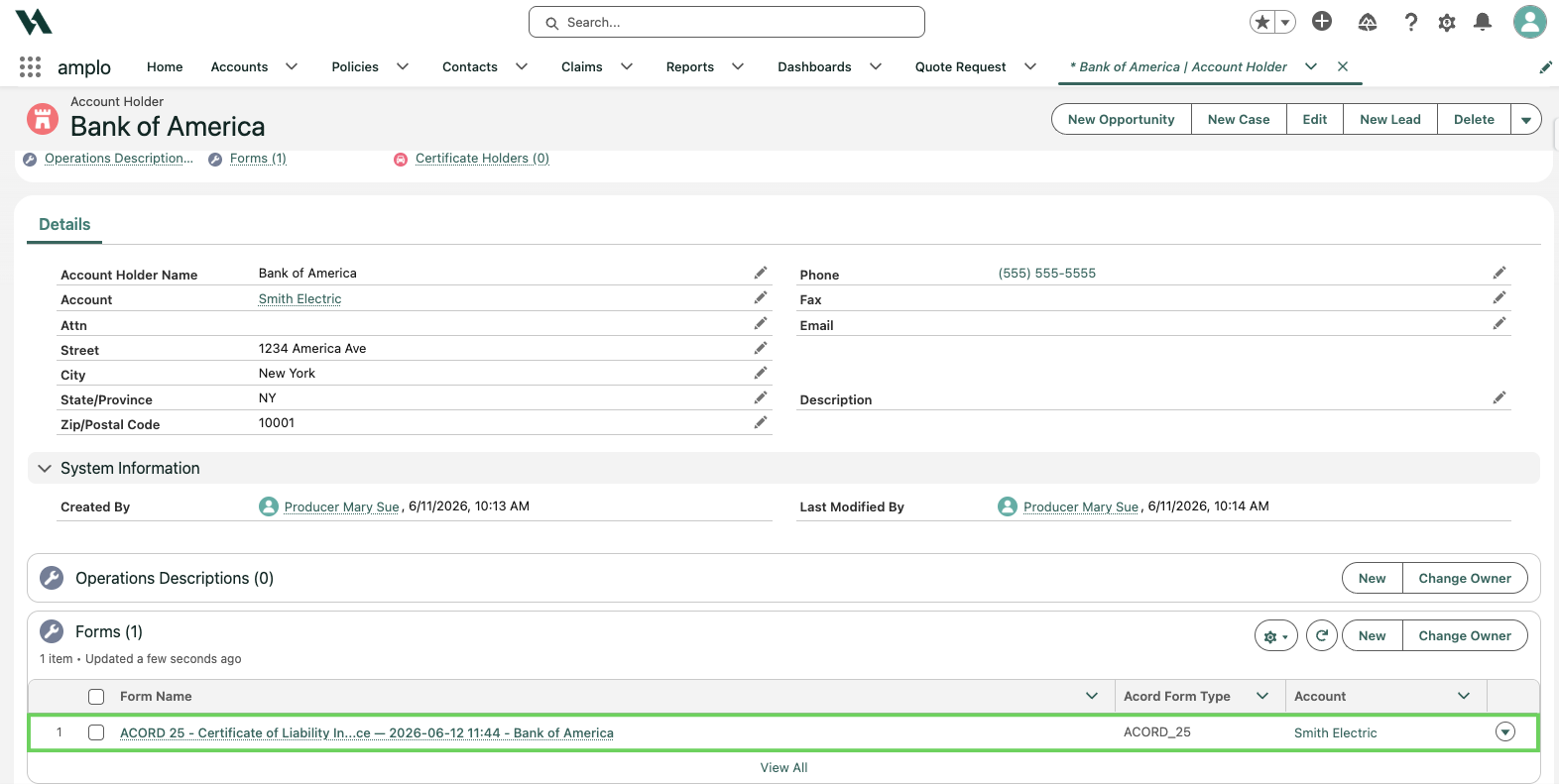
Select Holders on the Account record.

Click on the Account Holder Name. Select View All to expand your list.

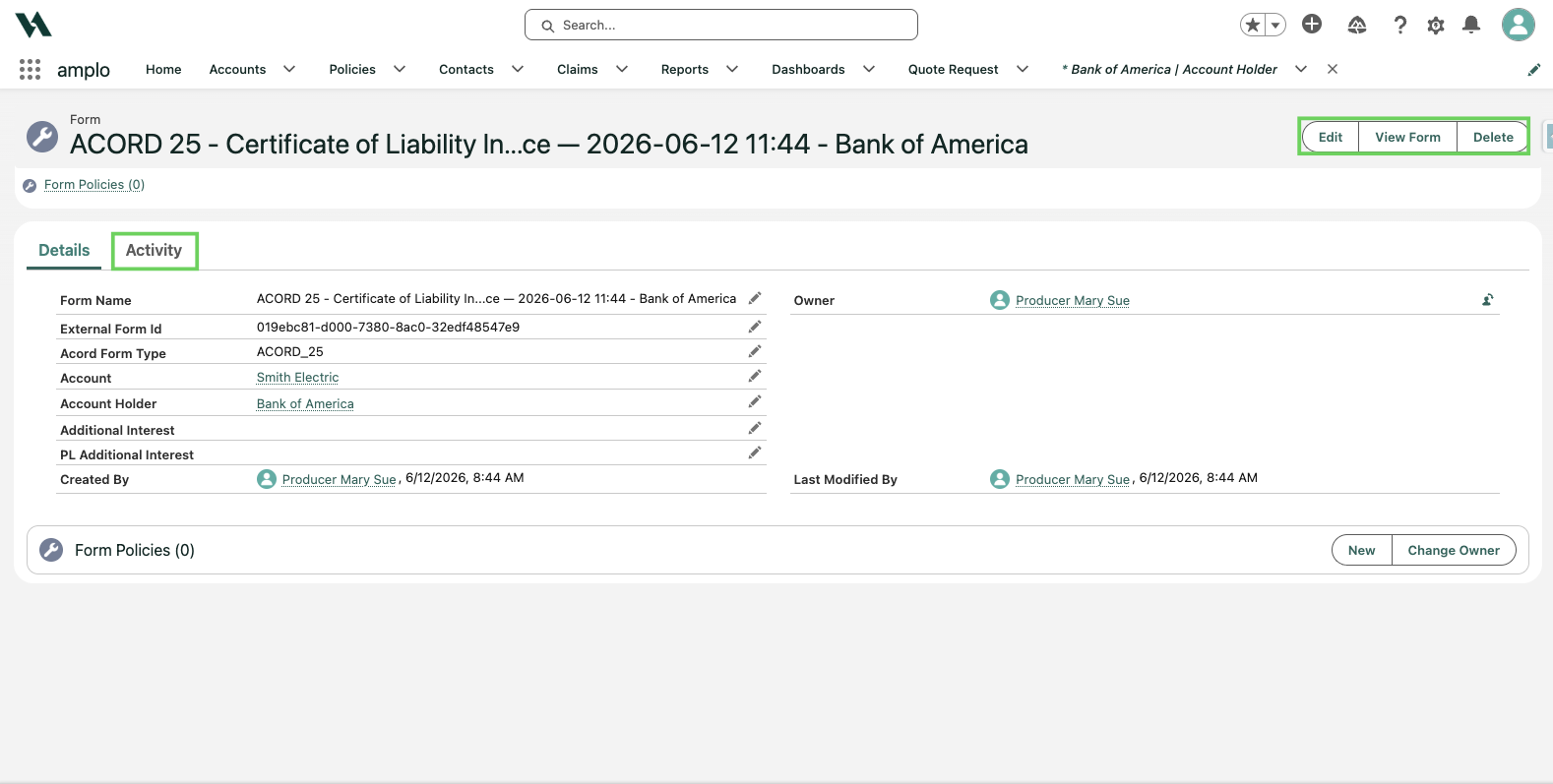
Click the certificate under Forms.
From here you can:
Edit: Update the name and other details about the certificate. To edit the certificate itself, return to the Forms App to re-generate a new certificate.
View Form: Review the saved PDF. To download it, navigate to the Documents tab.
Delete: Remove the form from the record.
Activity: View an audit history of changes made to the form.