Managing Named Insured and DBAs
Last updated: March 5, 2026
Overview
Accurate Named Insureds and DBAs (Doing Business As) ensure policies, applications, and certificates reflect the correct legal entity at the policy level. When you confirm these details upfront, you support clean form generation and reduce rework later in the process.
Note: A DBA does not have separate legal standing. In the event of a claim, the underlying legal entity is legally responsible.
Add a Named Insured or DBA
Open the appropriate Policy record.
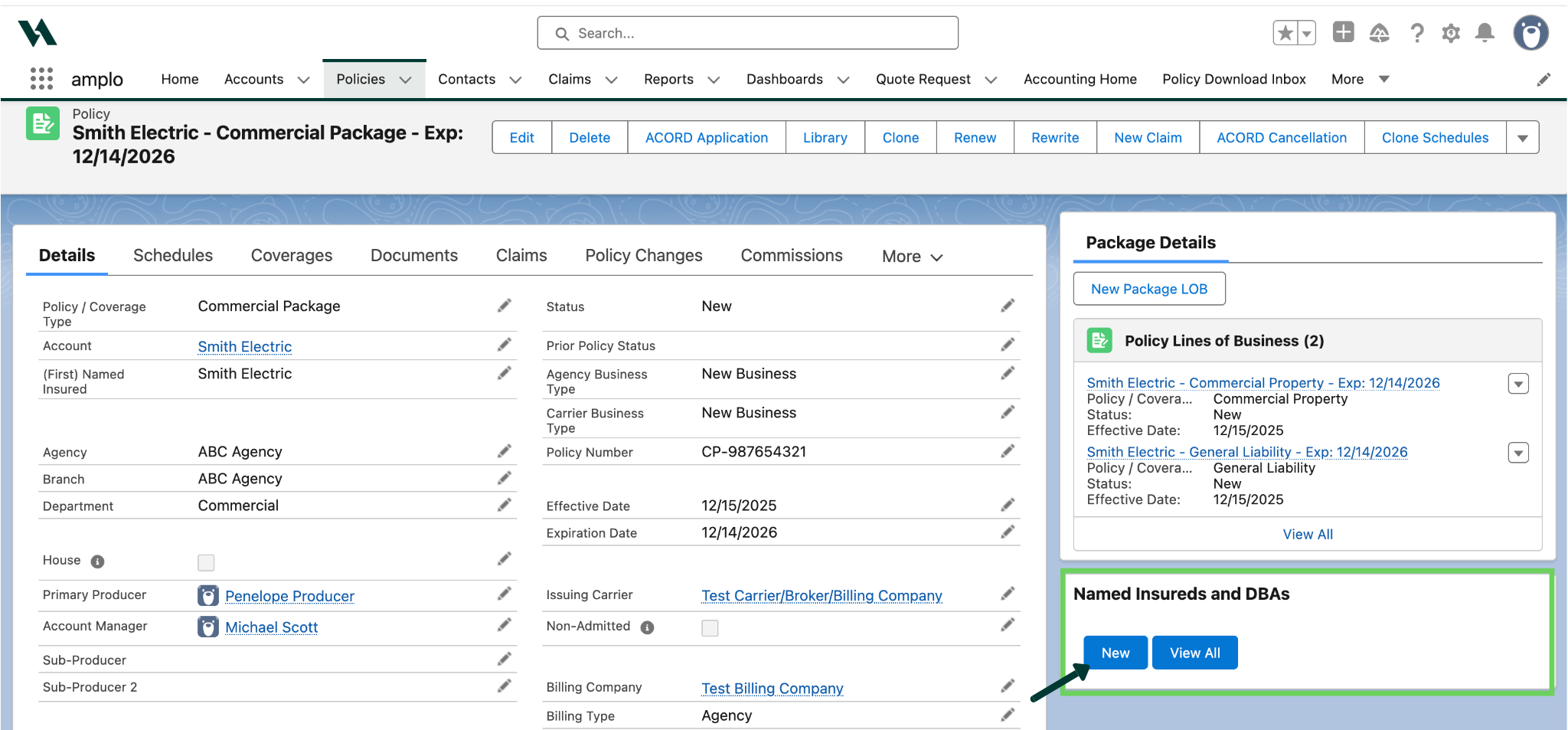
In the Named Insureds component on the right side of the page, select New.
When the edit screen appears, open the Type dropdown
Select the appropriate type:
DBA
Other
Other Named Insured
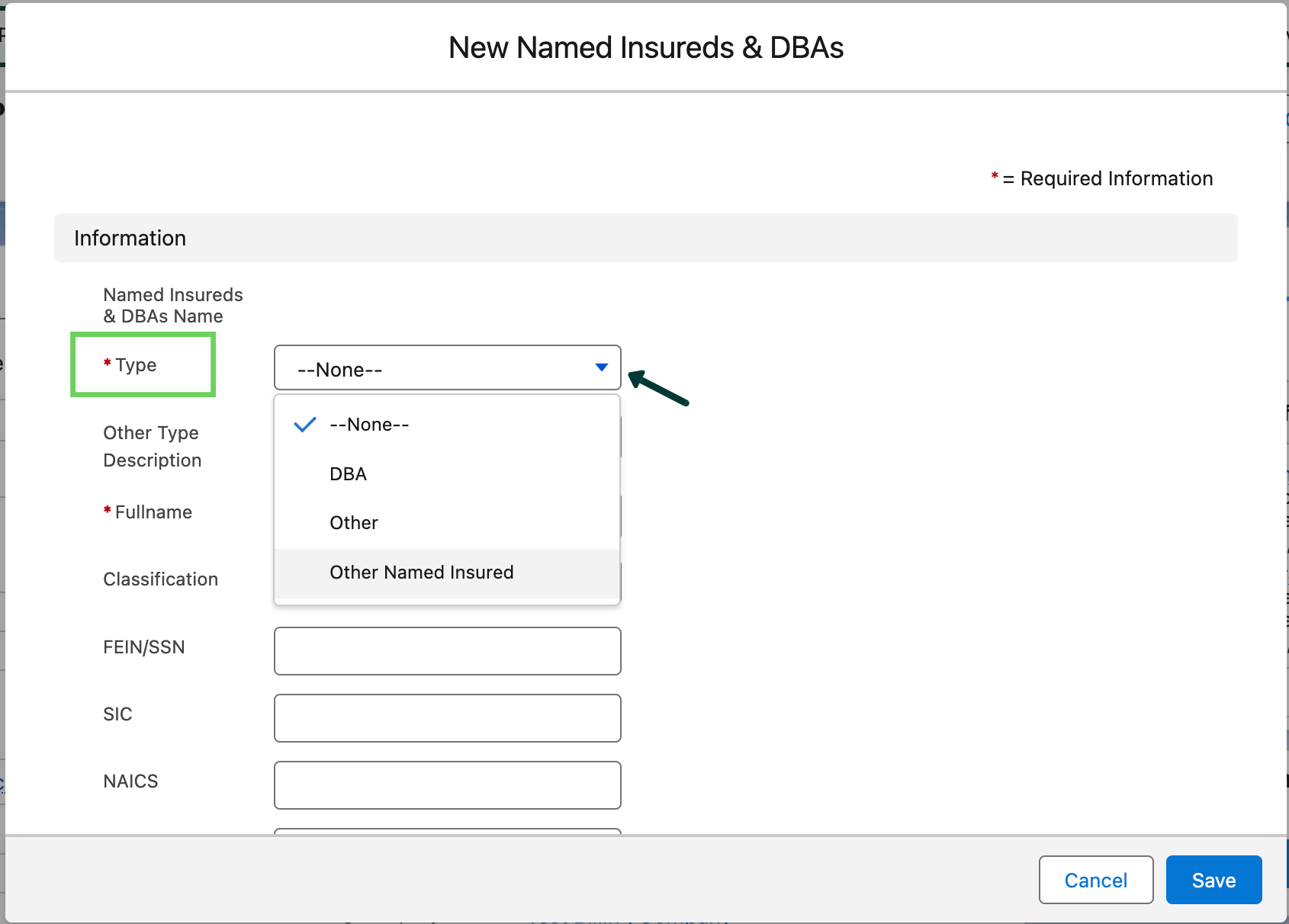
Complete the required fields and any additional relevant information.
Select Save.
Alternatively, you can edit an existing Named Insured or DBA at any time by selecting the edit pencil icon next to the record.
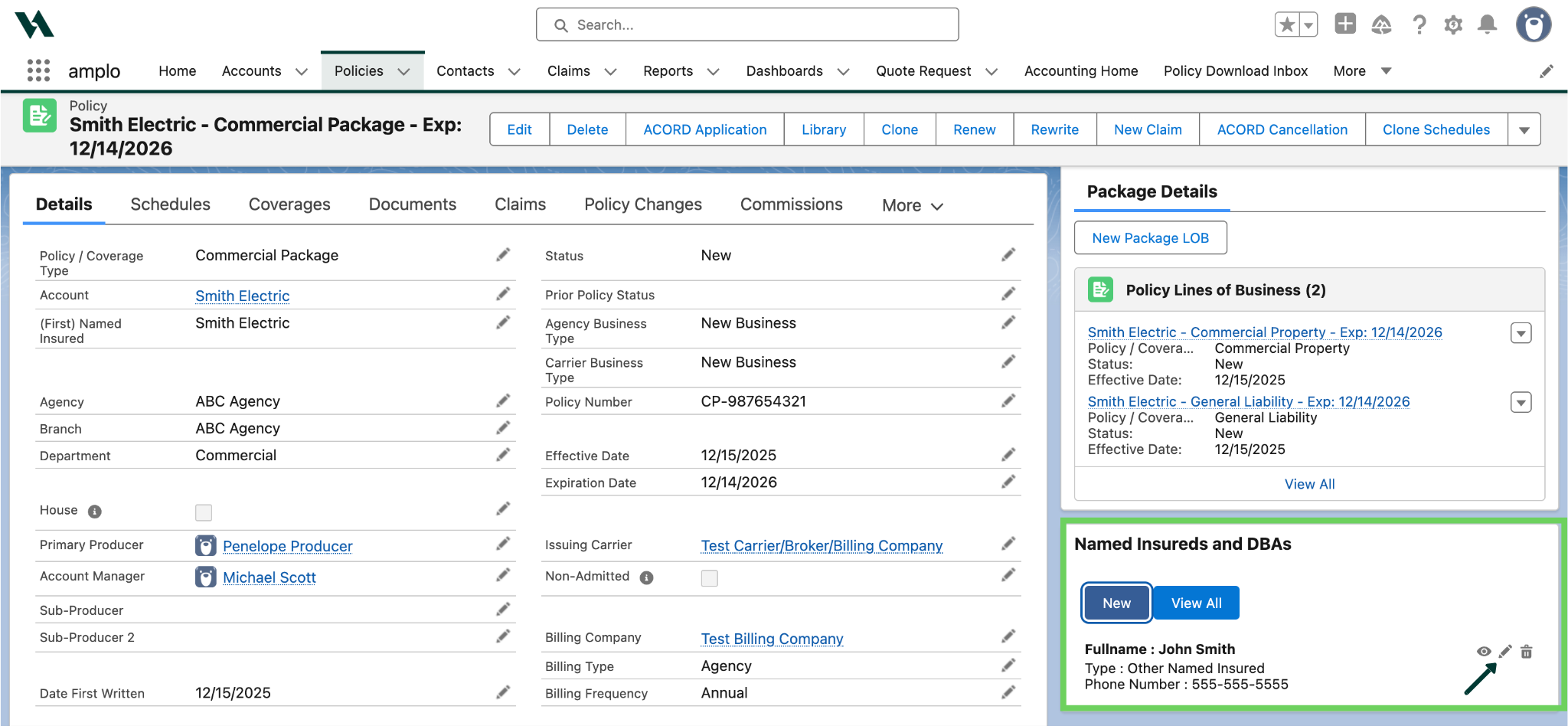
View all insured and DBAs
Open the appropriate Policy record.
In the Named Insureds component on the right side of the page, click View All.

Best practices
When adding a DBA:
Follow all carrier-specific guidelines.
Confirm naming requirements for policy issuance.
Verify certificate formatting expectations.
Ensure the underlying legal entity is clearly identified and associated with the DBA.
Review the policy setup before issuing forms or certificates.
Accurate setup at the start helps prevent downstream corrections and keeps documentation consistent across policies and certificates.
Troubleshooting
STRING_TOO_LONG error
If you see a STRING_TOO_LONG error when saving your Named Insured or DBA, the value entered exceeds the allowed character limit for one or more fields. To resolve the issue, refer to 📄 Resolving STRING_TOO_LONG Errorfor step-by-step troubleshooting guidance.