Creating a trial balance
Last updated: March 3, 2026
Overview
A trial balance verifies that total debits and credits match, confirming your books are balanced. It helps you identify posting errors, validate balances in key accounts like premiums, claims, receivables, and payables, and prepare accurate financial statements.
Running a trial balance — and reconciling it to your Accounts Receivable (AR) and Accounts Payable (AP) reports — is a critical month-end step. Together, these reports help you identify discrepancies, maintain compliance, and ensure your financial records are audit-ready. This article explains how to:
Run a trial balance
Create an Accounts Receivable (AR) report
Create an Accounts Payable (AP) report
Reconcile differences
Run a trial balance
Navigate to the Reports tab, then click All Reports.
Search and select Trial Balance.

Click Edit.

Ensure the following fields are in the report:
Financial Cube Name
Transaction: Transaction Name
#Amount
Account
# Opening Balance
# Current Period
# Year to Date
Click the dropdown on the Save button and click Save As to save the report.
Give the report a name, then click Save.

Create an Accounts Receivable (AR) report
Use the AR report to break down the total receivable balance into customer, policy, or transaction-level detail. This helps confirm the AR balance shown on the trial balance is accurate.
Navigate to the Reports tab, then click All Reports.
Search and select Detail of AR - All Accounts.
Click Edit.
Ensure the following fields are in the report:
Financial Cube Name
Transaction: Transaction Name
#Amount
Account
#Opening Balance
#Current Period
#Year to Date
Ensure the following filters are applied:
All Financial Cubes
Created Date: All Time
Cube Type: not equal to Current Year Earnings
Ledger Type: equals Transactional
Accounting Period: Accounting Period Name YYYY-MM
GL Account Name: contains 1200
Click the dropdown on the Save button and click Save As to save the report.
Give the report a name, then click Save.

Create an Accounts Payable (AP) report
Use the AP report to review what the agency owes and confirm the payable balance shown on the trial balance.
Navigate to the Reports tab, then click All Reports.
Search and select Detail of AP - All Accounts.
Click Edit.
Ensure the following fields are in the report:
Financial Cube Name
Transaction: Transaction Name
# Amount
Account
# Opening Balance
# Current Period
# Year to Date
Apply filters:
All Financial Cubes
All Time
Cube Type: not equal to Current Year Earnings
Ledger Type: equals Transactional
Accounting Period: Accounting Period Name YYYY-MM
GL Account Name: contains 2000
Group results by Account.
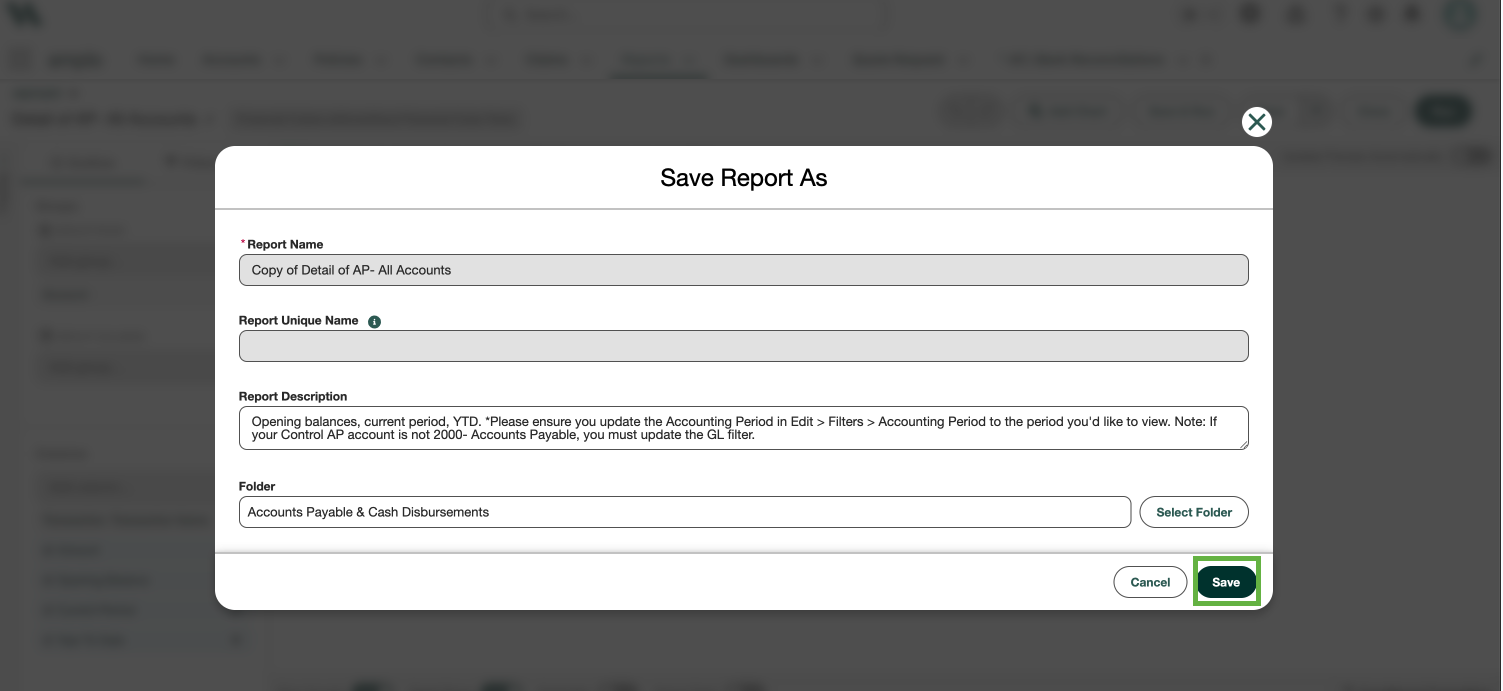
Click the dropdown on the Save button and click Save As to save the report.
Give the report a name, then click Save.
Reconciling differences
At month end or during an audit, reconcile the AR and AP reports to the trial balance.
Compare the total AR report balance to the Accounts Receivable account on the trial balance.
Compare the total AP report balance to the Accounts Payable account on the trial balance.
If the totals match, your subledger and general ledger are aligned. If they do not match, review for:
Journal entries posted directly to AR or AP
Unapplied payments
Data sync issues
Timing differences between periods
Resolving discrepancies before closing the month helps ensure accurate financial statements and audit-ready reporting.