ACORD form errors
Last updated: July 27, 2026
Overview
Generating ACORD forms is an integral part of daily insurance workflows. If you encounter errors while generating ACORD forms, use this article to troubleshoot and resolve them.
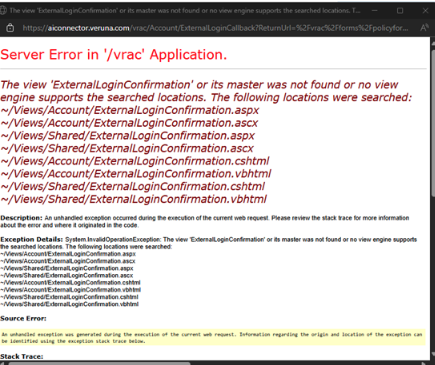
Understanding tokens
The ACORD application connects Salesforce to the external tool that houses and maps ACORD forms. This connection is managed through an API token, and each user must have their own for the integration to work. Token issues are a common cause of errors in the ACORD application.
Clear browser cache
Each browser has its own steps for clearing cache — if you're unsure, search online for instructions specific to your browser. Follow these guidelines when clearing your cache:
Set the time range to All time, not just the last few hours or days.
Make sure all cached data is removed.
Restart the browser after clearing.
Note: Clearing your cache will require you to re-enter passwords for any previously open sessions and may affect password managers. Make sure you have your passwords or are aware of your internal policies before completing this step.
Manually reset the API token
If the issue persists after clearing the cache, manually reset the affected user's API token.
Log in as an admin user or a user with permissions to manage other users.
Click the gear icon in the top right corner and select Setup.
In Quick Find, search for and select Users.
Find the affected user's profile and click into it.
Click Edit.
In the Veruna API Token section, locate the VerunaApiToken field and delete all text in the field.
Save your changes.
Re-establish the token
With the token removed, the user can reauthenticate to generate a new one.
Log into the system.
Open any policy page.
Click the ACORD Application button in the actions header.
Follow the prompts to accept and configure a new API token.
Note: If the issue persists after completing these steps, contact support@amplo.com to reset the token at the org level.