Creating a CL package policy
Last updated: March 6, 2026
Overview
A package policy groups multiple child lines of business (LOBs) under a single parent policy record. This structure keeps related coverage organized while maintaining visibility into each individual LOB. There are two primary ways to view the child LOBs associated with a package policy:
Package Details on the policy page
The primary policy page includes a dedicated Package Details on the right side of the record. From this component, you can:
View all child LOBs associated with the package
Open individual LOB records to manage LOB details
This is the most direct way to review and maintain package structure.
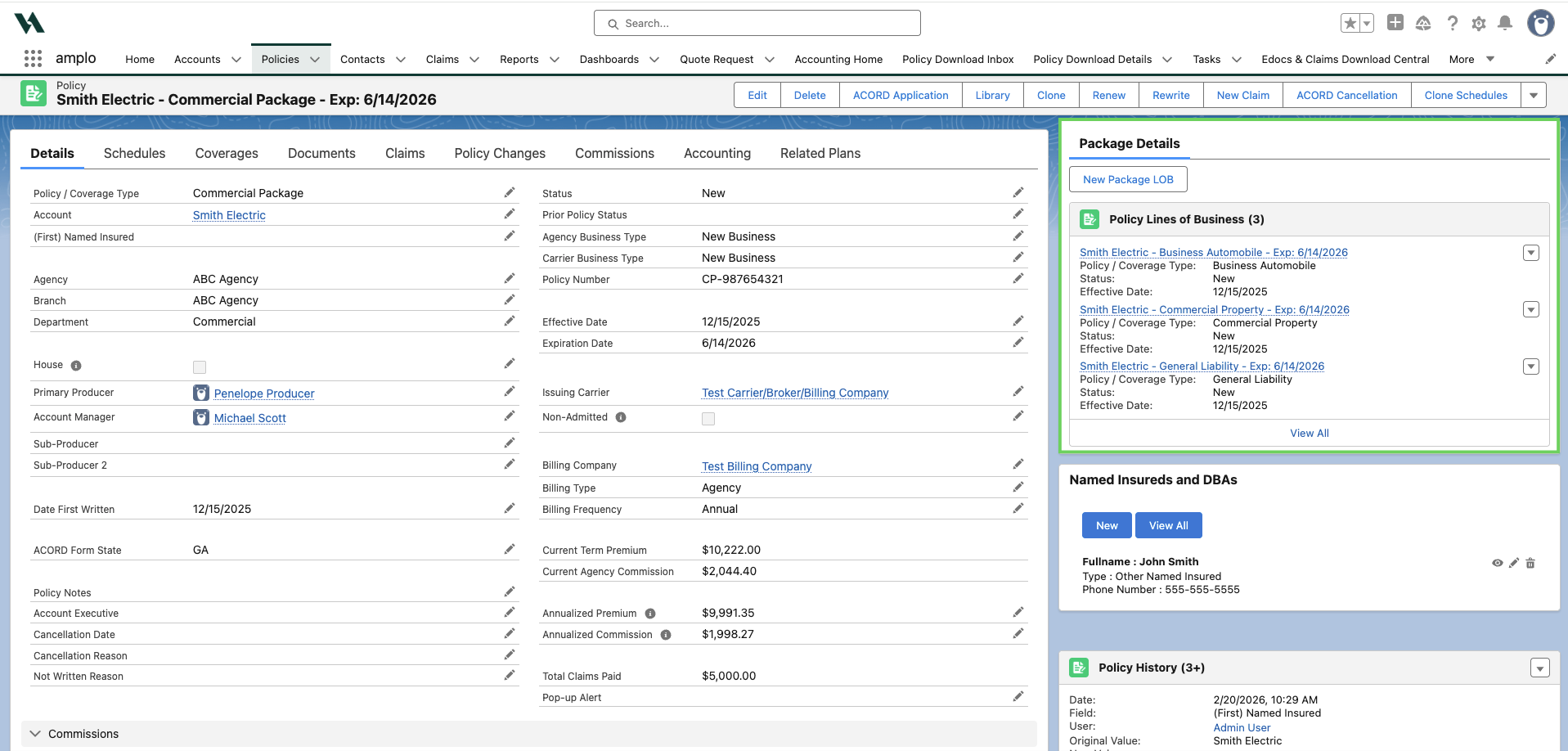
You can also view child LOBs using the Policy Lines of Business related list on the policy record.

Note: This related list may be hidden by default, since the LOB component serves a similar purpose. However, it can be made visible if needed for your workflow by 📄 Adding components to a record page.
Salesforce reports
You can build a report to identify and analyze child LOBs:
Filter records where the record type name includes “LOB.”
Use the Package Parent Policy field to trace the relationship between parent and child policies.
Use the filters shown in the screenshot below to recreate this report.

For more information, see 📄 Building reports.
This articles explains the different package policy types and how to create a CL package policy. For guided steps on creating a commercial package policy, refer to 📄 Creating a CL monoline policy.
Package policy types
amplo currently supports the following package policy types:
Agriculture
Commercial
Personal
Create a CL package policy
From the account record, select New CL Policy.

Once the New CL Policy modal opens, select Commercial Package as the Policy/Coverage Type.
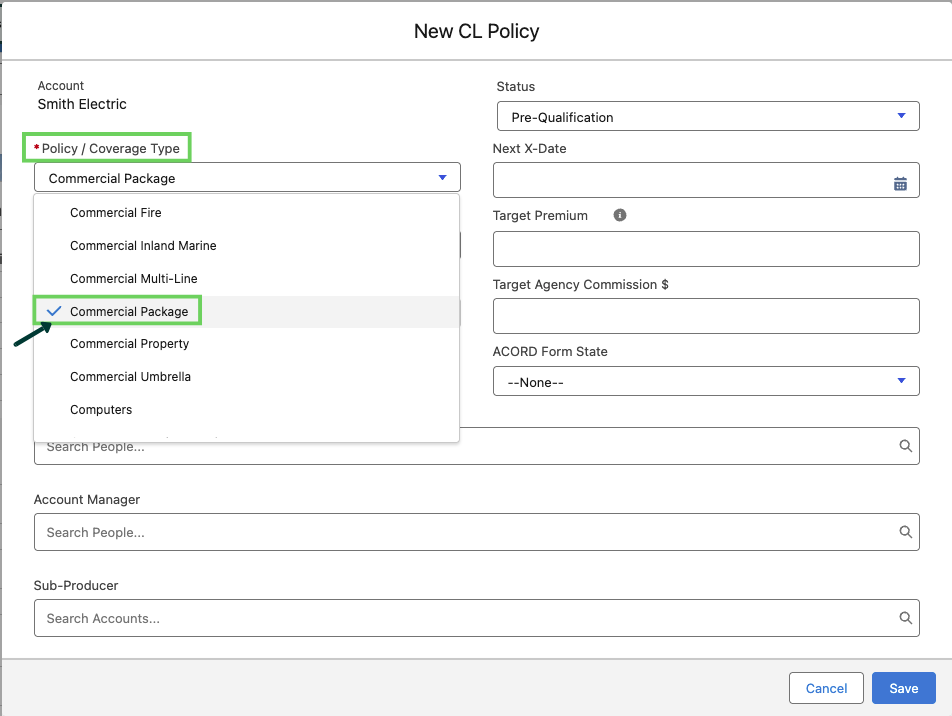
Note: If you have the remaining information available, enter it now to prevent validation errors later.
Click Save.
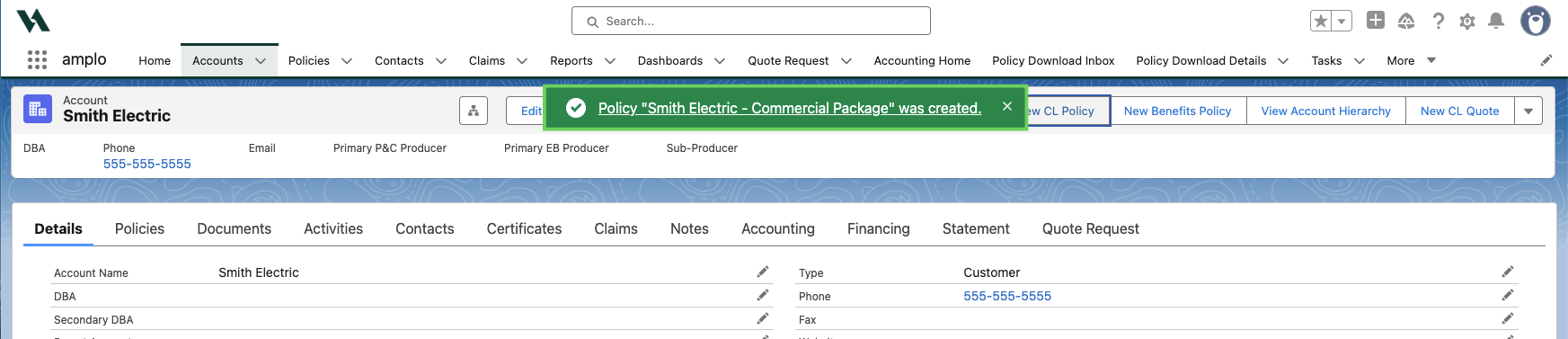
Once you select save, a confirmation will appear in the header. Select the hyperlink in the confirmation header to navigate to your new policy record.
On the new policy record, select edit pencils to enter the Effective Date and Expiration Date.

Select Save.
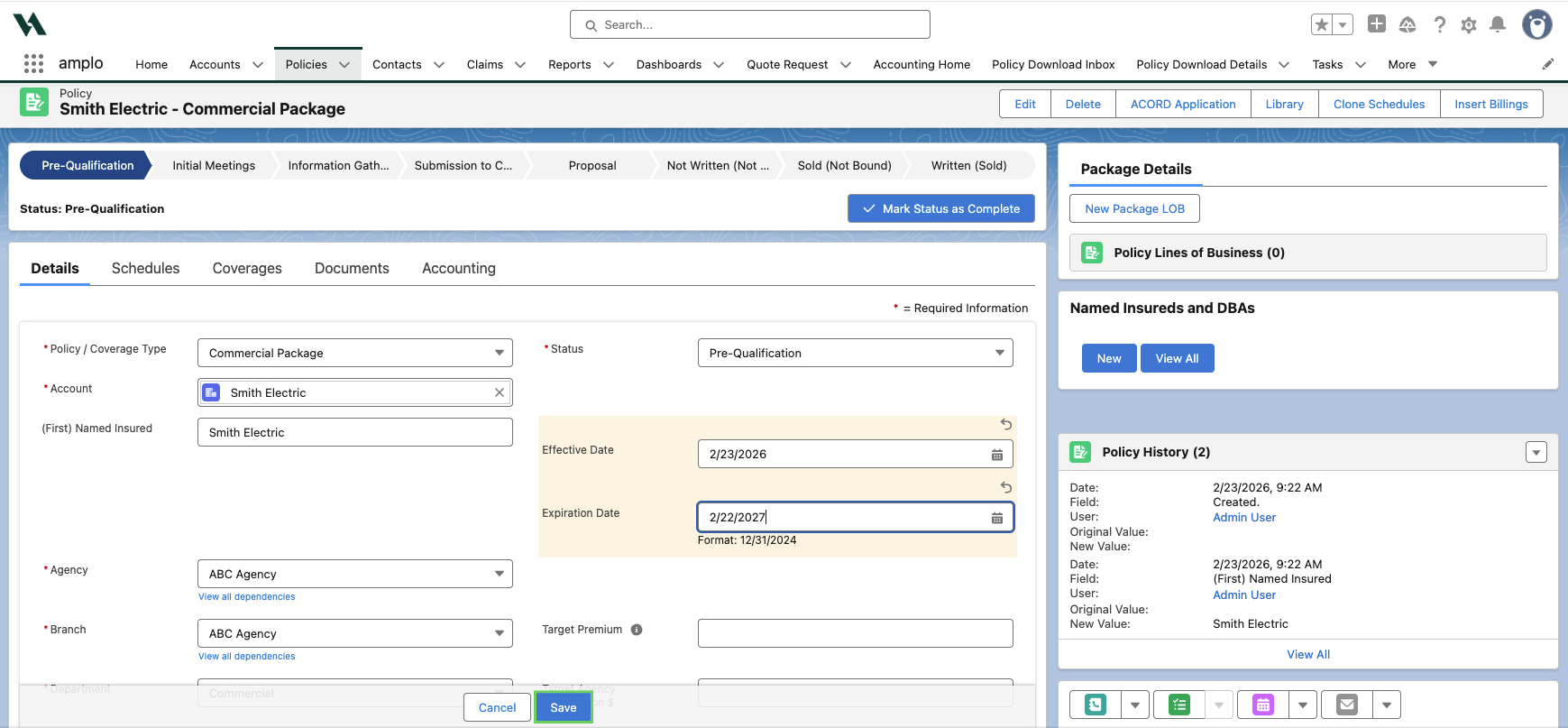
Note: Available policy packages depend on whether you’re working with a commercial or personal line. If you don’t see the package you need, contact your system admin or email support@amplo.com.
Add Lines of Businesses (LOBs)
From the package policy record, select New Package LOB within the Package Details section.

Once the new LOB modal opens, choose the appropriate Policy/Coverage Type, fill in the information available and select Save.
If you are creating multiple lines of business (LOBs), select Save & New.
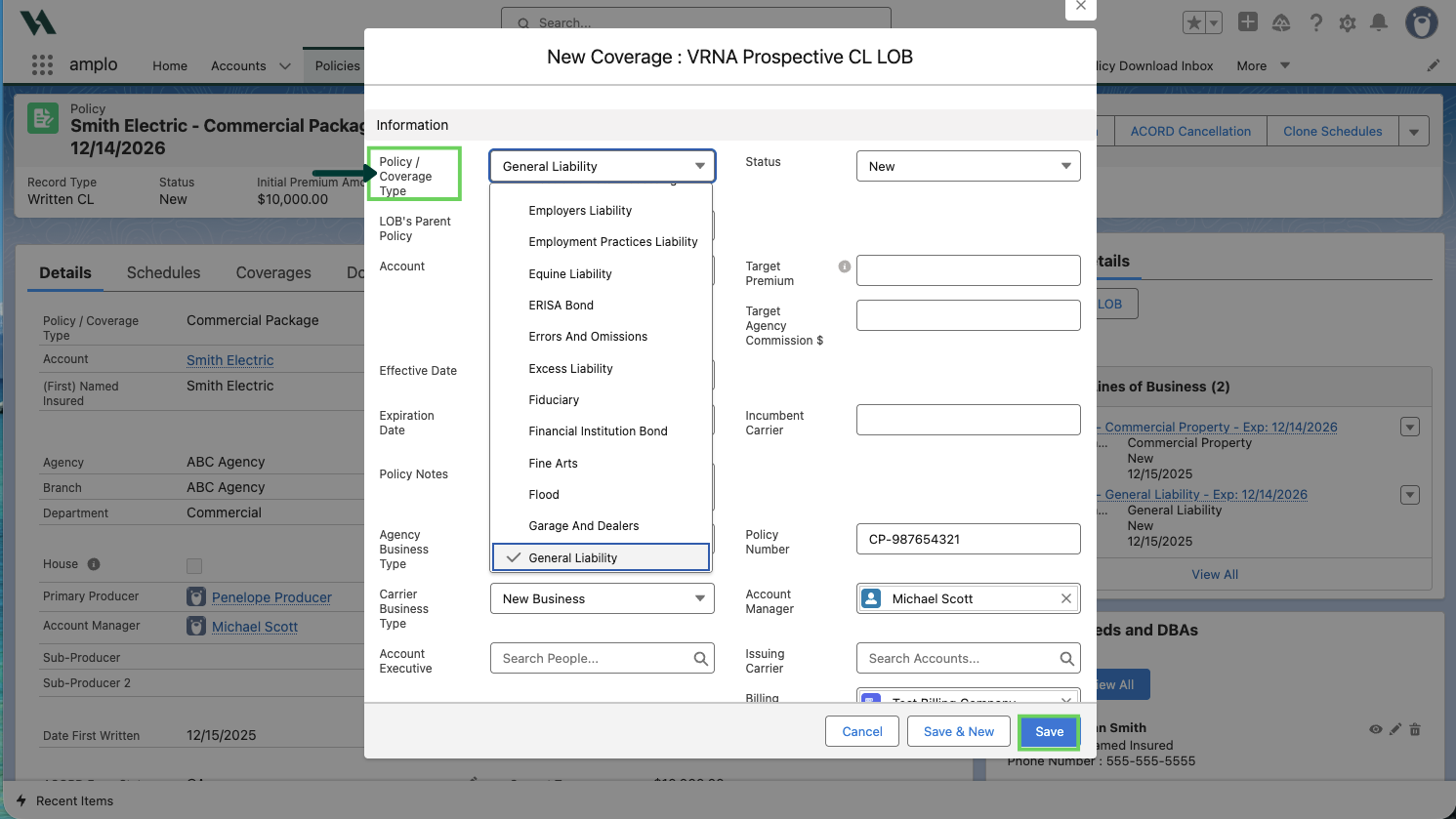
Note: The Effective and Expiration Dates on your LOB(s) will autofill with the same dates you populated on the package.
Update the sales stage
Once the package and LOBs are created:
Locate the Sales Path at the top of the policy record.
Click the Information Gathering stage.
Select Mark as Current Status. This keeps reporting and pipeline tracking accurate.
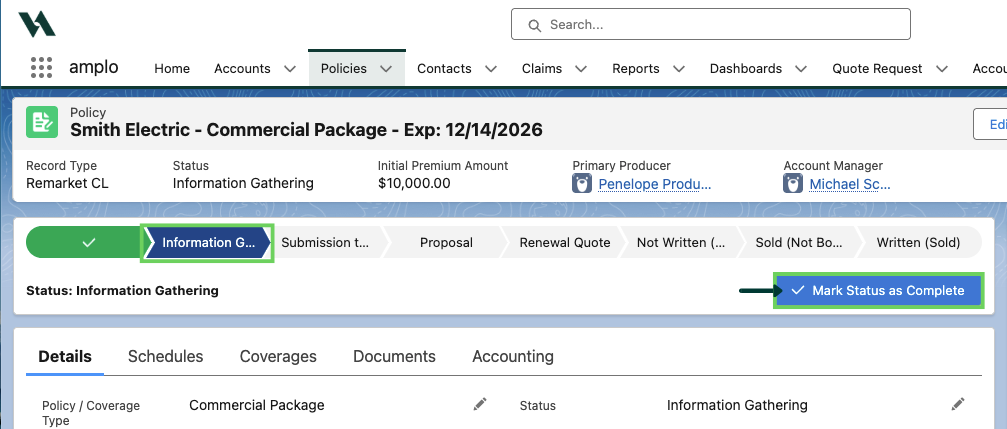
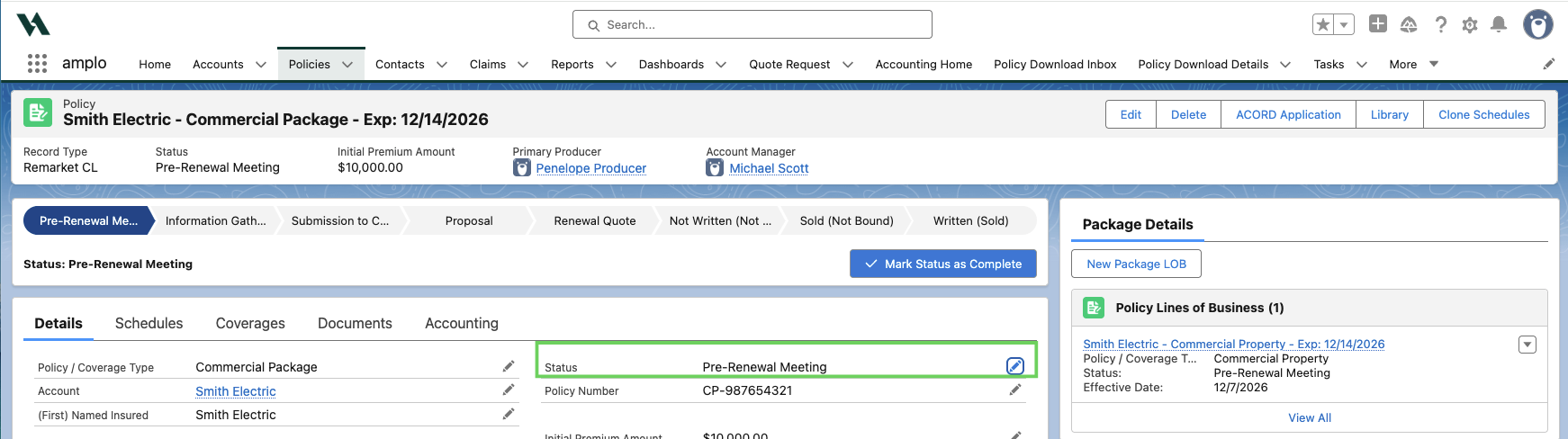
Note: You can also use the edit pencil next to the Status on the package policy details page.