Clearing Stuck Job Queue Records After an Apex Timeout
Last updated: August 18, 2026
Overview
During policy renewal, amplo runs a background Apex job called JobQueueRunner to create renewal policies from their original records. If a large batch of renewals fires at once, individual job steps can time out and get stuck instead of completing. When that happens, job queue records stall in a Pending, In Progress, or Ready state, and the org starts generating repeated Apex timeout error emails until the stuck records are cleared.
Identify stuck queue records
To identify a stuck job queue record, look for one or both of the following:
An Apex error or exception email referencing a failed queueable job due to an Apex timeout error.
A failed JobQueueRunner Apex job in Setup, under Apex Jobs.
Clear stuck records
To resolve this, upgrade to amplo 2.13 or later. This release automatically restarts the job queue on a set schedule, so it picks up pending jobs without manual intervention.
Clear stuck records (Salesforce Managed Package 2.12 and earlier)
Build a report of stuck records
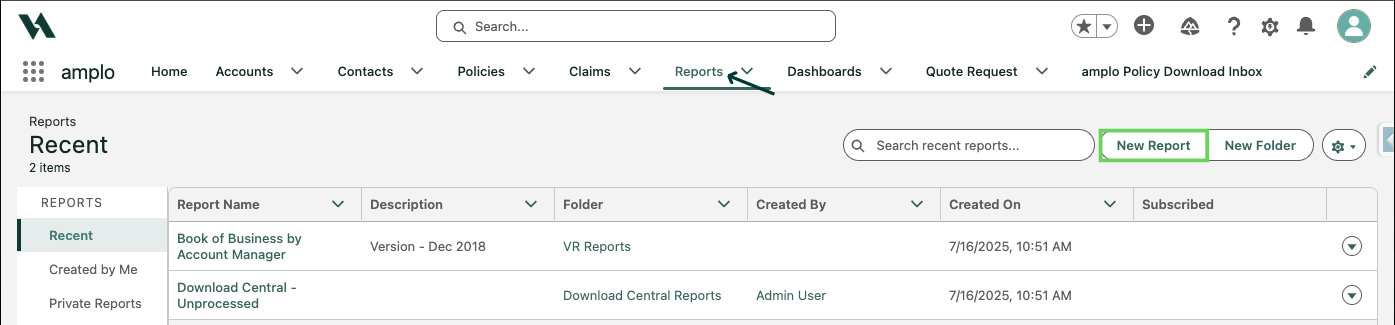
Navigate to Reports and click New Report.
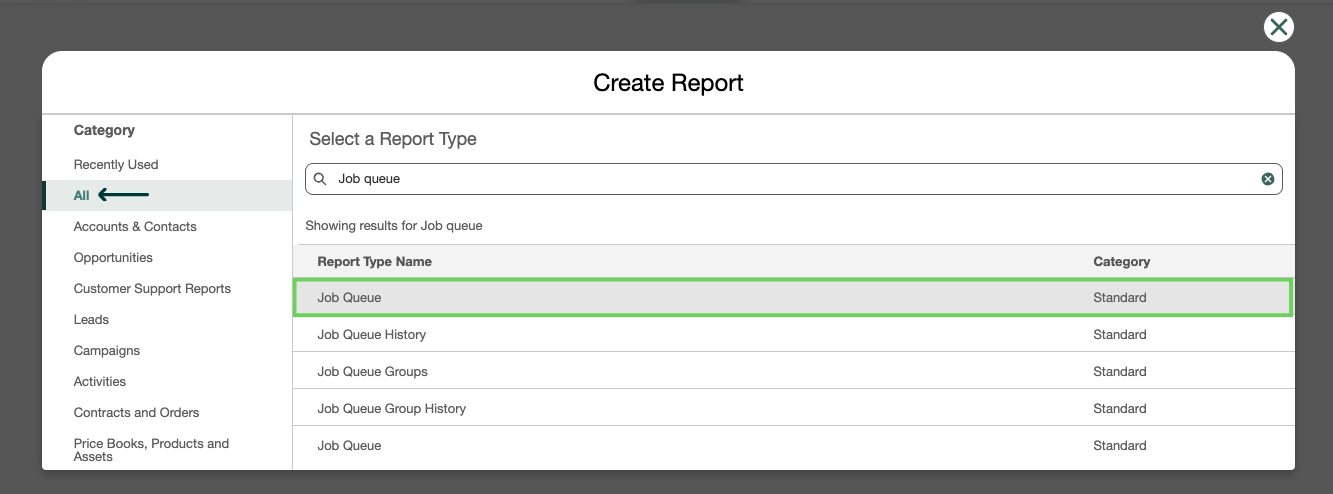
Select All under category. Then, search and select Job Queue.
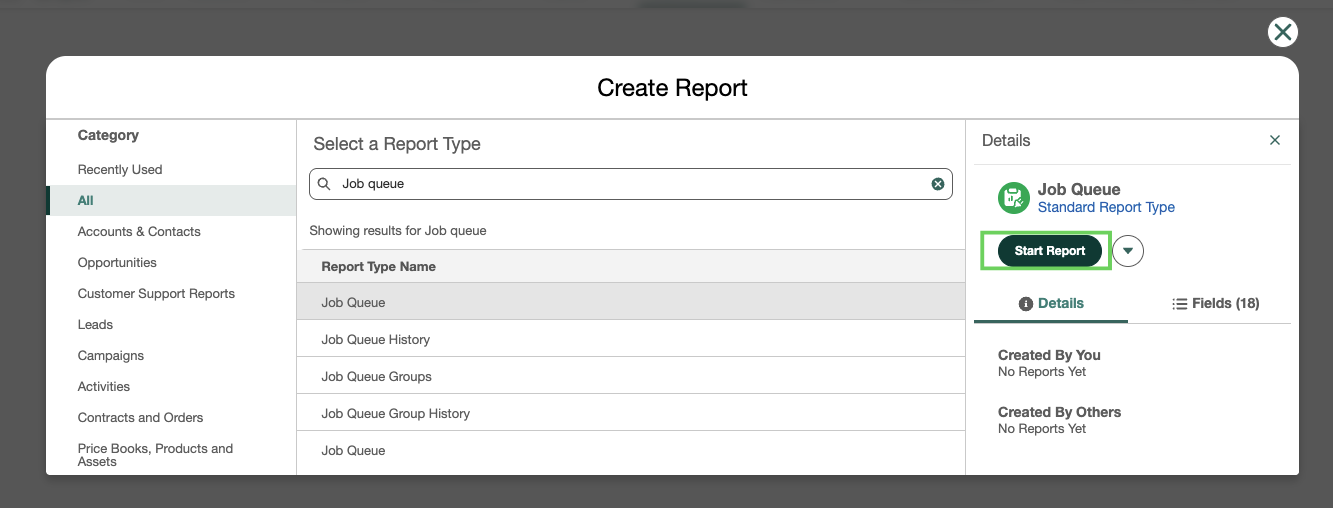
Click Start Report.
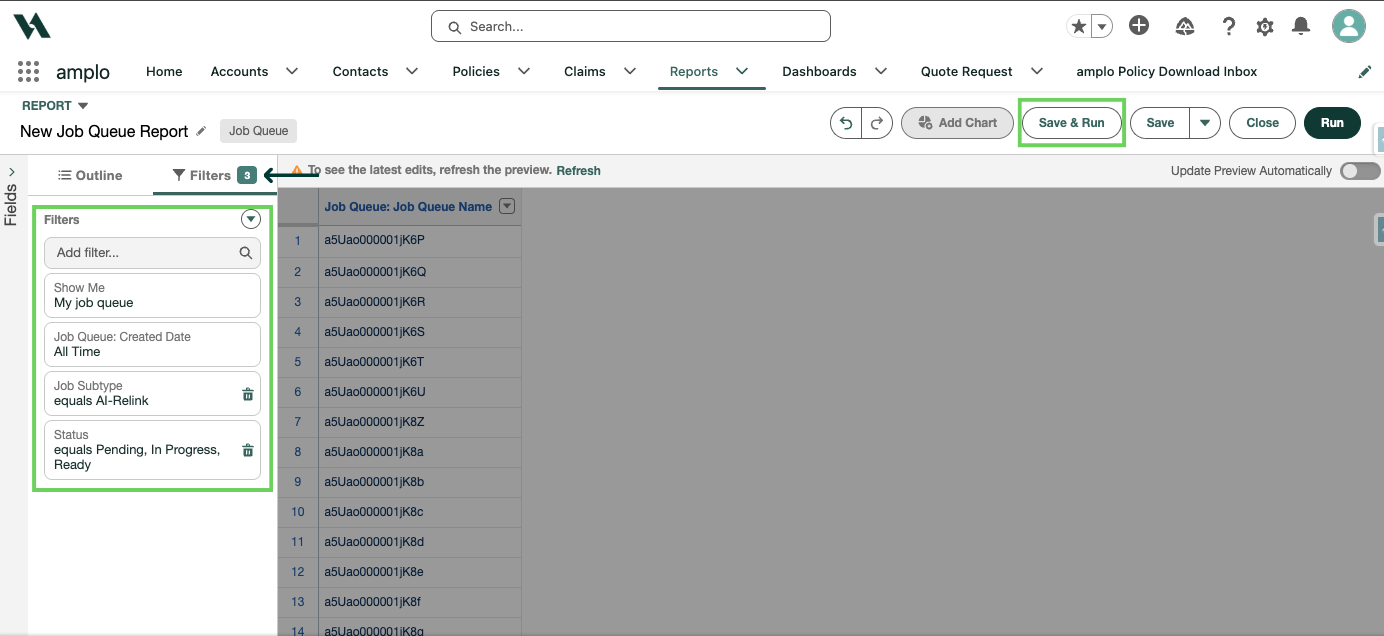
Add the following filters:
Show me: All job queue
Job queue created date: All time
Job subtype: AI-Relink
Status: In Progress, Pending, or Ready
Click Save & Run.
Clear the records
Enable inline field editing on the report.

Change the status of each stuck AI-Relink record to Complete.
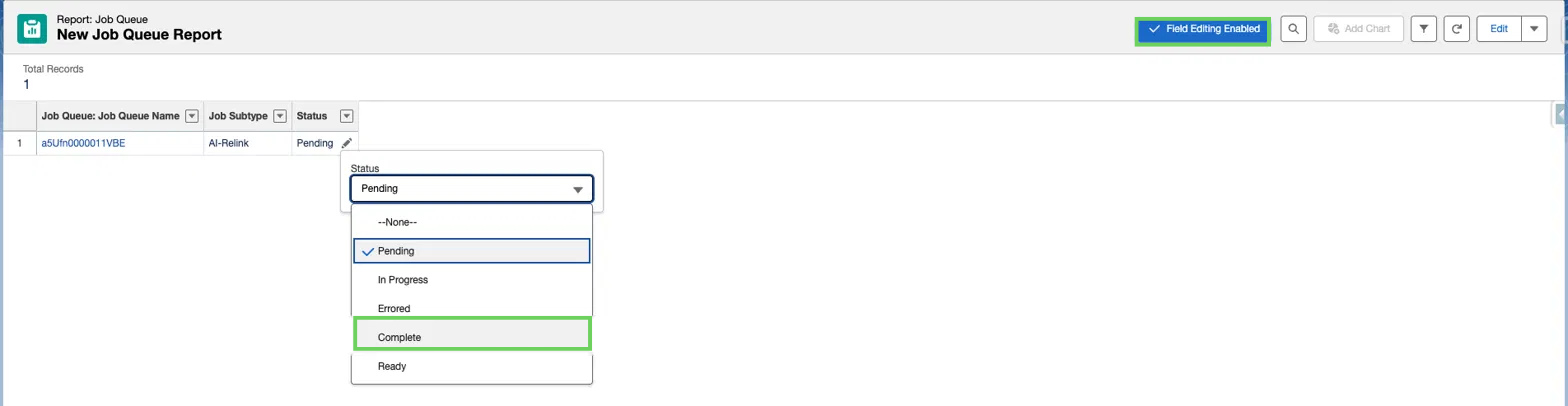
Save your changes.
Restart the job queue
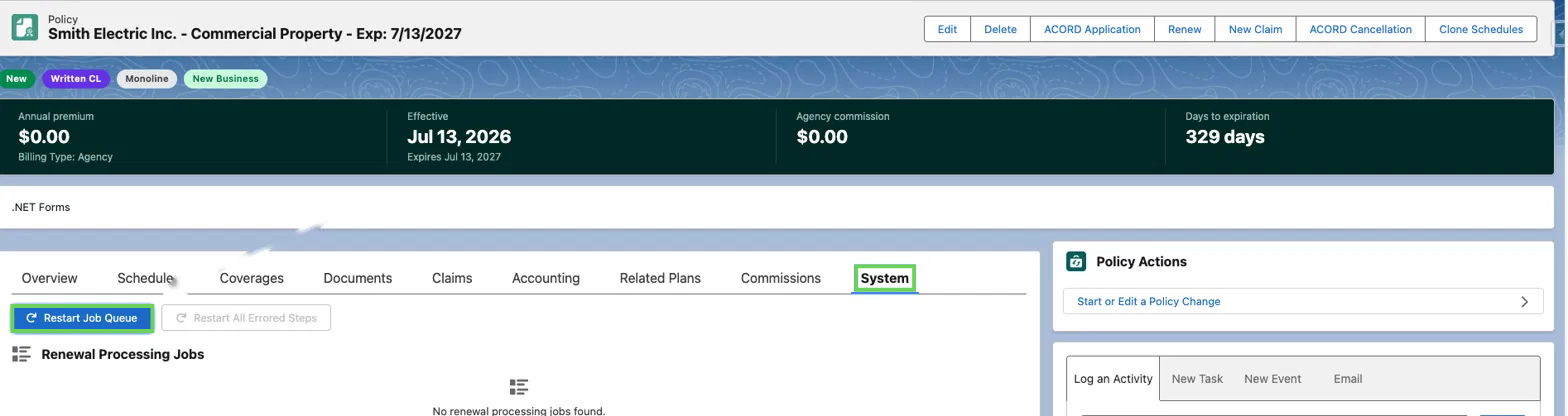
Open any written policy.
Click the System tab.
Click Restart Job Queue.
Confirm the records cleared
Refresh the report. Cleared records drop off the list.
If new AI-Relink jobs appear — this can happen when the backlog is large — repeat the clear and restart steps until the report is empty.