ACORD 139 and 140 not populating premises information
Last updated: July 28, 2026
Overview
When generating ACORD 139 and 140 forms for a Commercial Property policy, premises and schedule information may not populate if Premise schedules are missing Property Section records. Use this article to identify and resolve the issue manually or in bulk.
Identifying missing property section records
Before resolving the issue, confirm that Property Section records are missing from your Premise schedules. You can verify this in two places:
Coverages tab on the policy: Go to Premises Level Coverages and expand the dropdown for each schedule. If no Property Section is listed, the record is missing.
Schedule record: Open the Schedule record and review the Premises Information section. If no Property Section is present, it needs to be created.
Adding property section records
Once you've confirmed that Property Section records are missing, add them either manually or in bulk depending on the number of schedules you need to update.
Option 1: Bulk import using Salesforce Inspector
For a large number of schedules, add Property Section records in bulk using the Salesforce Inspector browser extension. Install the Salesforce Inspector Reloaded before getting started (see 📄 Salesforce Inspector Reloaded for instructions).
Pull the schedule report
Create a new report using the Policies with Schedules report type.
Apply the following filters:
Show Me= All Policies
Policies: Created Date = All Time
Policy: ID= 18 digit Salesforce ID where the property sections will be added
Add the column: Schedule: ID
Note: Do not add "Schedule: Schedule ID"
Export the report to Excel to use for your import.
Prepare your import data
From the exported report, prepare your import with the following:
Schedule ID: The ID of each Premise schedule.
API field names: Open an existing Property Section record. Click Show Fields API Names in Salesforce Inspector, then click the field API name to copy the value. Include all fields you need populated on the Property Section records.
Run the import
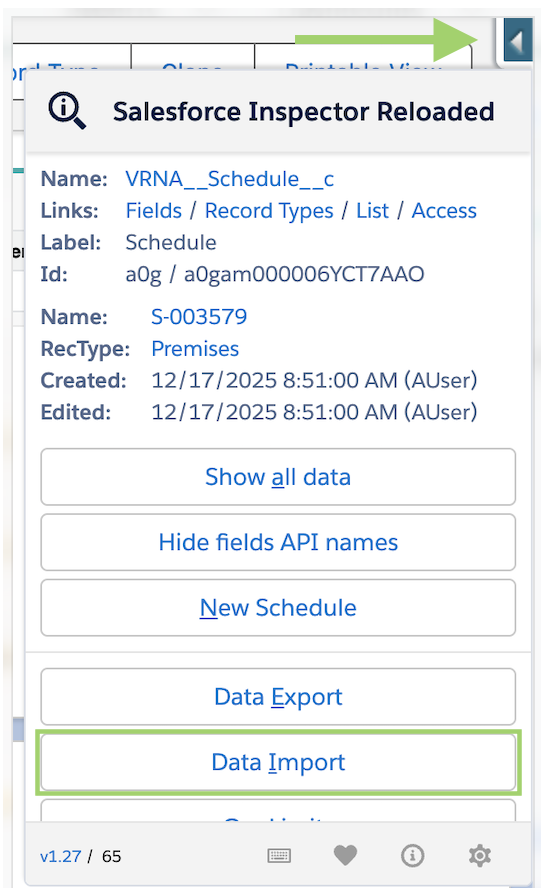
Use the arrow to open the Salesforce Inspector extension and select Data Import.
In Configure Import, enter the following details:
Action: Select Update from the dropdown.
Batch size: Change from 200 to 25.
Threads: Change from 6 to 1.
Data: Copy and paste the data from your Excel spreadsheet.
In Field Mapping, confirm Schedule: ID is changed to VRNA__Schedule__c and map all other fields to their API Name.
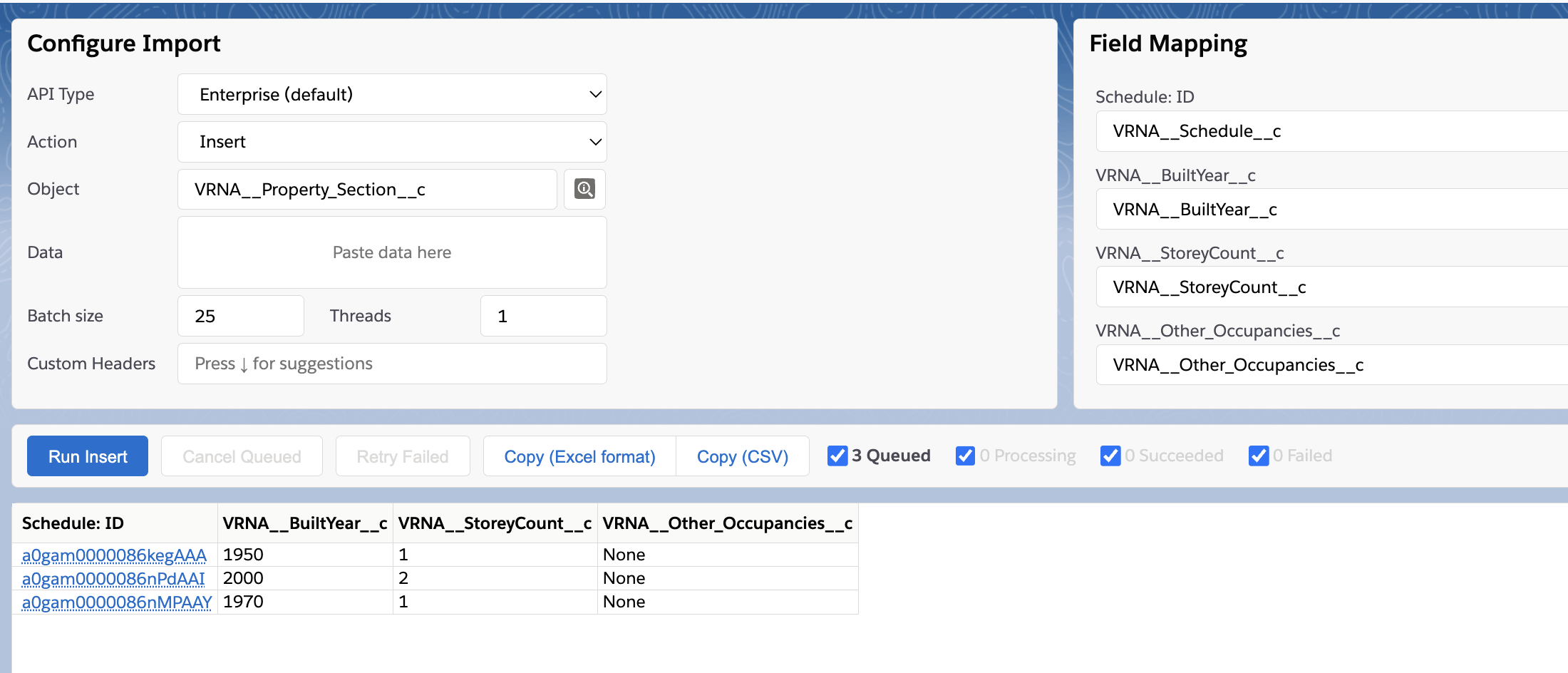
Click Run Insert.
Once the import completes:
If successful, the Status column shows Succeeded and the Action column shows Inserted.

If unsuccessful, the Errors column will list the reason(s). Review the errors and update the data as necessary.
Option 2: Manual entry
For a small number of schedules, create Property Section records directly on each Schedule record or through the Coverages tab on the policy. Once all Property Section records have been added, regenerate the ACORD 139 and 140 forms. They should now populate all premises information correctly.