Managing field sets
Last updated: February 23, 2026
Overview
Field sets in Salesforce allow you to control which fields appear in certain components, pages, or processes — and in what order they display. By updating a field set, you can adjust the information users see without changing page layouts or custom code. This article explains how to edit a field set and what to consider before making changes.
Add a new field set
Follow these steps to update a field set on an object.
Go to Setup.
Select Object Manager.
Locate and select the object to add field sets.
Select Field Sets.
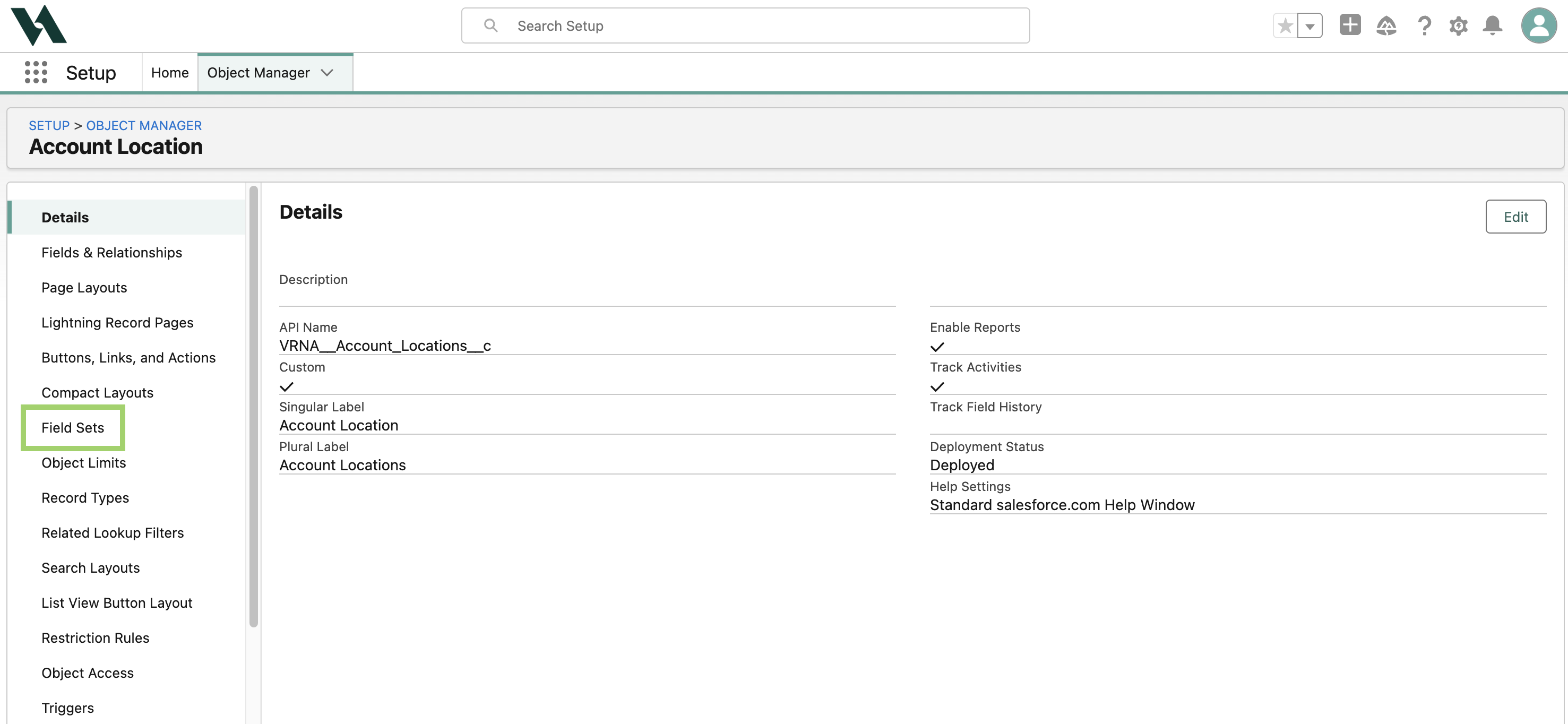
Click New.
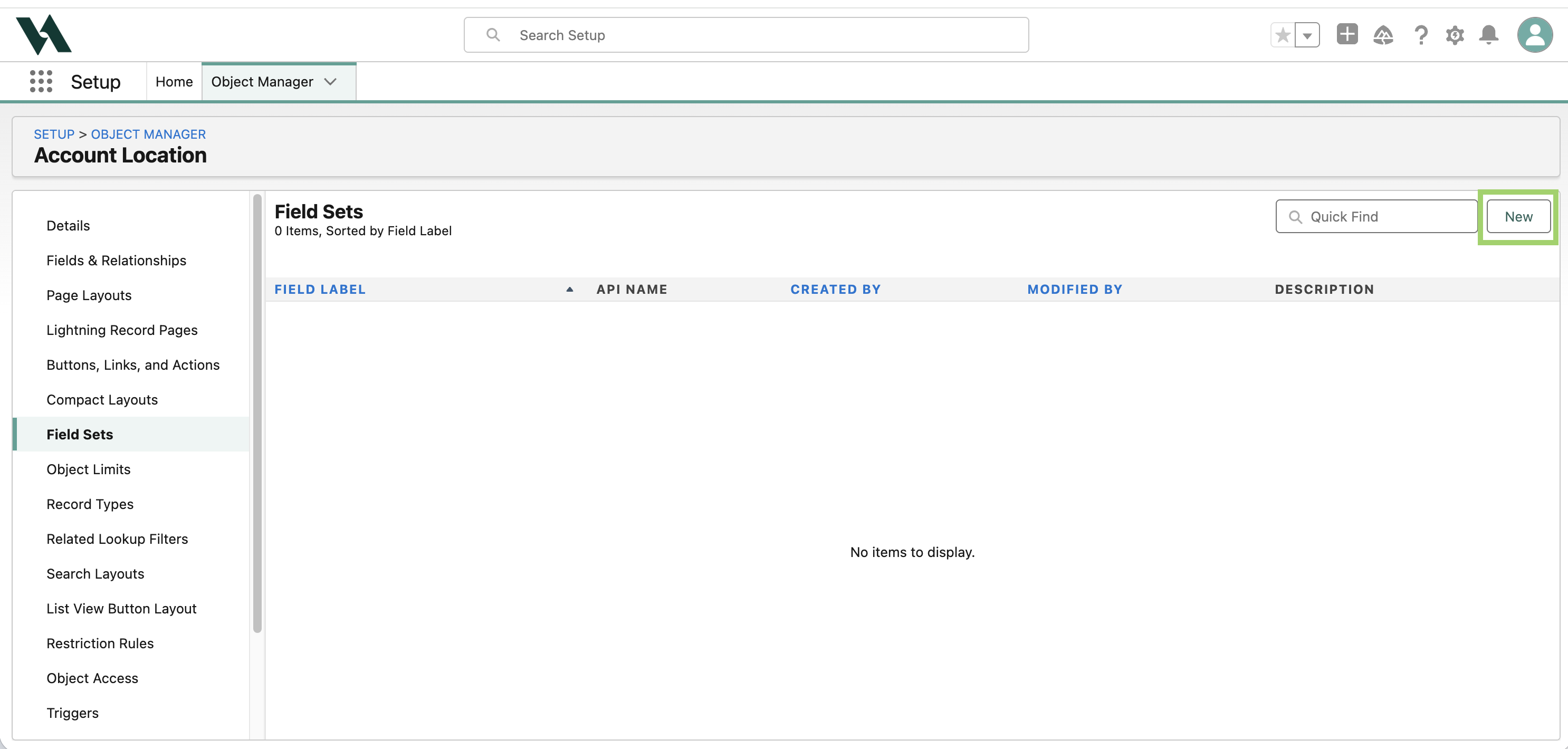
Enter the following information:
Field Set Label
Field Set Name will auto populate.
Where is this used?
Click Save.
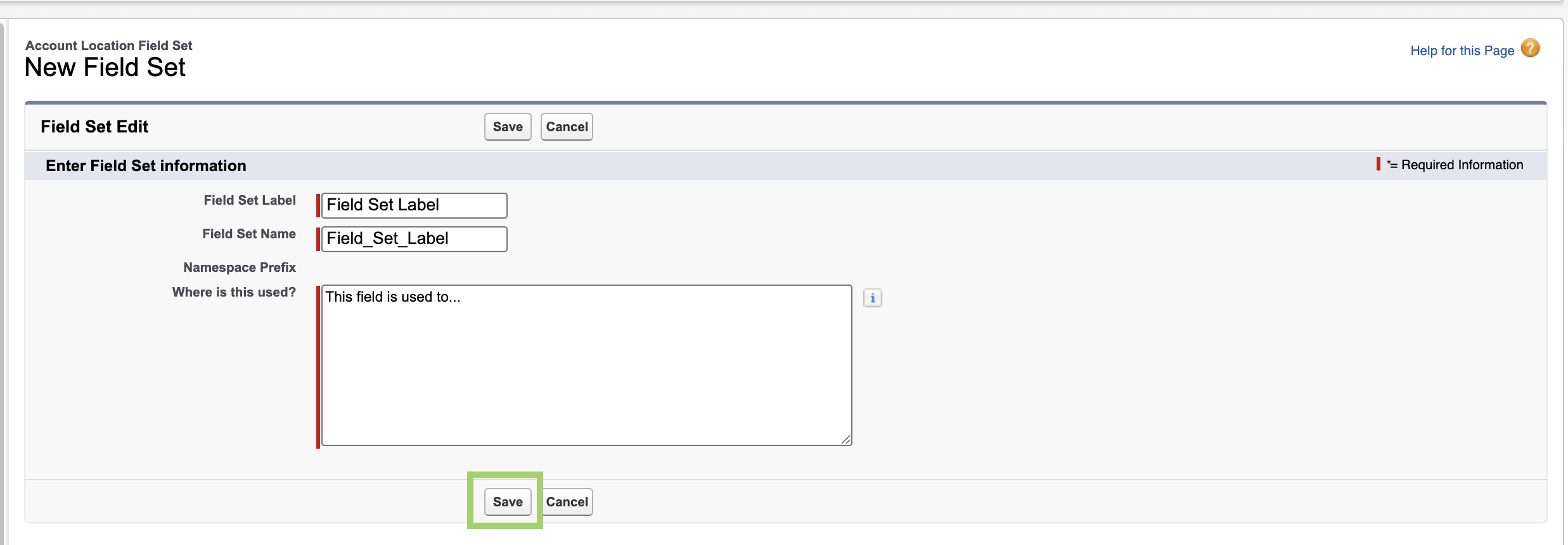
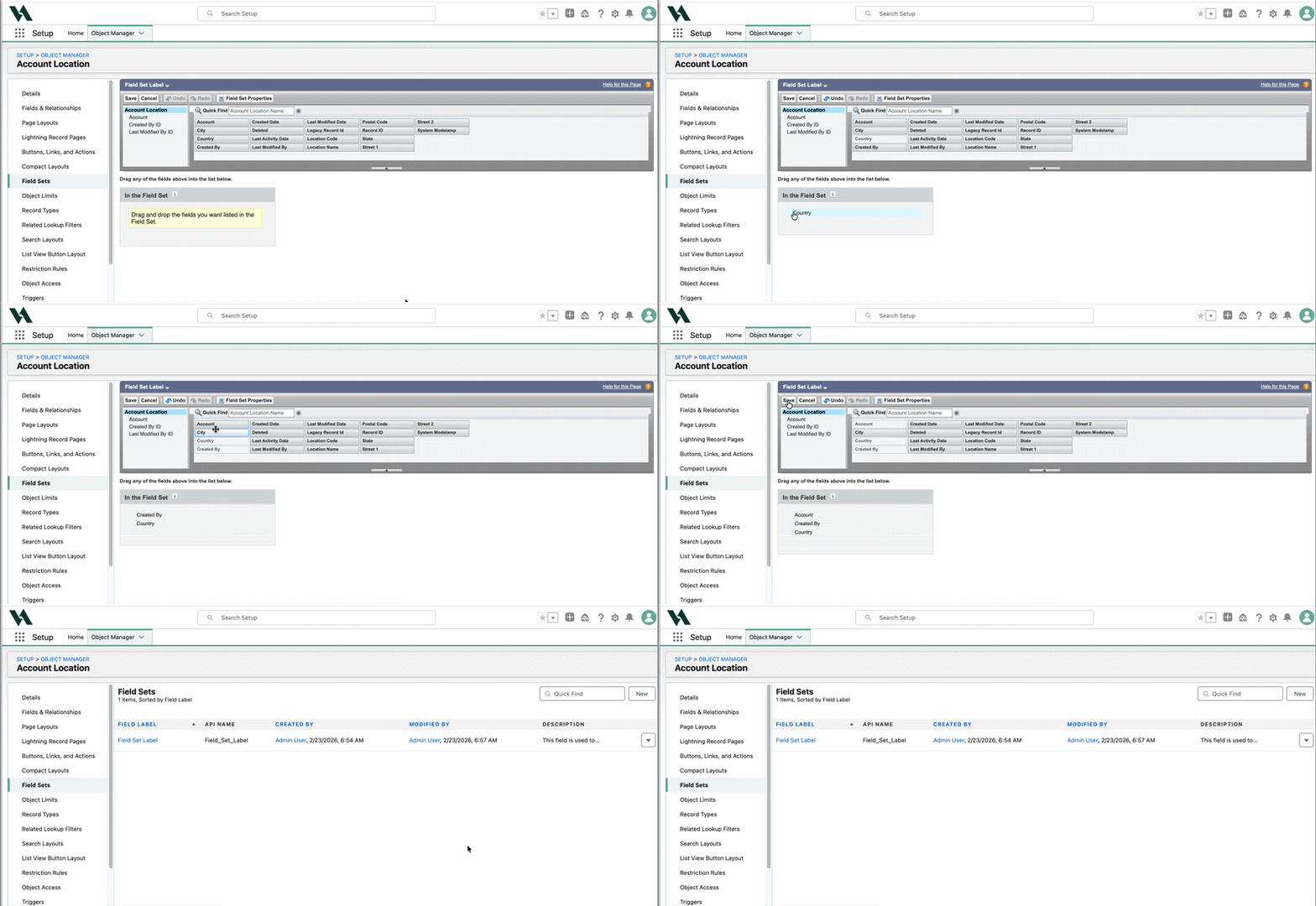
Drag and drop the fields you want listed in the Field Set, then click Save.
Customize an existing Field Set
Follow these steps to update a field set on an object.
Go to Setup.
Select Object Manager.
Locate and select the object to add field sets.
Select Field Sets.
Click the dropdown arrow next to the Field Set you want to edit, then click Edit.
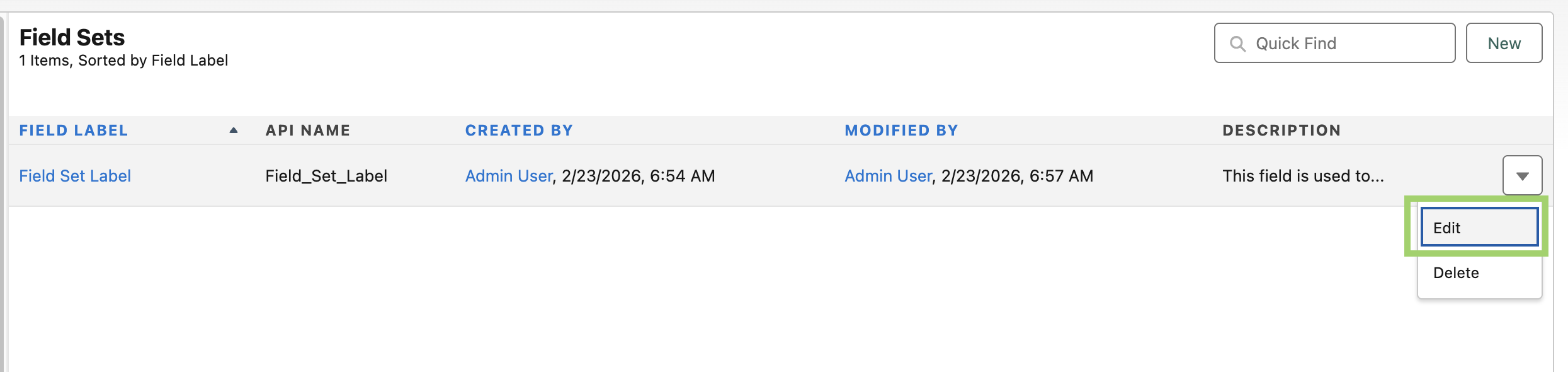
Make the desired changes, then click Save.
Your updates will apply anywhere that field set is referenced.