Managing the IVANS downloads user
Last updated: July 6, 2026
Overview
The VRNA Ingest Connector uses a designated user account to handle server-to-server communication between Salesforce and the downloads service when posting transactions from IVANS. This user must remain active for downloads to function. If the user is ever made inactive, downloads will stop working until the user is updated or reactivated.
This article explains the permissions required for the downloads user and how to update the user on the External Client App.
Required permissions
The downloads user must have the following permissions, permission sets, and licenses assigned.
Permissions
API Enabled (system permission)
View All Custom Settings (system permission)
Permission sets
Veruna Core
Veruna eDocs Permission Set
License
VerunaCore
Note: If your org uses Accounting Seed or commission downloads, also assign the VRAS Administrator and AS Full Admin permission sets. The Veruna Standard User profile or equivalent is recommended for broader access to amplo custom objects.
Update the downloads user
Follow these steps if the current downloads user needs to be replaced or reactivated.
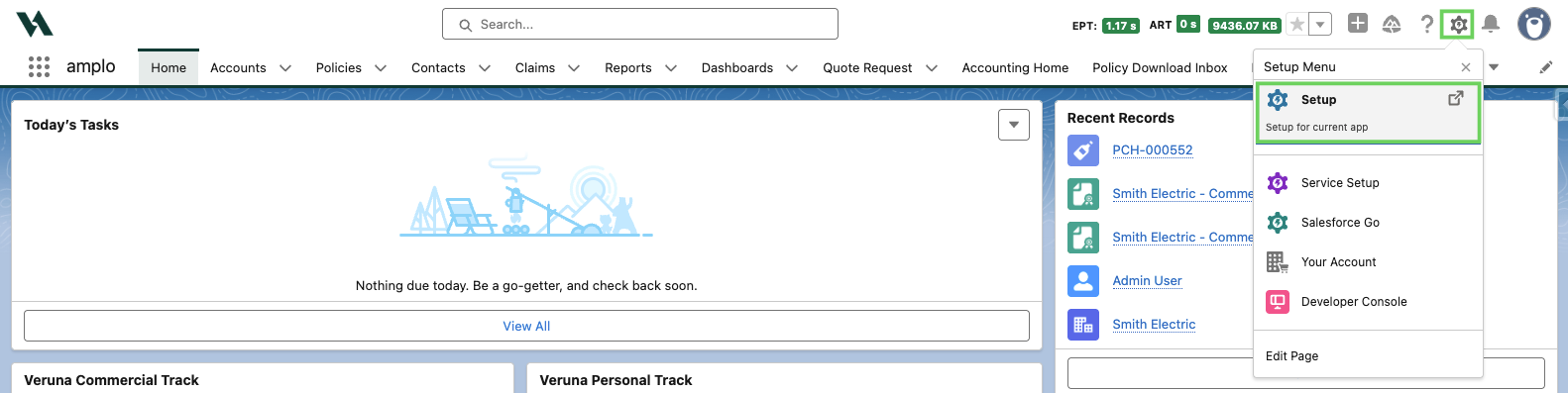
Clear the gear icon to select to Setup.
Search for External Client App Manager.

Select VRNA Ingest Connector.

Under the Policies tab, select Edit.

Under OAuth Flows and External Client App Enhancements, enter the username of the user the External Client App should run under.

Select Save.
The downloads service picks up the new user automatically once the change is saved.