Managing accounting periods
Last updated: May 27, 2026
Overview
Accounting periods control how and when financial activity is recorded and reported. This article explains how to restrict, close, and archive accounting periods to keep your records accurate and your reconciliations on track. For setup instructions, see 📄 Creating new accounting periods.
Lock an accounting period
Locking an accounting period lets you limit activity without fully closing it, which is useful when you're in the middle of a close process and want to prevent accidental postings. Once locked, most users can't post or unpost transactions until the period is reopened.
Note: Users with the Enable Editing Locked Accounting Period permission can still make changes. For more information, see 📄 User management.
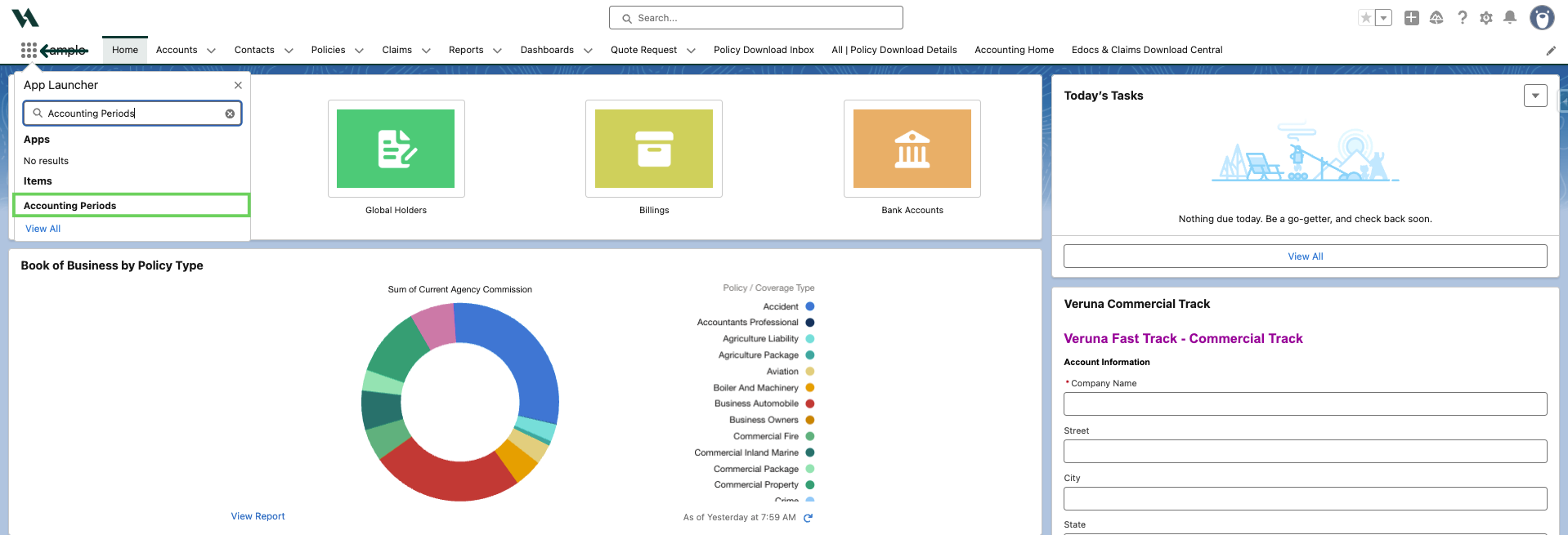
In the App Launcher, search and select Accounting Periods.

Click the link of the Accounting Period Name you want to lock (usually the one next in line for closure).
To edit the field, double click or click the pencil icon.

Click the Locked checkbox, then click Save.

To restore general access, clear the Locked checkbox and save.
Close an accounting period
Closing an accounting period locks all transactions in that period, finalizing profit and loss reporting and ensuring accurate premium, commission, and payable tracking. This maintains a complete audit trail and prevents unauthorized changes. Periods must be closed in chronological order, starting with the oldest open period. You can reopen a closed period if corrections are needed.
Before closing an accounting period, complete the steps below to make sure everything is in order.
Pre-close checklist
Perform these reconciliations before archiving to confirm that all data is accurate and complete:
All billings are posted
All cash receipts are posted and applied
All payables are posted
Bank reconciliations are complete
No transactions remain in “In Process”
The prior period is already closed (periods must be closed in sequence)
If anything is still open or unposted, fix it first.
Export and save reports
Trial Balance
General Ledger Summary
AR Aging
AP Aging
Balance Sheet
Profit & Loss
Make sure totals tie out and no clearing accounts (like Unapplied Cash or Transaction Account 9900) are incorrect.
What happens when a period closes
Once an accounting period is closed, amplo automatically performs a set of tasks to finalize the period and prepare for the next.
The status displays Close In Progress until processing completes.
Net income from the Profit and Loss report rolls into the Current Year Earnings general ledger account.
Opening balances update for the next accounting period.
The system locks the period to prevent additions, deletions, or edits.
If Billing and Payable Period-Sensitive Aging is enabled, aging records update automatically.
Soft close an accounting period
A soft close lets you close Accounts Receivable (AR) and Accounts Payable (AP) while keeping the accounting period open. This is useful when you need to go back and make additional transactions without triggering all of the closed period functions in AccountingSeed.
In the App Launcher, search and select Accounting Periods.
Click the dropdown next to the Accounting Period Name, then click Edit.

In the Edit modal, check the boxes next to Close AR and Close AP, then click Save.

Close a single accounting period
Accounting periods must be closed in chronological order, oldest first. You can reopen a closed period to correct past transactions.
On the Accounting Periods page, sort the list by End Date to bring the oldest period to the top.
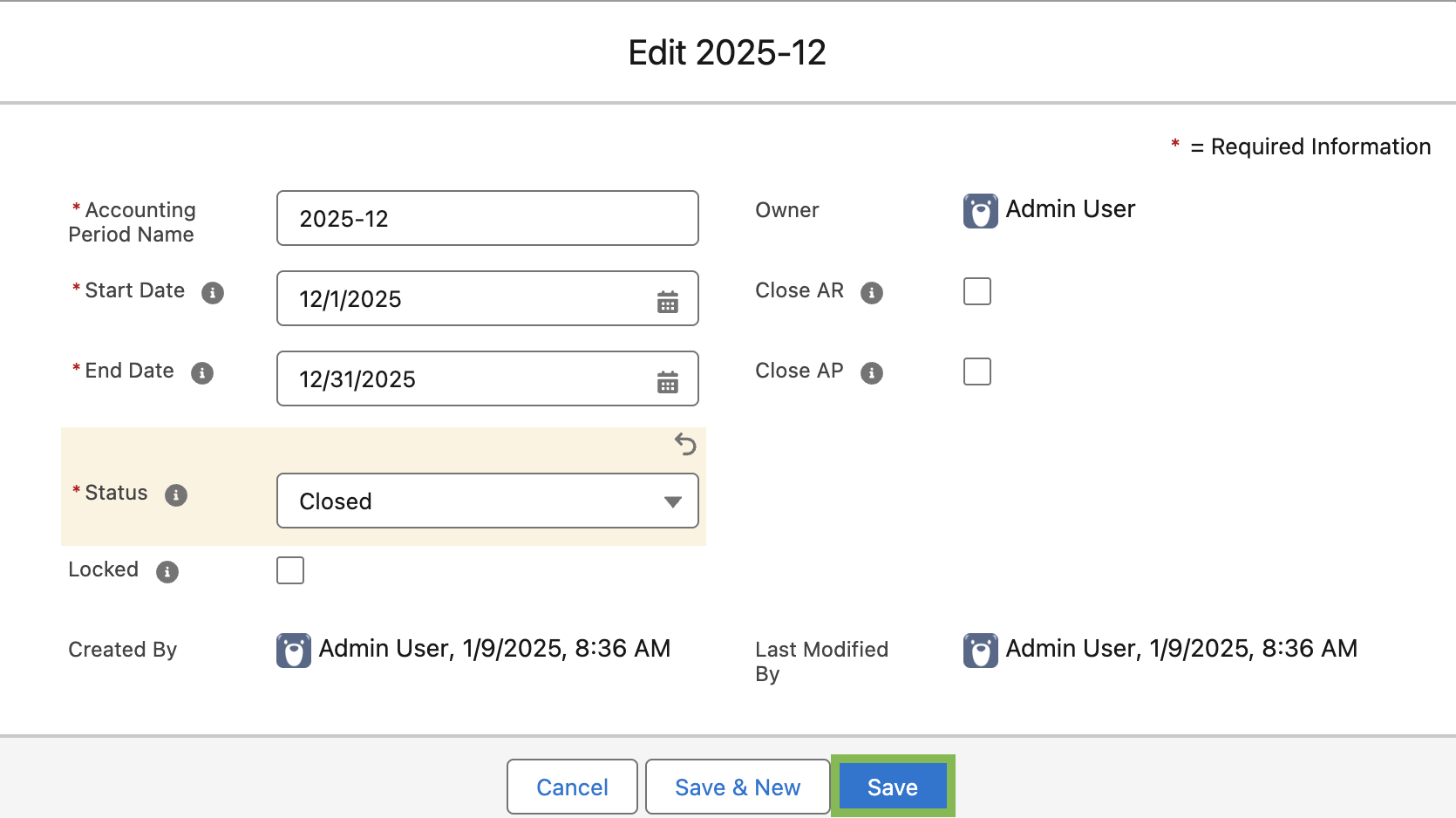
Click the dropdown next to the Accounting Period Name to close, then click Edit.
In the Edit modal, change the Status to Closed from the dropdown menu.

Click Save.
Closing multiple accounting periods
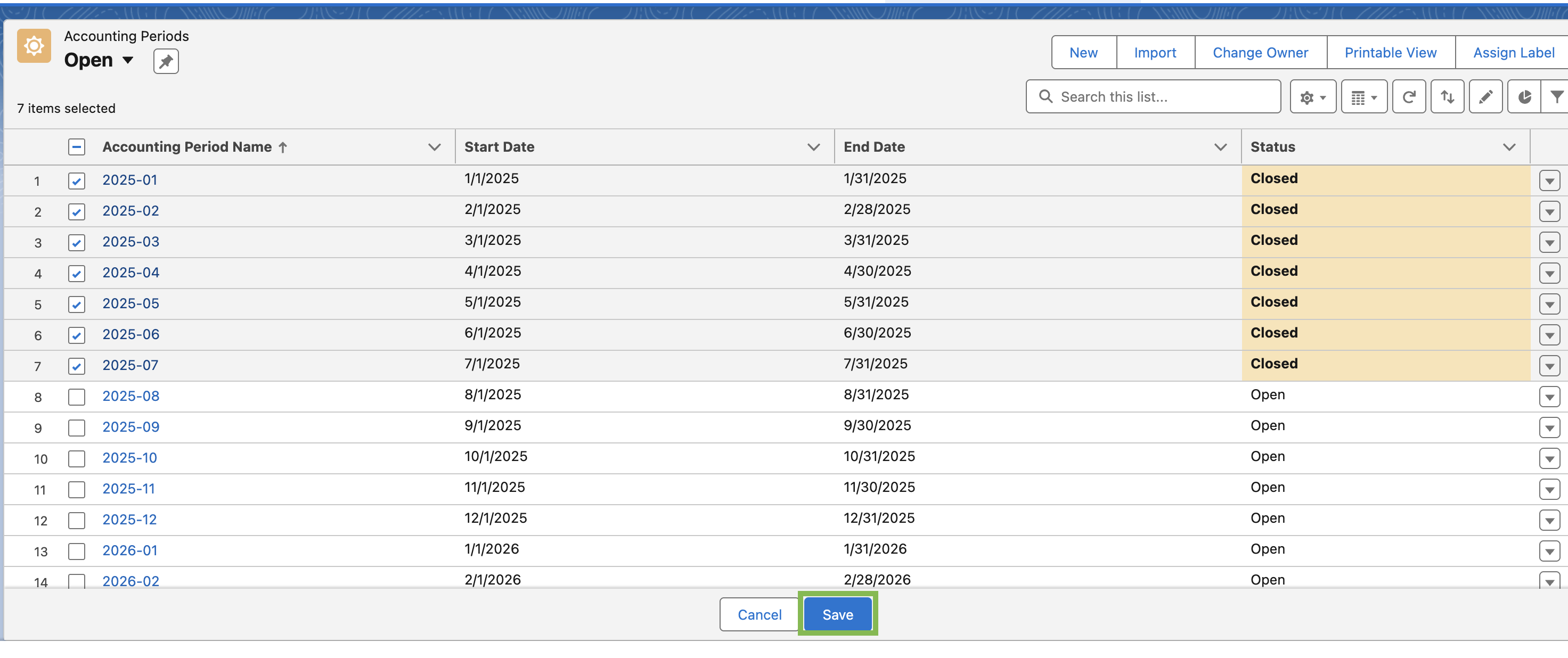
You can close up to 12 accounting periods at one time.
On the Accounting Periods page, filter by Open.

2. Click the checkboxes next to the accounting periods to close.

Hover over the Status column next to any of the selected records, then click the pencil icon.
In the Edit Status window:
Choose Closed from the dropdown
Click the checkbox to updated the other selected items
Click Apply.

Click Save.
Archiving removes closed periods from your active view, keeping your accounting workspace clean and focused on current activity. For instructions, see 📄 Archiving accounting periods.