Missing IVANS policy downloads from a carrier
Last updated: September 16, 2026
Overview
If expected policy downloads from a carrier haven't come through to Amplo, follow the steps below to confirm whether the downloads were received and what to do next.
Create a Policy Download Details report
Select the Reports tab.
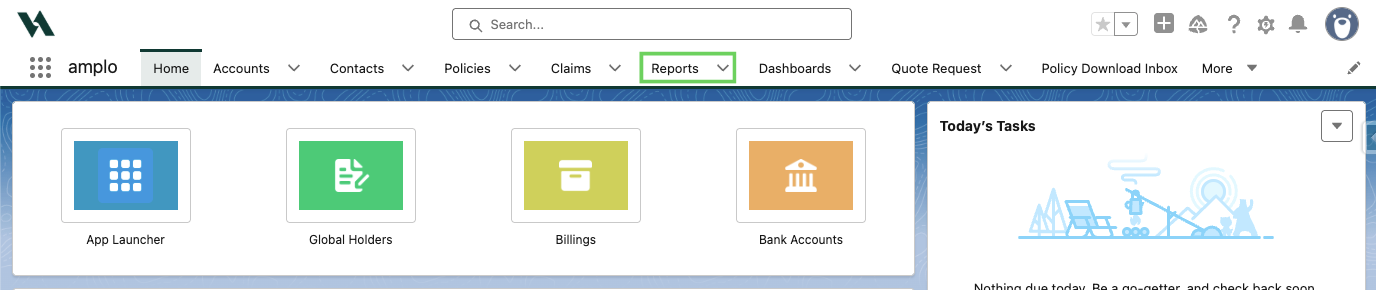
Click New Report.

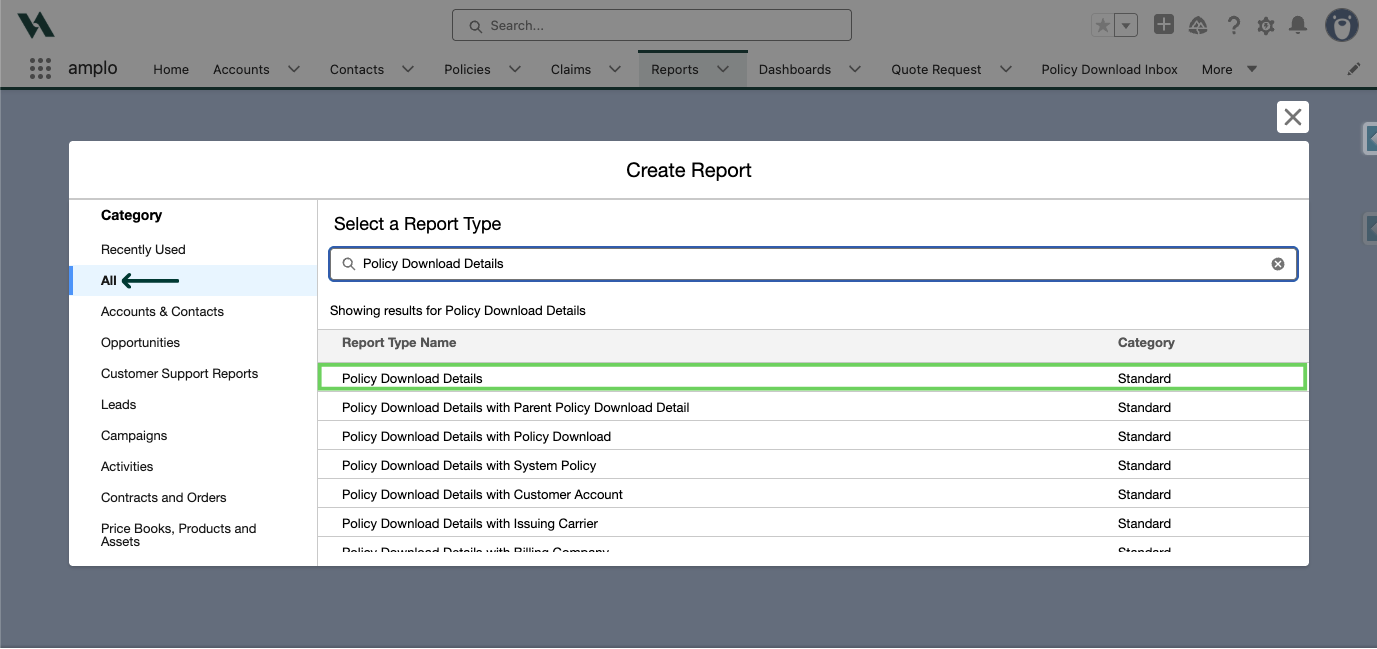
Change the filter to All. Then search and select the Policy Download Details report type.
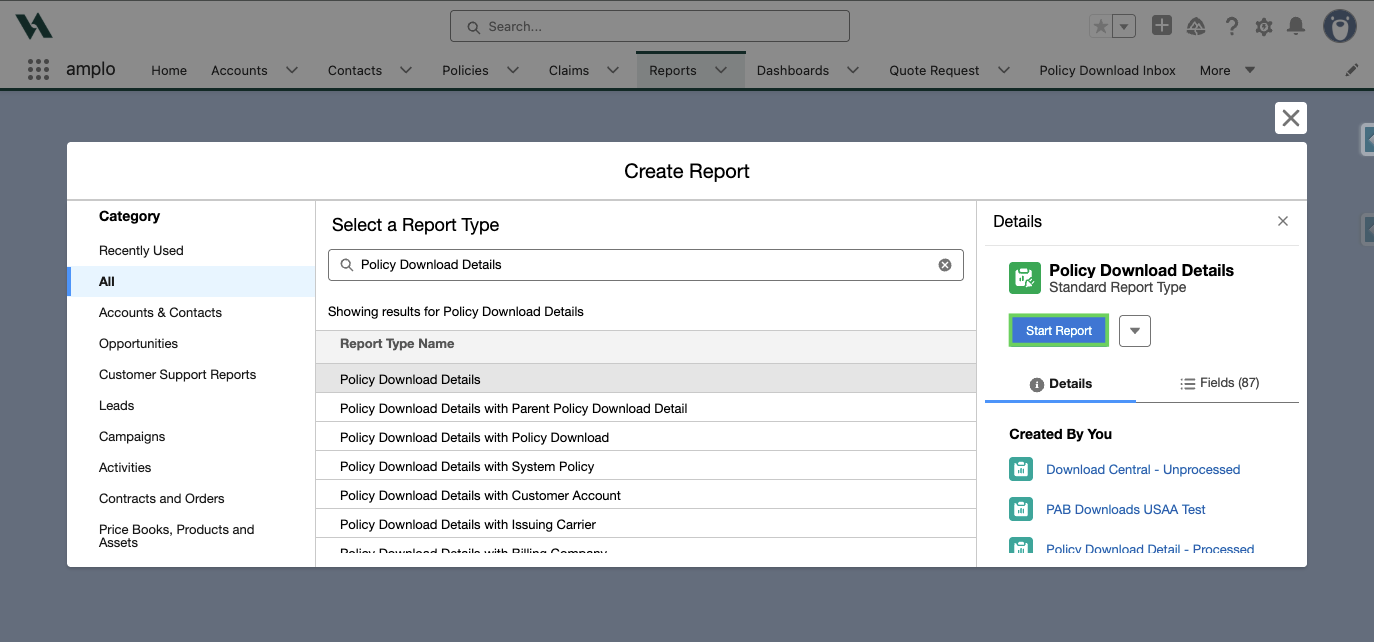
Select Start Report.
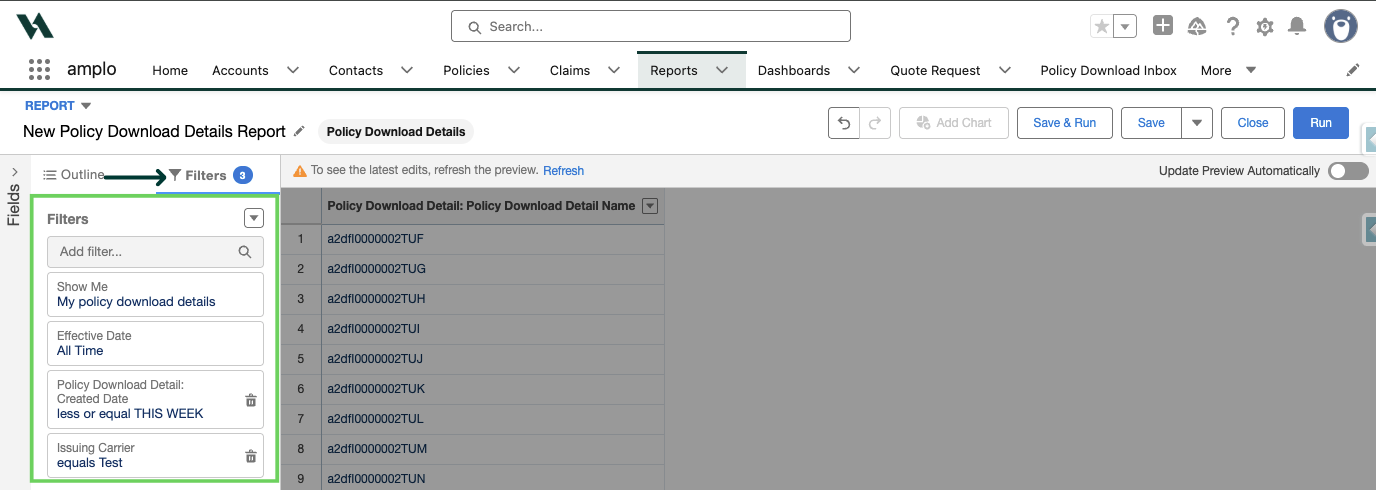
Select and apply the following filters:
Show Me: "All policy download details"
Policy Download Detail: Created Date = the relevant time range (e.g., This Week)
Issuing Carrier: contains [carrier name]
The following columns are optional:
Created Date
Policy Download Detail: Policy Download Detail Name
Issuing Carrier
System Policy
Insured Named
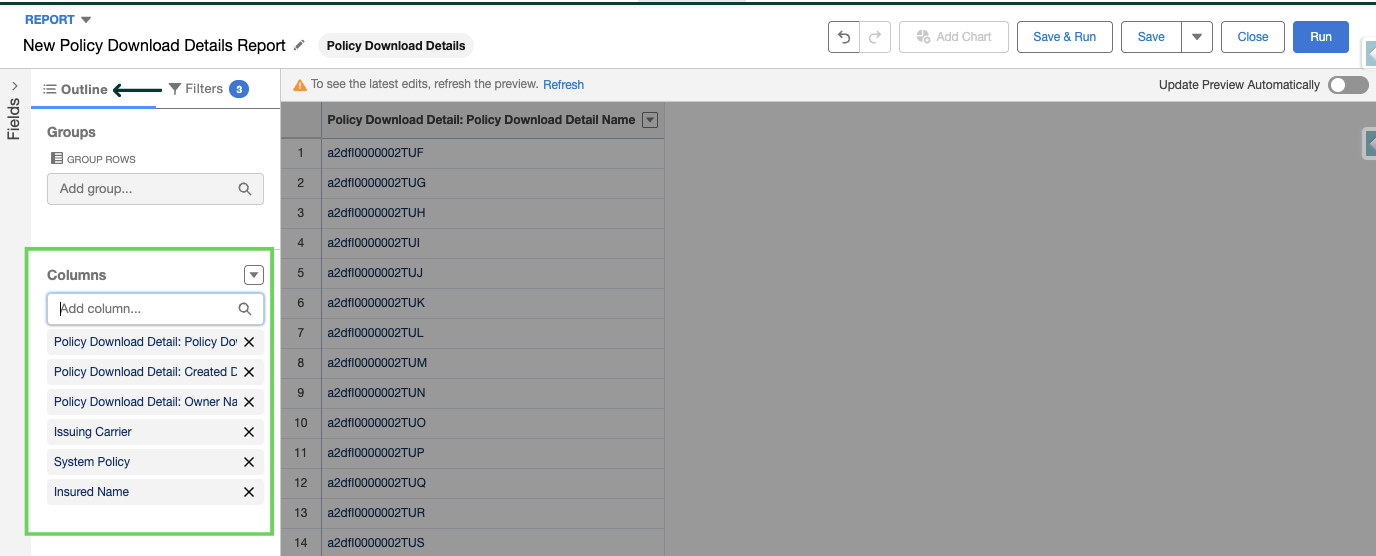
Click Run.
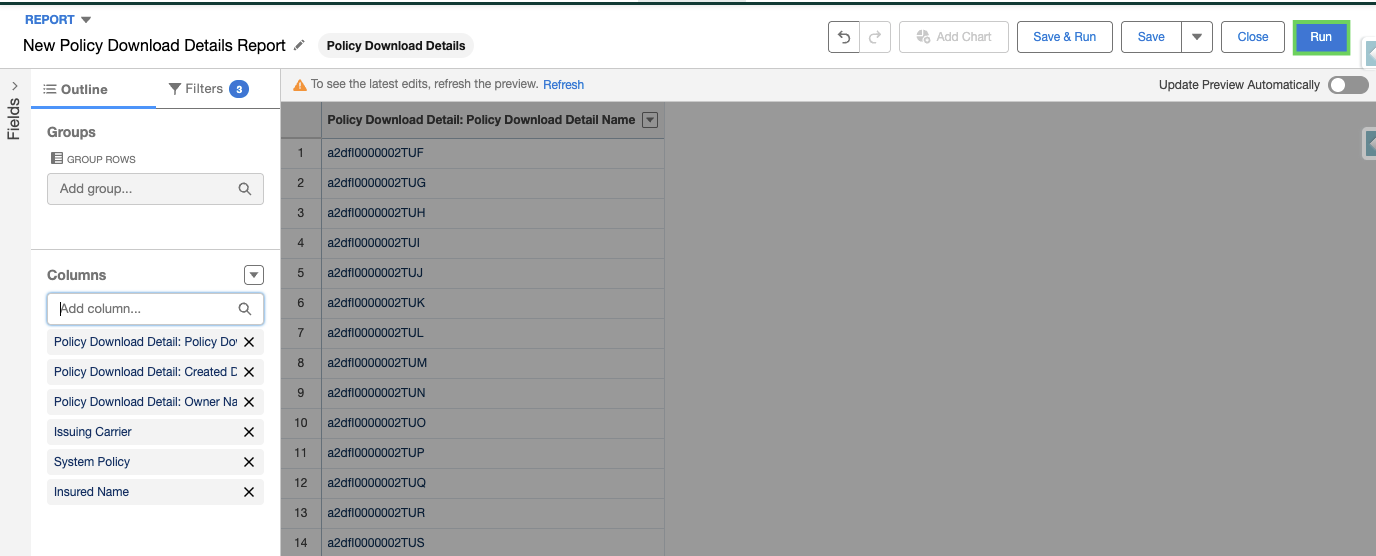
This report shows every download actually created in the system for that carrier within the selected date range, letting you confirm how many came through and when.
Confirm in IVANS
Log in to your IVANS mailbox to see the last date downloads were received from the carrier in question. This tells you whether the gap is on the system side or upstream, at the carrier or IVANS level.
Next steps if downloads are missing
If both the report and the IVANS mailbox show no recent activity from the carrier, reach out to the carrier directly to confirm whether anything was scheduled to be sent. The issue is typically upstream rather than something stuck in the system.