How to delete a policy when receiving an "underlying insurances" error
Last updated: March 11, 2026
Overview
Umbrella policies can be linked to underlying policies. If you try to delete an umbrella or related package policy while underlying policies are still associated, the following error may appear:
Your attempt to delete [policy name] could not be completed because it is associated with the following underlying insurances.: [underlying insurances]
This article explains how to resolve the error and successfully delete the policy.
Delete an umbrella policy with underlying insurance
Salesforce prevents deleting a parent record (such as a policy) if related child records still exist. This safeguard helps maintain data integrity and prevents orphaned records in the system.
On the umbrella policy record you wish to delete, click on the Coverages tab.

Click on Commercial Umbrella.
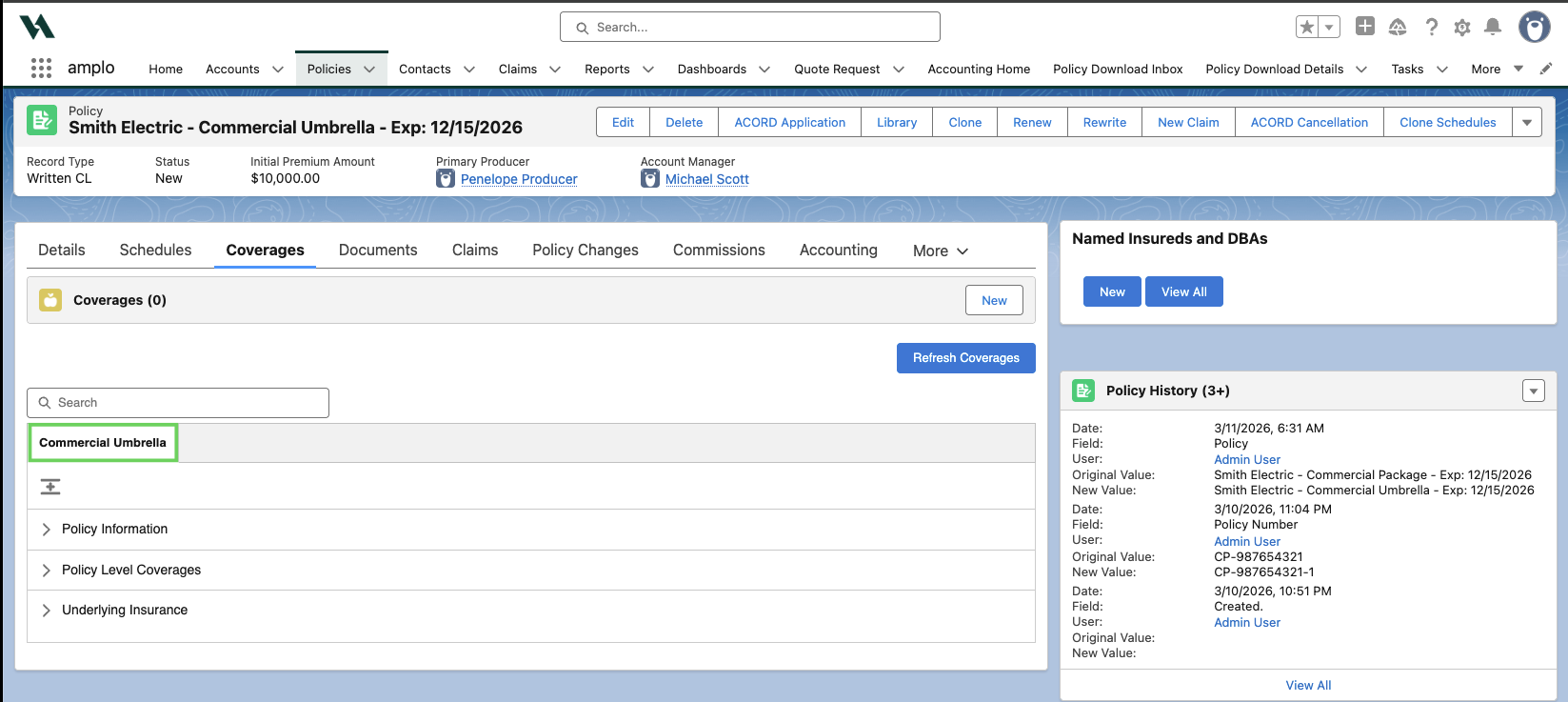
Click the caret next to Underlying Insurance.

Click Delete next to each underlying insurance policies.
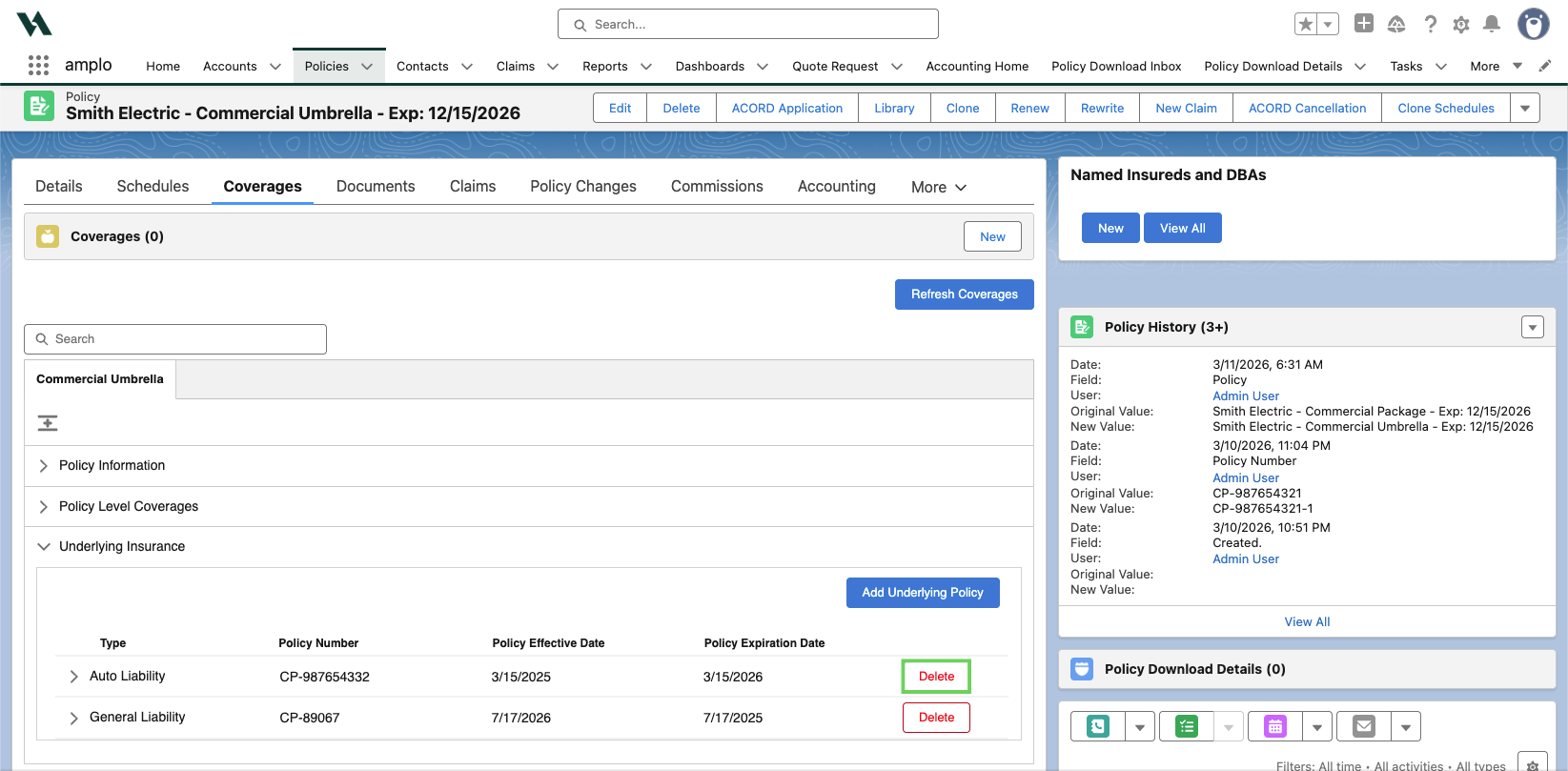
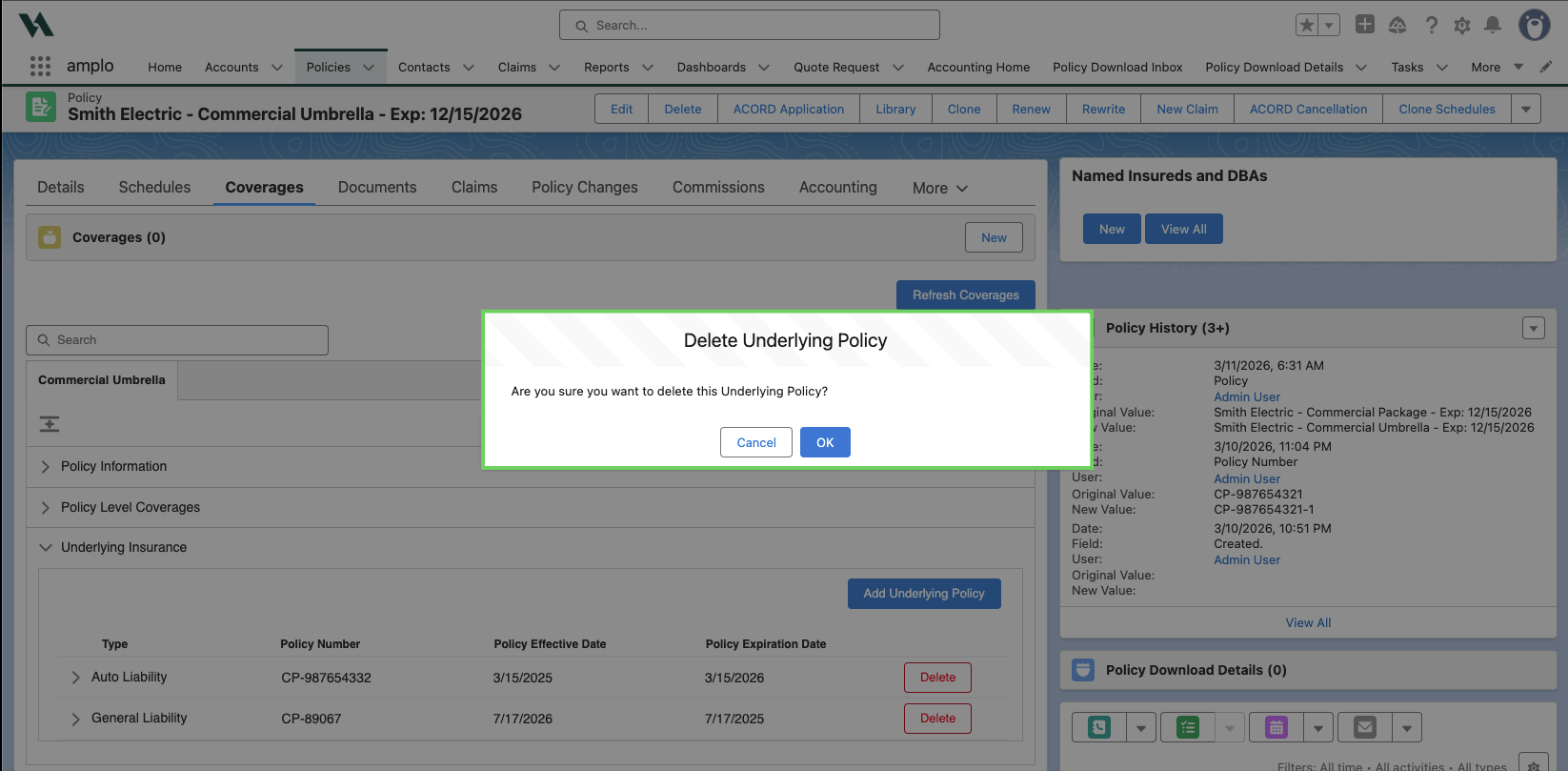
Select OK in the Delete Underlying Policy modal to confirm.
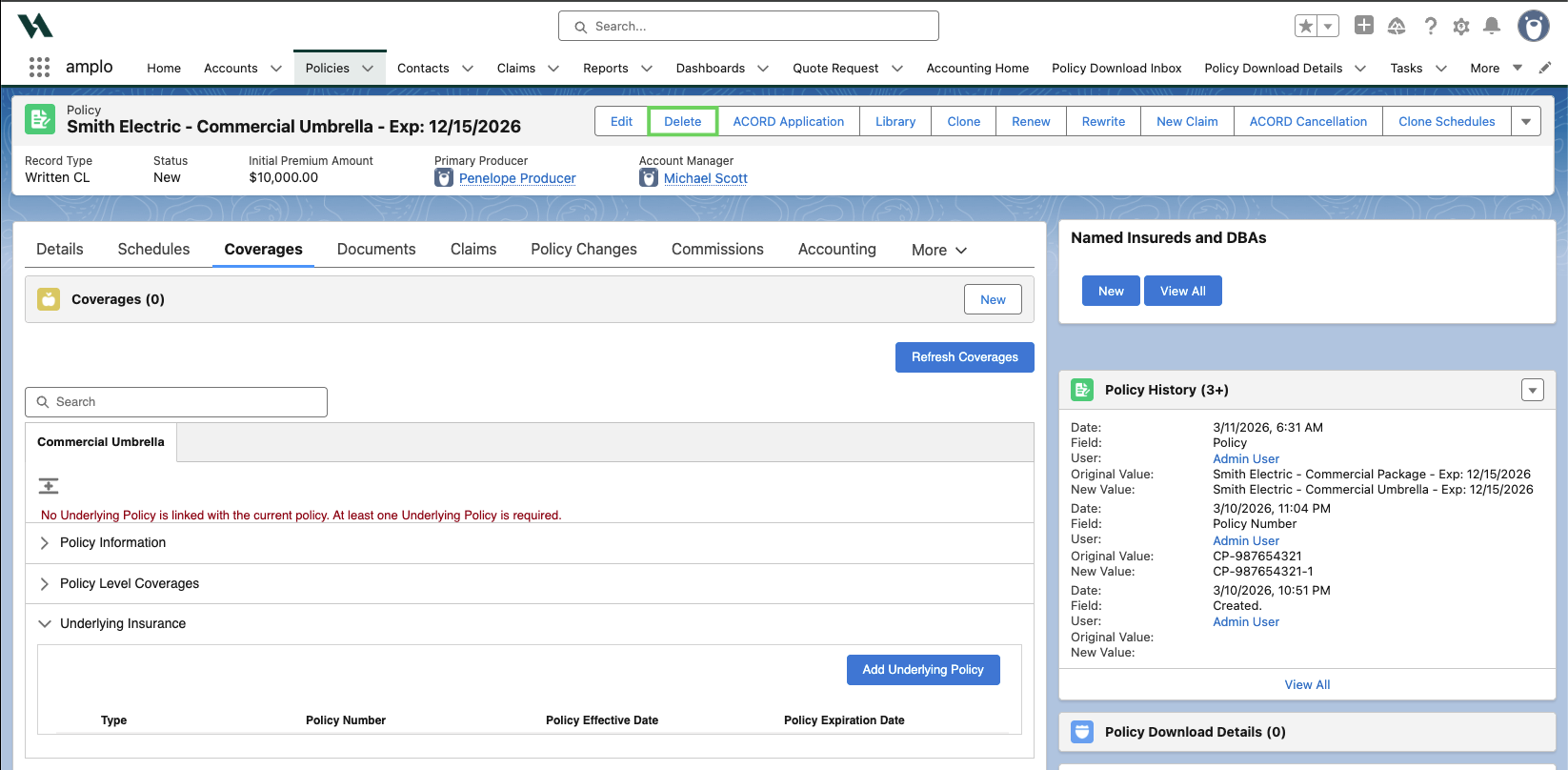
After all underlying insurances are removed, click Delete.
In the Delete Policy modal, select Delete.

Note: If you don’t see the Underlying Insurance related list, switch to Salesforce Classic view. If it’s still missing, it may need to be added to the page layout.
Switch to Classic View
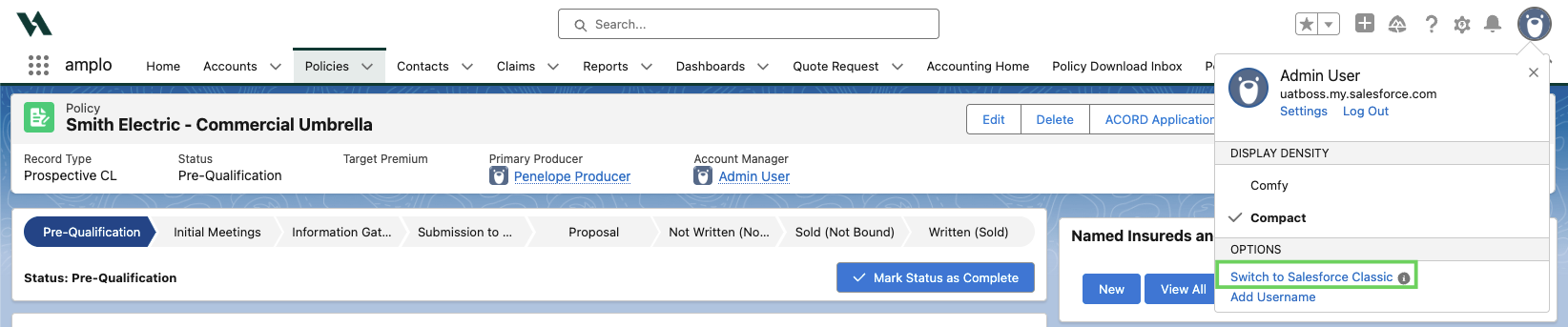
Follow the steps below to switch to Salesforce Classic.
Click your profile icon in the top-right corner.

Select Switch to Salesforce Classic.
Adding the Underlying Insurance related list to a page layout
If the Underlying Insurance related list isn't visible, add it to the policy page layout with the steps below.
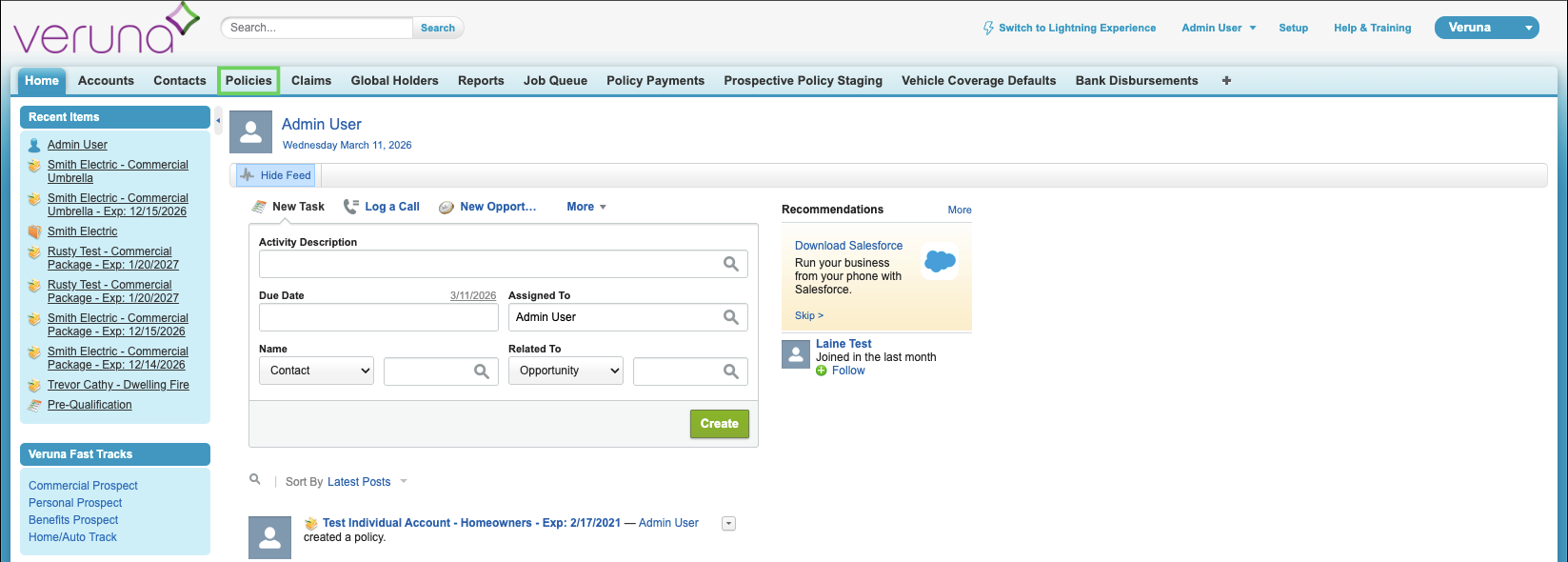
In Classic view, click the Policies tab.
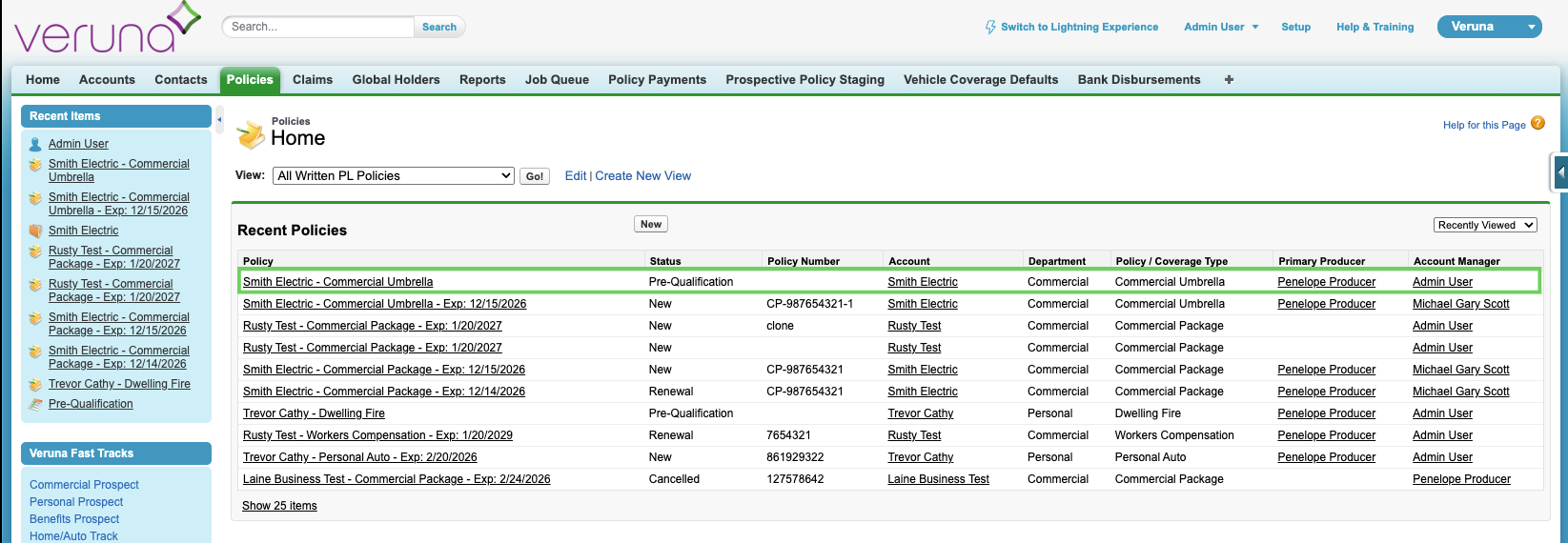
Select the policy you wish to delete.
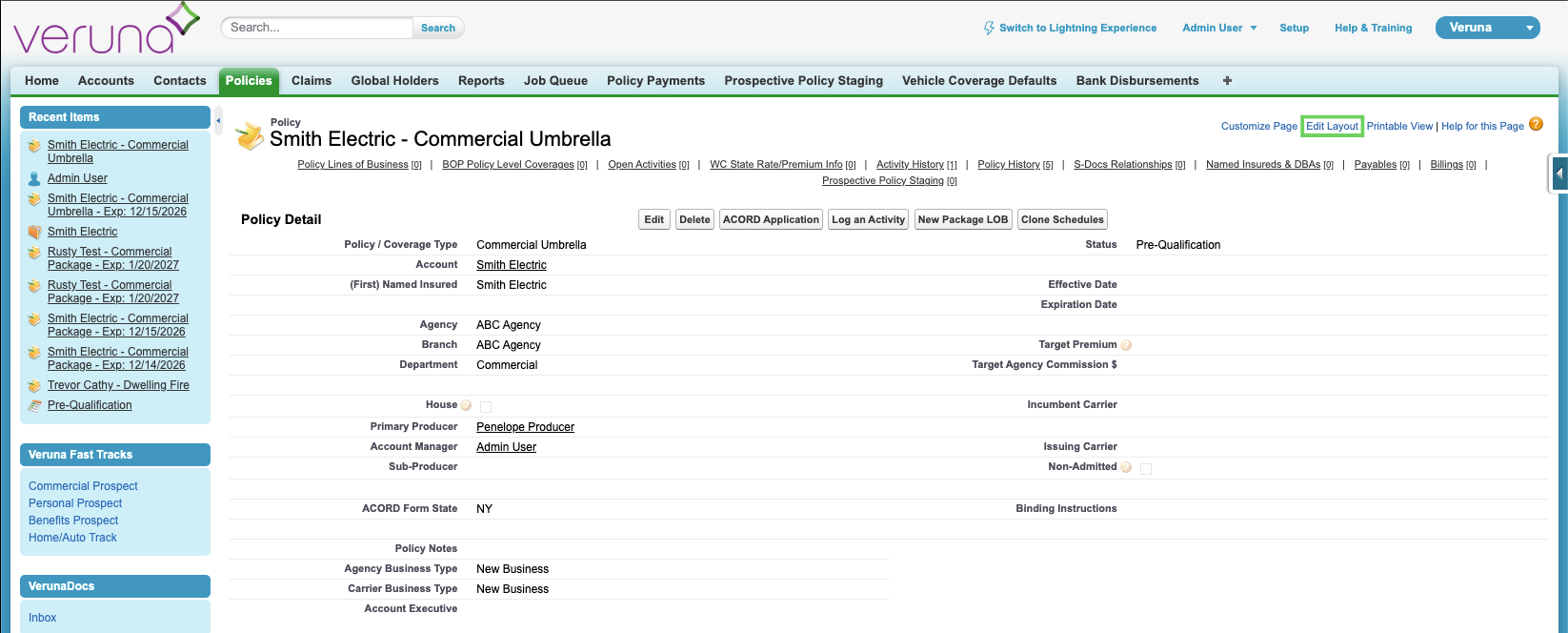
Click Edit Layout.
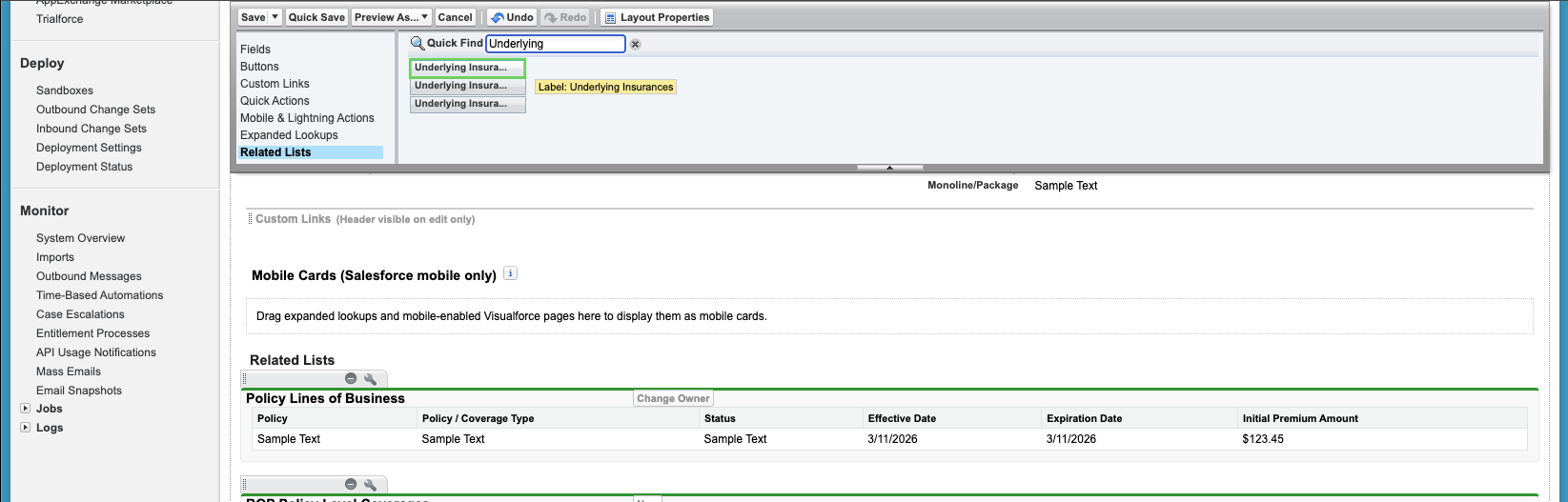
In the top menu, scroll down and click on Related Lists.

In the Quick Find box, search for Underlying.

Drag and drop the first option into the Related Lists.
Click Save.
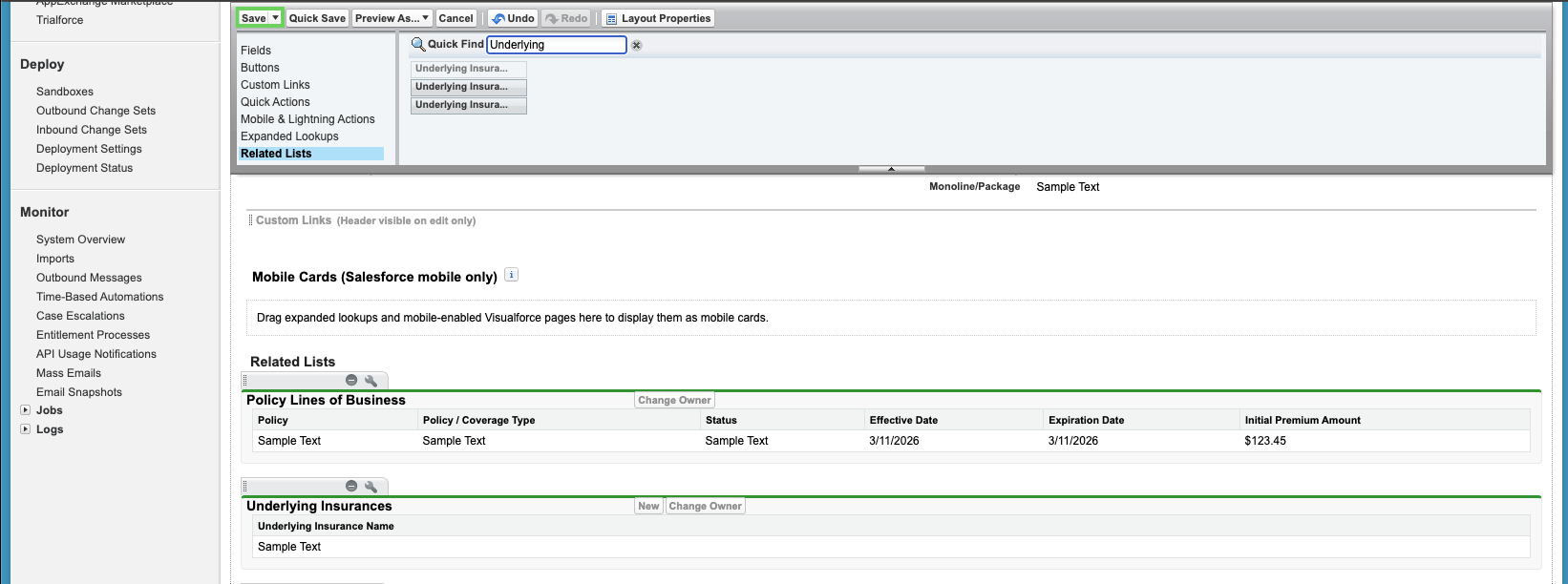
After adding the related list, you can return to the steps above to remove the underlying insurance records.
Note: Ensure you select the correct Underlying Insurance related list. Hover over each option to confirm the label. Do not select:
Underlying Insurance (Commercial Package Id)
Underlying Insurance (Selected Policy Id)