Adding policy schedules and coverages
Last updated: February 19, 2026
Overview
Schedules and coverages define the details of a policy. Incomplete or inconsistent details can lead to inaccurate certificates or policy documents that may require corrections later. This article walks you through how to add schedules and coverages to a policy.
Adding schedules
Schedules capture the specific details tied to a policy, such as vehicles, premises, drivers, forms, or additional interests. Adding schedules ensures each item is properly documented and reflected in policy documents and ACORD forms.
Navigate to the policy where you want to add a schedule.
Click on the Schedules tab.
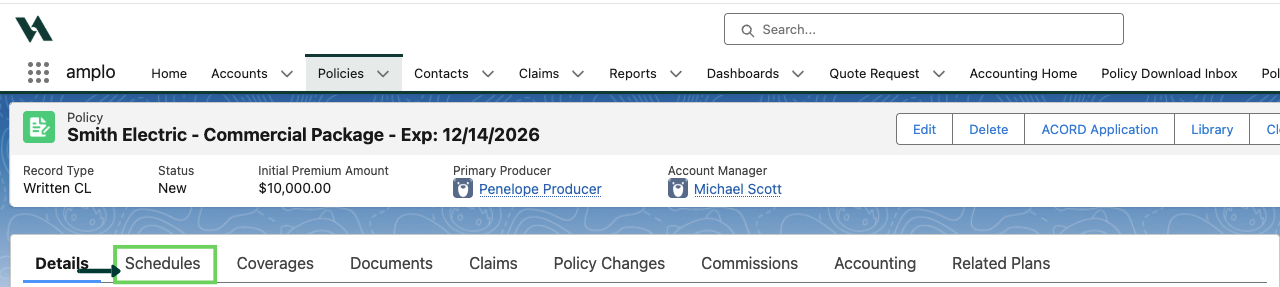
Select the Schedule Type from the dropdown.

Click Create New, and enter the relevant details related to the schedule, and click Save (or Save & New if adding multiple schedules).
Adding coverages
Coverages are the specific protections provided by an insurance policy. They define what risks are insured, what types of losses are covered, and how much the insurer will pay if a claim occurs. It's important that this information is accurate as it affects how the coverage connects to the policy and how it appears on official documents like ACORD forms.
Commercial Lines
Commercial policies may apply coverage at different levels—such as the policy, location, building, vehicle, or classification—and frequently involve endorsements, sublimits, and aggregates. These policies are designed to address broader and more varied business exposures, so adding coverage requires careful attention to where the coverage is applied and how it interacts with the overall policy structure.
Navigate to the commercial policy where you want to add the coverage.
From the policy, select the Coverages tab.

Navigate to the tab that corresponds to the coverage type you would like to add.
Expand Policy Level Coverages menu and select Add Policy Level Coverage.

Add the limits, deductibles and other required information for each coverage and click Save.

Personal Lines
Personal policies (such as Homeowners or Personal Auto) are typically built around pre-defined coverage packages.
Navigate to the policy where you want to add the coverage.
From the policy, select the Coverages tab.

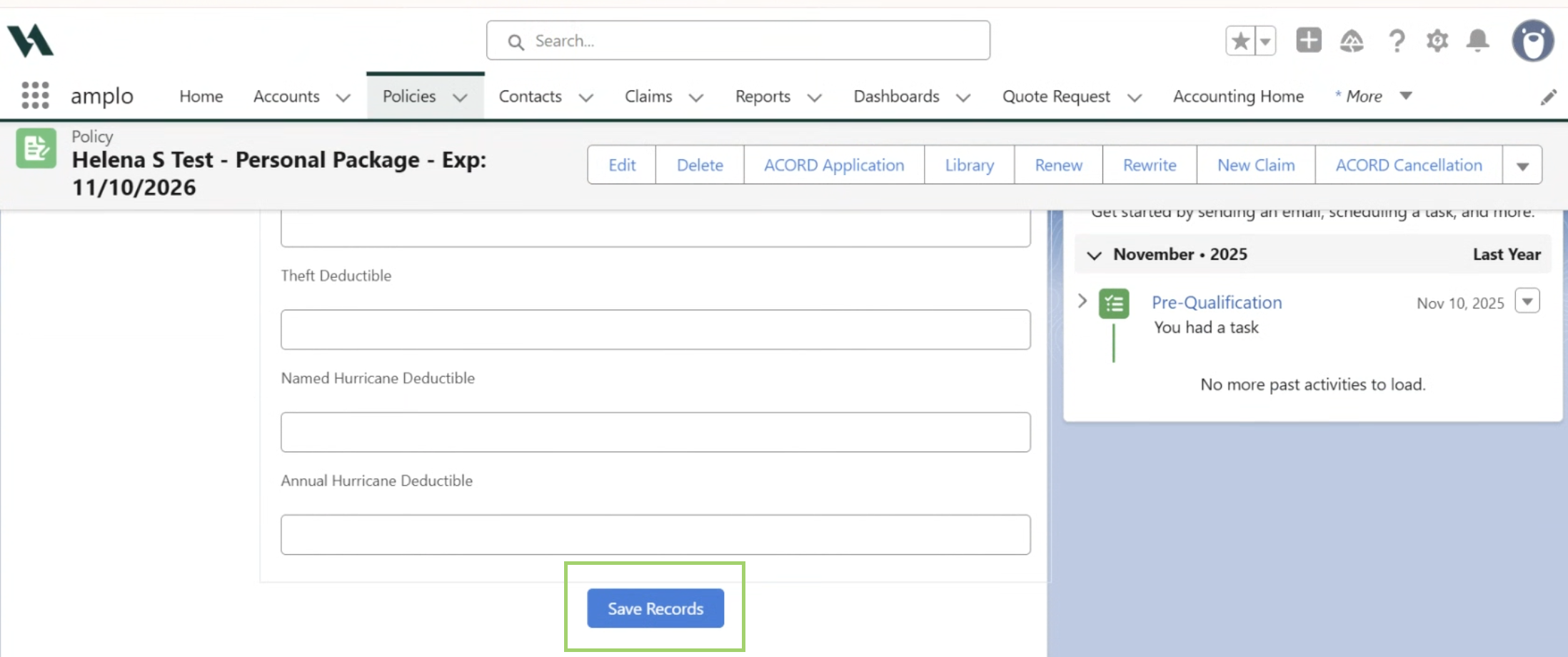
Enter the relevant information for the coverages, then click Save Records.
PL Coverage Options
The PL Coverage Options component creates a direct relationship between a personal lines policy and a coverage. This section captures the specific coverage limits, endorsements, and optional protections selected for a personal lines policy — such as homeowners, auto, or umbrella.
Navigate to the policy record you want to add the coverage.
Select the Coverages tab.
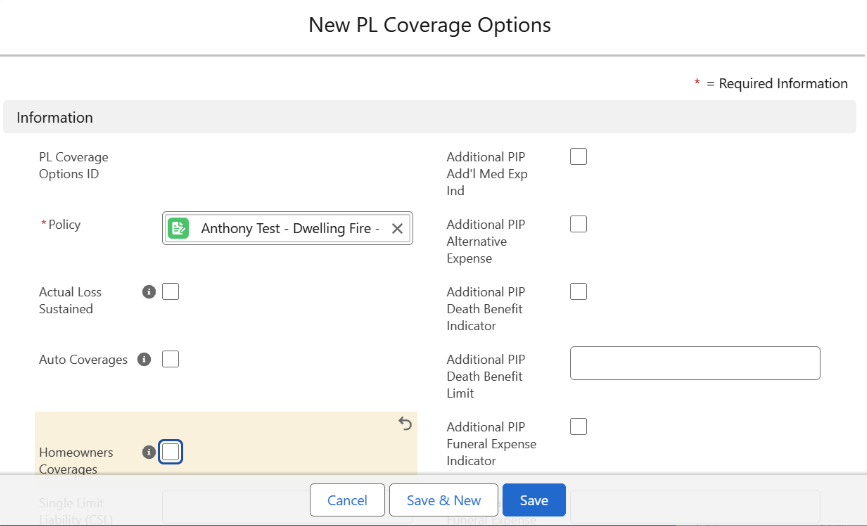
Under the PL Coverages Options section, select New.
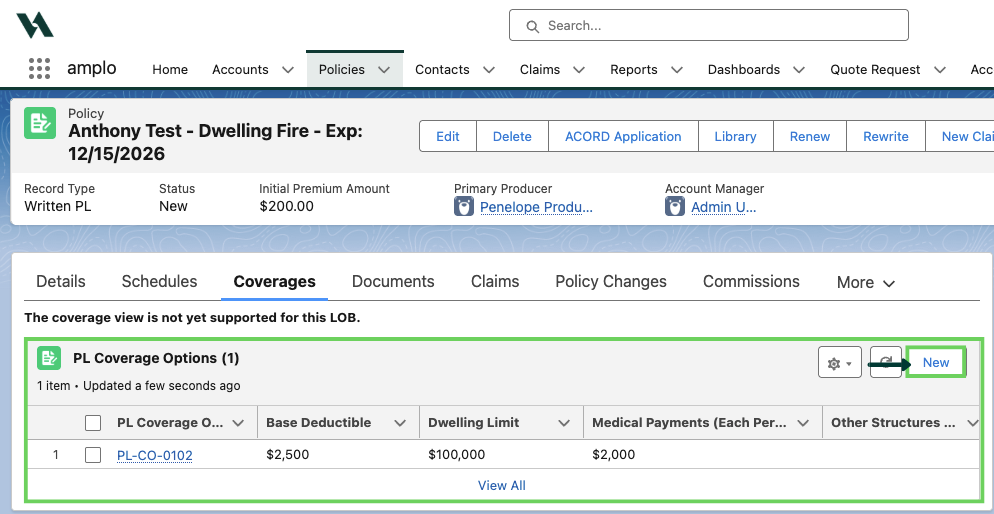
In the New PL Coverages Options modal, complete the relevant information and click Save (or Save & New if adding more coverage options).
Troubleshooting
If the Coverages or PL Coverage Options related lists are not on the page layout, have an admin follow the instructions in 📄 Adding components to a record page.
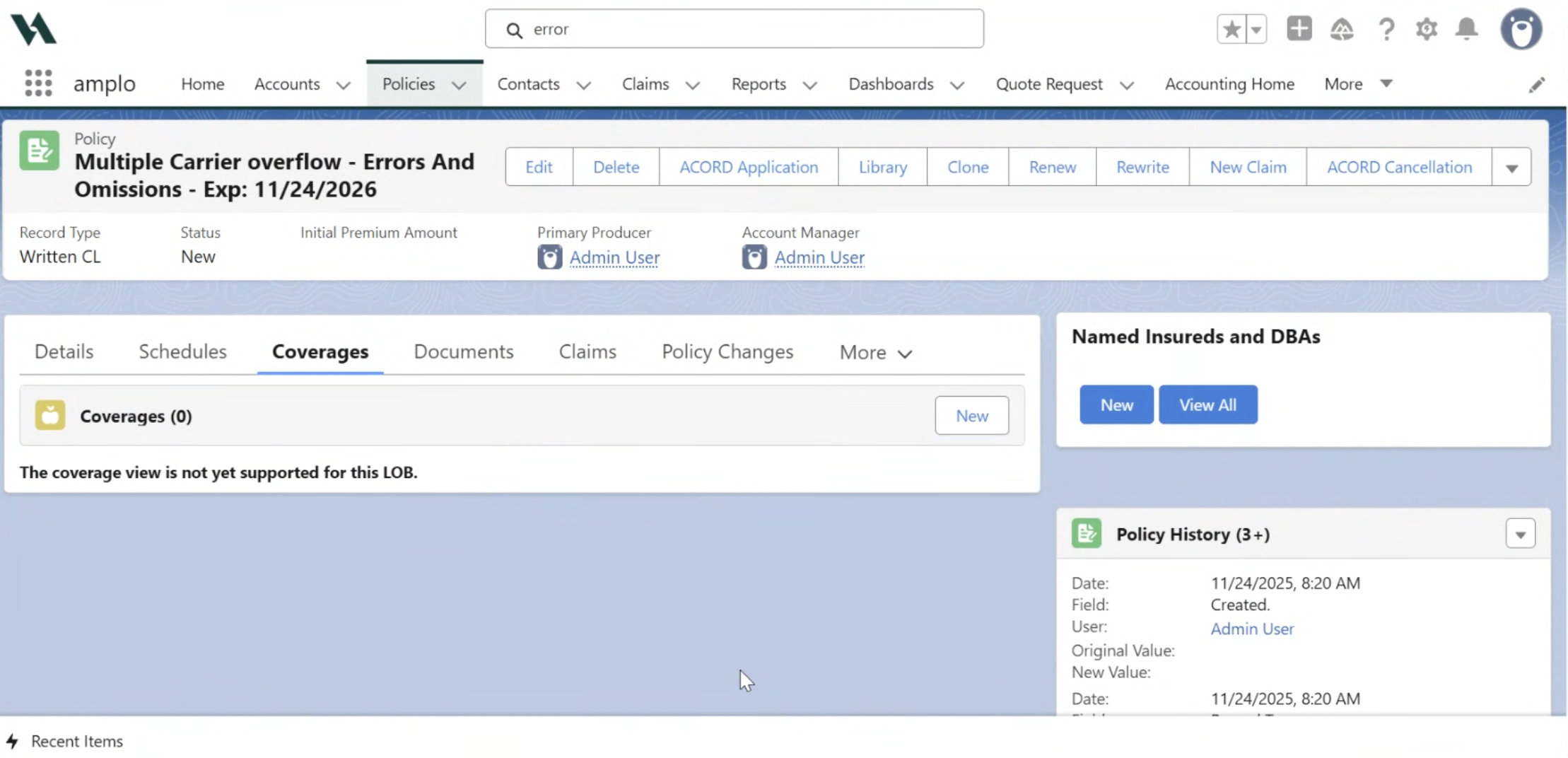
You may encounter a message:
The coverage view is not yet supported for this LOB.”This means that coverages for this line of business are not available in the Coverages screen. Please open the ACORD Application. The full coverage details can be found on the corresponding ACORD form.