Resolving account name update errors
Last updated: July 28, 2026
Overview
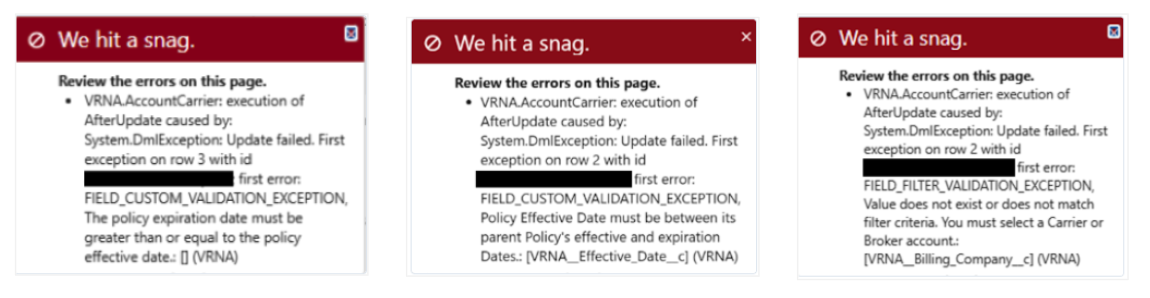
When you update an account name in amplo, associated policy names update automatically, since policy names include the account name by default. If a linked policy has a validation error, the account name update will fail and trigger a "We hit a snag" error message. To resolve the issue, review the full error and correct the associated policy before trying again.
Common validation errors
The policy expiration date must be greater than or equal to the policy effective date.
Policy Effective Date must be between its parent policy's Effective and Expiration Dates.
Value does not exist or does not match filter criteria. You must select a Carrier or Broker account.
The agency and/or branch indicated on this policy does not correspond to a GL
Accounting Variable. Ensure your accounting setup has been completed properly.
Common causes
Invalid or inconsistent dates on the policy
An incorrectly identified billing company on the account record
Identify and fix problematic policies
When the We hit a snag popup appears, review the full error message. It will list the policy causing the error and the validation rule it triggered.
Copy the string of text between the words id and first error (it begins with a0W).
In your browser's URL, delete everything after .com/.
Paste the copied string after .com/ and press Enter to open the policy record directly.

Correct the relevant fields on the policy record based on the validation error:
Date-related errors will identify the impacted fields and validation requirements.
The Value does not exist or does not match filter criteria. You must select a Carrier or Broker account error indicated the policy's Billing_Company__c field doesn't reference a correctly identified billing company.
Note: This can occur if an account listed in the Billing_Company__c field was later updated at the account level to no longer be classified as a billing company. The affected billing company account may not be related to the account you're currently trying to update.
Retry the account update
Return to the Account Details page.
Click the pencil icon next to the Account Name field.
Update the name and click Save.
Note: Make sure policy effective dates fall on or before the policy's expiration date across all policies linked to the account. If the error persists after making corrections, check for additional policies with invalid date ranges. The update won't complete until all discrepancies are resolved.