Creating a PL monoline policy
Last updated: March 6, 2026
Overview
A personal monoline policy is used when a client needs coverage for a single line of business, such as Home, Auto, or Umbrella, written as a standalone policy. This structure is ideal when coverage is placed with a specific carrier, requires customization, or does not need to be bundled with other lines.
In the steps below, you’ll learn how to select the appropriate policy type, enter required details, and complete setup to ensure the policy is accurate and ready to move through its lifecycle.
Create the policy
On an Account record, select New PL Policy.

On the New PL Policy modal, choose your line of business from the Policy/Coverage Type picklist. If you don't see the monoline policy type you need, contact your system admin or support@amplo.com.
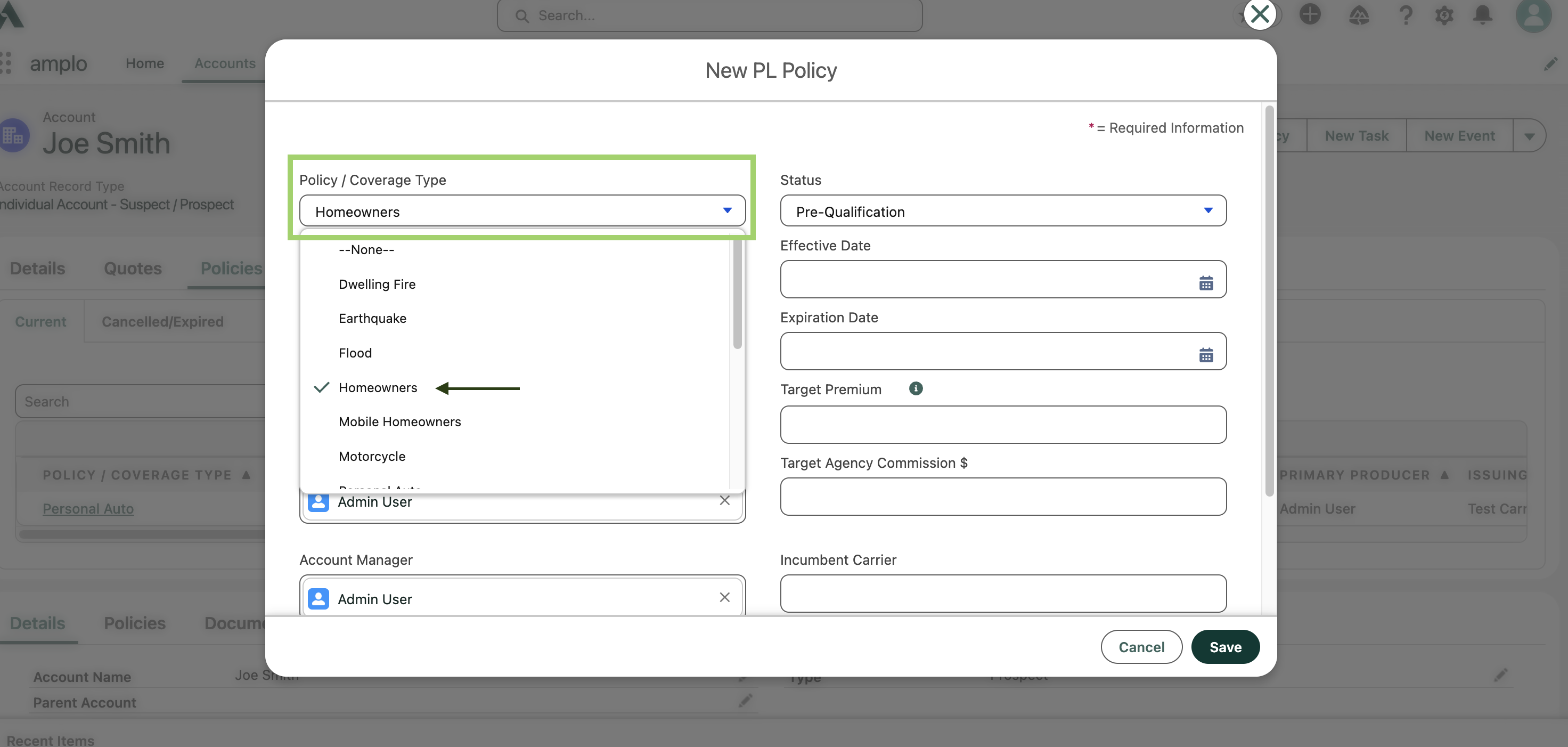
Note: Do not select Personal Package from the Policy/Coverage Type picklist, as that option is reserved for package policies. For more information about package policies, see 📄 Creating a PL package policy.
Add an Effective Date for the policy.

Update the modal with the available information:
Primary Producer : Populates from the Account. It may be blank or not accurate for this policy. If no producer is assigned, select the House checkbox. You must either have a value for Primary Producer or the House checkbox enabled or you will receive an error.
Account Manager: Populates from the Account. It may be blank or not accurate for this policy.
Agency: Select the agency responsible for the policy.
Branch (required): Select the branch associated with the agency for this policy.
Issuing Carrier : If you selected a carrier during quoting, enter it here.
When finished, select Save.
Once you save your new personal line policy, a confirmation header will appear. Use the hyperlink in the confirmation message to navigate to your new monoline policy record.

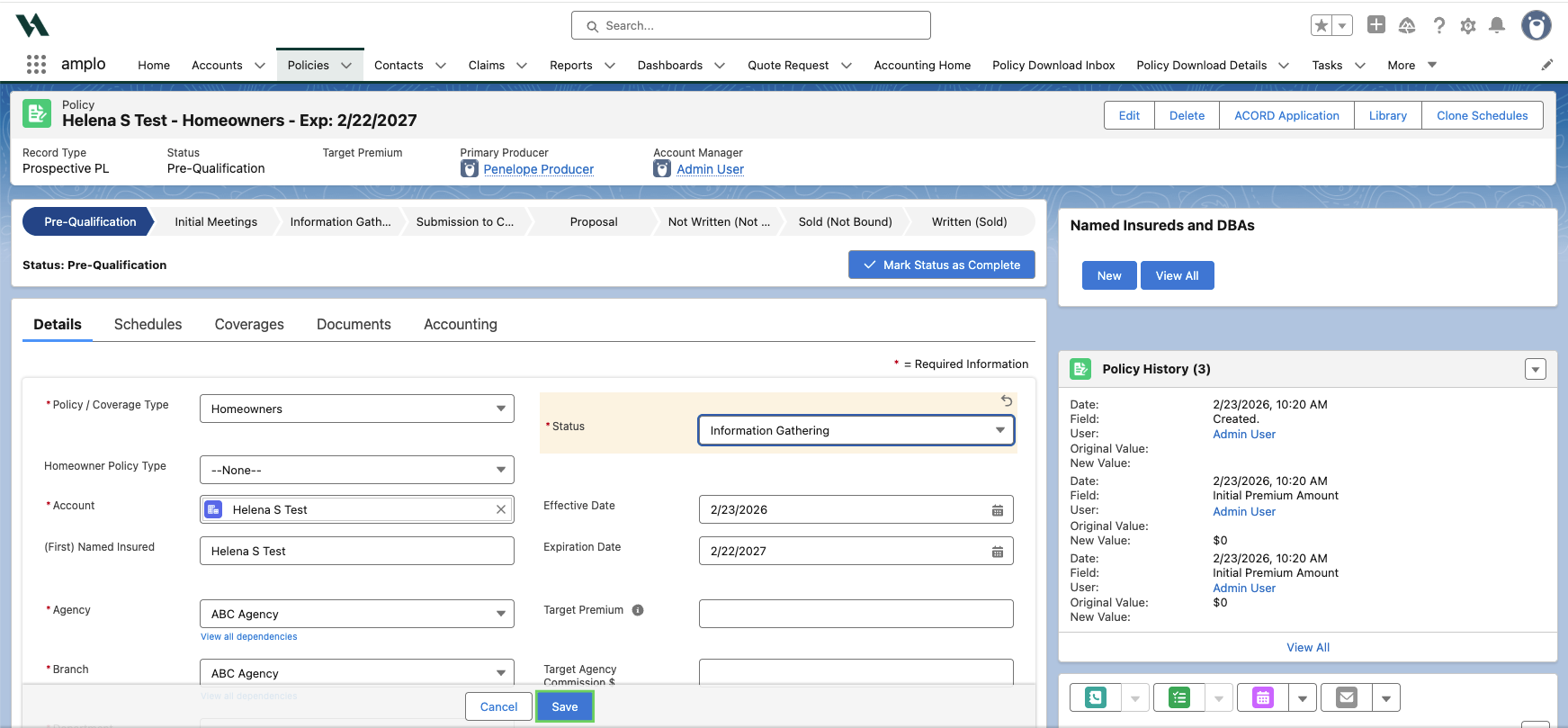
From the policy record, select the edit pencil next to Status to update the status to Information Gathering.

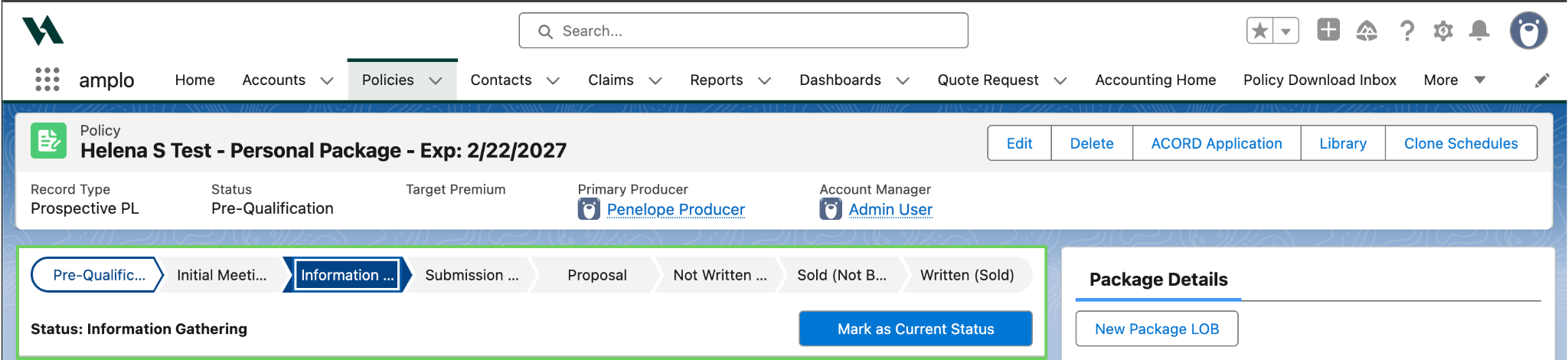
You can also change the status of a policy using the sales path by selecting the appropriate stage and Mark Status as Complete.
Select Save.
Now that the monoline policy has been created, refer to the 📄 Adding policy schedules and coveragesarticle to review, update, and finalize the associated schedules and coverages.