Managing Ledgers
Last updated: February 26, 2026
It is typical to have one agency. However, if the agency name changes or you add a new agency, you must ensure the ledger matches. Skip this section if you are not an Accounting Seed customer.
Update an existing Ledger
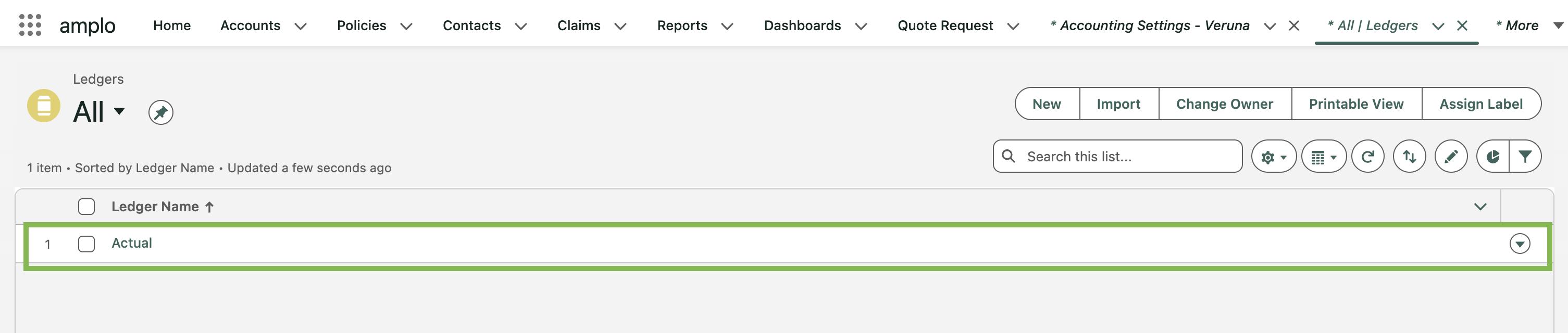
In the App Launcher, search and select Ledgers.

Select your Transactional ledger.
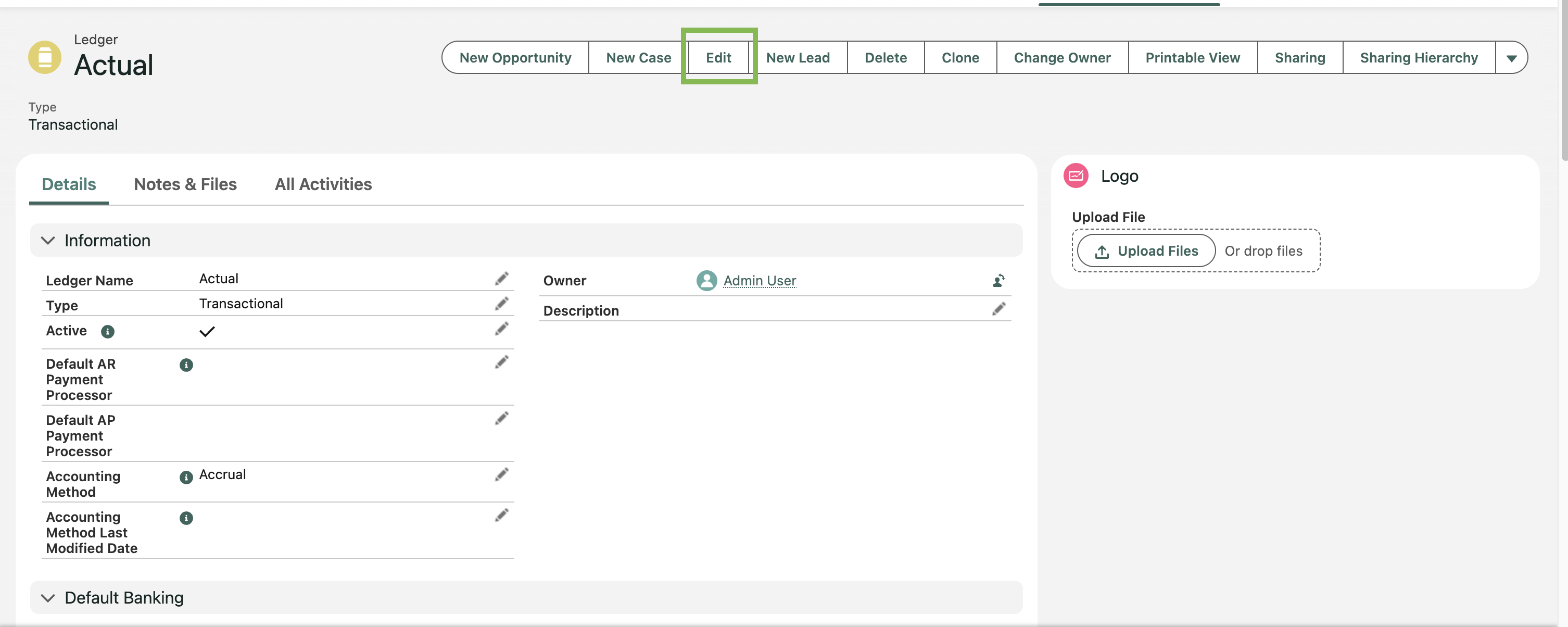
Click Edit.
Update the Ledger Name to match the new Agency name exactly and click Save.

Add a new Ledger
If you are adding a new ledger, Accounting Seed must first provision it before completing this step. Read Configure a Ledger for full setup instructions. Once the new Ledger has been provisioned:
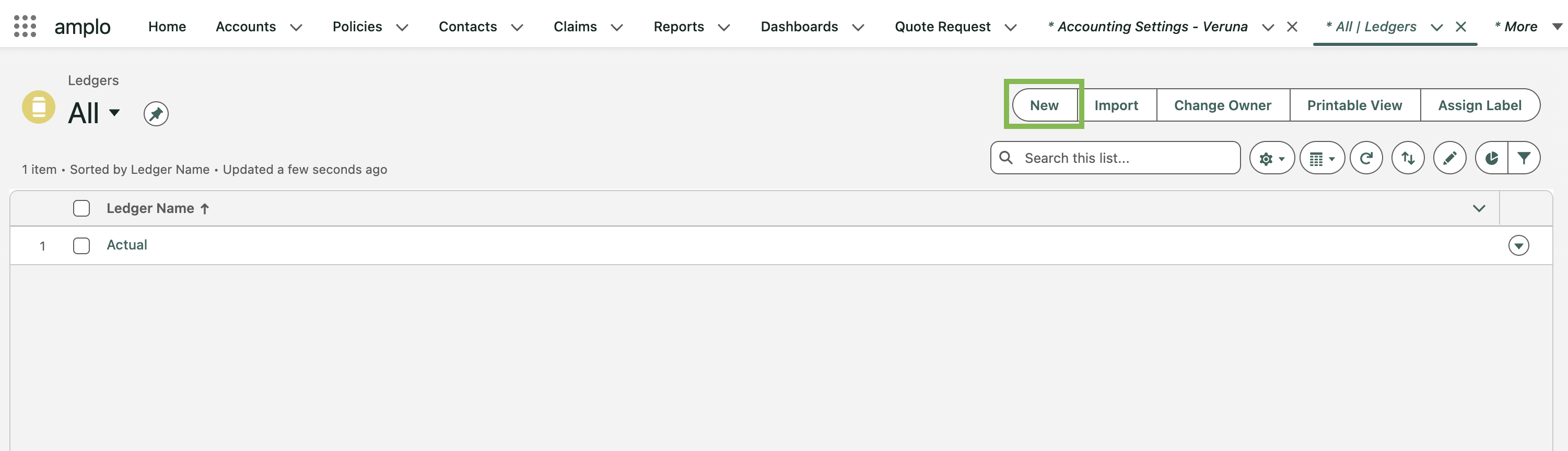
Navigate to App Launcher, search and select Ledgers.
Click New.
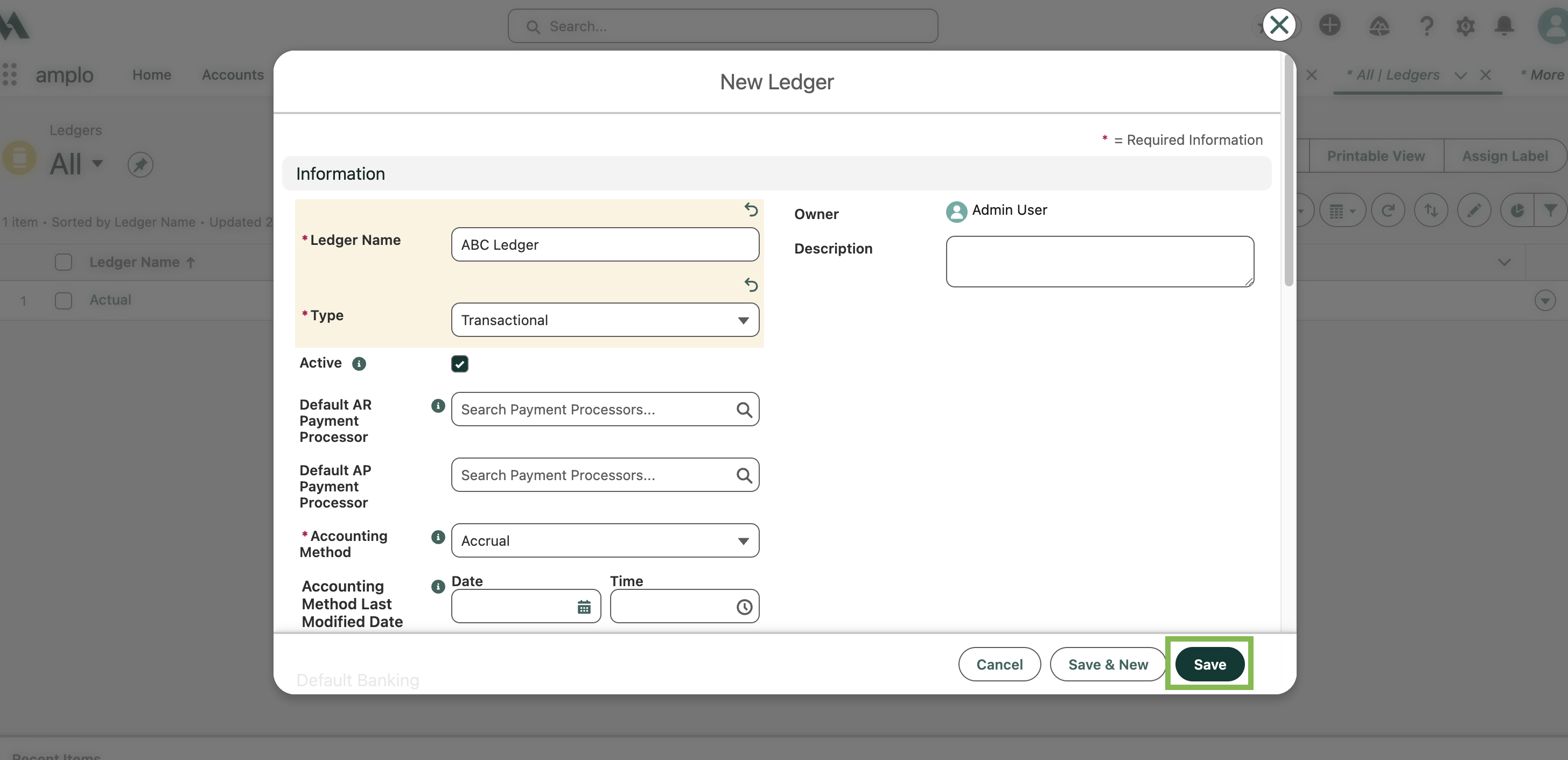
In the New Ledger modal, fill out the required fields:
Ledger Name
Type
Accounting Method
Fill in remaining fields:
Default Bank Account
Default Billing Format
Billing Activity Statement Format
Billing Outstanding Statement Format
Click Save.