Understanding passkey requirements in Salesforce
Last updated: October 6, 2026
Overview
Some users are required to use passkeys while others aren't. This guide covers the two main passkey-related settings in Salesforce and explains why login behavior for users may look inconsistent across your organization.
How Salesforce determines passkey requirements
The passkey requirement is determined by a user's profile and permission level. Salesforce now requires privileged users, such as system administrators or users with data-modification permissions, to use phishing-resistant MFA, which is primarily satisfied through passkeys or hardware security keys. Standard users may still use traditional authenticator apps.
This difference in requirements is why login experiences can differ across your organization. For more information, see Salesforce's Prepare for Phishing-Resistant MFA Enforcement for Privileged Users including Admins.
Passkey login options
Salesforce has two distinct passkey-related settings. Knowing the difference helps you choose the right configuration for your users.
Passwordless login with passkeys
This setting lets users log in without a password entirely, instead using a passkey, such as a built-in authenticator or security key, in place of the traditional username and password combination. To enable this setting, use the steps below.
Go to Identity Verification in Salesforce Setup.
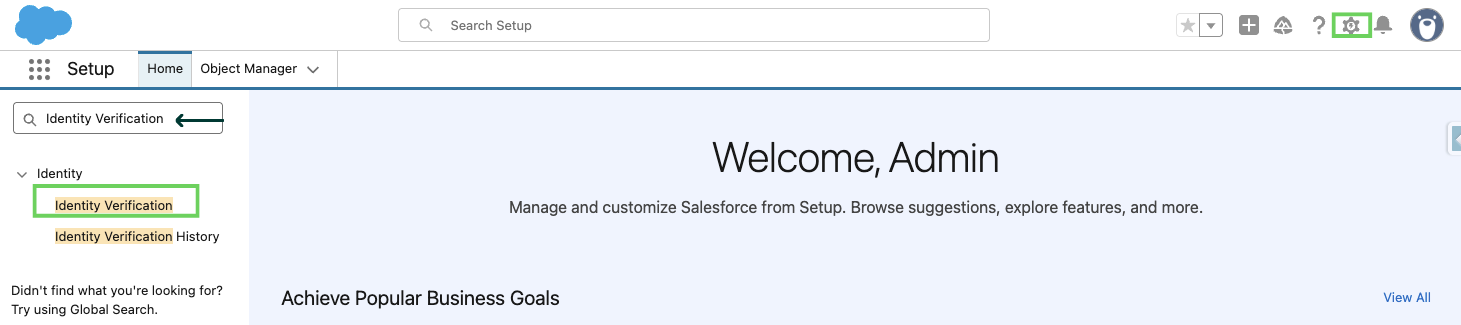
Select Allow passwordless login with passkeys.
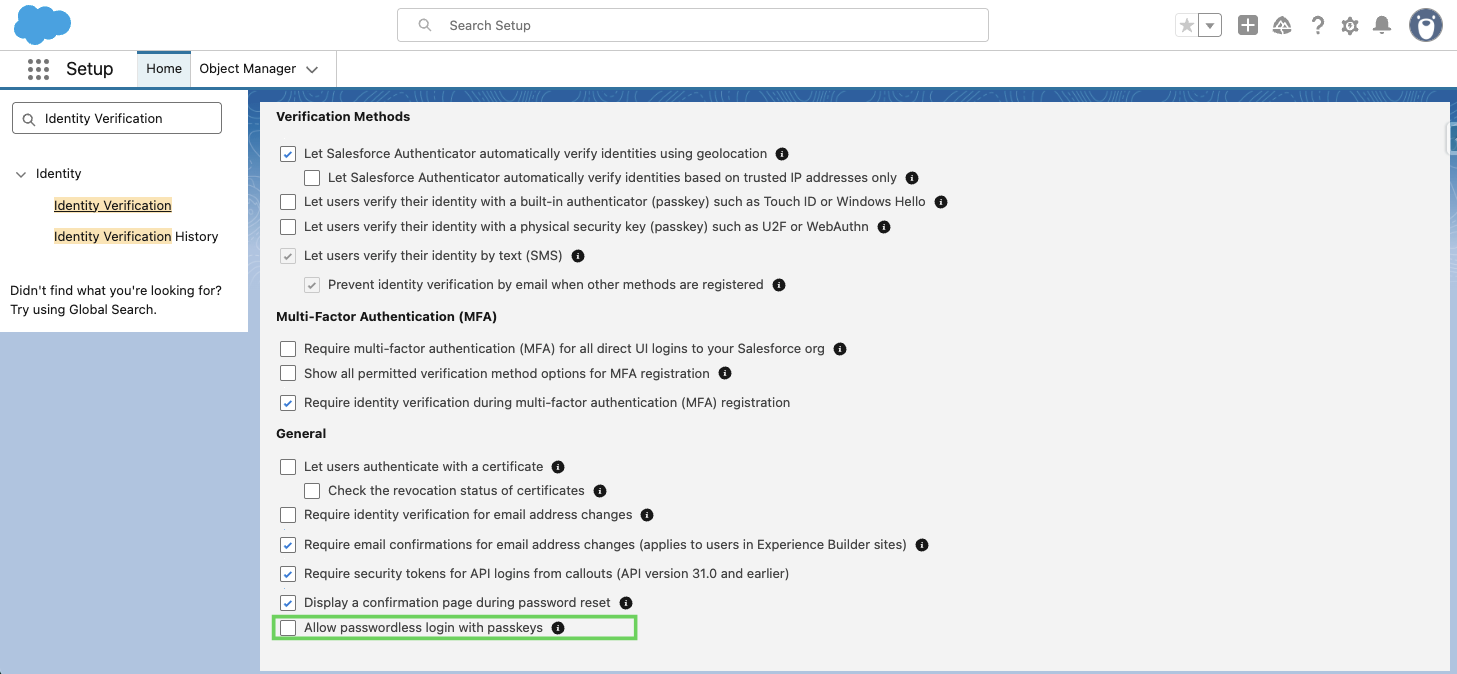
Once enabled, users can save their username, select Remember me, and log in directly using their passkey. For more information, see Salesforce's Passwordless Login with Passkeys.
Built-in authenticators (passkeys) for identity verification
This setting applies to multi-factor authentication (MFA), the verification step after a user has already logged in with a password. It lets users use a built-in authenticator, such as Touch ID, Windows Hello, or a password manager, as their second factor instead of a traditional authenticator app.
For more information, see Salesforce's Built-In Authenticators (Passkeys) for Identity Verification.
Troubleshooting login issues
If a user gets blocked after authenticating with a third-party identity provider, such as Microsoft, additional investigation may be needed. Check the following:
whether the user is getting a specific error message during login
whether the issue is device-specific, for example, only happening on one device and not another
whether the passkey has been properly registered and saved for that device.
If you can't resolve the issue using the steps above, contact Amplo Support with the error message, device, and browser used, so we can assist further.